
Building Your Second Brain: OpenClaw & Obsidian/Notion Deep Memory Sync Guide
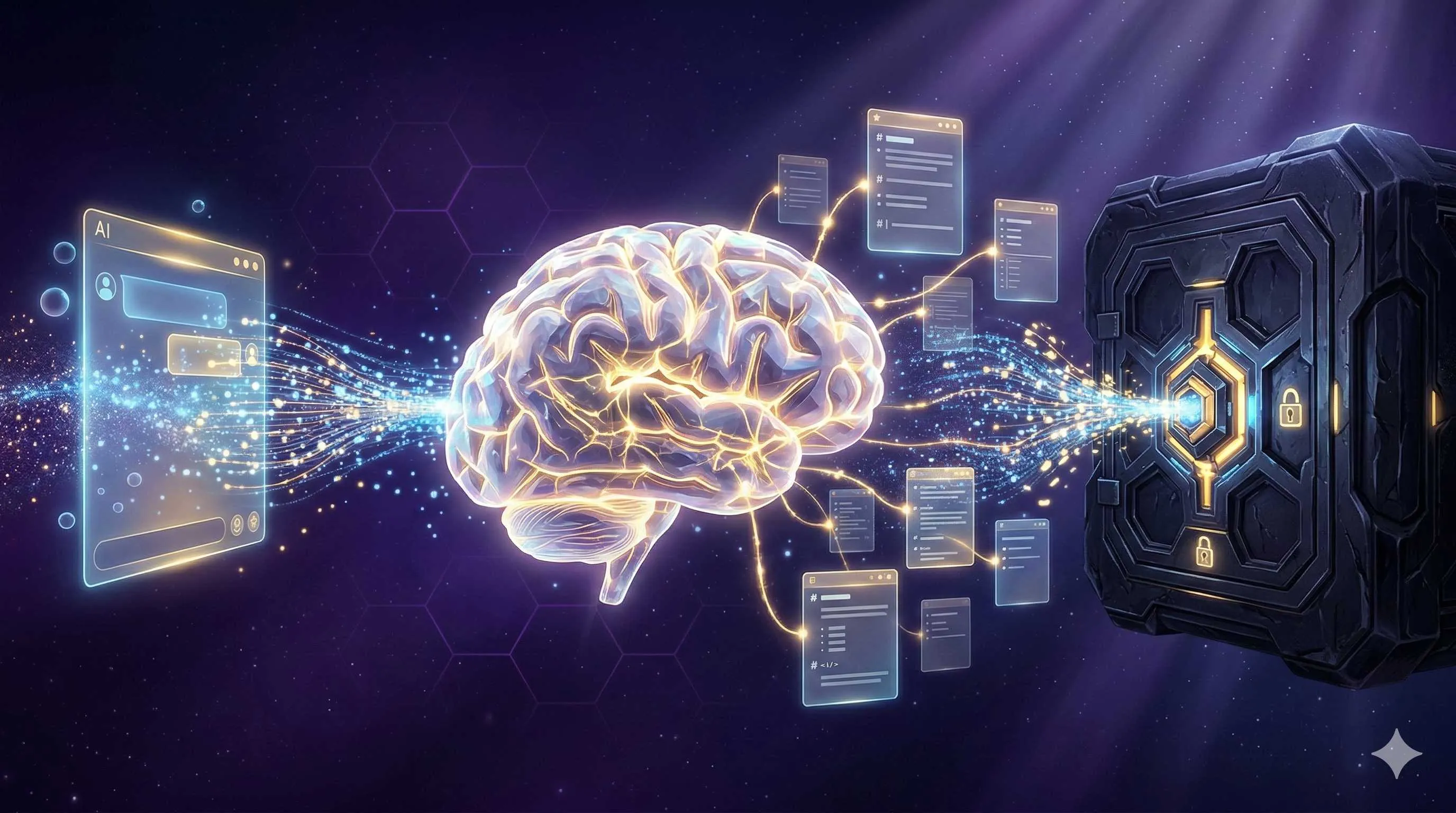
Honestly, after using Claude Code for so long, there’s one thing that frustrates me the most — it keeps forgetting.
Every time I start a new session, I have to reintroduce the project background, explain requirements, and repeat decisions we discussed earlier. It feels like you’re having a great conversation with a friend, and the next day they ask: “What were we talking about yesterday?”
Later, I realized I wasn’t the only one facing this issue. On Reddit’s r/ClaudeAI, you can find similar complaints everywhere. Some people built complex indexing systems for Haiku to crawl instead of having Opus read full files. Others manually ask Claude to summarize key points at the end of sessions, then copy-paste them into notes.
These methods work, but none of them are elegant.
Then I discovered OpenClaw’s obsidian-vault skill. It allows AI conversation memory to automatically sync to a local Obsidian notes vault — not the kind of manual export that requires your intervention, but truly seamless two-way synchronization.
What is OpenClaw’s Memory System?
Before diving into configuration, let’s cover some background.
OpenClaw is an open-source Claude Code enhancement framework that extends Claude’s capabilities through skills. The obsidian-vault skill is specifically designed for interacting with Obsidian note vaults.
Obsidian is a local-first knowledge management tool built on top of plain Markdown files. Its core concept is the “vault” — essentially a folder full of Markdown files. This design makes it a perfect match for OpenClaw: Claude Code can already read and write files, so now it’s just writing notes to a specific folder.
According to Dave Swift’s practical experience, by connecting Obsidian, you can give your AI agent a real, persistent memory system. And this memory is “graphical” — you can see in Obsidian’s knowledge graph how AI’s thinking connects with your other notes.
Preparation
Before starting, you’ll need to prepare a few things:
Required:
- Claude Code installed and configured
- Obsidian installed (free version works fine)
- An Obsidian vault for AI memory
Optional (but recommended):
- Git for version control (makes it easy to track AI modifications)
- Basic terminal/command line knowledge
I personally recommend creating a dedicated vault for AI rather than letting it directly manipulate your years-old main vault. Safety first.
Step 1: Create the Obsidian Vault Structure
Open Obsidian and create a new vault, naming it “ClaudeMemory” or whatever you prefer.
In the vault’s root directory, create the following folder structure:
ClaudeMemory/
├── 01-Session-Logs/          # Session records
├── 02-Knowledge-Base/        # Knowledge repository
├── 03-Projects/              # Project-related notes
├── 04-Daily-Notes/           # Daily notes
└── CLAUDE.md                 # AI memory entry point
This structure is something I developed through trial and error. Session-Logs stores conversation summaries with AI; Knowledge-Base contains organized knowledge points; Projects are organized by project; Daily-Notes follows a timeline.

Step 2: Configure CLAUDE.md
CLAUDE.md is the core of the entire system. Located in the vault root, it’s automatically read every time Claude Code starts. Think of it as the “memory entry point” for your AI.
Here’s a configuration I’ve been using:
# Claude Memory System Configuration

## Current Vault Info
- Vault Name: ClaudeMemory
- Purpose: AI conversation memory and knowledge management
- Created: 2025-02-27

## Directory Structure
- 01-Session-Logs/: Store session summaries and key decisions
- 02-Knowledge-Base/: Organized knowledge using [[bidirectional links]]
- 03-Projects/: Project-organized notes
- 04-Daily-Notes/: Daily timeline records

## Memory Sync Rules
1. Before each session ends, write key discussions to 01-Session-Logs/YYYY-MM-DD-session.md
2. Move important knowledge points to 02-Knowledge-Base/ after organization
3. Use [[Note Name]] format for bidirectional links
4. First note of new projects must include project-info code block

## My Preferences
- Note Language: English
- Tag Style: Use #tag format
- Link Style: Prefer [[display|actual link]] pipe syntax
- Avoid: Lengthy summaries, prefer bullet-point records
The key part of this configuration is the “Memory Sync Rules” section. It tells the AI: when to take notes, where to save them, and in what format. This way you don’t have to remind it every time — it follows the rules automatically.
Step 3: Install the obsidian-vault Skill
Now you need to let Claude Code know how to interact with this vault. That’s where the obsidian-vault skill comes in.
First, find your Claude Code skills directory. Usually:
- Mac/Linux:
~/.claude/skills/ - Windows:
%USERPROFILE%\.claude\skills\
Then create the obsidian-vault skill directory structure:
mkdir -p ~/.claude/skills/obsidian-vaultCreate two files in this directory:
SKILL.md — The skill definition file:
---
name: obsidian-vault
description: Interact with Obsidian vaults to enable persistent AI memory storage
version: 1.0.0
---

# Obsidian Vault Skill

## Overview
This skill allows Claude to read, write, and manage Markdown files in Obsidian vaults, enabling automatic sync of AI conversation memory.

## Available Commands

### /save-memory
Save key information from the current session to the Obsidian vault.

Usage: /save-memory [title] [category]
- Title: The note title
- Category: session/knowledge/project/daily

Example: /save-memory "API Design Discussion" session

### /search-notes
Search for notes in the vault.

Usage: /search-notes [keyword]

### /link-notes
Create bidirectional links for the current note.

Usage: /link-notes [[Note A]] [[Note B]]

## Rules
- All notes use Markdown format
- Support Obsidian-specific syntax: [[bidirectional links]], #tags, >quotes
- Session records use YYYY-MM-DD-title.md naming format
- Important knowledge points should be tagged with #permanent-note
CLAUDE.md — Skill context supplement (optional):
When using the obsidian-vault skill:
1. Prioritize reading the current project's CLAUDE.md for context
2. Check if file exists before writing notes
3. Use Frontmatter for metadata (date, tags, source)
Step 4: Hands-On Practice
Alright, configuration complete. Now let’s actually use this system.
Scenario: Discussing a New Project
Suppose I’m discussing a new blog system architecture with Claude. After the discussion, I can simply say:

> “Help me save today’s discussion to Obsidian.”
If the skill is configured correctly, Claude will:
- Create a file in 01-Session-Logs/, like
2025-02-27-blog-system-architecture.md - The file content might look like this:
---
date: 2025-02-27
type: session-log
tags: [blog, architecture, planning]
---

# Blog System Architecture Discussion

## Key Decisions
- Use Astro as the static site generator
- Store content in Markdown files
- Comments system using Giscus (GitHub Discussions powered)

## Tech Stack
- Frontend: Astro + React
- Styling: Tailwind CSS
- Deployment: Vercel
- Content Management: Local Markdown + Git

## Todo Items
- [ ] Set up basic project structure
- [ ] Configure Tailwind
- [ ] Design homepage layout

## Related Links
- [[Astro Official Docs]]
- [[Tailwind Setup Guide]]
See? Frontmatter metadata makes notes searchable and categorizable, bidirectional links connect it to other notes in your knowledge base, and todo items let you track progress directly.
Auto-Sync Tips
Still too manual? I later added a rule to my CLAUDE.md:
## Auto-Sync Triggers
Automatically save memory when:
- Session duration exceeds 30 minutes
- Important architectural decisions are discussed
- User explicitly says "remember this"
- The final message before session ends
This way Claude proactively saves notes at appropriate times — I don’t have to remind it every time.
Notion Integration
Some people prefer Notion. The good news is this approach works for Notion too.
Notion provides an API, and you can create a similar skill that lets Claude sync content to Notion databases via the API. However, compared to Obsidian’s direct file operations, Notion requires:
- Applying for a Notion Integration Token
- Sharing specific databases with that Integration
- Using the Notion API for CRUD operations
Markaicode’s tutorial mentions that OpenClaw can sync with Notion in about 20 minutes. If you’re already a heavy Notion user, this might be worth considering.
But I personally recommend Obsidian because:

| Feature | Obsidian | Notion |
|---|---|---|
| Data Ownership | Local files, full control | Cloud storage, service-dependent |
| Format Portability | Plain Markdown | Proprietary format, limited export |
| Access Speed | Local-first, instant | Network-dependent |
| API Complexity | Direct file operations | Requires API Token and permission setup |
| Offline Use | Fully supported | Limited support |
Advanced Usage
Once the basic setup is complete, you can try some advanced features:
1. Knowledge Graph Visualization
Obsidian’s Graph View shows connections between notes. As AI creates more linked notes, you’ll see a growing knowledge network. This visual “second brain” experience is pretty amazing.
2. Note Templates
Create templates in Obsidian, such as:
session-template.md— Session record templateproject-template.md— Project kickoff templatedecision-record.md— Decision record template
Then tell Claude which template to use in CLAUDE.md.
3. Integration with Other Tools
- Use Templater plugin for more complex automation
- Use Dataview plugin to query and display notes
- Use Git plugin for automatic remote syncing
- Combine with Alfred/Raycast for quick note searching
Final Thoughts
Setting up this system took me an afternoon, but the payoff is ongoing. Now when I open Obsidian, I can see all the important topics I’ve discussed with AI over the past few weeks, with clear connections between them. It feels like having a digital assistant that truly learns and grows.
As someone on Reddit put it: “Claude Code + Obsidian = graphical Claude memory.” This equation is accurate — what’s being visualized isn’t just notes, but the knowledge structure you and your AI build together.
If you’re using Claude Code, I strongly recommend trying this setup. It won’t magically solve all problems, but at least you’ll never have to repeatedly explain “where we left off yesterday.”
This article is also saved in my Obsidian vault, tagged: #openclaw #obsidian #ai-memory #knowledge-management
FAQ
Claude says it can't find the skill
Saved files have messy formatting
Bidirectional links aren't working
How do I back up these memories?
What if Claude makes a mistake in my Obsidian vault?
7 min read · Published on: Feb 27, 2026 · Modified on: Mar 3, 2026

Related Posts
AI Marketing Automation Guide: Build a One-Click Content Pipeline with OpenClaw

AI Marketing Automation Guide: Build a One-Click Content Pipeline with OpenClaw
AI Tools for Developers: OpenClaw + Claude Code 24/7 Auto Bug Fix

AI Tools for Developers: OpenClaw + Claude Code 24/7 Auto Bug Fix
ALERT: 800+ Malicious Plugins Found in ClawHub Skill Library — Is Your API Key Safe?

Comments
Sign in with GitHub to leave a comment