
Astro Build Failing? Troubleshoot These 7 Common Causes in 5 Minutes
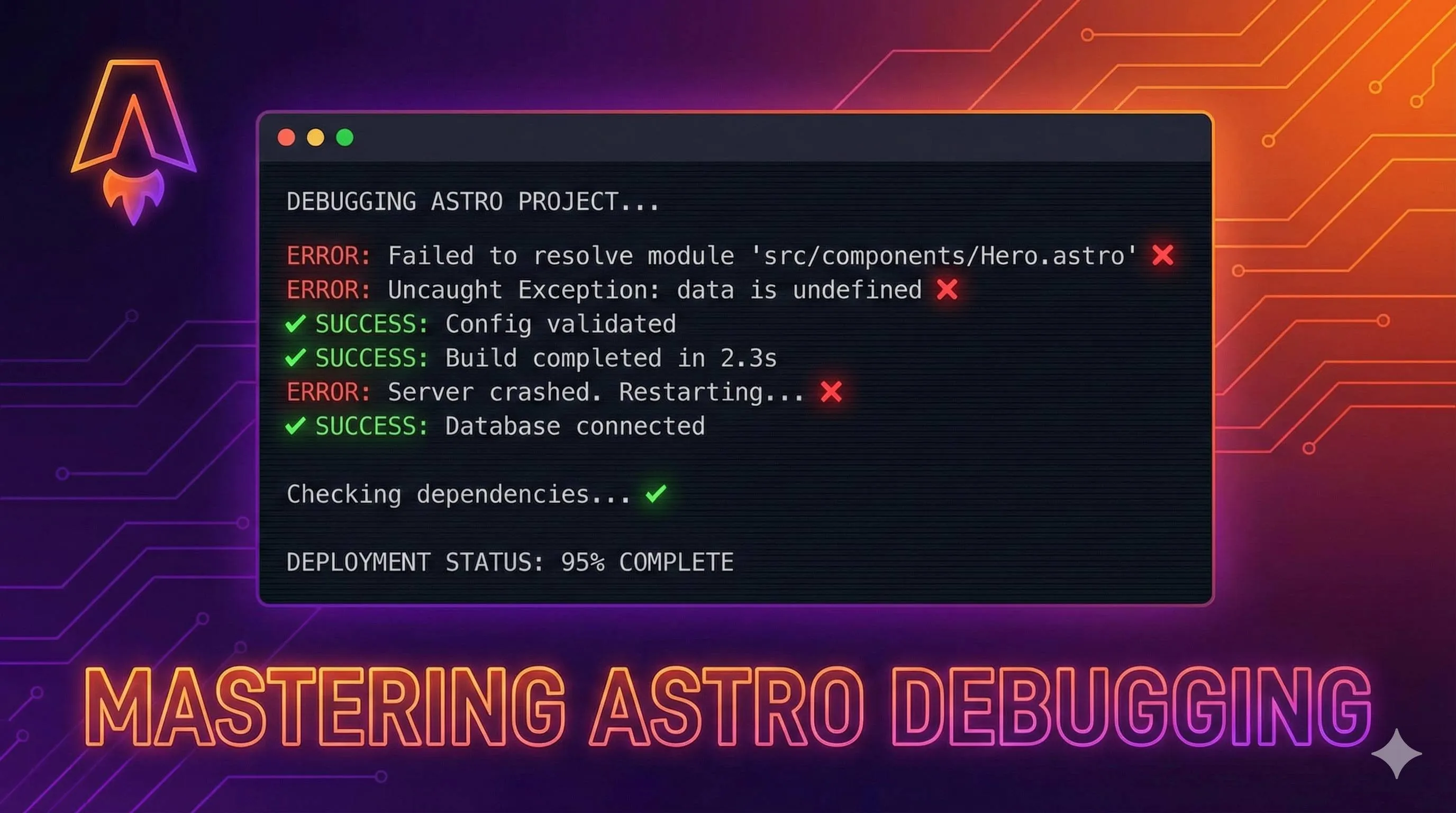
2 AM, staring at a terminal filled with red error messages, and here I am questioning my life choices again. Everything works perfectly locally - npm run dev runs smoothly, components render beautifully, routing works like a charm. But the moment I run astro build, everything explodes.
Sound familiar? Astro build failures are probably one of the most frustrating problems frontend developers face. The gap between local development and production builds leaves you scratching your head. Even worse, error messages often span dozens of lines packed with technical jargon, leaving you with no clue where to start.
To be honest, I went through the same struggle when I first started using Astro. Every build error meant hours of Googling, trying various solutions - if lucky, fixing it in 10 minutes; if not, battling it all night. Later, I developed a systematic troubleshooting approach and discovered that 90% of build failures boil down to these 7 common causes.

This article is a summary of two years of trial and error. I’ll show you:
- How to quickly pinpoint the problem in 5 minutes (no more blind guessing)
- 7 most common build failure scenarios and their solutions
- Special gotchas for different deployment platforms (Vercel/Cloudflare/GitHub Pages)
- Preventive best practices to help you avoid these pitfalls
Without further ado, let’s dive into rapid diagnostics.
Quick Reference: Error Message Lookup Table
First, here’s a quick reference table for instant matching:
| Error Message | Possible Cause | Quick Fix |
|---|---|---|
SyntaxError: Unexpected token 'with' | Node.js version too old | Upgrade to Node 18.17.1+ or 20.3.0+ |
Cannot find module / ERR_MODULE_NOT_FOUND | Dependency installation issue | Delete node_modules and reinstall |
frontmatter does not match schema | Content Collections validation failure | Check Markdown frontmatter format |
document is not defined / window is not defined | Third-party package incompatible with SSR | Use client:only or dynamic imports |
The build was canceled | Integration conflict or dependency issue | Comment out integrations one by one |
| Works locally, fails online | Environment variable or Node version mismatch | Check deployment platform configuration |
| GitHub Pages shows 404 | Base path not configured | Set base field in astro.config.mjs |
I. Quick Diagnosis Framework: Pinpoint the Problem in 5 Minutes
3 Key Points to Understand Error Messages
Many people panic at the sight of errors, but the message already contains the answer. Here are 3 key points to quickly decode errors:
1. Identify the Error Type
Look at the first line or keywords:
SyntaxError: Code syntax issueModuleNotFoundErrororCannot find module: Missing dependencyValidationError: Data validation failure (usually Content Collections frontmatter)ENOENT: File or directory doesn’t existis not defined(document/window): Accessing browser APIs during server-side rendering
For example, if you see SyntaxError: Unexpected token 'with', you can be pretty sure the Node.js version is too old.
2. Locate the Error Position
Scroll down to find information like this:
at /path/to/your/file.astro:23:5This tells you exactly which file and which line (line 23) has the problem. Don’t get distracted by the node_modules paths in between - focus on finding your own code’s path.
Sometimes the error isn’t in your code but thrown by a dependency. In such cases, look at the top of the error stack - usually, you’ll find clues like Error: xxx caused by.
3. Understand the Error Context
Pay attention to which stage the error appears in:
Building for production...→ Build stage errorRendering...→ Page rendering stage errorvite v5.0.0 building for production...→ Vite build layer error
Build stage errors are usually configuration or dependency issues, while rendering stage errors are more likely code logic problems.
5-Step Quick Troubleshooting Method
Now that you know how to read error messages, follow these 5 steps and most problems will be resolved:
Step 1: Check Node.js Version
node -vAstro requires Node.js 18.17.1+ or 20.3.0+. If your version is lower, upgrading is the way to go. I’ve seen too many people stuck at this step because many deployment platforms default to older Node versions.
If you’re using nvm locally, switch like this:
nvm use 20Step 2: Check if Dependencies Are Correctly Installed
npm list # or pnpm listLook for prompts like UNMET DEPENDENCY or missing. If you see them, dependencies aren’t fully installed.
Also, compare the modification times of package.json and package-lock.json - if the lock file is older, dependencies might be out of sync.
Step 3: Clear Cache and Rebuild
This method is simple and brutally effective. Whenever I encounter weird errors, my first instinct is to clear the cache:
# Delete all build artifacts and dependencies
rm -rf node_modules .astro dist
# Reinstall
npm install
# Try building again
npm run build
You’d be surprised - at least 30% of problems get solved this way. Cache pollution or dependency version mismatches are really common.
Step 4: Check Recently Modified Files
Think back - what did you change since the last successful build? A new component? Modified configuration? Installed a new dependency?
Use git to see recent changes:
git diff HEADOften, the problem lies in the last couple of commits. You can try commenting out newly changed code to see if it builds successfully, helping you quickly locate the issue.
Step 5: Compare Local and CI Environment Differences
If local builds succeed but CI/CD or deployment platform fails, it’s an environment difference issue. Key things to check:
- Node version: Are local and online versions the same?
- Package manager: Using npm, pnpm, or yarn? Same version?
- Environment variables: Are all required environment variables configured online?
- Dependency versions: Is the lock file committed? Are online-installed versions the same as local?
I once had an issue where locally I used Node 20, but Vercel defaulted to Node 18. I used an API only supported in Node 20, so it failed online. Fixed it by specifying the Node version in Vercel project settings.
II. 7 Most Common Build Failure Causes
Cause 1: Node.js Version Incompatibility
Typical Error Messages:
SyntaxError: Unexpected token 'with'Or:
error: Cannot use import statement outside a moduleRoot Cause:
Astro requires Node.js 18.17.1 or higher (or 20.3.0+). Many build failures stem from versions being too old.
Why does this happen? Mainly two scenarios:
- You upgraded Node locally, but the deployment platform still uses an old version
- In team collaboration, different developers have inconsistent Node versions
Solutions:
Local Environment:
If you’re using nvm to manage Node versions, switching is simple:
nvm install 20
nvm use 20
Deployment Platform Configuration:
Different platforms have different configuration methods:
Vercel:
Go to Project → Settings → General → Node.js Version, select 20.x
Cloudflare Pages:
Create .nvmrc file in project root:
20Netlify:
Create netlify.toml in root directory:
[build.environment]
  NODE_VERSION = "20"
Preventive Measures:
Add this to package.json to explicitly require a Node version:
{
  "engines": {
    "node": ">=18.17.1"
  }
}
This way, if someone uses a lower Node version, they’ll get a warning during npm install.
Cause 2: Dependency Conflicts or Version Lock Issues
Typical Error Messages:
Error: Cannot find module 'astro'
ERR_MODULE_NOT_FOUND
Or something even weirder:
X [ERROR] The build was canceledCommon Scenarios:
I’ve encountered this type of issue several times, usually in these situations:
- Package Manager Compatibility Issues
After Astro version 4.11.2, there were adjustments to Bun and pnpm support, causing some projects to suddenly fail dependency installation. I got hit by this when upgrading from 4.11.1 to 4.11.2 - pnpm suddenly errored out. Later, the Astro team fixed it.
- Lock File and node_modules Out of Sync
You might have modified package.json but forgot to update the lock file, or vice versa - pulled someone else’s lock file from git but didn’t reinstall dependencies locally.
- Some Third-Party Packages Are Inherently Problematic
Some packages just don’t play well with Astro, such as:
astro-compress: Many people report this package causes build failures@supercharge/strings: Has thrownis not a functionerrorsnodejs-mysql: Better to switch tomysql2for better compatibility
Solutions:
Standard Three-Step Approach:
# 1. Delete all dependencies and cache
rm -rf node_modules .astro dist package-lock.json
# Or if using pnpm:
rm -rf node_modules .astro dist pnpm-lock.yaml

# 2. Clear package manager cache
npm cache clean --force
# or pnpm store prune

# 3. Reinstall
npm install
# In CI environments use this to ensure dependencies match lock file:
npm ci
If That Doesn’t Work, Check Configuration Files:
pnpm users might need to adjust .npmrc:
shamefully-hoist=true
public-hoist-pattern[]=*astro*
Minimal Troubleshooting Method:
If you suspect a specific dependency is causing issues, troubleshoot like this:
- Create a brand new Astro project:
npm create astro@latest minimal-test -- --template minimal-
Add your problematic dependency and see if you can reproduce the issue
-
If reproducible, search GitHub Issues to see if others have reported the same problem
I used this method before and discovered it was astro-compress causing the issue, so I switched to other image optimization solutions.
Cause 3: Content Collections Format Validation Failure
Typical Error Messages:
Error: blog → post.md frontmatter does not match collection schema.
"date" must be a valid date
Or:
MarkdownContentSchemaValidationError: Content entry frontmatter does not match schema
"title" is required
Root Cause:
Astro 2.0 introduced Content Collections functionality, using Zod to validate Markdown file frontmatter. This feature is powerful and ensures data type safety, but it also brings new problems - if your Markdown frontmatter format isn’t standardized, build time will throw errors.
I stumbled into this when I first started using it. Some older blog posts I had written had very casual frontmatter formatting - some dates written as 2024-01-01, others as 2024/01/01, and some just omitted certain fields altogether. Once I enabled Content Collections, everything errored out.
High-Frequency Error Types:
- Missing Required Fields
Schema defines title as required, but some Markdown files don’t have it:
---
# Forgot to write title
date: 2024-01-01
---- Field Type Errors
Most common is date format issues:
---
title: "My Post"
date: 2024/01/01  # Should be 2024-01-01
---
Or writing arrays as strings:
---
tags: javascript  # Should be [javascript] or ["javascript"]
---- Field Name Spelling Errors
Schema defines description, but you wrote desc - Astro won’t recognize it.
Solutions:
Step 1: Check Schema Definition
Open src/content/config.ts and see how your schema is defined:
import { z, defineCollection } from 'astro:content';

const blog = defineCollection({
  schema: z.object({
    title: z.string(),
    date: z.date(),
    tags: z.array(z.string()).optional(),
  }),
});

export const collections = { blog };
Step 2: Modify Frontmatter Based on Error Message
The error message will tell you which file and which field has the problem. For example:
blog → my-post.md frontmatter does not match collection schema.
"date" must be a valid date
Then go modify the date format in src/content/blog/my-post.md:
---
title: "My Article"
date: 2024-01-01  # Ensure format is YYYY-MM-DD
tags: ["astro", "blog"]
---
Step 3: Use .passthrough() to Handle Non-Standard Legacy Articles
If you have many historical articles and modifying them one by one is too tedious, you can use .passthrough() to relax validation:
const blog = defineCollection({
  schema: z.object({
    title: z.string(),
    date: z.coerce.date(),  // Use coerce for automatic conversion
    tags: z.array(z.string()).optional().default([]),
  }).passthrough(),  // Allow extra fields to pass through
});
.passthrough() means: fields not defined in schema won’t error out, just let them through.
Step 4: Restart Dev Server
After modifying schema, you must restart the dev server for it to take effect:
# Stop first (Ctrl+C)
# Then restart
npm run dev
Or press s + enter while dev server is running to sync content layer.
Cause 4: Improper Environment Variable Configuration
Typical Scenarios:
Local npm run dev and npm run build both work fine, but after deploying to Vercel/Cloudflare:
- Page displays incompletely
- Some features don’t work (e.g., comment system, API calls)
- Build succeeds but runtime errors
Common Issues:
- Environment Variables Not Configured on Deployment Platform
You have a .env file locally, but .gitignore excludes it (which is correct - don’t commit sensitive information). The problem is, the deployment platform doesn’t know these environment variable values, so build or runtime fails.
- Improper Use of PUBLIC_ Prefix
Astro has a special rule for environment variables:
- Variables accessible on the client must start with
PUBLIC_ - Server-side variables don’t need a prefix
If you use variables without the PUBLIC_ prefix in client-side code, they’ll be undefined at build time.
For example:
// .env
API_KEY=abc123
PUBLIC_SITE_URL=https://example.com

// Client-side code
const apiKey = import.meta.env.API_KEY;  // ❌ undefined
const siteUrl = import.meta.env.PUBLIC_SITE_URL; // ✅ WorksSolutions:
Configuration Methods for Each Deployment Platform:
Vercel:
- Go to Project → Settings → Environment Variables
- Add variables, select applicable environment (Production/Preview/Development)
- Redeploy
Cloudflare Pages:
- Project → Settings → Environment variables
- Set separately for Production and Preview environments
- Trigger rebuild
Netlify:
- Site settings → Environment variables
- Add variables
- Trigger new deployment
Correct Use of Environment Variables:
// astro.config.mjs
export default defineConfig({
  // Can use any environment variable here
  site: import.meta.env.PUBLIC_SITE_URL,
});

// src/pages/index.astro
---
// Server-side code, can use any variable
const apiKey = import.meta.env.API_KEY;
const response = await fetch(`https://api.example.com?key=${apiKey}`);
---

<script>
  // Client-side code, can only use PUBLIC_ prefixed variables
  const siteUrl = import.meta.env.PUBLIC_SITE_URL;
  console.log(siteUrl);  // Prints normally

  const apiKey = import.meta.env.API_KEY;
  console.log(apiKey);  // undefined
</script>
Security Tip:
Don’t put sensitive information (API keys, database passwords) in PUBLIC_ prefixed variables! These values get inlined into bundled JS files where anyone can see them.
If you really need to call APIs on the client side, it’s best to go through your own backend API as a proxy instead of directly exposing API keys.
Cause 5: Configuration File Errors
Typical Error Messages:
Sometimes there’s no clear error message - just build getting stuck, infinite loops, or inexplicable Vite errors.
High-Frequency Problem Points:
- Base Path Configuration Error (GitHub Pages Deployment)
GitHub Pages URL format is https://username.github.io/repo-name/. If your astro.config.mjs doesn’t configure base, all resource paths will 404.
Incorrect configuration:
export default defineConfig({
  site: 'https://username.github.io/my-blog/',
  // Forgot to configure base
});
Correct configuration:
export default defineConfig({
  site: 'https://username.github.io',
  base: '/my-blog',  // Repo name as base path
});- Integration Conflicts
Some people have reported conflicts between Svelte integration and content/config.ts, causing The build was canceled errors.
I once encountered an issue where using multiple image optimization plugins at the same time caused conflicts - removing one fixed it.
Solutions:
Check Base Path:
If deploying to a subpath (like GitHub Pages), make sure you’ve configured base:
// astro.config.mjs
export default defineConfig({
  site: 'https://yourdomain.com',
  base: process.env.BASE_PATH || '/',  // Use / for local dev, actual path for deployment
});
Then set environment variables in CI configuration:
# .github/workflows/deploy.yml
env:
  BASE_PATH: /my-blog
Troubleshoot Integration Conflicts:
If you suspect a certain integration is causing the problem, comment them out one by one for testing:
// astro.config.mjs
export default defineConfig({
  integrations: [
    // react(),
    // tailwind(),
    // sitemap(),
  ],
});
Start with minimal configuration, then add them back one by one to see which causes the problem.
Cause 6: Third-Party Packages Incompatible with SSG/SSR
Typical Error Messages:
ReferenceError: document is not defined
ReferenceError: window is not defined
Root Cause:
Astro builds pages on the server (Node.js environment) by default, but some npm packages are designed for browsers and directly access browser APIs like document, window. During server-side builds, these APIs don’t exist, causing errors.
The first time I encountered this was with a chart library. In local dev mode, it displayed normally because dev mode renders in the browser. But once I ran build, it threw document is not defined.
Common Problematic Packages:
- UI component libraries that depend on DOM manipulation
- Browser detection libraries (e.g., detecting device type, browser version)
- Some old jQuery plugins
- Packages that execute
window.xxxat module top level
Solutions:
Solution 1: Use client:only Directive

Tell Astro this component only renders on the client, don’t execute on server:
---
import ProblematicComponent from './ProblematicComponent';
---

<ProblematicComponent client:only="react" />
After client:only, specify framework name (react/vue/svelte, etc.).
Solution 2: Dynamic Import
Load the package on the client side:
---
// Don't import on server
---

<script>
  // Dynamically import on client
  const { default: MyLibrary } = await import('problematic-package');
  const instance = new MyLibrary();
</script>
Solution 3: Conditional Import
Check environment before using:
let myLib;
if (typeof window !== 'undefined') {
  myLib = await import('problematic-package');
}
Solution 4: Switch to a Compatible Package
Sometimes the simplest solution is switching packages. For example:
nodejs-mysql→mysql2- Some old chart libraries →
chart.js(SSR-friendly) - jQuery plugins → Native JS or modern framework components
My Advice:
Before choosing third-party packages, check if the documentation mentions SSR/SSG support. Many popular libraries now explicitly state whether they support server-side rendering. If the docs mention “works with Next.js” or “SSR compatible”, it’ll likely work with Astro too.
Cause 7: Breaking Changes from Astro Version Upgrades
Typical Scenarios:
After upgrading a project to Astro 5 (or other major versions), projects that previously built successfully suddenly:
- Build hangs indefinitely
- Reports weird module resolution errors
- Certain APIs are no longer available
Common Issues:
- CommonJS Module Resolution Changes
Astro 5 changed some module resolution logic - CommonJS packages that worked before might not work anymore.
- API Deprecation or Changes
Every major version deprecates some old APIs. For example, some Astro.xxx methods might be renamed or removed.
- Incompatible Integration Versions
After Astro upgrades, some official or third-party integrations also need upgrading to corresponding versions, otherwise they might be incompatible.
Resolution Strategies:
Upgrade Gradually, Don’t Skip Versions:
If you want to upgrade from Astro 3 to 5, don’t do it in one go. First upgrade to 4, test thoroughly, then upgrade to 5. This makes it easier to pinpoint problems.
# Wrong approach
npm install astro@latest

# Recommended approach
npm install astro@^4.0.0
# After testing passes
npm install astro@^5.0.0
Use Astro CLI’s Upgrade Tool:
Astro provides an automatic upgrade tool that helps handle some common Breaking Changes:
npx @astrojs/upgradeThis tool will:
- Analyze your project
- Prompt which dependencies need upgrading
- Automatically modify some code (e.g., deprecated API calls)
Upgrade Related Integrations:
After Astro upgrades, don’t forget to upgrade official integrations:
npm install @astrojs/react@latest @astrojs/tailwind@latest @astrojs/sitemap@latestSometimes build failures happen because you’re still using Astro 4-era integration versions with Astro 5.
III. Special Issues with Different Deployment Platforms
After covering the 7 general causes, let’s talk about platform-specific gotchas. Each platform has its own quirks - understanding these helps you avoid detours.
Vercel Deployment Issues
Typical Issue 1: Build Timeout
Vercel free tier has build time limits. If your project is large or dependency installation is slow, it might time out and fail.
Solutions:
- Check
package.json, remove unnecessary dependencies - Use
pnpminstead ofnpmfor faster installation - Upgrade to Pro plan in project settings (if budget allows)
Typical Issue 2: Output Directory Configuration Error
Vercel needs to know where build artifacts are. Astro outputs to dist directory by default, but if you changed the configuration, Vercel might not find it.
Correct configuration:
- Build Command:
npm run buildorastro build - Output Directory:
dist(Astro default) - Install Command:
npm install
If using pnpm:
- Install Command:
pnpm install
Cloudflare Pages Deployment Issues
Typical Issue 1: Node.js Version Too Old
Cloudflare Pages might use an older Node version by default. Make sure to create .nvmrc file in root directory specifying version:
20Or specify in project settings:
Settings → Environment variables → NODE_VERSION = 20
Typical Issue 2: astro-compress Causes Failure
Many people report that astro-compress package causes build failures on Cloudflare, especially after image optimization.
If you encounter this:
- Uninstall astro-compress:
npm uninstall astro-compress - Remove it from
astro.config.mjs - Use other image optimization solutions, like Astro’s built-in
<Image />component
Typical Issue 3: Build Command Configuration
Cloudflare Pages build configuration:

- Build command:
npm run build - Build output directory:
/dist - Root directory:
/(adjust if monorepo)
Note that Build output directory needs / prefix.
GitHub Pages Deployment Issues
Typical Issue 1: Page 404 or Blank
This is the most common issue - caused by incorrect base path configuration.
GitHub Pages repo URL format is https://username.github.io/repo-name/, note that /repo-name/ is the base path.
Must configure in astro.config.mjs:
export default defineConfig({
  site: 'https://username.github.io',
  base: '/your-repo-name',  // Repo name
});
Typical Issue 2: Missing Styles or Resource 404s
If page opens but has no styles, or images won’t load, it’s also a base path issue.
Check browser console to see if resource request paths are correct. If requesting https://username.github.io/style.css but should be https://username.github.io/repo-name/style.css, then base isn’t configured.
IV. Preventive Best Practices
Alright, now you know how to solve problems. But more importantly, how do you avoid stepping on the same rakes in the future?
Establish Local Troubleshooting Workflow
Minimal Reproduction
When encountering problems, don’t rush to mess with the original project. First create a minimal test project:
npm create astro@latest test-project -- --template minimal
cd test-project
# Only add the problematic code or dependency
If you can reproduce the issue in a minimal project, it means it’s indeed caused by a specific feature or dependency, not the overall project. Troubleshooting is much faster this way.
Make Good Use of Browser Console and Build Logs
During development, remember to open browser console:
- Console tab: See JavaScript errors
- Network tab: See if resources load normally
- Sources tab: Debug code
Save logs during build:
npm run build > build.log 2>&1This way, even if the terminal gets cleared, you can still review complete logs later.
Create Personal Error Solution Notes
I have my own markdown file recording all errors encountered and their solutions. Format is simple:
## Error: SyntaxError: Unexpected token 'with'

**Scenario**: Vercel deployment failure
**Cause**: Node version too low
**Solution**: Set Node version to 20.x in Vercel settings
**Date**: 2024-11-15
Next time you encounter similar issues, check your own notes first - might solve it in 5 minutes.
Project Health Maintenance
Regularly Update Dependencies
Check dependency updates monthly or quarterly:
# Check outdated dependencies
npm outdated

# Update all dependencies to latest (use cautiously)
npm update

# Or update one by one
npm install astro@latest
But don’t blindly upgrade, especially major version changes. Check CHANGELOG before upgrading to see if there are Breaking Changes.
Use Dependabot for Automated Dependency Updates
Create .github/dependabot.yml in GitHub repo root:
version: 2
updates:
  - package-ecosystem: "npm"
    directory: "/"
    schedule:
      interval: "weekly"
    open-pull-requests-limit: 5
Dependabot will automatically check dependency updates and create PRs. You just need to review and merge - much more convenient.
Write Build Test Scripts
Add test script to package.json:
{
  "scripts": {
    "build": "astro build",
    "test:build": "npm run build && echo 'Build successful!'"
  }
}
Configure Pre-commit Hook
Use husky to auto-build before commits, ensuring code passes compilation:
npm install --save-dev husky

# Initialize husky
npx husky init

# Add pre-commit hook
echo "npm run build" > .husky/pre-commit
This way, every commit will build first - if build fails, it won’t let you commit. Though it’s slower, it prevents committing problematic code.
Useful Debugging Tools and Resources
Astro Official Resources:
- Official Troubleshooting Guide: Check this first
- Error Reference Manual: Lists detailed explanations of all Astro errors
- Discord Community: Get help with tricky issues
Useful Commands:
# Check if Astro configuration is correct
npx astro check

# View detailed build information
npx astro build --verbose

# Run in debug mode
DEBUG=astro:* npm run dev
Community Resources:
- Astro GitHub Issues: Search known issues
- Stack Overflow: Search
[astro]tag - Chinese community forums and blogs: Many people share their debugging experiences
Conclusion
After all that, let’s do a quick recap.
90% of Astro build failures are due to these reasons:
- Node.js version incompatibility: Check if ≥18.17.1 or 20.3.0+
- Dependency package issues: Clear cache and reinstall, check lock file
- Content Collections validation failure: Fix frontmatter format
- Improper environment variable configuration: Configure correctly on deployment platform, watch PUBLIC_ prefix
- Configuration file errors: Check base path, troubleshoot integration conflicts
- Third-party packages incompatible with SSR: Use client:only or dynamic imports
- Version upgrade Breaking Changes: Review migration guide, upgrade gradually
Remember the 5-step quick troubleshooting method:
- Check Node version
- Check dependency installation
- Clear cache and rebuild
- Check recent changes
- Compare local and online environment differences
Most importantly, establish a systematic troubleshooting mindset. Don’t panic right away - first look at error messages, locate error type and position, then solve it in a targeted way.
When I first started using Astro, encountering build errors often meant struggling for hours. But with this methodology, I can now pinpoint and solve problems in basically 5-10 minutes. I hope this article helps you avoid those detours too.
One final reminder: versions iterate quickly. When this article was written, it was late 2024, and Astro’s latest stable version was 4.x. If you’re reading this when Astro has reached 6.0 or even 7.0, remember to cross-reference with the latest official documentation, as specific APIs and error messages might have changed. But the troubleshooting mindset is universal - these methodologies still apply.
Feel free to leave comments and share new problems you encounter, so we can improve this troubleshooting guide together. Bookmark it, and next time you hit a build failure, just pull it out and cross-reference - saves time and headaches.
FAQ
Why does my Astro build fail?
1) Node.js version too old (need 18.17.1+ or 20.3.0+)
2) Missing dependencies (delete node_modules, reinstall)
3) Frontmatter schema errors
4) SSR incompatibility (use client:only)
5) Integration conflicts
6) Environment variable issues
7) Config errors
90% resolved in 5-10 minutes.
What Node.js version does Astro require?
Older versions cause 'SyntaxError: Unexpected token' errors.
Check version: `node -v`. Upgrade if needed: use nvm or download from nodejs.org.
How do I fix 'Cannot find module' errors?
Check if package is in dependencies (not devDependencies if needed in build).
Verify package.json syntax.
What does 'frontmatter does not match schema' mean?
Check Markdown frontmatter format:
• Required fields missing
• Wrong types
• Syntax errors
Use `npx astro check` to validate. Fix frontmatter to match schema definition.
Why does build work locally but fail on deployment?
1) Node.js version mismatch (check deployment platform)
2) Missing environment variables (configure on platform)
3) Build command differences
4) Platform-specific limitations
Check deployment logs and compare with local environment.
How do I fix 'document is not defined' or 'window is not defined'?
Solutions:
1) Use `client:only` directive
2) Dynamic import with `import()` in component
3) Check if package supports SSR
4) Use Astro's `is:inline` for scripts
What's the 5-step troubleshooting method?
2) Check dependency installation (delete node_modules, reinstall)
3) Clear cache and rebuild (`npm run build -- --force`)
4) Check recent changes (git diff)
5) Compare local vs deployment environment
Most issues solved in steps 1-2.
17 min read · Published on: Dec 3, 2025 · Modified on: Mar 18, 2026

Related Posts
From Copilot to Antigravity: Mastering the Agent-First Development Paradigm

From Copilot to Antigravity: Mastering the Agent-First Development Paradigm
AI Keeps Writing Wrong Code? Master These 5 Prompt Techniques to Boost Efficiency by 50%

AI Keeps Writing Wrong Code? Master These 5 Prompt Techniques to Boost Efficiency by 50%
Cursor Advanced Tips: 10 Practical Methods to Double Development Efficiency (2026 Edition)

Comments
Sign in with GitHub to leave a comment