
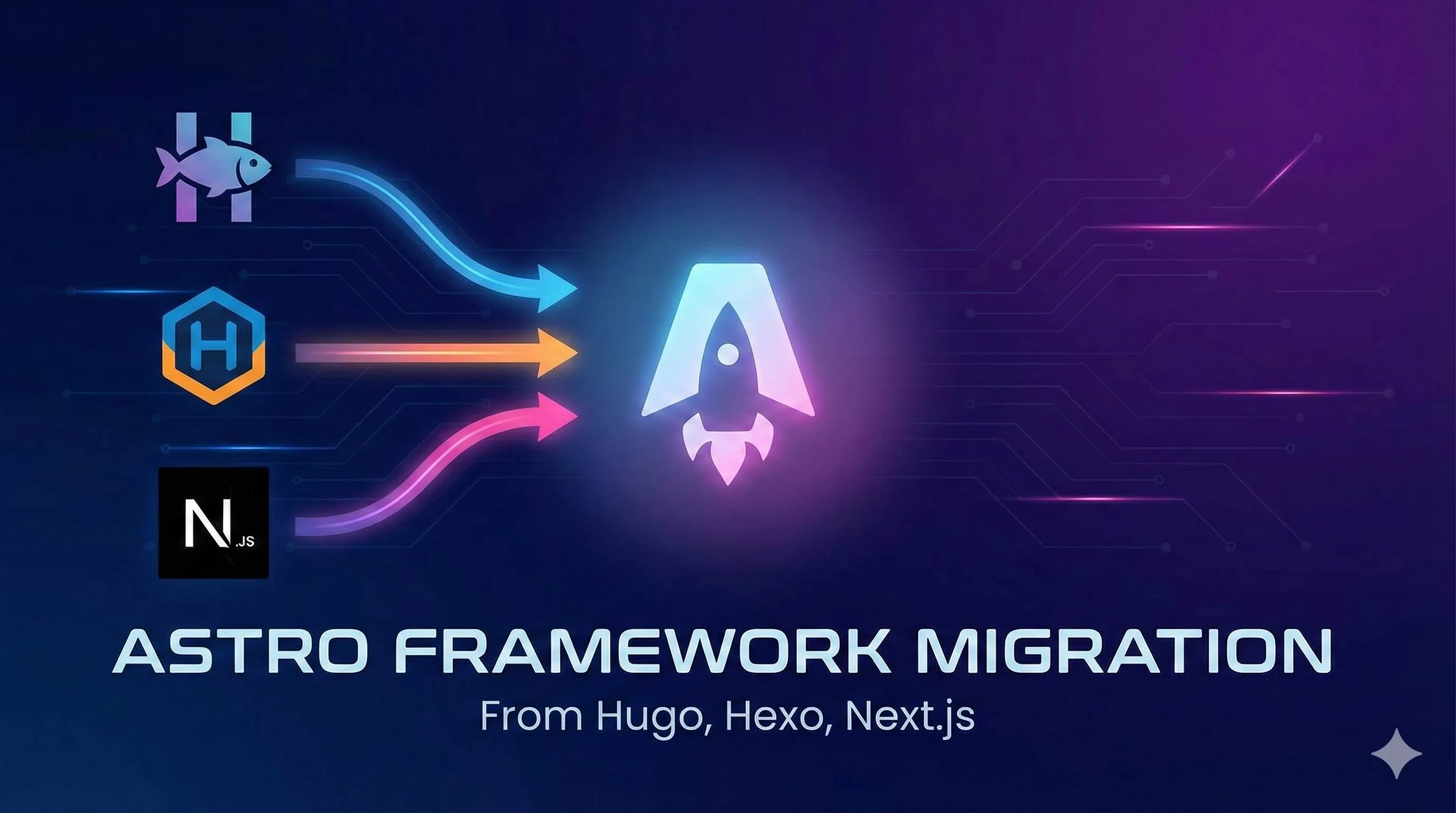
Migrating from Hugo/Hexo/Next.js to Astro: A Complete 3-Day Guide
Introduction
Ever experienced this? You open your blog, stare at the painfully slow loading speed, and feel a bit disappointed. Or maybe you want to add a small feature to your Hugo template, only to discover the syntax is absolutely brutal. Or perhaps you’ve built a static blog with Next.js, and the JavaScript bundle is ridiculously large—why does a simple blog need so much code?
To be honest, I’ve faced these problems myself. Then I heard about Astro—a framework that supposedly maxes out website performance, consistently scoring 100 on PageSpeed Insights. I was skeptical at first, but seeing more and more developers share their migration experiences and say it’s actually not that complicated, I got interested.
That said, even with the excitement, I had some concerns about migrating:
- Will migration be a hassle? I have dozens or hundreds of articles—do I need to edit each one manually?
- Will it affect SEO? What if the URL structure changes?
- What pitfalls should I know about? I don’t want to get stuck halfway through.
If you share these concerns, this article is for you. I’ll share complete migration paths from Hugo, Hexo, and Next.js to Astro, including step-by-step instructions, common pitfalls, and best practices. Based on developers’ experiences I’ve collected, the entire migration process typically takes just 1-3 days.
Why Migrate to Astro
Let me first explain why so many people are migrating to Astro. This isn’t about chasing trends—there are real, tangible benefits.
Core Advantages of Astro
Zero JavaScript Strategy
Astro’s biggest feature is “Zero JS by default.” That’s right, pages it generates contain no JavaScript by default. For content-focused websites like blogs and documentation sites, this is the ultimate performance optimization.
One Japanese developer shared that after migrating from Next.js to Astro, his PageSpeed Insights score jumped from 85 to 100—and consistently stays at 100 every time. This improvement comes from two main factors:
- Removing JavaScript needed for hydration
- Inlining CSS to reduce network requests
Islands Architecture
That said, modern websites need some interactive features, right? Comment sections, search boxes, theme toggle buttons. Astro’s solution is Islands Architecture—you can add JavaScript to specific interactive components within a static HTML page, while keeping everything else purely static.
Think of it like an island surrounded by a static ocean, where only the island has dynamic life.
Modern Development Experience
If you’ve used Hugo, you know how difficult its template syntax can be. Astro is completely different. Its .astro file syntax is almost identical to JSX, and it supports using React, Vue, Svelte, and other mainstream framework components directly.
A blogger put it well: Hugo’s template development isn’t convenient enough. While there are many open-source templates available, customizing them is quite difficult. In contrast, Astro’s template customization is easy, following modern frontend development patterns completely.
Framework Comparison
I’ve created a simple comparison table to help you quickly understand the differences:
| Feature | Hugo | Hexo | Next.js | Astro |
|---|---|---|---|---|
| Build Speed | Super Fast (Go) | Fast | Medium | Fast |
| Template Syntax | Go templates (Hard) | EJS/Pug | JSX/TSX | Astro/JSX |
| Frontend Framework Support | None | Limited | React | Multi-framework |
| Default JS Size | 0 | Medium | Large | 0 |
| Developer Experience | Average | Average | Excellent | Excellent |
| Ecosystem Maturity | High | Medium | High | Growing |
Which Projects Should Migrate
Not all projects are suitable for migrating to Astro. I suggest checking if your project falls into these categories:
Suitable Projects:
- Personal blogs, technical blogs
- Documentation sites, knowledge bases
- Corporate websites, product landing pages
- Portfolio websites
Not Suitable:
- Highly interactive single-page applications (dashboards, admin systems)
- Real-time data update applications
- Applications requiring extensive client-side state management
Simply put, if your website is “content-first,” Astro is made for you. If your website needs lots of interaction and real-time updates, stick with Next.js or SPA frameworks.
Pre-Migration Preparation
Don’t rush into it—doing these things first will make the migration much smoother.
1. Backup Your Existing Project
This is the most important step! I recommend managing with git branches:
# Create migration branch
git checkout -b migrate-to-astro

# Ensure current work is saved
git add .
git commit -m "Backup: Starting Astro migration"
This way, if something goes wrong during migration, you can always switch back to the original branch.
2. Assess Migration Workload
Before starting, assess the workload so you know what you’re getting into:
Content Assessment:
- Number of articles: ____ posts
- Markdown syntax used: Standard/Extended
- Number of images: ____ images
- Image storage: Relative paths/Absolute paths
Time Estimate:
- Under 50 posts: 1 day
- 50-200 posts: 2 days
- Over 200 posts: 3 days
3. Choose an Astro Theme
Astro has many excellent blog themes. Choosing one similar to your existing blog’s style will save a lot of work:
Recommended Themes:
- AstroPaper: Clean blog theme, great for technical blogs
- Fuwari: Supports multiple languages, feature-rich
- Astro Cactus: Complete table of contents component
Quick project creation:
# Using AstroPaper theme
npm create astro@latest my-blog -- --template satnaing/astro-paper

# Or using Fuwari theme
npm create astro@latest my-blog -- --template saicaca/fuwari
4. Environment Setup
Ensure your development environment meets requirements:
- Node.js: v18.14.1 or higher
- Package Manager: npm, pnpm, or yarn
- VS Code Plugin: Astro (official plugin, must install)
Detailed Migration Steps from Hugo
Hugo has the most users, so I’ll start with this. Overall, migrating from Hugo to Astro has moderate difficulty, with the main work being template conversion.
Step 1: Create Astro Project
npm create astro@latest my-new-blog
cd my-new-blog
npm install

# Install common integrations
npx astro add mdx sitemap
Step 2: Migrate Markdown Content
This is the most critical step. Good news: Hugo and Astro’s Frontmatter are mostly compatible, requiring only a few field changes.
Frontmatter Field Mapping:
# Hugo format
---
title: "My Article"
date: 2023-01-15
tags: ["Frontend", "Astro"]
---

# Astro format (change marked with ⬅)
---
title: "My Article"
pubDate: 2023-01-15  ⬅ change date to pubDate
tags: ["Frontend", "Astro"]
---
If you have many articles, use a script for batch replacement:
# macOS/Linux
find content -name "*.md" -exec sed -i '' 's/^date:/pubDate:/g' {} +

# Windows (PowerShell)
Get-ChildItem content -Filter *.md -Recurse | ForEach-Object {
    (Get-Content $_.FullName) -replace '^date:', 'pubDate:' | Set-Content $_.FullName
}
Step 3: Template Conversion Tips
Hugo templates use Go Template syntax, while Astro uses JSX-like syntax. Here’s a tip: if you’ve already written HTML templates, you can directly paste the HTML into .astro files, completing 70% of the work.
Hugo Template Example:
{{ range .Pages }}
  <article>
    <h2>{{ .Title }}</h2>
    <p>{{ .Summary }}</p>
  </article>
{{ end }}
After Astro Conversion:
---
const posts = await Astro.glob('../pages/blog/*.md');
---

{posts.map(post => (
  <article>
    <h2>{post.frontmatter.title}</h2>
    <p>{post.frontmatter.description}</p>
  </article>
))}
Doesn’t the syntax feel more modern?
Step 4: Images and Static Assets
Copy Hugo’s static/ directory content to Astro’s public/ directory, keeping paths unchanged:
cp -r hugo-blog/static/* astro-blog/public/For image references in articles, whether using relative or absolute paths (like /images/pic.jpg), no changes are needed since public/ directory content maps directly to the website root.
Step 5: URL Redirect Setup
This step is crucial for SEO. If your URL structure changes, you must set up 301 redirects.
Configure in astro.config.mjs:
export default defineConfig({
  redirects: {
    '/old-path': '/new-path',
    '/posts/[slug]': '/blog/[slug]',
  }
})
Detailed Migration Steps from Hexo
Hexo migration is similar to Hugo, but with some specific considerations.
Step 1: Create Project and Configure Content Collections
pnpm create astro@latest my-blog --template satnaing/astro-paper
cd my-blog
pnpm install
Astro uses Content Collections to manage content, requiring configuration in src/content/config.ts:
import { defineCollection, z } from 'astro:content';

const blog = defineCollection({
  schema: z.object({
    title: z.string(),
    pubDate: z.date(),
    description: z.string(),
    tags: z.array(z.string()),
  }),
});

export const collections = { blog };
This configuration performs type checking on Frontmatter, reporting errors if fields don’t match—quite useful.

Step 2: Content and Image Migration
Copy articles from Hexo’s source/_posts/ directory to Astro’s src/content/blog/, then batch replace date with pubDate:
find src/content/blog -name "*.md" -exec sed -i 's/^date:/pubDate:/g' {} +Two ways to handle images:
Option 1: Place in public/ directory (Simple, recommended)
cp -r hexo-blog/source/images astro-blog/public/imagesImage paths in articles don’t need changes.
Option 2: Use Astro Image Component (Better performance)
---
import { Image } from 'astro:assets';
import myImage from '../assets/pic.jpg';
---

<Image src={myImage} alt="Description" />
Step 3: URL Path Redirects
Hexo’s default path is /YYYY/MM/DD/post-name/, Astro’s default is /blog/post-name/.
To maintain the original path format, configure redirects in astro.config.ts:
export default defineConfig({
  redirects: {
    '/:year/:month/:day/:slug': '/blog/:slug',
  }
})
Step 4: RSS Full Content Configuration
Hexo outputs full content RSS by default, Astro requires manual configuration.
npx astro add rssConfigure in src/pages/rss.xml.js:
import rss from '@astrojs/rss';
import { getCollection } from 'astro:content';
import { marked } from 'marked';

export async function GET(context) {
  const posts = await getCollection('blog');

  return rss({
    title: 'My Blog',
    description: 'Blog Description',
    site: context.site,
    items: posts.map(post => ({
      title: post.data.title,
      pubDate: post.data.pubDate,
      link: `/blog/${post.slug}/`,
      content: marked.parse(post.body), // Output full content
    })),
  });
}
Detailed Migration Steps from Next.js
Migrating from Next.js to Astro is slightly more complex due to significant architectural differences. However, if you’re using Next.js’s SSG mode, the migration difficulty is much lower.
Step 1: Understand Architectural Differences
Key Differences:
- Next.js is a single-page application (SPA) with a global
_app.js - Astro is a multi-page website (MPA) with independent pages
Similarities:
- Both support JSX syntax
- Both use file-system routing
- Both support SSG and SSR
Mentally prepare: you’re not “migrating” a Next.js app, but “rebuilding” a content website with Astro.
Step 2: Create Project and Install React Integration
npm create astro@latest my-blog
cd my-blog
npx astro add react
After installing React integration, you can continue using existing React components.
Step 3: Component Migration Strategy
Astro supports direct use of .jsx and .tsx files, so your React components can be copied directly.
Next.js Component (Keep unchanged):
// components/Button.jsx
export default function Button({ children, onClick }) {
  return <button onClick={onClick}>{children}</button>
}
Using in Astro:
---
import Button from '../components/Button.jsx';
---

<Button client:load>Click me</Button>
Note the client:load directive, telling Astro this component needs JavaScript (components are static by default).
Step 4: Converting React Components to Astro Components
For components without interaction, I recommend converting to Astro components for better performance.
Next.js/React Component:
export default function Card({ title, description }) {
  const formattedDate = new Date().toLocaleDateString();

  return (
    <div className="card">
      <h2>{title}</h2>
      <p>{description}</p>
      <span>{formattedDate}</span>
    </div>
  );
}
Astro Component:
---
const { title, description } = Astro.props;
const formattedDate = new Date().toLocaleDateString();
---

<div class="card">
  <h2>{title}</h2>
  <p>{description}</p>
  <span>{formattedDate}</span>
</div>
Main differences:
className→class- Props from
Astro.props - JavaScript code between
---
Step 5: Hydration Strategy Adjustment
Next.js adds hydration to all components by default (loading JavaScript to make them interactive), Astro doesn’t.
You need to manually specify which components need interaction:
Hydration Directives:
client:load- Hydrate immediately on page loadclient:idle- Hydrate when page is idleclient:visible- Hydrate when component enters viewportclient:only- Render only on client-side
---
import Counter from '../components/Counter.jsx';
import HeavyChart from '../components/HeavyChart.jsx';
---

<!-- Immediate interaction -->
<Counter client:load />

<!-- Lazy loading, better performance -->
<HeavyChart client:visible />
This strategy is very important—use it well and performance improves dramatically.
Step 6: Dynamic Route Handling
Next.js’s getStaticPaths has a corresponding implementation in Astro, with nearly identical syntax:
Astro Dynamic Routes:
---
// src/pages/blog/[slug].astro
import { getCollection } from 'astro:content';

export async function getStaticPaths() {
  const posts = await getCollection('blog');
  return posts.map(post => ({
    params: { slug: post.slug },
    props: { post },
  }));
}

const { post } = Astro.props;
---

<article>
  <h1>{post.data.title}</h1>
  <div set:html={post.body} />
</article>
Step 7: Performance Optimization Comparison
This is the biggest benefit of migration! According to actual developer sharing:
Before Migration (Next.js SSG):
- PageSpeed Insights: 85
- First Load JS: ~200KB
- Lighthouse Performance: 80-90
After Migration (Astro):
- PageSpeed Insights: 100 (consistently)
- First Load JS: ~10KB (can be 0KB without interactive components)
- Lighthouse Performance: 95-100
Performance improvements mainly from:

- Removing React hydration overhead
- CSS inlining, reducing network requests
- On-demand JavaScript loading
Universal Migration Best Practices
Regardless of which framework you’re migrating from, these best practices apply.
1. Phased Migration Strategy
You don’t need to migrate all content at once—you can do it progressively:
Phase 1: Pilot Migration
- Choose 5-10 articles to test
- Verify migration process is smooth
- Test performance improvement
Phase 2: Full Migration
- Migrate all article content
- Convert all templates and components
- Set up redirect rules
Phase 3: Refinement and Optimization
- Add missing features
- Performance optimization
- SEO check
One blogger shared that he initially only wrote new articles with Astro, keeping old articles unchanged. This progressive migration approach has less risk.
2. SEO Protection Measures
The biggest fear of migration is SEO impact—make sure to do these things well:
Set Up 301 Redirects
If URL structure changes, must set up 301 redirects:
// Vercel: vercel.json
{
  "redirects": [
    { "source": "/old-path/:slug", "destination": "/new-path/:slug", "permanent": true }
  ]
}

// Cloudflare Pages: _redirects
/old-path/:splat /new-path/:splat 301
Update Sitemap
npx astro add sitemapConfigure in astro.config.mjs:
import { defineConfig } from 'astro/config';
import sitemap from '@astrojs/sitemap';

export default defineConfig({
  site: 'https://yourdomain.com',
  integrations: [sitemap()],
});
Submit to Search Engines
After migration, submit the new sitemap to Google Search Console and Bing Webmaster Tools.
3. Image Optimization
Astro has a specialized image optimization component—use it:
npx astro add imageUsage example:
---
import { Image } from 'astro:assets';
import cover from '../assets/cover.jpg';
---

<Image src={cover} alt="Cover Image" width={800} height={600} />
Benefits: automatically generate multiple sizes, automatically convert to WebP format, lazy loading.
4. Testing Checklist
After migration, don’t rush to go live—check these items first:
Content Check:
- All articles display normally
- Frontmatter fields complete
- Article internal links clickable
- Tags and category pages normal
Assets Check:
- All images load properly
- CSS styles applied correctly
Features Check:
- Search function working
- Comment system working
- RSS subscription available
SEO Check:
- Sitemap generated correctly
- robots.txt correct
- Old URLs redirect correctly
Performance Check:
- PageSpeed Insights score
- Lighthouse check
Recommended tools:
- Broken Link Checker - Check dead links
- PageSpeed Insights - Performance testing
- Screaming Frog - SEO crawler
Common Issues and Solutions
During migration, you might encounter these problems. I’ve compiled solutions in advance.
1. Build Error Troubleshooting
Issue: Could not find Sharp

This is an Astro image optimization dependency issue.
# Solution
npm install sharp
If that doesn’t work, disable image optimization in astro.config.mjs:
export default defineConfig({
  image: {
    service: { entrypoint: 'astro/assets/services/noop' }
  }
})
Issue: MDX Version Incompatibility
If using Astro 5.0, must upgrade @astrojs/mdx to v4.0.0:
npm install @astrojs/mdx@latest2. Style Loss Issues
Issue: CSS Scoping Causing Style Failure
Astro’s <style> tags are scoped styles by default, only affecting the current component.
<!-- Local styles -->
<style>
  .card { color: blue; }
</style>

<!-- Global styles -->
<style is:global>
  .card { color: blue; }
</style>
Issue: Markdown Content Style Loss
Markdown-rendered HTML needs global styles:
<style is:global>
  .prose h1 { font-size: 2rem; }
  .prose h2 { font-size: 1.5rem; }
  .prose p { margin: 1rem 0; }
  .prose code { background: #f4f4f4; padding: 0.2rem 0.4rem; }
</style>

<article class="prose">
  <Content />
</article>
Or directly use Tailwind Typography plugin.
3. Third-Party Service Integration
Comment Systems
Astro supports most comment systems (Disqus, Giscus, Utterances):
<script
  src="https://giscus.app/client.js"
  data-repo="your-username/your-repo"
  data-repo-id="your-repo-id"
  data-category="Announcements"
  data-category-id="your-category-id"
  data-mapping="pathname"
  data-strict="0"
  data-reactions-enabled="1"
  data-emit-metadata="0"
  data-input-position="bottom"
  data-theme="light"
  data-lang="en"
  crossorigin="anonymous"
  async>
</script>
Analytics Tools
Google Analytics works directly:
<html>
  <head>
    <script async src="https://www.googletagmanager.com/gtag/js?id=G-XXXXXXXXXX"></script>
    <script>
      window.dataLayer = window.dataLayer || [];
      function gtag(){dataLayer.push(arguments);}
      gtag('js', new Date());
      gtag('config', 'G-XXXXXXXXXX');
    </script>
  </head>
</html>
4. Deployment Configuration
Vercel Deployment
Connect GitHub repository directly, Vercel automatically recognizes Astro projects.
Cloudflare Pages Deployment
Build configuration:
- Build command:
npm run build - Build output directory:
dist - Node.js version: 18 or higher
GitHub Pages Deployment
Configure in astro.config.mjs:
export default defineConfig({
  site: 'https://username.github.io',
  base: '/repo-name',
})
Conclusion
Having said all this, migrating to Astro really isn’t that scary. Based on developer experiences I’ve collected, most people complete the migration within 1-3 days and are very satisfied with the results.
Key Points Summary:
- Backup Properly: Create git branches, ensure you can roll back anytime
- Progressive Migration: Pilot a few articles first, verify the process before full migration
- Prioritize SEO: Set up 301 redirects, update sitemap, protect search rankings
- Test Thoroughly: Check links, images, features before going live
- Enjoy the Benefits: Performance improvements after migration are real, PageSpeed Insights easily scores 100
My Recommendation: If you’re hesitating about migrating, why not create a test branch and try it? Pick a few articles to migrate, run performance tests, see the results. If satisfied, proceed with full migration; if not, there’s no loss.
Finally, here are some useful resources:
Good luck with your migration! Feel free to share in the comments if you encounter any issues.
FAQ
How long does it take to migrate from Hugo/Hexo/Next.js to Astro?
This includes:
• Content migration
• Theme conversion
• Deployment setup
Most time is spent on initial configuration and testing.
Will migrating to Astro affect my SEO rankings?
Preserve:
• URL structure with 301 redirects
• Meta tags
• Update sitemap
Many developers report zero SEO impact or even improvements due to better performance.
Do I need to manually edit each article during migration?
For Hugo/Hexo:
• Copy Markdown files and frontmatter
For Next.js:
• May need to convert MDX components
• Content structure is preserved
What performance improvements can I expect?
• PageSpeed Insights score jumping from 85 to 100
• JavaScript bundle size decreasing by 90% (500KB+ to under 20KB)
• Lighthouse score improvements from 78 to 98
Can I keep my existing theme/design?
Astro uses component-based architecture similar to React/Vue, making it easier to port designs than Hugo templates.
What are the main challenges when migrating?
1) Converting Hugo/Hexo templates to Astro components
2) Handling Next.js MDX components
3) Setting up proper redirects for SEO
4) Testing all features work correctly
Should I migrate if I have a large site with hundreds of articles?
Astro handles large sites well. The process is the same regardless of article count - you can automate content migration with scripts.
Many developers successfully migrate sites with 1000+ pages.
11 min read · Published on: Dec 3, 2025 · Modified on: Mar 18, 2026

Related Posts
From Copilot to Antigravity: Mastering the Agent-First Development Paradigm

From Copilot to Antigravity: Mastering the Agent-First Development Paradigm
AI Keeps Writing Wrong Code? Master These 5 Prompt Techniques to Boost Efficiency by 50%

AI Keeps Writing Wrong Code? Master These 5 Prompt Techniques to Boost Efficiency by 50%
Cursor Advanced Tips: 10 Practical Methods to Double Development Efficiency (2026 Edition)

Comments
Sign in with GitHub to leave a comment