
Veo 3 Camera Control: 7 Shot Types That Transform AI Videos Into Cinematic Masterpieces
Introduction
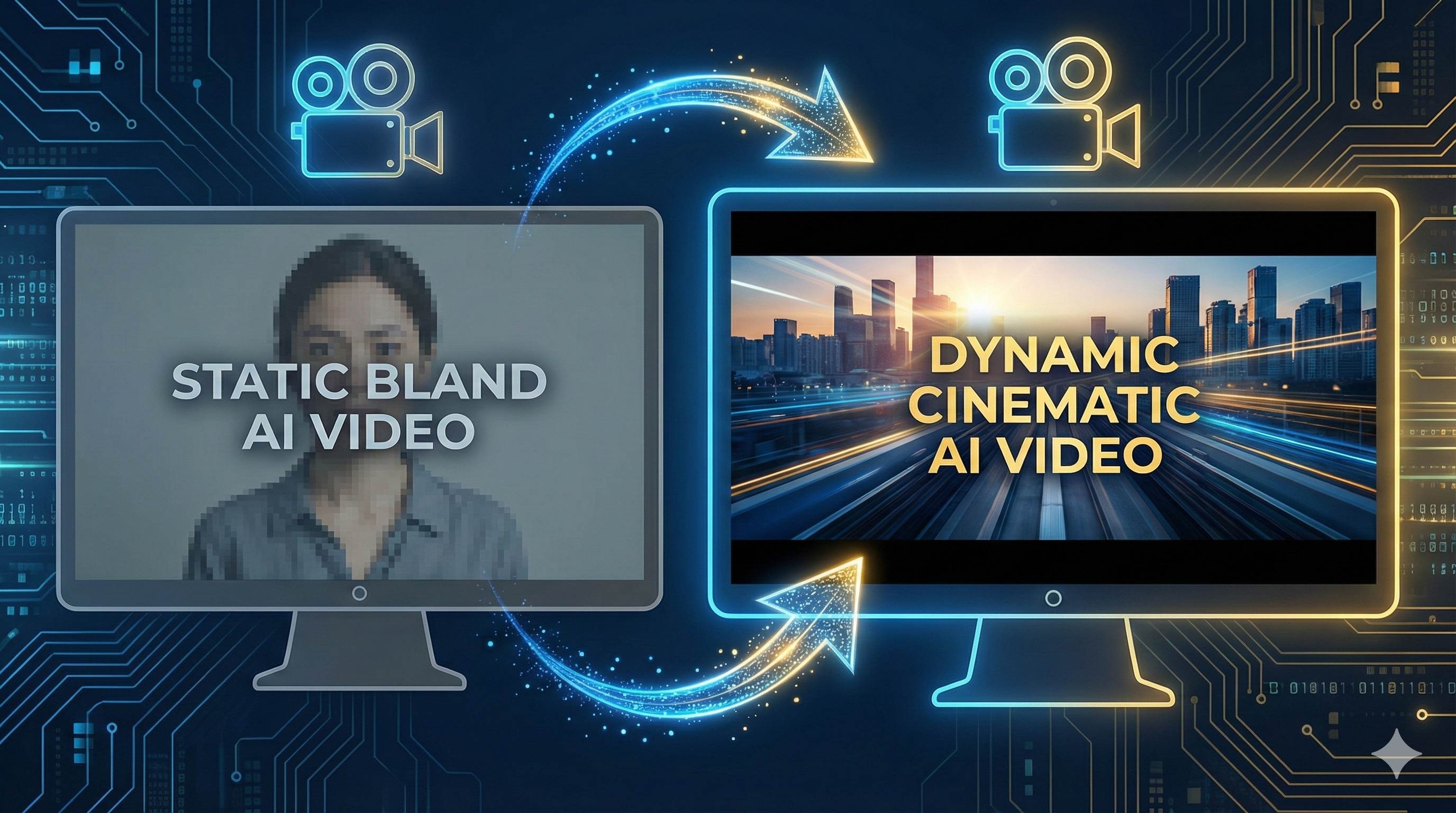
Last week, I created a product video using Veo 3 with a detailed prompt—subject, environment, lighting, all specified. The result? A static frame that looked like a PowerPoint slide. Compare that to videos from others: camera pushes, tracking shots, orbits—the cinematic quality was in a different league.
I was baffled. Same tool, dramatically different results. After diving into numerous tutorials, I discovered the secret: a few camera control keywords in your prompt. Dolly shot, tracking shot, crane shot… these seemingly professional terms are actually the gateway between AI-generated videos and cinematic quality.
Honestly, these English terms intimidated me at first. But after dozens of trials, I found that mastering 7 common camera movements, plus a few prompting tricks, can instantly elevate your AI videos.
In this article, I’ll break down these 7 shot types in plain English. Each includes ready-to-copy prompt templates and troubleshooting tips—after all, you shouldn’t have to make the same mistakes I did.
Why Do Your AI Videos Lack Cinematic Quality?
AI Defaults to “Safe Shots”
Ever notice that many AI-generated videos have great visuals but feel… flat? The problem isn’t image quality—it’s that the camera doesn’t move.
When your prompt doesn’t explicitly request camera movement, Veo 3 defaults to the safest option: static shots or simple pans. It’s like not telling a taxi driver where you’re going—without clear directions, AI can only give you the most conservative option.
Google’s official guide states: “If you want the camera to move, you need to say so clearly in your prompt.” Sounds simple, but this is exactly where most people get stuck.
Three Core Elements of Cinematic Quality
Professional directors rely on three things: Camera Movement + Composition + Lighting. The same applies to AI videos.
Camera movement is the easiest to get right. Think of blockbuster films—that opening shot slowly pushing from afar, gradually focusing on the protagonist’s face? That’s a dolly-in. Chase scenes where the camera follows the hero? That’s a tracking shot. These camera movements convey emotion and narrative rhythm.
AI filmmaker “JimHuiHui” shared some data: AI-generated clips typically run 3-5 seconds, with only 1-2 seconds of usable footage after removing glitches. In such a short window, camera movement becomes even more critical—static frames waste these precious seconds, while intentional camera work instantly maximizes atmospheric impact.
Why Doesn’t AI Execute “Camera Push Forward”?
I faced this issue too. My prompt clearly stated “camera moves forward,” yet the result showed little movement.
I discovered the problem lies in how you phrase the prompt. When you mix camera movement with subject action in one sentence, AI often gets confused about priorities.
For example:
❌ “A man running in the rain, camera slowly pushes in, city lights in background”
AI might interpret this as: The focus is the man running, camera movement is secondary.
But if you write it this way:
✅ “Slow dolly-in shot. A man running in the rain, city night lights in the background.”
By separating the camera instruction into its own sentence and placing it first, AI understands: Oh, you want a dolly shot, with a running man as the subject. The difference is immediate.
7 Essential Camera Movements (With Prompt Templates)
Let’s get to the point. These 7 movements are arranged from easiest to hardest—I recommend starting with the first three.
1. Dolly-in / Dolly-out
Movement: Camera smoothly moves forward or backward on a track.
When to use:
- Dolly-in (push in): Focus on details, build tension. Like a detective discovering a crucial clue, camera slowly pushing toward their eyes.
- Dolly-out (pull out): Reveal the big picture, release emotion. The hero stands on a mountain peak, camera pulls back to show the magnificent landscape.
Prompt Template:
Slow dolly-in shot, focusing on [subject], background gradually blurs, creating intimacy. Cinematic, golden hour light.Real Example (ready to use):
Slow dolly-in shot, focusing on a scientist staring at a glowing test tube, background gradually blurs, mysterious green light illuminates his face. Cinematic, dramatic lighting.My experience: Dolly shots are the easiest and most reliable. Remember to add “slow”—otherwise AI might give you a jarring rush that scares you.
2. Tracking Shot
Movement: Camera follows a moving subject, like an invisible cameraman tracking along.
When to use: Action scenes, movement shots, when you need immersion. Running, cycling, walking—if the subject moves, tracking shot can follow.
Prompt Template:
Smooth tracking shot following [subject] as they [action], [environment details]. Cinematic, steady cam effect.Real Example:
Smooth tracking shot following a cyclist speeding down a mountain trail, dust flying, trees rushing past in the background. Cinematic, motion blur, afternoon light.Dolly vs Tracking (many people confuse these):
- Dolly Shot: Primarily forward/backward movement (depth change)
- Tracking Shot: Follows subject’s movement (any direction)
Memory trick: Dolly = push/pull, Track = follow.
3. Crane Shot
Movement: Camera moves vertically up or down, like riding an elevator.
When to use: Show grand scenes, reveal spatial relationships. Perfect for establishing shots.
Prompt Template:
Crane shot rising from [starting point] revealing [destination/panorama]. Epic, cinematic.Real Example:
Crane shot rising from a close-up of a woman's face, revealing a vast futuristic cityscape at sunset. Epic, sci-fi, golden hour.4. Aerial View
Movement: Bird’s-eye view, looking down from above.
When to use: When you need a god’s-eye perspective. Forests, cities, oceans—all grand scenes work well.
Prompt Template:
Aerial view of [scene], camera slowly [movement direction]. Cinematic, drone shot.Real Example:
Aerial view of a dense forest with a winding river, camera slowly moving forward. Cinematic, drone shot, morning mist.Note: Aerial views don’t necessarily need movement—static bird’s-eye shots can be equally cinematic.
5. Pan / Tilt
Movement: Camera stays in place, rotating left/right (pan) or up/down (tilt).
When to use: Reveal new information, show space. Like the camera panning from a window view to an indoor character—aha, there’s our protagonist.
Prompt Template:
Slow pan [direction] from [starting point] to [end point], revealing [revealed content].Real Example:
Slow pan right from a rainy window to a woman sitting alone with coffee, melancholic mood. Cinematic, soft light.6. POV Shot
Movement: View from a character’s eyes.
When to use: When you need strong immersion. First-person perspective makes viewers “become” the character.
Prompt Template:
POV shot from [character]'s perspective, [what they see]. Immersive, first-person view.Real Example:
POV shot from driver's perspective, highway rushing towards camera at high speed, hands visible on steering wheel. Immersive, motion blur.Pro tip: To enhance immersion, add “slight handheld shake” to your prompt—it mimics real human eye perception.
7. Dolly Zoom (Vertigo Effect/Hitchcock Zoom)
Movement: Camera pushes forward while zoom pulls back (or vice versa), keeping subject size constant while background distorts.
When to use: Shocking moments, fear, revelation. Hitchcock used this in “Vertigo” to express the protagonist’s fear of heights—brilliant effect.
Prompt Template:
Dolly zoom effect on [subject], background [warps/distorts], creating [emotion]. Dramatic, cinematic.Real Example:
Dolly zoom effect on a man's shocked face, background warps and distorts, creating vertigo and tension. Dramatic, thriller style.To be honest, this is the hardest to control—AI doesn’t always execute it perfectly, but when it works, the effect is spectacular. Worth multiple attempts.
5 Key Prompting Techniques
Now that you know the 7 shot types, you need to know how to write them into prompts. These 5 techniques will significantly improve AI’s understanding and execution rate.
Technique 1: Separate Camera Movement Into Its Own Sentence
I mentioned this earlier, but it’s so important I’ll emphasize it again.
Wrong approach:
A man running in the rain, camera slowly pushing in, city nightscape in backgroundCorrect approach:
Slow dolly-in shot. A man running in the rain, city night lights in the background.Pull out the camera instruction separately and place it first. AI parses sequentially—the earlier you state the shot type, the more it prioritizes it.
Technique 2: Use Specific Speed and Intensity Modifiers
Vague expressions like “camera moves” let AI improvise randomly. You need to tell it how to move.
Vague: camera moves
Clear: slow smooth pan right
Common modifiers:
- Speed: slow, rapid, gentle, sudden
- Quality: smooth, steady, handheld, shaky
For example, same dolly-in:
- “slow dolly-in” = gradual push, builds atmosphere
- “rapid dolly-in” = quick rush toward subject, creates impact
Completely different effects.
Technique 3: Use Only One Primary Camera Movement at a Time
Don’t be greedy. I’ve seen people write:
❌ “Camera pushes in while rotating and rising”
AI gets confused and produces a mess. Professional filmmaking doesn’t cram multiple movements into one shot either.
One main movement at a time. If you need complex effects, break it into multiple shots and edit them together later.
Technique 4: Keep Prompts at 100-150 Words
Too short—AI lacks information. Too long—AI loses focus.
Optimal length: 3-6 complete sentences, roughly 100-150 words.
Google’s official guide recommends this structure:
- Shot type (1 sentence)
- Subject and action (1-2 sentences)
- Environment and atmosphere (1-2 sentences)
- Visual style (1 sentence)
Example (exactly 4 sentences):
Slow tracking shot following the subject. A young woman walking through a sunflower field at sunset. Golden light, lens flare, gentle breeze moving the flowers. Cinematic, dreamlike atmosphere.Technique 5: Combine Lighting and Environment Descriptions
Camera movement is just part of cinematic quality—lighting and atmosphere are equally important.
Writing only “dolly-in shot” has limited effect. But if you add:
Slow dolly-in shot. Golden hour light, lens flare, soft shadows. Cinematic, warm tones.Immediate difference.
Recommended lighting keywords:
- golden hour
- soft light
- dramatic lighting
- lens flare
- backlit
- neon glow
Atmosphere keywords:
- cinematic
- moody
- dreamlike
- gritty
- ethereal
Combining these with camera movements creates complete cinematic language.
Common Issues and Troubleshooting
Q1: AI Doesn’t Execute the Camera Movement I Specified
Reason: The prompt is buried under other elements.
Solution: Place camera movement in the first third of your prompt to increase priority.
Compare:
❌ Low priority:
A scientist working in a lab, instruments everywhere, dim lighting, slow dolly-in shot✅ High priority:
Slow dolly-in shot. A scientist working in a dimly lit lab, surrounded by instruments.Put the shot type first—AI sees it immediately, execution rate improves instantly.
Q2: The Movement Is Too Fast or Too Slow
Solution: Add speed modifiers.
- Too fast → add “slow,” “gentle,” “gradual”
- Too slow → add “rapid,” “dynamic,” “swift”
You can also use time descriptions like “3-second dolly-in,” but AI understands this less reliably than slow/rapid.
Q3: What’s the Difference Between Dolly Shot and Tracking Shot?
I’ve seen at least 20 people asking this on social media.
Memory tricks:
- Dolly Shot: Camera pushes/pulls forward/backward (imagine a dolly that only moves along one axis)
- Tracking Shot: Camera follows moving subject (imagine a cameraman with a stabilizer tracking the action)
Application difference:
- Subject stationary, you want to get closer → Use Dolly-in
- Subject moving, you want to follow → Use Tracking Shot
Examples:
- Flower slowly blooming, camera slowly pushes toward it → Dolly-in
- Person running through forest, camera follows → Tracking Shot
Q4: Same Prompt, Different Results Each Time
Answer: This is AI’s inherent randomness—unavoidable.
My approach:
- Generate the same prompt multiple times (I usually do 3-5)
- Pick the best one
- If none satisfy, tweak the prompt and try again
Also, there’s an advanced technique: JSON format prompts. Someone discovered in July 2025 that JSON structure performs 30% better than plain text prompts because it allows more precise parameter control. But that’s more complex—explore it once you’re comfortable with basics.
Q5: AI Always Misunderstands My Intent
Common reason: Ambiguous phrasing in prompts.
For example, “camera moves forward”:
- Your interpretation: Camera pushes along sight line (dolly-in)
- AI’s interpretation: Could be upward movement (crane up), or following subject movement (tracking)
Avoid ambiguity: Use professional terminology directly.
- Don’t say “camera moves forward” → Say “dolly-in shot”
- Don’t say “camera follows” → Say “tracking shot”
Professional terms might seem complex, but they’re actually clearer to AI.
Advanced Technique: Shot List Thinking
To master AI video at a higher level, you need to think in shot lists.
Breaking 8 Seconds Into Four 2-Second Shots
Veo 3’s maximum length is 8 seconds per clip (some users can generate longer, but most are limited to 8). Professional creators break these 8 seconds into multiple shots, each with one focus.
Shot List Example:
Theme: “Person escaping from burning forest”
- 0-2s: Handheld shaky shot, close-up of protagonist running, labored breathing
- 2-4s: Rapid dolly-in, camera rushes toward protagonist’s terrified face
- 4-6s: Low angle crane shot, looking up at burning tree trunks, building crisis
- 6-8s: Wide tracking shot, protagonist bursts from forest edge toward camera
One emotional beat every 2 seconds—intense pacing.
Why this design? An AI filmmaker shared that after removing flaws, AI clips have only 1-2 seconds of usable footage. Given this reality, adopt a fast-paced editing style where every frame is information-dense.
Using Editing to Compensate for AI Instability
AI-generated videos are indeed unstable—the same prompt might produce perfection on attempt one and fail on attempt two.
My experience:
- Generate multiple short clips separately (one prompt per shot)
- Generate each 3-5 times, pick the best
- Stitch together with editing software (Premiere, Final Cut, even consumer apps)
This approach is more reliable than chasing the perfect long take.
Mixing Multiple Shot Types
A complete video should combine shot types with varied pacing.
Classic structure:
- Opening: Aerial view or Crane shot to establish scene (let viewers know “where”)
- Middle: Dolly-in or Tracking shot following action (advance the story)
- Climax: Dolly zoom or Rapid dolly-in for impact (emotional explosion)
- Ending: Dolly-out or Crane shot for emotional elevation (create distance, leave space)
Real example:
If you’re making a “Cafe Morning” video:
1. Aerial view of a cozy cafe at sunrise, warm light. (Establish scene)
2. Slow dolly-in to a cup of steaming coffee on the table. (Focus on detail)
3. Tracking shot following the barista's hands making latte art. (Show action)
4. Crane shot rising from the cup, revealing the whole cafe. (Elevate mood)
Four shots, 2 seconds each, combine into a complete mini-story.
Learning from Excellent Case Studies
There’s an AI film called “A Million Miles of Starlight”—its workflow:
- Import AI-generated story storyboards into Runway for video generation
- Use motion brush for precise control of FX shots (like vertical rocket landing)
- Speed up in editing to adjust pacing
This approach deserves study: Plan shots first, generate video second, refine with editing last. Don’t expect perfection in one go—step-by-step control is the way.
Conclusion
After all this, it boils down to one thing: When cameras move, videos come alive.
You now know 7 practical shot types: from basic dolly-in and tracking shot to advanced dolly zoom. You also learned 5 key prompting techniques and how to avoid common pitfalls.
Starting today, your AI videos won’t be “static PowerPoints” anymore.
My advice: Don’t try to use all shots at once. Start with the simplest—dolly-in or tracking shot—and practice 10-20 times to get a feel. Once comfortable, try crane shot and dolly zoom.
Remember: Complex isn’t better—match the shot to the emotion you want to convey.
- Want intimacy? Dolly-in slowly
- Want dynamism? Tracking shot following movement
- Want impact? Dolly zoom for dramatic effect
Choose the right shot, and even an 8-second clip can have blockbuster quality.
Give it a try. Share your work on social media—who knows, you might be the next viral video creator.
Published on: Dec 4, 2025 · Modified on: Dec 15, 2025

Related Posts
Complete Guide to Veo 3 Audio Generation: How to Add AI Voice and Music to Videos (With Prompt Templates)
The Complete Guide to Veo 3 Character Consistency: Creating Coherent Multi-Shot Videos with Scenebuilder
Comments
Sign in with GitHub to leave a comment