
Docker Container Networking: How to Enable Communication Between Web and Database Containers
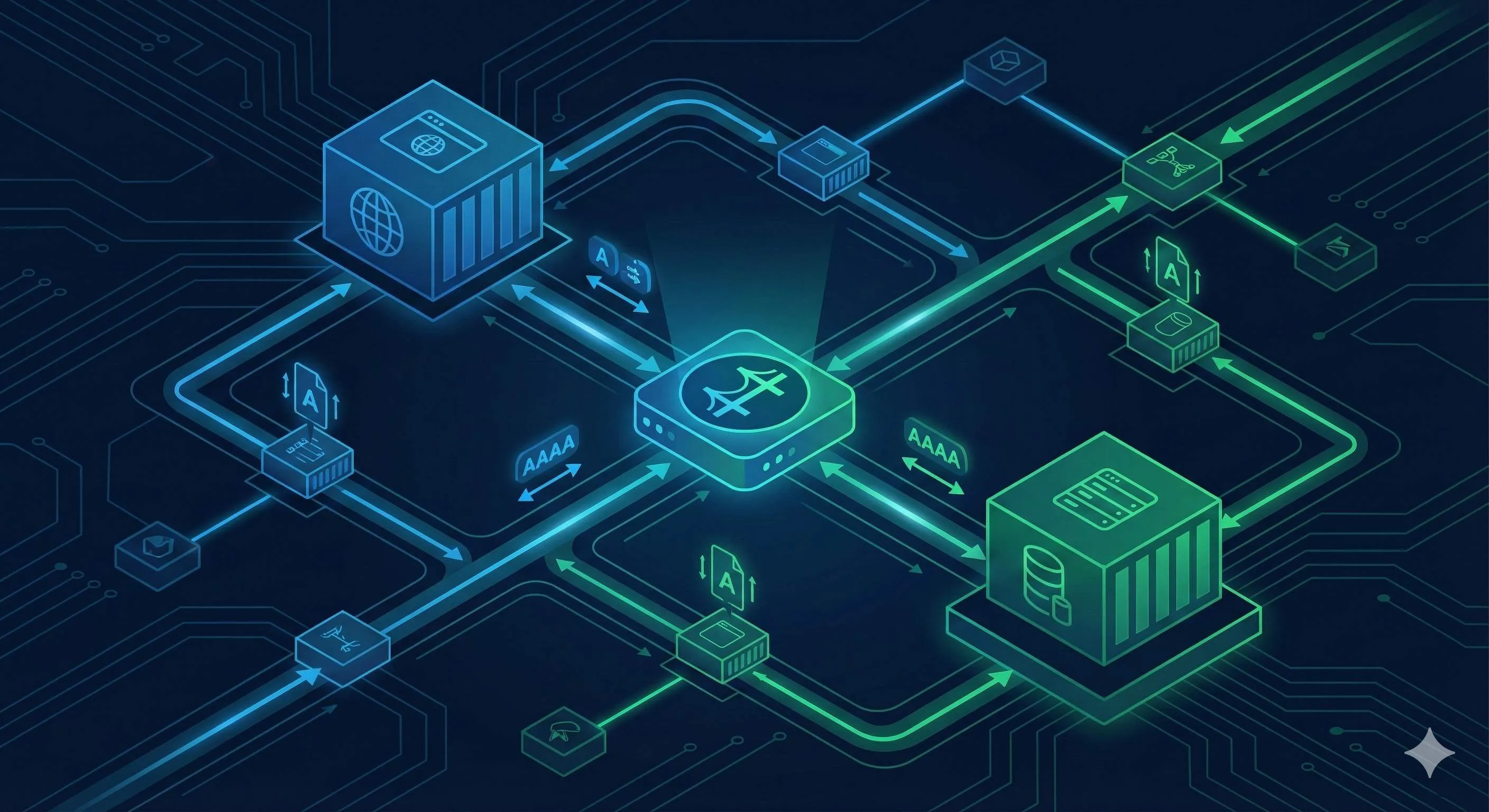
It was 3 PM on a Friday afternoon. I was pretty pleased with myself—I’d just containerized my local development environment. MySQL container was up and running, Node.js app container was good to go. Just one final step: connecting them together. But when I refreshed my browser, boom—500 error. The logs were full of “Connection refused” messages.
I was baffled. Both containers were clearly running. So I tried pinging the MySQL container by name—“unknown host.” Okay, let me try the IP address instead. And it worked! The app connected to the database. I breathed a sigh of relief, committed my code, shut down, and headed home.
Monday morning, disaster struck: the app was down again. I checked, and the MySQL container’s IP had changed after a restart—from 172.17.0.2 to 172.17.0.3. I was really frustrated. Did I have to update the config file every time a container restarted?

If you’ve run into similar issues, this article is for you. I spent an entire afternoon diving into Docker’s networking system and finally figured out the right way to connect containers. Here’s what I’ll cover:
- Why can’t you ping containers by name, and what’s the root cause
- What are the limitations of Docker’s default network
- How custom networks solve these problems
- Complete step-by-step instructions to enable container name-based communication
- Some advanced techniques and best practices
Why Can’t You Ping Containers by Name?
Limitations of the Default Docker Network
The root of the problem lies in Docker’s default network configuration. When you start a container without specifying a network, Docker automatically connects it to the default bridge network—the docker0 bridge.
This default network has a major limitation: it only supports communication via IP addresses and doesn’t support container name resolution.
What does this mean? In the default network:
- ✅ You can access other containers by IP (e.g.,
ping 172.17.0.2) - ❌ But you can’t access them by container name (e.g.,
ping mysql-containerwon’t work)
Why? Because the default network doesn’t have a built-in DNS service. Think of it like a phone without a contact list—you can only remember people’s numbers (IPs), but you can’t look them up by name (container name).
Even worse, Docker reassigns IP addresses every time a container restarts. So if 172.17.0.2 gets you to MySQL today, after a restart it might be 172.17.0.3, and your hardcoded IP in the app config becomes invalid.
I verified this with a quick test:
# Start a MySQL container (using default network)
docker run -d --name mysql-demo \
  -e MYSQL_ROOT_PASSWORD=123456 \
  mysql:8.0

# Start a busybox container to test networking
docker run -it --name test-box busybox sh

# Try to ping the MySQL container by name inside test-box
/ # ping mysql-demo
ping: bad address 'mysql-demo'  # ← Resolution failed

# Check the MySQL container's IP
docker inspect mysql-demo | grep IPAddress
# "IPAddress": "172.17.0.2"

# Pinging by IP works
/ # ping 172.17.0.2
PING 172.17.0.2 (172.17.0.2): 56 data bytes
64 bytes from 172.17.0.2: seq=0 ttl=64 time=0.123 ms
See? Pinging by container name doesn’t work—only by IP.
The —link Parameter is Deprecated
You might have seen the --link parameter in older tutorials. It was Docker’s early solution to this problem. Here’s how it worked:
docker run --link mysql-demo:mysql -d my-appThis did allow the my-app container to access mysql-demo using the name “mysql.” However, Docker has officially deprecated —link and will remove it in future versions.
Why deprecate it? A few reasons:
- One-way connection: Only my-app can access mysql, not the other way around
- Hard to maintain: With multiple containers, —link configurations become unwieldy
- Limited functionality: Doesn’t support flexible network management for multi-container scenarios
So if you’re still using —link, it’s time to upgrade to the new approach.
Custom Networks: The Right Way to Connect Containers
Advantages of Custom Networks
Starting with Docker 1.12, the docker network command allows us to create custom networks. This is the officially recommended way to connect containers.
Custom bridge networks offer several advantages over the default network:
-
Automatic DNS resolution: Docker runs a built-in DNS server in custom networks, automatically resolving container names to their corresponding IP addresses. Think of it as Docker adding a “contact list” feature to the network.
-
Network isolation: Containers in different custom networks are isolated from each other by default. This lets you put frontend services, backend services, and databases in different networks for security isolation.
-
Better maintainability: If a container restarts and gets a new IP, it doesn’t matter—you’re using the container name, and DNS automatically updates the resolution.
-
Multi-network support: A container can join multiple networks simultaneously, enabling more complex network topologies.
To be honest, I thought Docker networking was complicated at first. But once I understood these points, everything clicked.
Creating a Custom Network
Creating a custom network is super simple:
# Simplest approach: just specify the network name
docker network create my-app-net

# Full parameter version
docker network create \
  --driver bridge \         # Network driver type, default is bridge
  --subnet 172.20.0.0/16 \  # Custom IP range (optional)
  --gateway 172.20.0.1 \    # Custom gateway (optional)
  my-app-net                # Network name
For most scenarios, the first simple approach is sufficient. Docker will automatically assign a non-conflicting IP range.
Once created, you can view network details with:
docker network inspect my-app-netThis shows the network’s configuration, including the IP range, gateway, and connected containers.
Adding Containers to a Custom Network
There are two ways to add containers to a custom network:
Method 1: Specify at startup (recommended)
docker run -d \
  --name mysql-demo \
  --network my-app-net \  # ← Key parameter
  -e MYSQL_ROOT_PASSWORD=123456 \
  mysql:8.0
Method 2: Connect a running container to a network
# Assuming the container is already running
docker network connect my-app-net existing-container
The first method is preferred because it’s one and done. The second is useful for migrating existing containers to a new network.
Practical Example: Web App Accessing a MySQL Database
Alright, enough theory. Let’s get hands-on. I’ll demonstrate a real-world scenario: setting up a Node.js app container to connect to a MySQL database container.
Scenario Setup
Here’s what we want to achieve:
- MySQL container named
mysql-server, running in a custom network - Node.js app container named
node-app, also in the same network - The app connects to the database using the container name “mysql-server”, not an IP
Complete Implementation Steps
Step 1: Create the custom network
docker network create my-app-netAfter running this, you should see a long network ID output, like:
a1b2c3d4e5f67890abcdef1234567890abcdef1234567890abcdef1234567890This confirms the network was created successfully.

Step 2: Start the MySQL container and join the network
docker run -d \
  --name mysql-server \
  --network my-app-net \
  -e MYSQL_ROOT_PASSWORD=my-secret-pw \
  -e MYSQL_DATABASE=myapp_db \
  mysql:8.0
Parameter breakdown:
--name mysql-server: Names the container; this name is what we’ll use to access the database--network my-app-net: Connects to our newly created network-e MYSQL_ROOT_PASSWORD: Sets the root password-e MYSQL_DATABASE: Creates an initial database
Step 3: Start the app container and join the network
Here’s a simple Node.js example—adjust as needed for your project:
docker run -d \
  --name node-app \
  --network my-app-net \
  -p 3000:3000 \
  -e DB_HOST=mysql-server \
  -e DB_USER=root \
  -e DB_PASSWORD=my-secret-pw \
  -e DB_NAME=myapp_db \
  my-node-app:latest
Notice DB_HOST=mysql-server—we’re using the container name, not an IP address!
Step 4: Use the container name in your application code
Node.js code example:
const mysql = require('mysql2');

// Configure database connection using environment variables
const connection = mysql.createConnection({
  host: process.env.DB_HOST,      // Value is 'mysql-server' (container name)
  user: process.env.DB_USER,      // Value is 'root'
  password: process.env.DB_PASSWORD,
  database: process.env.DB_NAME
});

connection.connect((err) => {
  if (err) {
    console.error('Database connection failed:', err);
    return;
  }
  console.log('Successfully connected to MySQL database!');
});
The key point is that host uses the container name mysql-server. Docker’s DNS automatically resolves it to the MySQL container’s current IP.
Step 5: Verify connectivity
We can enter the node-app container and manually test network connectivity:
# Enter the app container
docker exec -it node-app sh

# Ping the MySQL container by name
/ # ping mysql-server
PING mysql-server (172.20.0.2): 56 data bytes
64 bytes from 172.20.0.2: seq=0 ttl=64 time=0.089 ms
64 bytes from 172.20.0.2: seq=1 ttl=64 time=0.096 ms
Success! The container name resolves and pings successfully.
You can also use nslookup to check DNS resolution:
/ # nslookup mysql-server
Server:    127.0.0.11  # ← Docker's built-in DNS server
Address:   127.0.0.11:53

Name:      mysql-server
Address:   172.20.0.2  # ← Automatically resolved to MySQL container's IP
See that? Docker runs a DNS server (127.0.0.11) in custom networks to resolve container names.
Now, even if you restart the MySQL container and its IP changes, the app won’t be affected—DNS automatically updates the resolution.
Troubleshooting Tips
If you run into issues, here are some handy troubleshooting commands:
1. View network details
docker network inspect my-app-netThis outputs detailed JSON info, including:
- Network’s IP range and gateway
- List of connected containers
- Each container’s IP within this network
2. Check a container’s network configuration
docker inspect mysql-server | grep -A 20 NetworksThis shows which networks the container is connected to and its IP in each.
3. Check container logs
docker logs node-app
docker logs mysql-server
Logs usually contain detailed connection error info.
Common troubleshooting checklist:
| Issue | Possible Cause | Solution |
|---|---|---|
| Can’t ping container by name | Containers not on the same network | Use docker network inspect to confirm, use docker network connect to join |
| Can ping but app won’t connect | Port configuration error | Check app’s configured port vs MySQL’s actual listening port (default 3306) |
| Database rejects connection | Wrong credentials or permissions | Check environment variables, enter MySQL container to check user permissions |
| DNS resolution error | Possibly using default network | Create a new custom network, restart containers |
Advanced Techniques and Best Practices
Multi-Network Scenario: Frontend-Backend Separation
In real projects, you might need more complex network topologies. For example, separating frontend, backend, and database into different network layers:
# Create two networks
docker network create frontend-net  # Frontend network
docker network create backend-net   # Backend network

# Frontend container only connects to frontend-net
docker run -d --name nginx \
  --network frontend-net \
  -p 80:80 \
  nginx:latest

# API backend connects to both networks (accessible from frontend and backend)
docker run -d --name api-server \
  --network frontend-net \
  my-api:latest

docker network connect backend-net api-server

# Database only connects to backend-net (frontend can't access it, more secure)
docker run -d --name postgres \
  --network backend-net \
  -e POSTGRES_PASSWORD=secret \
  postgres:14
What are the benefits of this architecture?
- The frontend nginx container can access api-server but not the database
- api-server can access the database
- The database is fully isolated; only the backend can access it, which is more secure
Our company’s projects are deployed this way, and security has improved significantly.
Simplify Management with Docker Compose
If your app has many containers, manual management gets tedious. That’s where Docker Compose shines.
Create a docker-compose.yml file:
version: '3.8'

services:
  # MySQL database service
  mysql:
    image: mysql:8.0
    container_name: mysql-server
    environment:
      MYSQL_ROOT_PASSWORD: my-secret-pw
      MYSQL_DATABASE: myapp_db
    networks:
      - app-network
    volumes:
      - mysql-data:/var/lib/mysql

  # Node.js application service
  app:
    image: my-node-app:latest
    container_name: node-app
    ports:
      - "3000:3000"
    environment:
      DB_HOST: mysql  # ← Note: use service name, not container_name
      DB_USER: root
      DB_PASSWORD: my-secret-pw
      DB_NAME: myapp_db
    networks:
      - app-network
    depends_on:
      - mysql

# Define networks
networks:
  app-network:
    driver: bridge

# Define volumes
volumes:
  mysql-data:
Then start all services with a single command:
docker-compose up -dDocker Compose automatically:
- Creates the app-network
- Starts all containers and connects them to the network
- Configures DNS resolution between containers
- Starts containers in the order specified by depends_on (mysql first, then app)
Stopping and cleanup is also convenient:
# Stop all services
docker-compose down

# Stop and remove volumes
docker-compose down -v
To be honest, I rarely manage containers manually anymore. I use Docker Compose for everything—it’s so much more efficient.
Other Network Modes Overview
Besides bridge mode, Docker supports other network modes for different scenarios:
| Network Mode | Use Case | Features |
|---|---|---|
| bridge | Single-host multi-container communication | Default mode, containers isolated via bridge |
| host | Containers needing high network performance | Container uses host network directly, no isolation, best performance |
| overlay | Cross-host container communication | Used in Docker Swarm or Kubernetes, supports containers on multiple machines |
| none | Fully isolated containers | Container has no network interface, for extremely high-security scenarios |
Most of the time, custom bridge networks are all you need. Host mode is for scenarios requiring extreme network performance, like high-frequency trading systems. Overlay mode is the underlying tech for orchestration tools like Swarm and K8s—usually not something we configure manually.
Frequently Asked Questions
Q1: Why can I ping by IP but not by container name?
A: Because your containers are on the default bridge network (docker0). The default network has no DNS service and doesn’t support container name resolution. The solution is to create a custom network and add your containers to it.
Q2: Can I still use —link?
A: While it still works, Docker has officially deprecated it and will remove it in future versions. I recommend migrating to custom networks ASAP—they’re more powerful and align with future Docker development.
Q3: Does a custom network impact performance?
A: Almost no impact. Custom networks and the default network both use bridge mode—the underlying implementation is the same, just with added DNS resolution. Performance differences are negligible.

Q4: How do I let containers access the internet?
A: By default, containers on a bridge network can access the internet via NAT. If they can’t, check Docker’s iptables rules or your host machine’s network configuration.
Q5: How do I migrate existing containers to a custom network?
A: Two steps:
# 1. Connect the container to the new network
docker network connect my-app-net old-container

# 2. (Optional) Disconnect from the default network
docker network disconnect bridge old-container
However, the recommended approach is to recreate containers with the --network parameter to directly join the custom network.
Q6: Can container names include uppercase letters?
A: Yes, but it’s not recommended. DNS standards suggest using lowercase letters, numbers, and hyphens for better compatibility and fewer issues.
Q7: Can a container be on multiple networks?
A: Yes! That’s one of the powerful features of custom networks. You can use docker network connect to join a container to multiple networks, enabling complex network topologies.
Summary
Let’s recap the key points:
Step 1: Understand the problem
- Docker’s default network doesn’t support container name resolution—only IPs work
- Container IPs change on restart, breaking connections
- The —link parameter is deprecated—stop using it
Step 2: Create a custom network
docker network create my-app-netStep 3: Join containers to the network, communicate by name
# Specify network at container startup
docker run -d --name mysql-server --network my-app-net mysql:8.0

# Use container name in your app
host: 'mysql-server'  // Not an IP, the container name
This approach is not only simple but also a Docker-recommended best practice. Your containerized apps will be more stable and easier to maintain.
If you’re working on microservices or multi-container projects, I strongly recommend:
- Take action now: Refactor your existing projects to use custom networks, say goodbye to hardcoded IPs
- Try Compose: If you have 3+ containers, Docker Compose makes management much easier
- Learn more: Dive into overlay networks and Kubernetes networking—these are the foundations of cloud-native
One last thing—container networking does have a learning curve, but once you’ve got it, Docker becomes so much more powerful. Are you ready to dive in? Fire up your terminal and create your first custom network!
Feel free to share questions in the comments—I’ll do my best to respond.
FAQ
Why can't I ping containers by name in Docker?
Default network has no built-in DNS service.
Create custom networks to enable name resolution.
How do I enable container name resolution?
Start containers on this network: `docker run --network my-network --name app`
Containers on same network can communicate using container names as hostnames.
Why do container IPs change after restart?
Each restart gets a new IP from available pool.
Don't hardcode IPs - use container names on custom networks for stable communication.
What's the difference between default and custom networks?
• No DNS
• Only IP communication
• IPs change on restart
Custom networks:
• Built-in DNS
• Name resolution
• Stable communication
• Better isolation
Always use custom networks for multi-container apps.
How do I connect containers in docker-compose?
Use service names as hostnames: `mysql://db:3306` (where 'db' is service name).
No manual network configuration needed.
Can containers on different networks communicate?
Connect container to multiple networks: `docker network connect network2 container-name`
Or use external networks in docker-compose.
How do I troubleshoot container communication issues?
1) Containers on same network (`docker network inspect network-name`)
2) Container names are correct
3) Ports are exposed correctly
4) Test with `docker exec container ping other-container`
5) Check container logs for connection errors
11 min read · Published on: Dec 17, 2025 · Modified on: Apr 1, 2026

Related Posts
shadcn/ui Composition Patterns: Best Practices for Combining Components

shadcn/ui Composition Patterns: Best Practices for Combining Components
Astro + Tailwind: Configuring Island Components and Global Styles Without Conflicts

Astro + Tailwind: Configuring Island Components and Global Styles Without Conflicts
React Compiler + shadcn/ui: Frontend Development in the Auto-Optimization Era

Comments
Sign in with GitHub to leave a comment