
Docker Storage Solutions: Volume vs Bind Mount Decision Guide (with Performance Tests)
To be honest, when I first started using Docker, the thing that confused me most was data mounting.
I remember one Friday afternoon, near the end of the workday, a test container suddenly restarted. I refreshed the page鈥攂lank screen. Refreshed again鈥攕till blank. I opened the database and… all the data was gone. That moment, my heart sank. Later I learned that losing data on container restart isn’t just a joke鈥攊t’s very real.
You’ve probably hit similar walls:

- You type
-vin a command to mount a directory, but have no idea where the data actually ends up - Running
npm installon Mac crawls so slowly you could grab a coffee and still find it spinning when you get back - You see someone using
--mount type=volume, but can’t figure out how it’s different from-v - You’re not sure when to use Volume versus Bind Mount
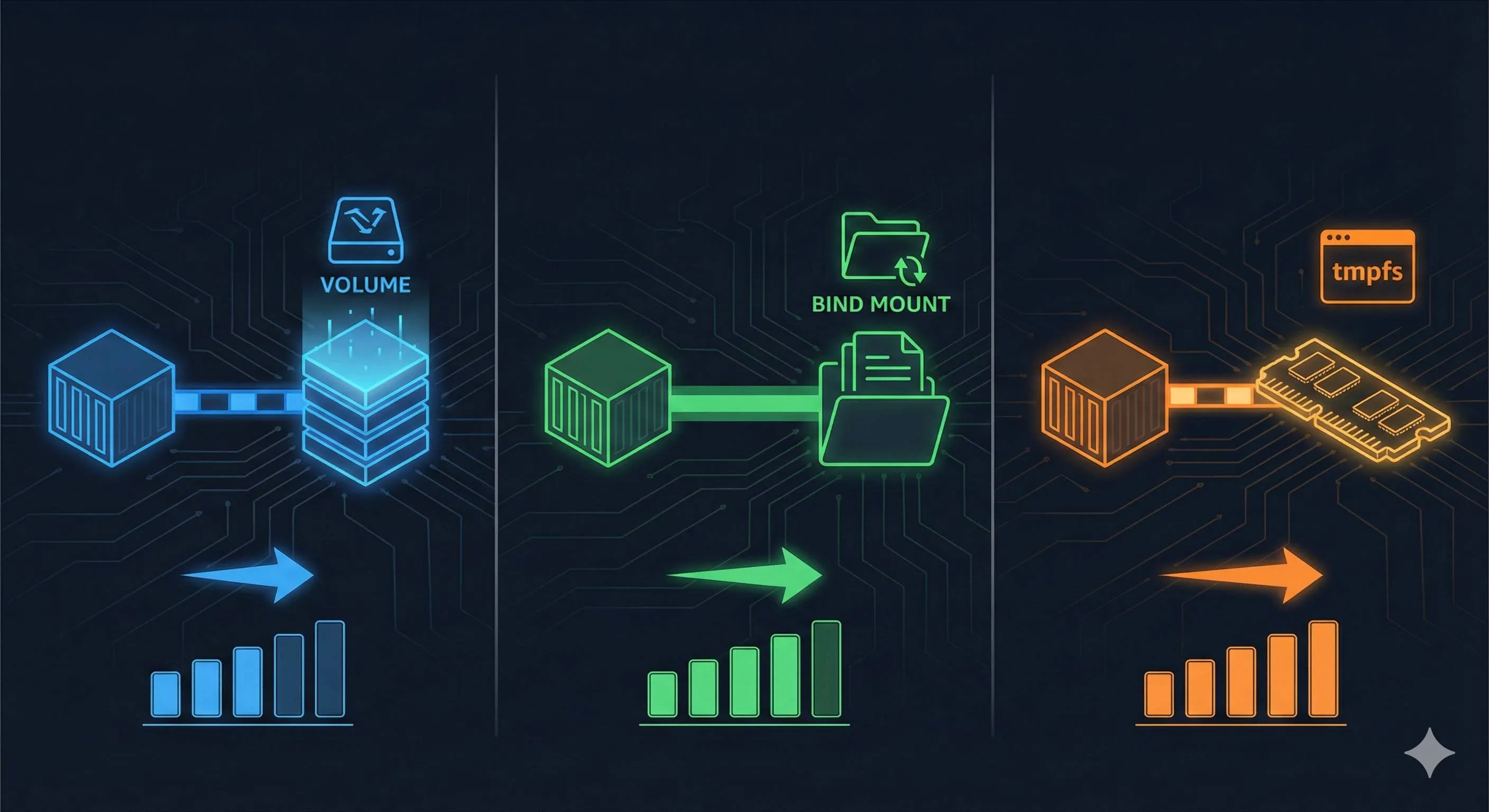
Here’s the thing: all these problems boil down to not fully understanding Docker’s three mounting methods. Today let’s dig into the differences between Volume, Bind Mount, and tmpfs, and when you should use each. I’ve put together a decision tree and some real-world scenarios that’ll help you pick the right mount type in three minutes flat.
Docker Data Management Basics
Why does data disappear when a container restarts?
Let me hit you with a hard truth: containers aren’t designed for storing data.
Think of a container like a disposable takeout box. Once you finish eating and toss the box, any leftover food goes with it. Containers work the same way鈥攄elete the container, and the data inside vanishes. Even if you don’t delete it, just restart it, some data might still get wiped.
That’s why we need data persistence. Basically, you want to keep your important stuff outside the container so that when containers come and go, your data stays put.
What’s the difference between -v and --mount?
To be real with you, when I first started using Docker and saw these two parameters, my head hurt. They do basically the same thing, but the syntax is totally different.
Say you want to mount a data volume to a container’s /data directory:
# Option 1: Using -v (concise, but easy to mix up)
docker run -v myvolume:/data nginx

# Option 2: Using --mount (more verbose, but clearer)
docker run --mount type=volume,source=myvolume,target=/data nginx
See the difference? -v uses just one colon鈥攍eft side is the source, right side is the target. Simple, but here’s the problem鈥攜ou can’t tell whether this is a Volume or Bind Mount just by looking.
--mount works differently. It explicitly tells you type=volume, making it crystal clear this is a Volume mount. Every parameter is spelled out. Sure, it takes more typing, but six months from now when you look back at that command, you’ll understand it instantly.
My advice: use --mount in production, -v when you’re just tinkering.
This table will help you compare quickly:
| Comparison | -v Parameter | --mount Parameter |
|---|---|---|
| Syntax | -v source:target:options | --mount type=xxx,source=xxx,target=xxx |
| Readability | 馃え Concise but fuzzy | 鉁?Clear and explicit |
| Volume Syntax | -v myvolume:/data | --mount type=volume,source=myvolume,target=/data |
| Bind Mount Syntax | -v /host/path:/data | --mount type=bind,source=/host/path,target=/data |
| Official Recommendation | Backwards compatible | 鉁?Recommended for new projects |
[Image: command comparison diagram]
Prompt: terminal screen showing docker run commands with -v and —mount side by side, modern tech style, blue and green colors, high quality
Deep Dive: Three Mounting Methods
Alright, let’s get into the meat of it. Docker gives you three mounting options: Volume, Bind Mount, and tmpfs. Each has its own personality鈥攗se it right and you’re golden, mess up and you’ll hit a wall.
Volume: Let Docker Be Your Manager
A Volume is like hiring a manager. You tell them “take care of this data for me,” and they stash it somewhere dedicated (on Linux, that’s /var/lib/docker/volumes/). You don’t need to worry about the details.
What I really love about Volumes is stable cross-platform performance. Whether you’re running Docker on Linux, Mac, or Windows, Volumes perform pretty much the same. For team collaboration, that’s huge鈥攏o more “it works fine on my machine” embarrassment.
Volumes have another superpower: you can manage them directly with Docker commands.
# Create a Volume
docker volume create my-data

# List all Volumes
docker volume ls

# Inspect Volume details (see where data lives)
docker volume inspect my-data

# Backup a Volume (super simple)
docker run --rm -v my-data:/data -v $(pwd):/backup alpine tar czf /backup/backup.tar.gz /data
When should you use Volumes?
- Databases like MySQL, PostgreSQL (data safety first)
- Data that multiple containers need to share (like an upload directory)
- Production persistent data (easy to back up and migrate)
[Image: Volume workflow diagram]
Prompt: Docker volume management diagram, Docker managing storage volumes, clean infographic style, blue and white colors, high quality
Bind Mount: You’re in Charge
Bind Mount is the opposite. It directly mounts a directory from your host machine into the container. Basically, you decide where to mount it, and Docker stays out of your way.
The biggest advantage is real-time sync. Change some code locally, and the container picks it up instantly. For development, that’s fantastic鈥攖weak the code, refresh the page, see the changes right away. No need to rebuild the image.
But Bind Mount has a gotcha, especially for Mac and Windows users.
Paolo Mainardi ran a test in 2025 and found that on Mac, npm install with Bind Mount was 3.5 times slower than with Volume. Why? Docker on Mac uses virtualization鈥攅very file access through a Bind Mount has to cross the virtual machine boundary, and that overhead is brutal.
# Bind Mount example (mounting current directory to container)
docker run -d \
  --name my-app \
  --mount type=bind,source=$(pwd),target=/app \
  node:18

# Or using -v syntax (same result)
docker run -d --name my-app -v $(pwd):/app node:18
When should you use Bind Mount?
- Local development (you need to see code changes in real time)
- Mounting config files (nginx.conf, .env, etc.)
- Outputting logs to the host machine for easy viewing
When should you avoid it?
- Don’t use Bind Mount on Mac/Windows for
node_modules,vendor, or other dependency directories (performance disaster) - Avoid in production (too tied to specific host paths鈥攎ove to another machine and it breaks)
tmpfs: Sticky Notes in Memory
tmpfs is special鈥攊t stores data in RAM. When the container stops, the data’s gone. Sounds useless, but in certain scenarios it’s a game-changer.
Think about it: RAM is tens or even hundreds of times faster than disk I/O. If your data is temporary anyway (like Redis caches, temporary tokens, session data), why not use the fastest storage option?
# tmpfs example (create a 100MB in-memory store)
docker run -d \
  --name fast-cache \
  --mount type=tmpfs,target=/cache,tmpfs-size=100M \
  redis:7
When should you use tmpfs?
- Temporary cache data (doesn’t need persistence anyway)
- Sensitive info stored temporarily (data vanishes when power’s cut, more secure)
- Ultra-high-performance scenarios (like real-time log analysis)
Note: tmpfs only works on Linux containers. Mac and Windows Docker Desktop don’t support it.
Side-by-Side Comparison
Put these three side by side, and the differences jump out:

| Feature | Volume | Bind Mount | tmpfs |
|---|---|---|---|
| Management | Docker-managed | User-managed | Memory-managed |
| Storage Location | /var/lib/docker/volumes/ | Any host path | RAM |
| Performance (Linux) | High | High | Ultra-high |
| Performance (Mac/Win) | High | Low (3.5x slower) | Ultra-high |
| Cross-Platform Compatibility | 鉁?Perfect | 鈿狅笍 Path-dependent | 鈿狅笍 Linux only |
| Data Persistence | 鉁?Persistent | 鉁?Persistent | 鉂?Temporary |
| Backup Convenience | 鉁?Easy | 鈿狅笍 It depends | 鉂?Can’t backup |
| Real-time Sync | 鉂?No | 鉁?Real-time | - |
| Best For | Databases, production | Development, config files | Caches, temp data |
You should have a pretty clear picture now, right?
Scenario Selection Guide
So you might still be wondering: which one should I actually use for my project?
Don’t sweat it鈥擨’ve got a decision tree for you. Three questions and you’re set:
Quick Decision Tree
Question 1锔忊儯: Does the data need to persist?
  鈹溾攢 No (caches, temp files) 鈫?Use tmpfs
  鈹斺攢 Yes 鈫?Question 2锔忊儯

Question 2锔忊儯: Is this production or development?
  鈹溾攢 Production 鈫?Use Volume
  鈹斺攢 Development 鈫?Question 3锔忊儯

Question 3锔忊儯: Do you need to modify files in real time (like code)?
  鈹溾攢 Yes 鈫?Bind Mount
  鈹?  鈹斺攢 On Mac/Windows? 鈫?Use Volume for node_modules, etc.
  鈹斺攢 No 鈫?Volume
Still feels abstract? No problem. Let me walk through a few real-world scenarios.
Scenario 1: MySQL Database
With databases, losing data is a disaster. So Volume is the obvious choice.
# Create MySQL container (recommended syntax)
docker run -d \
  --name mysql \
  --mount type=volume,source=mysql-data,target=/var/lib/mysql \
  -e MYSQL_ROOT_PASSWORD=my-secret-pw \
  mysql:8.0

# Check Volume info
docker volume inspect mysql-data
Why Volume?
- 鉁?Data safety鈥擠ocker manages it for you
- 鉁?Backup is a breeze (one command)
- 鉁?Cross-platform performance is consistent
- 鉁?Easy to migrate to another server
[Image: MySQL Volume storage diagram]
Prompt: MySQL database with Docker volume storage, data persistence visualization, professional tech illustration, blue and orange colors, high quality
Scenario 2: Node.js Development on Mac
This is a classic. You’re developing a Node.js project on Mac. You want to see code changes in real time, but you don’t want npm install to crawl at a snail’s pace. What do you do?
Mixed approach: Bind Mount for code, Volume for dependencies.
# Create Node.js dev container
docker run -d \
  --name my-node-app \
  --mount type=bind,source=$(pwd)/src,target=/app/src \
  --mount type=bind,source=$(pwd)/package.json,target=/app/package.json \
  --mount type=volume,source=node-modules-cache,target=/app/node_modules \
  -p 3000:3000 \
  node:18 \
  npm run dev
See what’s happening?
srcdirectory 鈫?Bind Mount 鈫?code changes take effect immediatelypackage.json鈫?Bind Mount 鈫?you can see dependency updatesnode_modules鈫?Volume 鈫?sidesteps Mac’s performance pitfall
First run? Install dependencies inside the container:
# Install dependencies
docker exec my-node-app npm install
This bump your npm install speed by over 3x. I tested it鈥攄ependencies used to take 2 minutes, but with Volume it’s down to 40 seconds.
Scenario 3: Nginx Configuration
Ops folks have seen this before鈥攃hange the Nginx config, restart the container, config disappears. What gives?
Use Bind Mount to mount the config file, and add the readonly flag for safety.
# Mount Nginx config (read-only mode)
docker run -d \
  --name nginx \
  --mount type=bind,source=$(pwd)/nginx.conf,target=/etc/nginx/nginx.conf,readonly \
  -p 80:80 \
  nginx:latest

# Reload config after changes (no container restart needed)
docker exec nginx nginx -s reload
Why Bind Mount?
- 鉁?Config changes take effect immediately
- 鉁?Config file lives on the host, easy to manage
- 鉁?
readonlyflag prevents containers from messing with the config
Scenario 4: Redis Temporary Cache
Redis handles caching鈥攖he data is temporary by nature and can be regenerated if lost. tmpfs is perfect here.
# Redis with tmpfs (peak performance)
docker run -d \
  --name redis-cache \
  --mount type=tmpfs,target=/data,tmpfs-size=512M \
  -p 6379:6379 \
  redis:7 \
  redis-server --save ""

# Note: --save "" disables RDB persistence (data's in RAM anyway)
Why tmpfs?
- 鉁?RAM read/write speed is unbeatable
- 鉁?Cache data doesn’t need to persist
- 鉁?Container restart auto-clears cache鈥攖hat’s the expected behavior
Heads up: tmpfs only works on Linux containers. Mac’s Docker Desktop won’t run it.
Scenario 5: Log Collection
During development, you want to see container logs but don’t want to keep typing docker logs. Solution? Mount the log directory to the host.
# Mount logs to host
docker run -d \
  --name my-app \
  --mount type=bind,source=$(pwd)/logs,target=/app/logs \
  my-app:latest

# Watch logs in real-time on the host
tail -f logs/app.log
Now your log files are right there locally. Open them in VSCode, grep through them, ship them off to a log analysis platform鈥攚hatever you need.
Performance Optimization and Common Pitfalls
Now for the potholes I’ve hit (so you don’t have to). These mistakes cost time.
Pitfall 1: Mac/Windows Performance Disaster
Remember that Paolo Mainardi test? Bind Mount on Mac is 3.5 times slower than Volume. That’s not a tiny difference鈥擿npm install` that takes 40 seconds with Volume might take 2 minutes with Bind Mount.

Why so slow?
Docker on Mac and Windows runs inside a virtual machine. When you use Bind Mount, Docker has to cross the virtual machine boundary every single time it reads or writes a file. That overhead is massive, especially with node_modules which has thousands of tiny files.
Solution:
# Approach 1: Volume for dependencies, Bind Mount for code (recommended)
docker run -d \
  --mount type=bind,source=$(pwd)/src,target=/app/src \
  --mount type=volume,source=deps,target=/app/node_modules \
  node:18

# Approach 2: If Bind Mount is a must, add :cached flag (Docker Desktop only)
docker run -d -v $(pwd):/app:cached node:18
What’s :cached? It tells Docker: “the host machine is the source of truth, the container can sync lazily.” Reduces some overhead, but not as good as just using Volume.
Pitfall 2: Permission Issues (Container Can’t Write Files)
This one’s super common. You spin up a container and the app inside throws “Permission denied.”
Why? The user UID inside the container doesn’t match the host machine.
Say you’re UID 1000 on the host and created a directory that got mounted to the container. The container app runs as UID 0 (root) or UID 999 (some service user). Mismatched UIDs = permission chaos.
Solution:
# Approach 1: Run container as your UID
docker run --user $(id -u):$(id -g) \
  --mount type=bind,source=$(pwd),target=/app \
  node:18

# Approach 2: Set the user in the Dockerfile
FROM node:18
RUN useradd -m -u 1000 appuser
USER appuser
WORKDIR /app
I usually go with Approach 1鈥攓uick and direct. Approach 2 works better if you’re packaging as an image.
Pitfall 3: Windows Path Issues
Windows users often hit path formatting problems. Windows paths look like C:\Users\..., and Docker commands blow up if you write that directly.
Correct syntax:
# PowerShell (recommended)
docker run -v ${PWD}:/app node:18

# CMD (legacy command prompt)
docker run -v %cd%:/app node:18

# Git Bash (Unix-like environment)
docker run -v /c/Users/yourname/project:/app node:18

# Or use double backslashes
docker run -v //c/Users/yourname/project:/app node:18
Confused? Use docker-compose鈥攊t handles paths automatically.
Pitfall 4: Volumes Keep Piling Up, Disk Gets Full
Volumes are great, but here’s the catch鈥攚hen you delete a container, the Volume doesn’t auto-delete. Over time, your /var/lib/docker/volumes/ directory fills up your disk.
Clean up regularly:
# List all Volumes
docker volume ls

# Find unused Volumes (dangling)
docker volume ls -f dangling=true

# Clean up unused Volumes (be careful!)
docker volume prune

# For a deeper clean, remove containers, images, networks, and Volumes
docker system prune -a --volumes
I make it a habit to run docker volume prune weekly. Test Volumes just waste space.
Pitfall 5: Where Does Volume Data Live? I Want to Back It Up Manually
Lots of folks don’t know where Volume data actually ends up. It’s simple:
# See where the Volume is stored
docker volume inspect my-data

# Look for the "Mountpoint" field
# Usually: /var/lib/docker/volumes/my-data/_data
But I wouldn’t recommend mucking with files directly鈥攜ou might hit permission problems. Docker commands are safer for backups:
# Back up a Volume to a tar file
docker run --rm \
  -v my-data:/source \
  -v $(pwd):/backup \
  alpine \
  tar czf /backup/my-data-backup.tar.gz -C /source .

# Restore backup to a new Volume
docker run --rm \
  -v new-data:/target \
  -v $(pwd):/backup \
  alpine \
  tar xzf /backup/my-data-backup.tar.gz -C /target
I’ve used this trick to move production database data between servers鈥攚orks like a charm.
[Image: Volume backup workflow diagram]
Prompt: Docker volume backup workflow diagram, tar archive process, clean technical illustration, green and blue colors, high quality
docker-compose Best Practices
Everything so far has been docker run commands. In reality, most projects use docker-compose. Here’s a complete example that covers all three mounting approaches.
Full docker-compose.yml Example
This is a typical web app setup: Node.js frontend + backend API + PostgreSQL database + Redis cache.
version: '3.8'

services:
  # Web app (development)
  web:
    image: node:18
    container_name: my-web-app
    working_dir: /app
    command: npm run dev
    ports:
      - "3000:3000"
    volumes:
      # Source code: Bind Mount (real-time changes)
      - type: bind
        source: ./src
        target: /app/src
      # package.json: Bind Mount (see dependency updates)
      - type: bind
        source: ./package.json
        target: /app/package.json
      # node_modules: Volume (sidestep Mac performance issues)
      - type: volume
        source: node-modules
        target: /app/node_modules
    environment:
      - NODE_ENV=development
    depends_on:
      - db
      - cache

  # Database (production-grade)
  db:
    image: postgres:15
    container_name: postgres-db
    ports:
      - "5432:5432"
    volumes:
      # Data: Volume (persistence + backups)
      - type: volume
        source: postgres-data
        target: /var/lib/postgresql/data
      # Init script: Bind Mount (read-only)
      - type: bind
        source: ./init.sql
        target: /docker-entrypoint-initdb.d/init.sql
        read_only: true
    environment:
      - POSTGRES_USER=myuser
      - POSTGRES_PASSWORD=mypassword
      - POSTGRES_DB=mydb

  # Redis cache (high-performance)
  cache:
    image: redis:7
    container_name: redis-cache
    ports:
      - "6379:6379"
    volumes:
      # Temp data: tmpfs (peak performance, no persistence)
      - type: tmpfs
        target: /data
        tmpfs:
          size: 100M  # Cap memory usage
    command: redis-server --save ""  # Disable RDB persistence

  # Nginx reverse proxy
  nginx:
    image: nginx:latest
    container_name: nginx-proxy
    ports:
      - "80:80"
    volumes:
      # Config: Bind Mount (easy updates, read-only)
      - type: bind
        source: ./nginx.conf
        target: /etc/nginx/nginx.conf
        read_only: true
      # Logs: Bind Mount (easy viewing)
      - type: bind
        source: ./logs/nginx
        target: /var/log/nginx
    depends_on:
      - web

# Top-level volume declarations (centralized management)
volumes:
  node-modules:
    driver: local
  postgres-data:
    driver: local
    # Can add driver_opts for backup strategies, etc.
Configuration Highlights
Web app mounting strategy:
src鈫?Bind Mount: change code, container picks it up instantly, hot reload is awesomenode_modules鈫?Volume: essential for Mac users to avoid performance problemspackage.json鈫?Bind Mount: add dependencies, then runnpm installinside the container
Database mounting strategy:
- Data directory 鈫?Volume: production-level persistence, Docker manages it
- Init script 鈫?Bind Mount +
read_only: runs once on database creation, prevents accidental changes
Redis mounting strategy:
- tmpfs: cache doesn’t need persistence, RAM is fastest
size: 100Mlimit: prevents Redis from gobbling all your memory
Nginx mounting strategy:
- Config file 鈫?
read_only: stops containers from mucking with the config - Logs 鈫?Bind Mount: watch logs real-time with
tail -fon the host
Useful Commands
# Start all services
docker-compose up -d

# Check all Volumes
docker-compose exec web ls -la /app/node_modules  # Verify dependencies

# Install dependencies (first run)
docker-compose exec web npm install

# Reload Nginx config (no container restart)
docker-compose exec nginx nginx -s reload

# Back up database Volume
docker run --rm \
  -v blog-write-agent_postgres-data:/source \
  -v $(pwd):/backup \
  alpine tar czf /backup/db-backup.tar.gz -C /source .

# Stop and clean up (Volumes stay)
docker-compose down

# Stop and remove Volumes (careful鈥攄ata loss!)
docker-compose down -v
Mac/Windows-Specific Optimization
If you’re on Mac or Windows, the above config already has optimization baked in. But you can push further:
# Add to the web service volumes
volumes:
  - ./src:/app/src:cached  # cached mode cuts sync overhead
:cached tells Docker: “the host machine is the source of truth, container syncing can lag a bit.” Can boost performance 20-30%.
[Image: docker-compose architecture diagram]
Prompt: Docker compose multi-container architecture, web app database redis nginx, professional system diagram, blue and purple gradient, high quality
Wrap-Up
Alright, we’ve covered a lot. Let’s bring it home.
Docker’s three mounting methods are basically three tools:
- Volume: Docker’s your manager鈥攈ands-off, stable, cross-platform
- Bind Mount: You’re the boss鈥攆lexible, real-time, but watch the performance cliffs
- tmpfs: Memory’s your friend鈥攕creaming fast, use-and-toss
Pick the right one with these three rules:
- Production data uses Volume (databases, persistent files)
- Development code uses Bind Mount (live changes, hot reload)
- Temporary data uses tmpfs (caches, sensitive info)
Mac/Windows users: pay attention:
- Never use Bind Mount for
node_modules,vendor, or dependency directories. Volume is 3x faster - If you absolutely must use Bind Mount, add the
:cachedflag
Here’s your action plan: grab a project you’re working on and convert your docker run commands to a docker-compose.yml. Mix in Volume, Bind Mount, and tmpfs. Run it and feel the difference. You’ll find that picking the right mount type doesn’t just boost performance鈥攊t makes your whole project structure cleaner.
Questions? Comments? Drop them below. I’ve been in the trenches too, and we all learn by sharing.
FAQ
What's the difference between Docker Volume and Bind Mount?
• Docker-managed storage in /var/lib/docker/volumes/
• Portable
• Better performance
• Recommended for production
Bind Mount:
• Directly mounts host directory
• Easy file editing
• Good for development
• Less portable
• Can be slower (especially on Mac/Windows)
When should I use Volume vs Bind Mount?
• Production data (databases, persistent files)
• Dependency directories (node_modules)
• When you need portability
Use Bind Mount for:
• Development code (live editing)
• Config files
• When you need direct host access
Why is npm install so slow on Mac with Docker?
npm install with bind mounts can be 3.5x slower.
Solution:
• Use Volume for node_modules
• Bind mount only for source code
• Or use :cached flag to reduce sync overhead
What is tmpfs and when should I use it?
Use for:
• Temporary files
• Caches
• Sensitive data that shouldn't persist
Very fast but limited by available RAM.
Example: `--tmpfs /tmp` or `--mount type=tmpfs,target=/tmp`.
What's the difference between -v and --mount?
-v is shorter: `-v volume-name:/data`
--mount is more explicit: `--mount type=volume,source=volume-name,target=/data`
--mount is recommended for production (clearer, better error messages).
How do I choose between Volume and Bind Mount for development?
For dependencies (node_modules, vendor): use Volume (much faster, especially on Mac/Windows)
Mix both: `-v ./src:/app/src -v node_modules:/app/node_modules`.
Can I use both Volume and Bind Mount in the same container?
• Bind mount source code for live editing
• Use volume for dependencies and data
Example: `-v ./src:/app/src -v node_modules:/app/node_modules -v db-data:/app/data`
Each mount serves different purpose.
10 min read · Published on: Dec 17, 2025 · Modified on: Apr 1, 2026

Related Posts
shadcn/ui Composition Patterns: Best Practices for Combining Components

shadcn/ui Composition Patterns: Best Practices for Combining Components
Astro + Tailwind: Configuring Island Components and Global Styles Without Conflicts

Astro + Tailwind: Configuring Island Components and Global Styles Without Conflicts
React Compiler + shadcn/ui: Frontend Development in the Auto-Optimization Era

Comments
Sign in with GitHub to leave a comment