
The Complete Guide to Docker Mount Permission Issues: From Diagnosis to 5 Practical Solutions
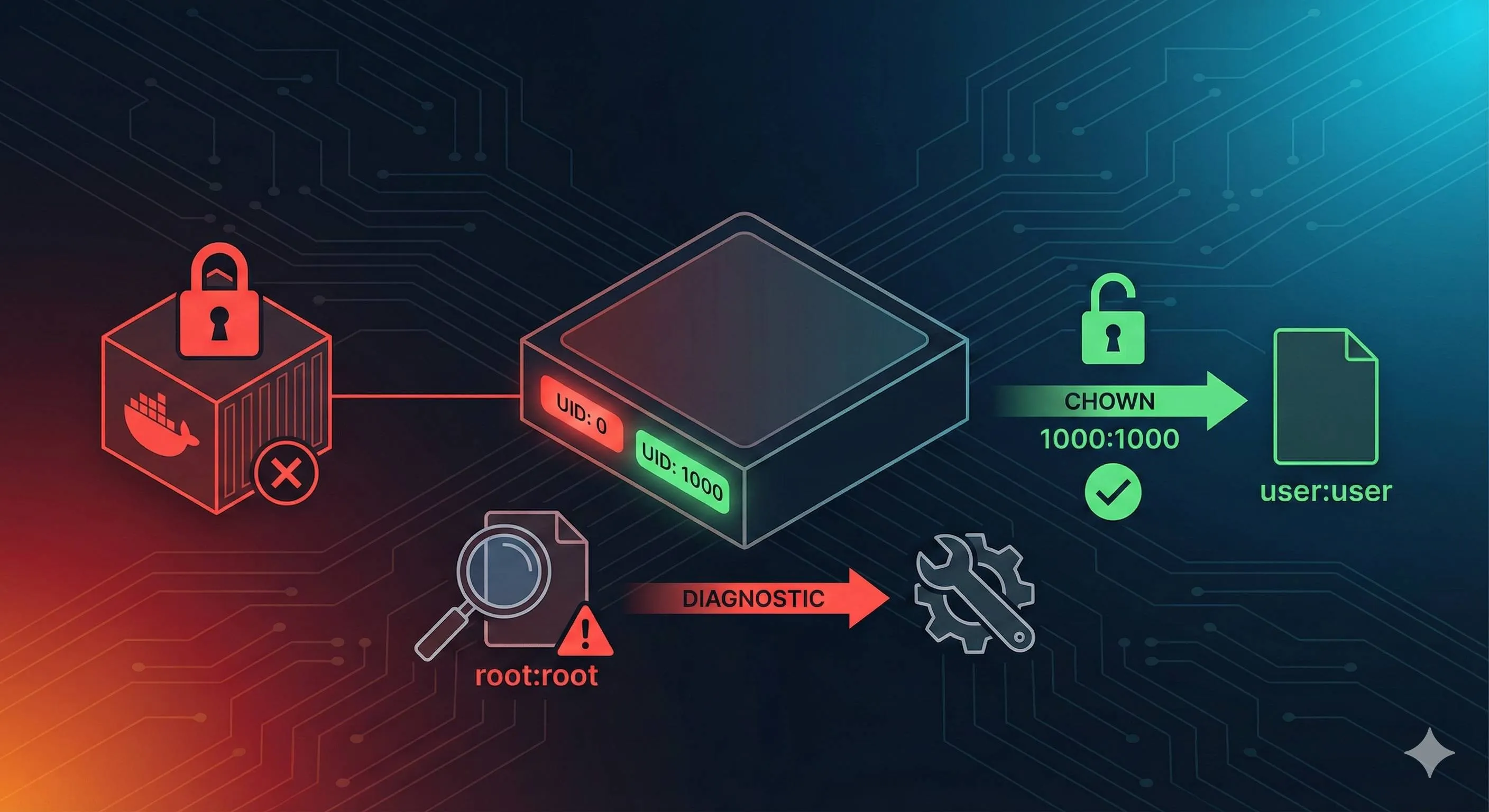
3 AM. You’re staring at that red error message on your terminal—“Permission denied.” This is the fifth time tonight. The development container that runs perfectly on your Mac just exploded when deployed to the Linux production server. You try to delete those log files generated by the container, and the system tells you “operation not permitted.” But you’re the server administrator—how can you not have permission?
What’s even more frustrating is when you asked your colleague about it yesterday, he casually said: “Just chmod 777 it, right?” You tried it, and it worked. But there’s this voice in your head reminding you: Is this really okay?
According to Docker community forum statistics, 40% of beginner users encounter mount directory permission issues, and 60% of them choose the chmod 777 brute force approach. The result? Hidden dangers of container escape and data leaks. Sounds scary, right?

Actually, this permission issue isn’t that mysterious. In this article, I’ll help you completely understand the essence of Docker permission problems—what UID and GID are really about. Then I’ll give you 5 proper solutions, from simple temporary hacks to enterprise-grade security configurations. Most importantly, you’ll learn to use 3 commands to quickly diagnose problems and know which solution to use.
No more blind chmod 777. Let’s go.
Root Cause: Why Do Permission Problems Exist?
UID/GID Are the Real Identity Cards
You might think Linux uses usernames to identify users, right? Wrong. The Linux kernel only recognizes numbers—UID (User ID) and GID (Group ID). Usernames are just nicknames for humans.
Here’s an example. Run the id command on your computer:
uid=1000(oden) gid=1000(oden) groups=1000(oden)See that? 1000 is your real identity marker. The name “oden” doesn’t matter to the kernel at all.
Now look at the root user:
uid=0(root) gid=0(root) groups=0(root)User 0 is the superuser. No matter what the name is, as long as the UID is 0, you have the highest system privileges.
How Permission Conflicts Arise
This is the core of the problem. When you run Docker on the host machine as a regular user (say UID=1000), but the container runs as root (UID=0) by default, conflicts arise.
Here’s the complete conflict chain:
- On the Linux host, you start a container as a regular user with UID=1000
- The process inside the container runs as root (UID=0) by default
- Root inside the container creates a file, like
/app/logs/output.log - This file is mapped to
./logs/output.logon the host via bind mount - On the host, this file’s owner shows as root (UID=0)
- You, as a regular user (UID=1000), want to delete it? No way, insufficient permissions
That simple and brutal. The container doesn’t know who you are on the host—it only recognizes UIDs. Files created by user 0 can’t be touched by non-0 users.
Why Don’t Mac and Windows Have This Problem?
You might wonder: “Strange, I’ve never had this issue with Docker on Mac.”
Right, because Docker Desktop on Mac and Windows runs in a virtual machine. Mac uses the Apple Virtualization framework (formerly hyperkit), and Windows uses WSL2 or Hyper-V. They have an extra “permission translation layer.”
Mac’s VirtioFS file system automatically converts the owner of files generated by containers to the current user on the host. Sounds thoughtful, right? Yes, but this is also the fundamental reason why your code works on Mac but explodes on a Linux server—Docker on Linux directly calls the kernel without this intermediate translation layer.
Simply put, Docker Desktop made compromises for user experience, sacrificing some “authenticity.” You don’t feel the pain during development, but you’re blindsided during deployment.
A Few More Gotchas to Watch Out For
Bind mount vs Named Volume:
- Bind mount (
-v /host/path:/container/path) directly maps host directories, permission issues are most obvious - Named Volume (
-v mydata:/container/path) is managed by Docker, permissions are relatively relaxed, but not problem-free
SELinux and AppArmor:
If your Linux has SELinux enabled (CentOS/RHEL) or AppArmor (Ubuntu), permission issues get more complex. Besides UID/GID matching, you need to consider security context labels. Encountering mysterious permission errors? Check SELinux logs first:
sudo ausearch -m avc -ts recentThe container doesn’t have your user:
Container images only have root and a few system users by default. Your UID=1000 user on the host isn’t recognized by the container. That’s why file owners show as a string of numbers.
Quick Diagnosis: 3 Commands to Locate Permission Issues
Don’t panic when you encounter Permission denied. How do professionals troubleshoot? Three commands, one minute, done.
Command 1: Check the Real Owner of Files
ls -ln /your/mount/pathNote, it’s -ln not -l. What’s the difference? -l shows usernames, -ln shows UID/GID numbers.
Example output:
-rw-r--r-- 1 0 0 1024 Dec 17 10:00 output.logHow to read this output?
- First column
-rw-r--r--is permission bits (not the focus) - Second column
1is hard link count (not important) - Third column
0is the owner’s UID ← Focus here - Fourth column
0is the owner’s GID ← And here - Rest is file size, time, filename
See the 0 0? That’s the root user. If your UID on the host is 1000, of course you can’t modify this file.
Compare with a normal situation:
ls -ln ~/my-projectOutput:
-rw-r--r-- 1 1000 1000 2048 Dec 17 11:30 README.mdSee the 1000 1000? That’s your own file.
Command 2: Check the Actual Identity of Container Processes
docker exec <container_name> idExample output:
uid=0(root) gid=0(root) groups=0(root)This tells you what identity the process inside the container runs as. Usually it’s root (UID=0).
Now compare with the host:
idOutput:
uid=1000(oden) gid=1000(oden) groups=1000(oden),4(adm),27(sudo)See the difference? Container is 0, host is 1000. Mismatch. That’s the source of conflict.
Command 3: Check Docker Mount Configuration
docker inspect <container_name> | grep -A 10 "Mounts"Output looks like this:
"Mounts": [
    {
        "Type": "bind",
        "Source": "/home/oden/project/logs",
        "Destination": "/app/logs",
        "Mode": "",
        "RW": true,
        "Propagation": "rprivate"
    }
]
What to look for?
Type: bind or volume? Bind mount permission issues are more obviousSource: Host path, go ls -ln to see this path’s ownerRW: true means read-write, false means read-onlyMode: Any special mount options (like:zor:Zfor SELinux)
One-Minute Diagnosis Flow
When you encounter permission issues, check in this order:
- Check file first:
ls -lnto see the problem file’s UID/GID - Check container next:
docker exec <container> idto see container process identity - Compare differences: If container UID and file owner UID differ from your host UID, it’s a permission conflict
- Confirm configuration:
docker inspectto confirm mount method and path
Here’s a real example. Suppose you can’t delete container logs:
# Step 1: Check file owner
$ ls -ln ./logs/
-rw-r--r-- 1 0 0 5120 Dec 17 12:00 app.log

# UID=0, created by root

# Step 2: Check container identity
$ docker exec myapp id
uid=0(root) gid=0(root) groups=0(root)

# Container indeed runs as root

# Step 3: Check my identity
$ id
uid=1000(oden) gid=1000(oden) ...

# I'm 1000, container is 0, mismatch!

# Diagnosis result: Container runs as root, generates root-owned files, I have no permission to delete
With this diagnosis, you know which solution to use. Keep reading.
5 Major Solutions: Choose What’s Right for You
Alright, now that you know the root cause and diagnostic methods, let’s solve it. I’ll give you 5 solutions, from simple to complex, from temporary hacks to enterprise-grade configurations. The key is knowing which scenario uses which solution.
Solution 1: Specify UID/GID with —user Parameter at Runtime
Who it’s for: Quick testing, or local development environments
Principle: Directly tell Docker “run the container with my UID,” so files generated by the container are owned by you.
How to use:
# Command line method
docker run --user $(id -u):$(id -g) -v /host/data:/app/data myimage

# docker-compose.yml method
services:
  myapp:
    image: myimage
    user: "${UID:-1000}:${GID:-1000}"
    volumes:
      - ./data:/app/data
At runtime:
export UID=$(id -u)
export GID=$(id -g)
docker-compose upPros:
- Simplest, immediate effect
- No need to modify Dockerfile or rebuild images
- Suitable for rapid local development iteration
Cons:
- Must specify every startup
- If the application inside the container depends on a specific UID (like nginx needing to bind port 80, requiring root permission), it will fail
- Team members might have different UIDs, can’t hardcode
Risk level: Low
Applicable systems: Linux perfect support; Mac/Windows supported but poor experience (due to VM layer)
When to use: Local development, temporary testing, quick validation of ideas. For example, you develop on Mac, push to Linux CI and discover permission issues—use this solution as a quick fix.
Solution 2: Create Matching User in Dockerfile
Who it’s for: Team-shared images, scenarios requiring repeated use
Principle: Pass host UID via build arg during image build, create corresponding user in the image. This way the container runs with this user identity after startup.
How to use:
Dockerfile:
FROM python:3.11

# Accept build arguments
ARG UID=1000
ARG GID=1000

# Create group and user
RUN groupadd -g $GID appuser && \
    useradd -m -u $UID -g $GID appuser

# Set working directory and grant permissions
WORKDIR /app
RUN chown -R appuser:appuser /app

# Switch to non-root user
USER appuser

# Subsequent commands execute as appuser
COPY --chown=appuser:appuser . /app
RUN pip install -r requirements.txt

CMD ["python", "app.py"]
Build:
docker build --build-arg UID=$(id -u) --build-arg GID=$(id -g) -t myapp:latest .docker-compose.yml:
services:
  myapp:
    build:
      context: .
      args:
        UID: ${UID:-1000}
        GID: ${GID:-1000}
    volumes:
- ./data:/app/dataPros:
- Build once, correct every run
- Complete user environment inside container (home directory, shell configuration, etc.)
- Most professional solution, production-grade
Cons:
- Needs Dockerfile modification
- When team members have different UIDs, everyone has to build their own (can’t share images)
- If application needs root permission at startup (like modifying system configuration), this solution won’t work
Risk level: Low
Applicable systems: Linux perfect; Mac/Windows have differences due to VM layer, but usable
When to use: Your team has standard base images, all projects based on it; or you’re making an image to distribute to others (like open source projects), letting users build with matching UID themselves.
Solution 3: Dynamic Adjustment with Entrypoint Script (gosu Solution)
Who it’s for: Application needs to initialize as root first, then drop privileges to run
Principle: Container starts with entrypoint script running as root, script dynamically creates user, then uses gosu (similar to sudo but more secure) to switch to target user to run main program.

How to use:
Dockerfile:
FROM node:18

# Install gosu
RUN apt-get update && apt-get install -y gosu && rm -rf /var/lib/apt/lists/*

# Copy entrypoint script
COPY entrypoint.sh /usr/local/bin/
RUN chmod +x /usr/local/bin/entrypoint.sh

WORKDIR /app
COPY . /app

ENTRYPOINT ["/usr/local/bin/entrypoint.sh"]
CMD ["node", "server.js"]
entrypoint.sh:
#!/bin/bash
set -e

# If LOCAL_USER_ID environment variable is specified
if [ -n "$LOCAL_USER_ID" ]; then
    # Create user (if doesn't exist)
    useradd -u $LOCAL_USER_ID -o -m appuser 2>/dev/null || true

    # Change /app directory owner
    chown -R appuser:appuser /app

    # Use gosu to switch to appuser and run subsequent commands
    exec gosu appuser "$@"
else
    # If not specified, run as root
    exec "$@"
fi
Run:
docker run -e LOCAL_USER_ID=$(id -u) -v ./data:/app/data myappPros:
- Highest flexibility: Can use root for initialization, and drop privileges to run main program
- Image can be reused by users with different UIDs
- Good security (gosu is more secure than su/sudo)
Cons:
- Needs modification of Dockerfile and entrypoint
- Increases complexity and maintenance cost
- gosu needs extra installation (though very small)
Risk level: Medium (gosu is Docker officially recommended tool, trustworthy)
Applicable systems: All systems
When to use: Your application needs to modify system configuration at startup (needs root), but should run as regular user? Like nginx needs to bind port 80 (root permission), but worker processes should drop privileges; or your application needs to initialize database schema (root), then drop privileges to run service.
Solution 4: User Namespace Remapping (userns-remap)
Who it’s for: Company security regulations require mandatory isolation, no container allowed to run as real root
Principle: Configure at Docker daemon level, automatically remap all container UIDs to a “subordinate user” range. Container thinks it’s root (UID=0), but on the host it’s actually a regular user (like UID=100000).
How to use:
Edit /etc/docker/daemon.json:
{
  "userns-remap": "default"
}
Restart Docker:
sudo systemctl restart dockerDocker will automatically create dockremap user and allocate UID/GID range in /etc/subuid and /etc/subgid.
Verify:
# Start container
docker run -d --name test -v /tmp/test:/data busybox sleep 3600

# Inside container looks like root
docker exec test id
# uid=0(root) gid=0(root)

# But on host
ls -ln /tmp/test
# owner is a large number, like 100000Pros:
- Configure once, globally effective
- All containers automatically isolated, no need to modify images or commands
- Highest security: Even if container escapes, it escapes to subordinate user shell, not real root
- Docker officially recommended enterprise-grade solution
Cons:
- Needs system-level configuration, affects all containers
- Existing containers and volumes might be incompatible, need to rebuild
- Can’t use with rootless mode simultaneously
- Some privileged operations (like mount) still won’t work
Risk level: Low (officially recommended)
Applicable systems: Linux only (requires kernel user namespace support)
When to use: Company security regulations require all containers must be isolated; you manage multi-tenant environment, don’t trust certain container images; you want a once-and-for-all solution, don’t want to configure each project individually.
Solution 5: Rootless Docker
Who it’s for: Highest security requirements, willing to accept some functional limitations
Principle: Docker daemon itself runs as non-root user. All containers are within this user’s namespace, completely isolated from system root.
How to use:
Install rootless Docker:
# Uninstall root Docker (if exists)
sudo apt-get remove docker docker-engine docker.io

# Install rootless Docker
curl -fsSL https://get.docker.com/rootless | sh

# Configure environment variables as prompted
export PATH=$HOME/bin:$PATH
export DOCKER_HOST=unix://$XDG_RUNTIME_DIR/docker.sock

# Start
systemctl --user start docker
systemctl --user enable docker
Verify:
docker run hello-world
# Completely runs as non-rootPros:
- Ultimate security solution: Docker daemon isn’t root, containers definitely aren’t root
- Even if container escapes, can’t escape your user permission scope
- Suitable for untrusted images, multi-tenant environments, security-sensitive scenarios
Cons:
- Can’t use privileged ports (below 1024, including 80/443)
- Can’t use certain network modes (like host mode)
- Slightly worse performance (due to extra namespace overhead)
- Relatively complex configuration, relatively less documentation
Risk level: Low (well-designed, Docker officially supported)
Applicable systems: Modern Linux (requires kernel support for newuidmap/newgidmap, Ubuntu 20.04+, CentOS 8+)
When to use: Your company security regulations are extremely strict (like finance, healthcare); you’re running untrusted third-party container images; your Kubernetes cluster requires all pods to run non-root, and you want Docker on production machines to be rootless too.
Quick Decision: Which Should I Use?
After reading 5 solutions, still don’t know which to choose? Use this decision tree:
Encountered permission problem?
├─ Just temporary testing?
│  └─ Yes → Solution 1 (--user parameter)
│
├─ Long-term team-maintained project?
│  ├─ Application startup needs root permission?
│  │  └─ Yes → Solution 3 (entrypoint+gosu)
│  └─ Don't need root?
│     └─ Solution 2 (Dockerfile create user)
│
├─ Company security regulations require mandatory isolation?
│  ├─ Need privileged ports or special functions?
│  │  └─ Yes → Solution 4 (userns-remap)
│  └─ Don't need privileges?
│     └─ Solution 5 (Rootless Docker)
│
└─ Just want to quickly solve local development issue?
   └─ Solution 1 (--user parameter)
My recommendation:
- Development environment: Solution 1 (quick and effective)
- Team projects: Solution 2 or 3 (professional and standardized)
- Production environment: Solution 4 or 5 (security first)
Don’t rush to use the most complex solution. Choose based on your actual needs. Good enough is good.
Cross-Platform Special Cases: Differences Between Mac, Windows, and Linux
”It Works on My Machine”
This phrase sounds familiar, right? Works fine on Mac during development, explodes on Linux server. Or vice versa, no problem on Linux, all kinds of weird phenomena on Windows development machine.
The reason is the huge differences in Docker implementation across the three platforms.
Linux: Most “Real” but Most Problems
Docker on Linux directly calls the kernel, no VM intermediate layer. This is closest to production environment, but also the platform with most obvious permission issues.
Characteristics:
- Container and host share same kernel
- UID/GID directly mapped, no conversion
- Containers run as root (UID=0) by default
- Bind mount permission conflicts directly exposed
Best practices:
- Development phase use Solution 1 (—user parameter) to quickly solve
- Long-term projects use Solution 2 (Dockerfile create user)
- Production environment use Solution 4 or 5 (userns-remap or rootless)
Common pitfalls:
# Can't delete files generated by container
rm: cannot remove 'logs/app.log': Permission denied

# Check owner
ls -ln logs/
# -rw-r--r-- 1 0 0 ...

# Reason: Container runs as root, generates root files
Solution: Add user: "${UID}:${GID}" in docker-compose.yml.
Mac: “Lenient” Permissions but Has Traps
Docker Desktop on Mac runs in lightweight VM (Apple Virtualization framework). File system uses VirtioFS with automatic permission conversion.
Characteristics:

- Files generated by containers usually have owner converted to current user on host
- Most cases don’t feel permission issues
- But this “convenience” will bite you during deployment
Known issues:
- VirtioFS had quite a few permission-related bugs in 2023-2024 (like certain nested directory permission confusion)
- Docker Desktop 4.13+ fixed most, but still has edge cases
- Permissions might be lost when crossing multiple layers of symbolic links
Best practices:
- Local development: Enjoy the convenience, no special configuration needed
- But don’t rely on this convenience: Still create user in Dockerfile with Solution 2
- Test once on Linux machine (or VM) before deployment
Common traps:
# Writing like this on Mac has no problem
services:
  app:
    image: myapp
    volumes:
      - ./data:/app/data
# Container runs as root, but file owner is automatically you

# Explodes after deploying to Linux
# All files are root, your CI scripts have no access
Solution: Whether there’s a problem on Mac or not, add user configuration:
services:
  app:
    user: "${UID:-1000}:${GID:-1000}"
Windows: Most Complex Scenario
Docker Desktop on Windows runs in WSL2 or Hyper-V. NTFS permission model and Linux ACL are completely different.
Characteristics:
- WSL2 mode: Relatively close to Linux, but has conversion when crossing file systems (NTFS and ext4)
- Hyper-V mode: Extra layer of virtualization, permission conversion more complex
- When certain drives are BitLocker encrypted, permissions even weirder
Common problems:
# When bind mounting to C drive
docker run -v C:\Users\oden\project:/app myimage
# Permission confusion, sometimes can read but can't write

# When bind mounting to WSL path
docker run -v /mnt/c/Users/oden/project:/app myimage
# Slightly better, but still has problems
Best practices:
- Prioritize Named Volume over bind mount:
services: db: image: postgres volumes: - pgdata:/var/lib/postgresql/data # Use volume volumes: pgdata: # Docker managed, avoid NTFS permission issues - If must bind mount, put project in WSL2 file system (
\\wsl$\Ubuntu\home\...) - Avoid cross-drive mounting
Known issues:
- When mounting C drive or other NTFS partitions, file permission bits might all be 777 (looks scary but actual permissions controlled by NTFS)
- Symbolic links have limited support on Windows, might not be visible inside container
- Line ending (LF vs CRLF) issues get mixed up by both Git and Docker
Cross-Platform Team Collaboration: Unified Strategy
If your team has people using Mac, Linux, and Windows, what to do?
Recommended configuration:
docker-compose.yml:
services:
  app:
    build:
      context: .
      args:
        UID: ${UID:-1000}
        GID: ${GID:-1000}
    user: "${UID:-1000}:${GID:-1000}"
    volumes:
      - ./src:/app/src
Dockerfile:
FROM node:18

ARG UID=1000
ARG GID=1000

RUN groupadd -g $GID appuser && \
    useradd -m -u $UID -g $GID appuser

WORKDIR /app
RUN chown appuser:appuser /app

USER appuser
.env.example (team shared):
# Linux/Mac users run
# export UID=$(id -u)
# export GID=$(id -g)

# Windows users can hardcode
UID=1000
GID=1000
README.md explanation:
## Start Project

**Linux/Mac users**:
```bash
export UID=$(id -u) GID=$(id -g)
docker-compose up
Windows users:
# Run in WSL2, or directly docker-compose up (use default 1000)
docker-compose up
**Key points**:
- Use build args and environment variables to make configuration flexible
- Linux users pass actual UID, Mac/Windows use default values
- Create user in Dockerfile, ensure image cross-platform consistency
- Documentation explains differences for different platforms

### One-Sentence Summary

- **Linux**: Most obvious problems, most solutions, closest to production
- **Mac**: Usually no problem, but don't be paralyzed by convenience, still configure properly
- **Windows**: Prioritize volume over bind mount, put project in WSL2 file system

Cross-platform team? Use build args and user configuration to make everyone work normally.

## Real-World Cases: How to Solve These Common Scenarios

We've covered principles, diagnosis, solutions, and cross-platform differences. Now let's get down to business—five most common permission problem scenarios, step-by-step guide to solving them.

### Case 1: Local Development, Can't Delete Container Logs

**Symptoms**:
You run an application container locally that generates log files. After a while you want to clean up:
```bash
rm -rf logs/
# rm: cannot remove 'logs/app.log': Permission denied
Diagnosis steps:
# Step 1: Check file owner
$ ls -ln logs/
total 1024
-rw-r--r-- 1 0 0 524288 Dec 17 14:30 app.log
-rw-r--r-- 1 0 0 524288 Dec 17 14:31 error.log

# UID=0, created by root

# Step 2: Check container identity
$ docker exec myapp id
uid=0(root) gid=0(root) groups=0(root)

# Container indeed runs as root

# Step 3: Check my identity
$ id
uid=1000(oden) gid=1000(oden) groups=1000(oden)

# I'm 1000, container is 0, mismatch!Solution:
Modify docker-compose.yml, add user configuration:
services:
  myapp:
    image: myapp:latest
    user: "${UID:-1000}:${GID:-1000}"  # Key line
    volumes:
      - ./logs:/app/logs
Run:
export UID=$(id -u)
export GID=$(id -g)
docker-compose down
docker-compose up
Now the container will run with your UID, log files generated will be owned by you.
One-sentence summary: Add one line of user configuration, done.
Case 2: Django/Flask Application, Static File Permission Issues
Symptoms:
Your Python web application needs to collect static files. After running collectstatic:
docker exec webapp python manage.py collectstatic
# Generated static/ folder

ls -ln static/
# drwxr-xr-x 1 0 0 ...
# owner is root, CI scripts or nginx container have no accessReason:
Container runs as root, files generated belong to root. If subsequently using nginx container to serve these files, nginx container’s user might not have read permission.
Solution:
Create application user in Dockerfile:
FROM python:3.11

# Create application user
RUN groupadd -g 1000 appuser && \
    useradd -m -u 1000 -g 1000 appuser

WORKDIR /app

# Copy dependency file and install (still root at this point, can apt-get etc.)
COPY requirements.txt .
RUN pip install -r requirements.txt

# Copy application code and grant permissions
COPY --chown=appuser:appuser . /app

# Switch to appuser
USER appuser

# Subsequent commands run as appuser
CMD ["gunicorn", "myapp.wsgi:application"]
docker-compose.yml:
services:
  webapp:
    build: .
    volumes:
      - static_volume:/app/static

  nginx:
    image: nginx:alpine
    volumes:
      - static_volume:/usr/share/nginx/html/static:ro  # Read-only mount
    ports:
      - "80:80"

volumes:
  static_volume:
Key points:
- Create matching user in Dockerfile (UID=1000)
- Use Named Volume to share static files, not bind mount
- Nginx container reads volume with its own user, Docker handles permissions
One-sentence summary: Create user in Dockerfile in advance, use volume to share files.
Case 3: Database Volume Permission Issues
Symptoms:
When starting PostgreSQL or MySQL container, error occurs:
docker-compose up postgres
# postgres: could not open file "/var/lib/postgresql/data/...": Permission deniedReason:
Database images usually switch to run with specific UID (like postgres image uses UID=999 postgres user). If you use bind mount to mount data directory, the directory owner on host might be wrong.
Diagnosis:
# Check mounted directory
ls -ln ./pgdata
# drwxr-xr-x 1 1000 1000 ...
# owner is 1000, but postgres container needs 999

# Check postgres image's user
docker run --rm postgres:15 id
# uid=999(postgres) gid=999(postgres) groups=999(postgres)Solution:
Method A: Use Named Volume (recommended)
services:
  postgres:
    image: postgres:15
    environment:
      POSTGRES_PASSWORD: secret
    volumes:
      - pgdata:/var/lib/postgresql/data  # Use volume not bind mount

volumes:
  pgdata:  # Docker automatically handles permissions
Method B: If must use bind mount, set permissions in advance
# Create directory and set owner
mkdir -p ./pgdata
sudo chown -R 999:999 ./pgdata  # Match postgres's UID/GID
docker-compose.yml:
services:
  postgres:
    image: postgres:15
    volumes:
- ./pgdata:/var/lib/postgresql/dataNote: Different database images might have different UIDs:
- PostgreSQL: 999
- MySQL: 999
- MongoDB: 999
- Redis: 999 (coincidentally, most are 999)
But not guaranteed all versions are the same, best to confirm with docker run --rm <image> id.
One-sentence summary: Databases use Named Volume, let Docker handle permissions. Must bind mount then chown in advance.
Case 4: CI Flow, Build Artifact Permission Issues
Symptoms:
Your CI flow has steps like this:
# .gitlab-ci.yml
build:
  script:
    - docker run --rm -v $CI_PROJECT_DIR:/app builder npm run build
    - ls -l dist/  # View build artifacts
    # -rw-r--r-- 1 root root ... (owner is root)
    - cp dist/* /deploy/  # Permission denied!
CI runner runs as regular user, but Docker container builds as root, artifact owner is root, subsequent steps have no access.
Solution:
Method A: Explicitly change owner in build container
# Dockerfile.builder
FROM node:18

WORKDIR /app
COPY package*.json ./
RUN npm install

COPY . .

# Build and change owner
RUN npm run build && \
    chown -R 1000:1000 /app/dist

CMD ["npm", "run", "build"]
Method B: Run build container with —user
# .gitlab-ci.yml
build:
  script:
    - docker run --rm --user $(id -u):$(id -g) -v $CI_PROJECT_DIR:/app builder npm run build
    - ls -l dist/  # Now owner is you
    - cp dist/* /deploy/  # No problem
Method C: Handle with entrypoint (more flexible)
FROM node:18

RUN apt-get update && apt-get install -y gosu

COPY entrypoint.sh /
RUN chmod +x /entrypoint.sh

WORKDIR /app
ENTRYPOINT ["/entrypoint.sh"]
CMD ["npm", "run", "build"]
entrypoint.sh:
#!/bin/bash
set -e

# Run build
npm run build

# If OUTPUT_UID specified, change artifact owner
if [ -n "$OUTPUT_UID" ]; then
    chown -R $OUTPUT_UID:${OUTPUT_GID:-$OUTPUT_UID} /app/dist
fi
CI configuration:
build:
  script:
    - docker run --rm -e OUTPUT_UID=$(id -u) -v $CI_PROJECT_DIR:/app builder
One-sentence summary: Explicitly set artifact owner during build, or run build container with —user.
Case 5: Kubernetes Pod Permission Issues
Symptoms:
You deploy application in K8s, Pod startup fails:
kubectl logs mypod
# Error: EACCES: permission denied, open '/app/data/config.json'Reason:
K8s’s securityContext might restrict Pod’s running user, or volume’s fsGroup setting is wrong.
Diagnosis:
# Enter Pod to check
kubectl exec -it mypod -- id
# uid=1000 gid=1000 groups=1000

# Check files in volume
kubectl exec -it mypod -- ls -ln /app/data
# drwxr-xr-x 2 0 0 ...
# owner is root, but Pod runs as 1000, can't readSolution:
Set securityContext in Pod spec:
apiVersion: v1
kind: Pod
metadata:
  name: mypod
spec:
  securityContext:
    runAsUser: 1000      # Pod runs as UID=1000
    runAsGroup: 1000     # GID=1000
    fsGroup: 1000        # Files in volume group set to 1000, and readable/writable

  containers:
  - name: app
    image: myapp:latest
    volumeMounts:
    - name: data
      mountPath: /app/data

  volumes:
  - name: data
    emptyDir: {}
Key points:
runAsUser: Container process’s UIDrunAsGroup: Container process’s GIDfsGroup: Group owner of files in volume, and ensures process can read/write
If using PersistentVolumeClaim:
apiVersion: v1
kind: PersistentVolumeClaim
metadata:
  name: mypvc
spec:
  accessModes:
    - ReadWriteOnce
  resources:
    requests:
      storage: 1Gi

---
apiVersion: v1
kind: Pod
metadata:
  name: mypod
spec:
  securityContext:
    fsGroup: 1000  # Files in PVC group is 1000

  containers:
  - name: app
    image: myapp:latest
    securityContext:
      runAsUser: 1000  # Process runs as 1000
    volumeMounts:
    - name: storage
      mountPath: /app/data

  volumes:
  - name: storage
    persistentVolumeClaim:
      claimName: mypvc
One-sentence summary: Explicitly set runAsUser and fsGroup in Pod’s securityContext.
Summary of These 5 Cases
| Scenario | Symptoms | Solution | Recommended Method |
|---|---|---|---|
| Local dev logs can’t delete | Permission denied | user configuration | Add user in docker-compose.yml |
| Static file collection | nginx can’t read | Dockerfile create user | USER appuser + volume |
| Database startup failure | Can’t write data directory | Named Volume | Let Docker handle permissions |
| CI build artifact permissions | Subsequent steps no access | —user or entrypoint | chown during build |
| K8s Pod permissions | EACCES error | securityContext | runAsUser + fsGroup |
See? Different scenarios use different solutions. The key is to diagnose first, know which type of conflict, then prescribe the right medicine.
Conclusion
Remember that 3 AM scenario from the beginning? You staring at “Permission denied,” completely confused why you as administrator can’t delete files.
Now you know:
Root cause: Linux only recognizes UID/GID, not usernames. Files created by root inside container (UID=0) can’t be touched by regular user on host (UID=1000).
Diagnosis method: Three commands done—ls -ln to see file owner, docker exec <container> id to see container identity, docker inspect to see mount configuration. One minute to locate problem.
Solutions: Five solutions for you to choose:
- —user parameter: Quick hack, suitable for local testing
- Dockerfile create user: Professional solution, long-term team projects
- entrypoint+gosu: Need root initialization but drop privileges at runtime
- userns-remap: Enterprise-grade mandatory isolation
- Rootless Docker: Ultimate security, with functional limitations
Cross-platform differences: Mac and Windows’s Docker Desktop have permission translation layer, issues not obvious; Linux directly calls kernel, permission conflicts directly exposed. Don’t be paralyzed by Mac’s convenience, proper configuration in Dockerfile is the way.
Practical experience: Five cases teach you how to solve permission issues in local development, static files, databases, CI builds, K8s deployment. Each scenario has best solution.
Take Action Starting Today
Can do today (5 minutes):
- Add
user: "${UID:-1000}:${GID:-1000}"to your docker-compose.yml - Use
docker exec <container> idto see actual UID of containers in your project - Try
ls -lnto diagnose a permission problem
Do this week (1-2 hours):
- Improve your Dockerfile, add ARG UID/GID and user creation logic
- Add diagnostic commands to team wiki or README
- Share this article with colleagues (if you found it useful)
Do long-term (continuous improvement):
- If company security regulations require, evaluate userns-remap or rootless
- Review production environment’s Docker configuration, ensure permission isolation
- Add permission check steps in CI/CD flow
Final Words
Permission issues look very technical, very boring, but essence is just “identity authentication.” Container doesn’t know who you are on the host—it only recognizes numbers.
When you understand the UID/GID mapping relationship, everything becomes simple. No more blind chmod 777, no more 3 AM torture by permission issues.
Choose right solution, use right commands, know both what and why.
Done.
FAQ
Why do I get Permission Denied errors with Docker mounted volumes?
Files created by root (UID=0) in container can't be accessed by regular user (UID=1000) on host.
Linux kernel only recognizes numbers (UID/GID), not usernames.
40% of Docker beginners encounter this issue.
How do I diagnose Docker permission issues?
1) `ls -ln` to see file owner UID/GID
2) `docker exec container id` to see container user UID/GID
3) `docker inspect container` to check mount configuration
Compare UIDs to identify mismatch.
What are the solutions for Docker permission problems?
1) Use --user flag to run as specific UID
2) Create user in Dockerfile with matching UID/GID
3) Use entrypoint+gosu to drop privileges
4) Configure userns-remap for isolation
5) Use named volumes (Docker handles permissions)
Avoid chmod 777 (security risk).
Is chmod 777 a good solution?
• Removes all security
• Enables container escape risks
• Data leaks
60% of users choose this brute force approach, but it's a security anti-pattern.
Use proper UID/GID mapping instead.
How do I fix permissions in docker-compose?
Or create user in Dockerfile: RUN useradd -u 1000 -g 1000 appuser && USER appuser
Match container UID to host user UID.
Why do permissions work on Mac/Windows but not Linux?
Linux directly calls kernel, permission conflicts are directly exposed.
Don't rely on Mac's convenience - fix Dockerfile for proper cross-platform compatibility.
How do I handle permissions in Kubernetes?
• Set `runAsUser: 1000`
• Set `fsGroup: 1000`
This ensures processes run as correct UID and files in volumes have correct group ownership.
Essential for persistent volumes.
18 min read · Published on: Dec 17, 2025 · Modified on: Apr 1, 2026

Related Posts
shadcn/ui Composition Patterns: Best Practices for Combining Components

shadcn/ui Composition Patterns: Best Practices for Combining Components
Astro + Tailwind: Configuring Island Components and Global Styles Without Conflicts

Astro + Tailwind: Configuring Island Components and Global Styles Without Conflicts
React Compiler + shadcn/ui: Frontend Development in the Auto-Optimization Era

Comments
Sign in with GitHub to leave a comment