
Docker Volume Backup and Migration Guide: 3 Methods Explained
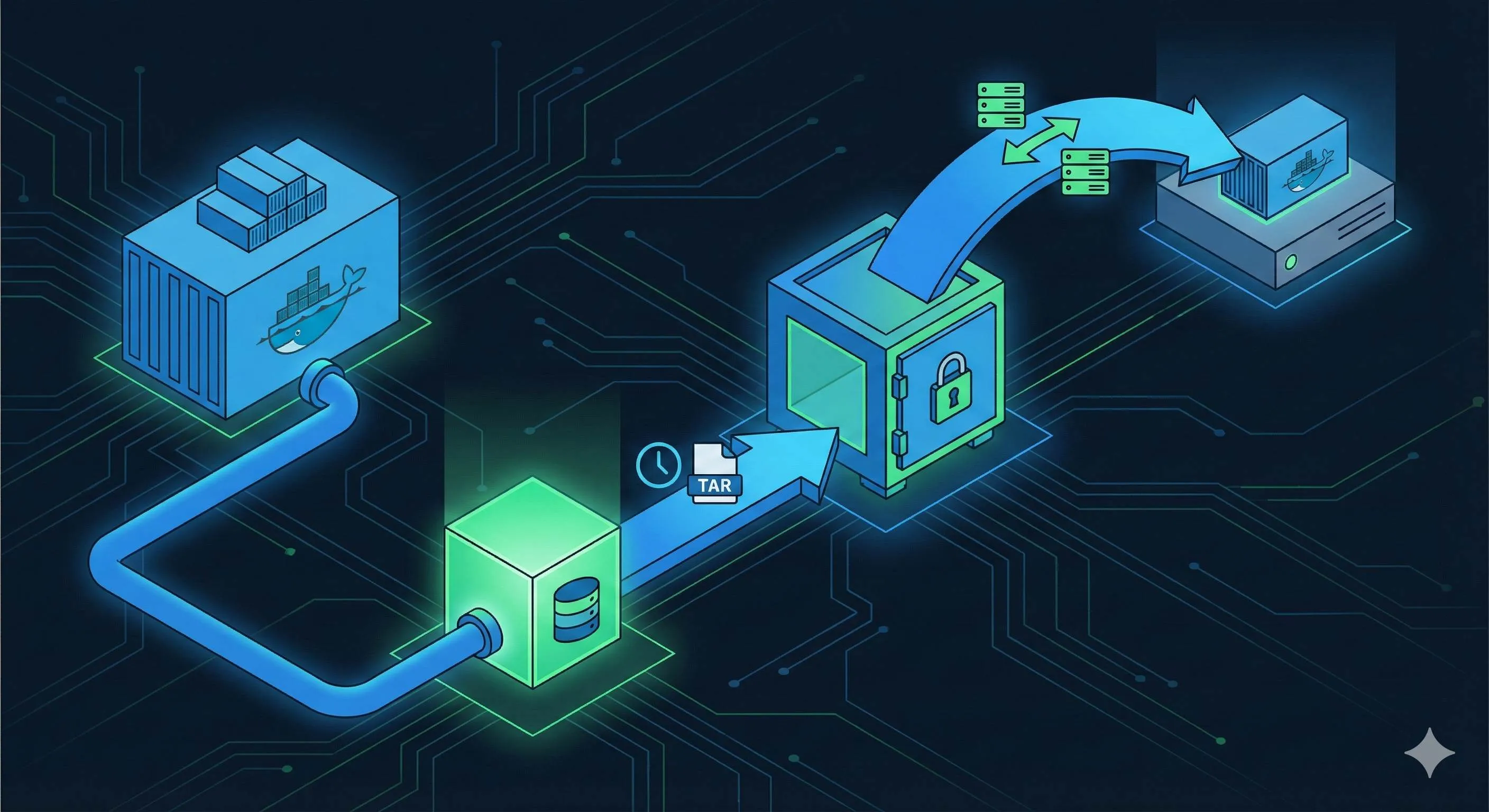
Last year on Singles’ Day, our company decided to migrate servers from Alibaba Cloud to Tencent Cloud. My boss suddenly approached me: “What about the database data in Docker?” To be honest, my heart sank—I had a PostgreSQL container running for half a year with several GBs of user data, and I’d never backed it up.
That night I frantically searched for Docker backup methods, reading countless tutorials. docker cp, tar packaging, something called docker-volume-backup… The more I read, the more confused I got. Every method looked right, but I didn’t know which one to use, and I didn’t dare try them in production. My biggest fear was backing up while the database was writing data, ending up with a corrupted backup file.
After hitting a few bumps, I finally figured it out. Docker data backup isn’t that complicated—the key is knowing which method fits your scenario. In this article, I’ll talk about three mainstream backup methods, explaining when to use each one, how to use it, and what pitfalls to avoid. After reading this, you’ll know how to create a reliable backup for your Docker applications.

Why Docker Data Backup Matters
Understanding Docker Data Storage
Many people don’t pay much attention to data storage when they first start with Docker. Containers start up and work, data gets stored—seems fine. But here’s what many people overlook: containers themselves are temporary.
If you write data directly in a container, the next time you restart the container or update the image, the data’s gone. That’s why Docker provides two ways to persist data:
- Volume: Docker-managed storage area, data saved in
/var/lib/docker/volumes/. This is the officially recommended approach—Docker handles permissions and lifecycle for you. - Bind Mount: Directly mount a host directory into the container. For example, mounting
/home/user/datato container’s/datakeeps your data in a familiar place, and you can backup with a simplecp.
What data should you backup? My recommendations:
- Database files (PostgreSQL, MySQL, MongoDB data directories)
- User-uploaded files (avatars, documents, images)
- Configuration files (most configs can be rebuilt, but backup sensitive ones to be safe)
- Log files (if you need to analyze historical logs)
Common Data Loss Scenarios
Data loss incidents I’ve seen or heard about mostly fall into these categories:
Accidental container deletion. This is the most common. You want to delete a test container, but one docker rm -v command deletes the data volume too. That -v flag is the culprit—it removes associated anonymous volumes. When I first used it, I didn’t know this, and wiped out my test environment database.
Disk failure. The server runs for two or three years, then suddenly the disk’s SMART alarm goes off, time to replace it. The data’s still readable, but that nerve-wracking feeling isn’t pleasant. If you had regular backups, even if the disk fails, swap in a new one, restore, and you’re back up in minutes.
Server migration. I mentioned this at the start. Whether moving data centers, switching cloud providers, or migrating from VPS to Kubernetes, moving data is a big challenge. Without backups, you can only pray your scp transfer doesn’t drop.
Here’s a real case: last year, a friend’s startup had their database container crash for some reason. After restart, they found the volume data corrupted—PostgreSQL wouldn’t start. The most recent backup they had was from two months ago. Two months of order data lost, directly costing the company hundreds of thousands.
I’m not trying to scare you, but rather emphasize: regular backups are truly important. When data’s gone, no amount of technical skill can bring it back.
Three Backup Methods Explained
Method 1: Using tar Command (⭐⭐⭐⭐⭐ Recommended)
This is my go-to method, suitable for all scenarios. The core idea is simple: use a temporary container to mount the volume, then tar it up.
Backup command:
docker run --rm \
  -v postgres_data:/data:ro \
  -v $(pwd):/backup \
  ubuntu tar czf /backup/postgres-backup-20251217.tar.gz -C /data .
Breaking down this command:
--rm: Auto-remove container after running, no cleanup needed-v postgres_data:/data:ro: Mount the volume to backup (postgres_data) to container’s /data,:romeans read-only to prevent accidents-v $(pwd):/backup: Mount current directory to container’s /backup, backup file saved heretar czf: c creates archive, z uses gzip compression, f specifies filename-C /data .: Change to /data directory, pack all contents (.means everything in current directory)
Restore command:
docker run --rm \
  -v postgres_data:/data \
  -v $(pwd):/backup \
  ubuntu tar xzf /backup/postgres-backup-20251217.tar.gz -C /data
Here x means extract, other parameters similar to backup.
When to use this method?
- Works for all volume types, most versatile
- Need compression to save space (30-50% compression ratio)
- Need to transfer backup files to other servers or cloud storage
Important notes:
First time I used this, I made a mistake: backed up a running MySQL container. The backup succeeded, but when restoring, the database startup failed with table corruption errors. Later I learned that if the database is writing during backup, you might capture an inconsistent state.
The safest approach:
- Stop writes (stop container or lock tables)
- Execute backup
- Resume writes
If you can’t stop the service, at least ensure your database has journal or WAL logs enabled, so even if there are writes during backup, the database can self-repair after restore.
Practical example: Backing up PostgreSQL data
# 1. Stop PostgreSQL container (if you can)
docker stop my-postgres

# 2. Backup data volume
docker run --rm \
  -v postgres_data:/data:ro \
  -v /backup:/backup \
  ubuntu tar czf /backup/pg-$(date +%Y%m%d-%H%M%S).tar.gz -C /data .

# 3. Verify backup file
ls -lh /backup/pg-*.tar.gz

# 4. Restart container
docker start my-postgres
I like adding timestamps to names—you can tell at a glance when the backup was created.
Method 2: Using docker cp Command (⭐⭐⭐)
This method is more straightforward—no packaging needed, just copy files directly. Good for quickly backing up a few config files or small directories.
Backup steps:
# 1. Create a temporary container associated with volume
docker create -v nginx_config:/data --name temp_backup busybox

# 2. Copy data to host
docker cp temp_backup:/data ./nginx-config-backup

# 3. Cleanup temporary container
docker rm temp_backup
Restore steps:
# Assuming you want to restore to a new container
docker cp ./nginx-config-backup/. my-nginx:/etc/nginx/
When to use this method?
- Only need to backup a few config files
- Files are small (within tens of MB)
- Want to quickly view backup contents (no extraction needed)
Drawbacks:
- No compression support, large files waste space
- Transfer speed slower than tar
- Can’t perfectly preserve all permissions and special attributes
Practical example: Backing up Nginx config
# Create temporary container
docker create -v nginx_config:/config --name nginx_temp busybox

# Copy config file
docker cp nginx_temp:/config/nginx.conf ./backup/

# Can also copy entire directory
docker cp nginx_temp:/config/. ./backup/nginx-config/

# Cleanup
docker rm nginx_temp
I usually use this method for config files. Like when I suddenly need to change Nginx config, I docker cp a copy first—if the change breaks things, I can quickly restore.
Method 3: Using docker-volume-backup Tool (⭐⭐⭐⭐ Automation Pick)
The previous two methods are manual, good for ad-hoc backups. But in production, you definitely want automated scheduled backups, and that’s where tools come in.
I’m currently using offen/docker-volume-backup, a popular open-source solution in 2025. What makes it powerful:
- Scheduled automatic backups (cron expression configuration)
- Automatically stops containers before backup for data consistency
- Supports multiple storage backends (S3, Google Drive, SSH, WebDAV)
- Automatic cleanup of old backups
Docker Compose configuration example:
version: '3.8'

services:
  # Your database service
  postgres:
    image: postgres:15
    volumes:
      - db_data:/var/lib/postgresql/data
    labels:
      # Mark this container to stop during backup
      - "docker-volume-backup.stop-during-backup=true"

  # Backup service
  backup:
    image: offen/docker-volume-backup:latest
    environment:
      # Backup daily at 2 AM
      BACKUP_CRON_EXPRESSION: "0 2 * * *"
      # Backup file naming
      BACKUP_FILENAME: "db-backup-%Y%m%d-%H%M%S.tar.gz"
      # Keep last 7 days
      BACKUP_RETENTION_DAYS: "7"
    volumes:
      # Volume to backup (read-only)
      - db_data:/backup/db_data:ro
      # Backup file save location
      - ./backups:/archive
      # Must mount Docker socket to stop containers
      - /var/run/docker.sock:/var/run/docker.sock:ro

volumes:
  db_data:
Workflow:
- Every day at 2 AM, backup container starts
- Detects
postgrescontainer hasstop-during-backuplabel, automatically stops it - Uses tar to pack
db_datavolume - Saves backup file to
./backupsdirectory - Automatically starts
postgrescontainer - Deletes backups older than 7 days
When to use this method?

- Production environment, need regular automated backups
- Want to send backups to cloud storage (S3, GCS, etc.)
- Managing backups for multiple containers
Important notes:
First time configuring, pay attention to permissions. The backup container must be able to read /var/run/docker.sock, otherwise it can’t stop other containers.
Also, this tool will actually stop your service for several seconds to tens of seconds (depending on data size). If your service can’t stop, don’t use the stop-during-backup label, but then you risk backing up inconsistent state.
Practical example: MongoDB automated backup
version: '3.8'

services:
  mongodb:
    image: mongo:7
    volumes:
      - mongo_data:/data/db
    labels:
      - "docker-volume-backup.stop-during-backup=true"

  backup:
    image: offen/docker-volume-backup:latest
    environment:
      BACKUP_CRON_EXPRESSION: "0 3 * * *"
      BACKUP_FILENAME: "mongo-%Y%m%d.tar.gz"
      BACKUP_RETENTION_DAYS: "14"
      # Backup to AWS S3
      AWS_S3_BUCKET_NAME: "my-backups"
      AWS_ACCESS_KEY_ID: "${AWS_KEY}"
      AWS_SECRET_ACCESS_KEY: "${AWS_SECRET}"
    volumes:
      - mongo_data:/backup/mongo_data:ro
      - /var/run/docker.sock:/var/run/docker.sock:ro

volumes:
  mongo_data:
This config backs up MongoDB every day at 3 AM and uploads the backup to S3, no local storage. I’ve been running this for over six months, very stable.
Complete Migration Workflow
Server Migration Practical Steps
Now that we’ve covered backup methods, let’s talk about the complete server migration process. Last year I went through a migration from Alibaba Cloud to Tencent Cloud, and the process went something like this:
1. Preparation phase (don’t skip this)
First, understand your current environment:
# List all containers
docker ps -a

# List all volumes
docker volume ls

# Export each container's config (important!)
docker inspect my-postgres > postgres-config.json
docker inspect my-nginx > nginx-config.json

# Record docker-compose.yml and .env files
cp docker-compose.yml docker-compose.backup.yml
cp .env .env.backup
Make sure to backup these config files. My first migration, I forgot to save environment variables, and on the new server the database password didn’t match—took forever to sort out.
2. Backup phase
Stop all services and start backing up:
# Stop all containers
docker-compose down

# Backup each volume
docker run --rm \
  -v postgres_data:/data:ro \
  -v $(pwd)/backups:/backup \
  ubuntu tar czf /backup/postgres_data.tar.gz -C /data .

docker run --rm \
  -v nginx_config:/data:ro \
  -v $(pwd)/backups:/backup \
  ubuntu tar czf /backup/nginx_config.tar.gz -C /data .

# Verify backup files
ls -lh backups/
md5sum backups/*.tar.gz > backups/checksums.txt
That md5sum is important. When transferring files, if the network is unstable and files get corrupted, at least you’ll notice.
3. Migration phase
Transfer backup files to new server:
# I usually use rsync, it can resume
rsync -avP --partial backups/ user@new-server:/tmp/backups/

# Or use scp
scp -r backups/ user@new-server:/tmp/backups/
If files are especially large (tens of GB) and the network isn’t stable, consider using cloud object storage as intermediate. Upload to S3 or OSS first, then download from new server—faster and more reliable.
On the new server, restore:
# 1. Create volumes
docker volume create postgres_data
docker volume create nginx_config

# 2. Restore data
docker run --rm \
  -v postgres_data:/data \
  -v /tmp/backups:/backup \
  ubuntu tar xzf /backup/postgres_data.tar.gz -C /data

docker run --rm \
  -v nginx_config:/data \
  -v /tmp/backups:/backup \
  ubuntu tar xzf /backup/nginx_config.tar.gz -C /data

# 3. Verify restored data
docker run --rm -v postgres_data:/data ubuntu ls -lh /data

# 4. Start services
docker-compose up -d
4. Verification phase
After services start, don’t rush to switch traffic. Verify first:
# Check container status
docker ps

# View logs, ensure no errors
docker-compose logs -f

# Test database connection
docker exec -it my-postgres psql -U postgres -c "SELECT COUNT(*) FROM users;"

# Compare data between old and new servers
# (I usually write a script to compare record counts in key tables)
Once everything checks out, then modify DNS or load balancer config to route traffic over.
Pitfall I hit:
During last year’s migration, one volume was huge (50GB), and extracting with docker run tar took almost an hour. Later found out you can actually use docker volume create first, then extract directly on the host to /var/lib/docker/volumes/volume_name/_data—much faster. But this approach requires careful permission handling.
Special Considerations for Database Backups
Database backup is a big pitfall, let me address it separately.
Why file-level backups aren’t reliable enough?
Think about it—while the database is running, data is constantly being written. MySQL’s InnoDB engine has redo logs and undo logs, PostgreSQL has WAL logs—all to ensure transactional consistency. If you directly tar pack data files, you might catch mid-transaction, leaving your backup in an inconsistent state.
Worst case I’ve seen: someone backed up MySQL right during a large transaction (batch inserting millions of records). The backup file looked fine, but after restore MySQL absolutely wouldn’t start, reporting InnoDB tablespace corruption.

Correct approach: Use application-level backups
PostgreSQL:
# Backup single database
docker exec my-postgres pg_dump -U postgres mydb > mydb-backup.sql

# Backup all databases
docker exec my-postgres pg_dumpall -U postgres > all-dbs-backup.sql

# Restore
docker exec -i my-postgres psql -U postgres mydb < mydb-backup.sql
MySQL:
# Backup
docker exec my-mysql mysqldump -u root -p mydb > mydb-backup.sql

# Restore
docker exec -i my-mysql mysql -u root -p mydb < mydb-backup.sql
MongoDB:
# Backup
docker exec my-mongo mongodump --out=/backup
docker cp my-mongo:/backup ./mongo-backup

# Restore
docker cp ./mongo-backup my-mongo:/backup
docker exec my-mongo mongorestore /backup
Double insurance strategy:
My current approach: application-level backup + volume backup, both.
- Application-level backup (pg_dump, etc.): Primary recovery method, guaranteed data consistency
- Volume backup (tar packaging): Disaster recovery fallback, if application-level backup fails or is corrupted, at least there’s a file-level backup to try
This uses more space, but it’s insurance. That friend’s company that lost data—they only had volume backup, and when they tried to restore it was corrupted, with no application-level backup at all.
Best Practices and Pitfall Guide
Backup Strategy Design
Having backup methods isn’t enough—you need a solid backup strategy. Otherwise you’ll either back up too frequently and waste resources, or too rarely and lose data.
3-2-1 principle (industry-standard backup golden rule):
- 3 copies: Original data + 2 backups
- 2 storage media: Like local disk + cloud storage, or two different disks
- 1 offsite: At least one backup in different geographic location (protect against fire, earthquake, etc.)
Sounds complicated, but implementation isn’t hard. My approach:
- Local server keeps last 7 days of daily backups (copy #1)
- NAS keeps last 30 days of backups (copy #2, different media)
- S3 keeps last 3 months of monthly backups (copy #3, offsite)
Backup frequency recommendations:
| Data Importance | Frequency | Retention Policy |
|---|---|---|
| Core database | Hourly | Last 24 hours hourly, last 7 days daily |
| General app data | Daily | Last 7 days daily, last 4 weeks weekly |
| Config files | On change | Manual backup before changes, keep last 10 versions |
| Log files | Weekly | Last 4 weeks weekly |
Backup naming conventions:
Don’t underestimate naming—messy naming will drive you crazy during recovery. My naming format:
<service>-<data-type>-<YYYYMMDD>-<HHMMSS>.tar.gzExamples:
myapp-postgres-20251217-020000.tar.gz
myapp-nginx-config-20251217-020000.tar.gz
myapp-uploads-20251217-020000.tar.gz
This way they naturally sort by time, and you can tell at a glance when the backup was made.
Common Problems and Solutions
Problem 1: “volume is in use” error during backup
This error usually doesn’t actually happen, since volumes can be mounted to multiple containers simultaneously. But if you encounter it, possible causes:
- Container has file locks
- NFS or other network storage mount issues
Solution:
# Check which containers are using this volume
docker ps --filter volume=my_volume

# Stop these containers if you can
docker stop container_name

# Or use --volumes-from parameter
docker run --rm --volumes-from=my_container -v $(pwd):/backup ubuntu tar czf /backup/data.tar.gz -C /data .
Problem 2: Wrong file permissions after restore
I’ve hit this too. Tar packaging preserves permission info by default, but if you migrate between different systems (like Ubuntu to CentOS), UID/GID might not match.
Symptom: Container startup fails, says no permission to read/write certain files.
Solution:
# Specify owner during restore
docker run --rm -v my_volume:/data -v $(pwd):/backup ubuntu sh -c "tar xzf /backup/data.tar.gz -C /data && chown -R 999:999 /data"

# 999:999 is postgres user UID in PostgreSQL container
# Different images have different UIDs, need to check docs or docker inspect
Problem 3: Backup file too large, transfer difficult
I previously backed up a 50GB MySQL database, after gzip compression still 30GB. Transfer over public network was painfully slow and often dropped.
Solutions:
-
Use higher compression: xz format has 20-30% better compression than gzip, just slower
tar cJf backup.tar.xz /data # J means xz compression -
Split archives: Good for places with file size limits
tar czf - /data | split -b 1G - backup.tar.gz. # Restore: cat backup.tar.gz.* | tar xzf - -
Incremental backups: Only backup changed files (needs tool support, like rsync or dedicated backup software)
Problem 4: Discover corrupted backup during restore
Worst case scenario—didn’t notice problems during backup, only discovered corruption when needed.
Preventive measures:
# Verify immediately after backup
md5sum backup.tar.gz > backup.tar.gz.md5

# Verify again after transfer to new server
md5sum -c backup.tar.gz.md5

# Test restore regularly (this is most important!)
# Monthly, find a test environment, actually restore a backup, verify it works
My current habit: after every backup, I try extracting the first few files to at least ensure the backup file itself is intact.
Automation and Monitoring
Manual backups are reliable, but people forget. Production environments must be automated.
Using crontab for scheduled backup scripts:
# Create backup script /opt/scripts/backup-docker-volumes.sh
#!/bin/bash
DATE=$(date +%Y%m%d-%H%M%S)
BACKUP_DIR=/backup

# Backup PostgreSQL
docker run --rm \
  -v postgres_data:/data:ro \
  -v $BACKUP_DIR:/backup \
  ubuntu tar czf /backup/postgres-$DATE.tar.gz -C /data .

# Backup Nginx config
docker run --rm \
  -v nginx_config:/data:ro \
  -v $BACKUP_DIR:/backup \
  ubuntu tar czf /backup/nginx-$DATE.tar.gz -C /data .

# Cleanup backups older than 7 days
find $BACKUP_DIR -name "*.tar.gz" -mtime +7 -delete

# Send notification (optional)
echo "Backup completed: $DATE" | mail -s "Docker Backup Report" [email protected]
# Add to crontab
crontab -e
# Execute daily at 2 AM
0 2 * * * /opt/scripts/backup-docker-volumes.sh >> /var/log/docker-backup.log 2>&1Monitoring and alerting:
Automation alone isn’t enough—you need to know if backups succeeded. My approach:
- Log everything: Each backup records log including time, file size, MD5
- Monitoring script: Check daily if new backup files were generated, alert if not
- File size anomaly detection: If backup file suddenly becomes much larger or smaller (exceeds 50% of average), might be a problem
Simple monitoring script:
#!/bin/bash
BACKUP_DIR=/backup
EXPECTED_SIZE=100000000  # 100MB, adjust based on your situation

LATEST_BACKUP=$(ls -t $BACKUP_DIR/postgres-*.tar.gz | head -1)
if [ -z "$LATEST_BACKUP" ]; then
  echo "ERROR: No backup file found!"
  exit 1
fi

# Check if backup file is from today
BACKUP_DATE=$(stat -c %Y "$LATEST_BACKUP")
TODAY=$(date +%s)
AGE=$((TODAY - BACKUP_DATE))

if [ $AGE -gt 86400 ]; then
  echo "ERROR: Latest backup is older than 24 hours!"
  exit 1
fi

# Check file size
SIZE=$(stat -c %s "$LATEST_BACKUP")
if [ $SIZE -lt $(($EXPECTED_SIZE / 2)) ]; then
  echo "WARNING: Backup file is too small: $SIZE bytes"
  exit 1
fi

echo "Backup check passed: $LATEST_BACKUP ($SIZE bytes)"
These monitoring scripts can integrate with your monitoring system (Prometheus, Zabbix, etc.), or send email/chat notifications directly.
Conclusion
After all this, back to the original question: How to backup Docker data?
The answer is actually simple: no method is one-size-fits-all—the key is choosing the right method for your scenario.
- Ad-hoc backup, quick migration: Use tar method, versatile and reliable
- Config files, small files: docker cp is enough, simple and direct
- Production environment, need automation: Go with docker-volume-backup, hassle-free
Most important point: backup regularly, test recovery regularly. Don’t wait until you actually need to recover data to discover your backup is corrupted or won’t restore. Every month I find a test environment and actually restore the latest backup to verify the process works.
Final suggestion: give your Docker application its first backup today. Doesn’t need to be complicated—just use the simple tar method, back it up once and try. Having that backup file on disk gives real peace of mind.
If you encounter any issues during the backup process, or have better methods, feel free to chat in the comments. We all learn better when we share experiences and avoid pitfalls together.
FAQ
How do I backup Docker volumes?
1) tar packaging: `docker run --rm -v volume-name:/data -v $(pwd):/backup alpine tar czf /backup/backup.tar.gz /data`
2) docker cp: copy files from container
3) Automation tools: docker-volume-backup for production environments
What's the difference between tar and docker cp backup methods?
• Backs up entire volume
• Preserves permissions
• Good for full backups
docker cp:
• Copies individual files/folders
• More flexible but doesn't preserve all metadata
Use tar for volume backups, docker cp for specific files.
How do I backup database volumes safely?
Or stop container before file-level backup.
Never backup database files while database is running - risk of corrupted backup.
Use `docker exec mysql mysqldump -u root -p database > backup.sql`.
How do I restore Docker volumes from backup?
Or use docker cp to copy files back.
For databases, restore dump files with native restore commands.
How do I automate Docker volume backups?
Schedule daily backups, monitor backup success, test restore procedures regularly.
Set up alerts if backups fail or backup files are missing.
What data should I backup?
• Database files (PostgreSQL, MySQL, MongoDB)
• User-uploaded files (avatars, documents)
• Configuration files (sensitive configs)
• Log files (if needed for analysis)
Don't backup: temporary files, cache, build artifacts.
How do I migrate Docker volumes to a new server?
2) Transfer backup files to new server (scp, rsync, or cloud storage)
3) Create volumes on new server
4) Restore backup files to volumes
5) Start containers with restored volumes
Test thoroughly before decommissioning old server.
13 min read · Published on: Dec 17, 2025 · Modified on: Apr 1, 2026

Related Posts
shadcn/ui Composition Patterns: Best Practices for Combining Components

shadcn/ui Composition Patterns: Best Practices for Combining Components
Astro + Tailwind: Configuring Island Components and Global Styles Without Conflicts

Astro + Tailwind: Configuring Island Components and Global Styles Without Conflicts
React Compiler + shadcn/ui: Frontend Development in the Auto-Optimization Era

Comments
Sign in with GitHub to leave a comment