
Docker Volume Mastery: 5 Practical Examples to Solve Container Data Loss Forever
Introduction
3:30 AM.
I stared at the last line of terminal output: “Database import completed successfully”鈥攁fter struggling for four solid hours, I finally imported 20,000 test records into my MySQL container. Tested a few API endpoints, everything worked, and I went to bed satisfied.
The next morning, I reflexively typed docker ps to check container status. Empty. My heart sank鈥攄id I forget to start it last night? I quickly ran docker ps -a to check all containers. Nothing there either. Then it hit me: before bed, trying to free up disk space, I casually ran docker system prune -a.

Game over.
All data gone. 20,000 test records, four hours of work, completely wiped out.
You might think, “Who would be that careless?” To be honest, I had only been learning Docker for three weeks. I knew containers started fast and provided good environment isolation, but I had no idea about their “Achilles heel”鈥攃ontainers aren’t meant for storing data. Delete a container, and the data vanishes with it; restart a container, and configuration files reset to factory defaults.
This article solves exactly that problem. Through five practical examples, I’ll show you how to use Docker Volumes to “liberate” data from containers, ensuring it doesn’t disappear with container lifecycle events.
The Truth About Container Data Loss
Why does deleting a container erase the data?
Docker uses a layered filesystem. Imagine a layered cake: the bottom layers are image layers (read-only, shared by all containers), and the top layer is the container layer (writable, unique to each container). Every file you create, configuration you modify, and data you import inside a container gets written to this top layer.
Here’s the catch: when you delete a container, this writable layer gets destroyed along with it.
Don’t believe me? Try this:
# Start an Alpine container and write a file
docker run -it --name test-container alpine sh
# Inside the container
echo "important data" > /tmp/data.txt
exit

# Delete the container
docker rm test-container

# Try to recover the data
docker run -it --name test-container alpine sh
cat /tmp/data.txt  # Error: No such file or directory
The data disappears instantly, without any warning.
This design actually makes sense鈥攃ontainers were originally designed for “stateless applications.” Think about Nginx or API servers; they don’t need to save data, and they’re identical every time they start. But what about databases, Redis, or file upload services? They must retain data.
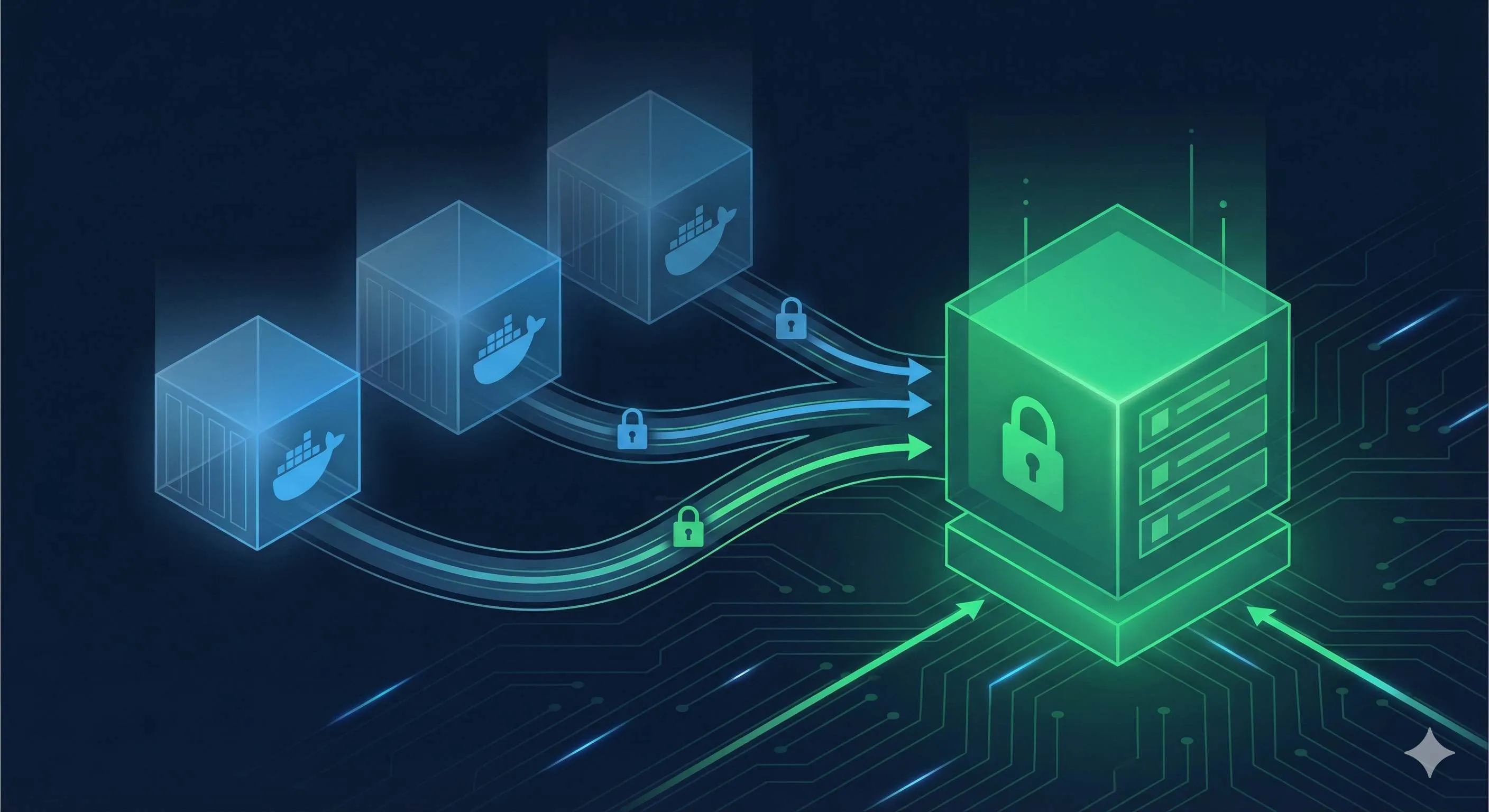
Docker’s official solution is Volumes: store data outside the container, completely decoupling container lifecycle from data persistence.
What is a Volume? How Does It Save Your Data?
The Essence of Volumes: Docker’s “External Hard Drive”
A Volume is like attaching an external hard drive to your container. Data isn’t written inside the container but to a directory on the host machine, then “mounted” to a path inside the container. The container sees /var/lib/mysql, but the actual data lives in /var/lib/docker/volumes/mysql-data/_data on the host.
Container deleted? No problem鈥攄ata stays on the host. Restart a container, mount the same Volume, and your data’s back.
Docker provides three mount types, which beginners often confuse:
| Mount Type | Data Storage Location | Use Case | Management |
|---|---|---|---|
| Volume | Docker-managed directory (/var/lib/docker/volumes/) | Database persistence, production data | Managed by Docker commands |
| Bind Mount | Any path on host machine | Mounting code during development, config files | Manual path management |
| tmpfs | Memory | Temporary data, sensitive info (doesn’t persist) | Cleared when container stops |
To be honest, I couldn’t distinguish between Volumes and Bind Mounts at first鈥擨 thought both were “mounting host directories.” That changed when I learned the hard way: I used a Bind Mount for MySQL’s data directory, accidentally deleted the host directory, and the MySQL container immediately crashed.
Volumes are fully managed by Docker鈥攜ou don’t need to worry about paths, permissions, or backup strategies. Want to see where the data is? Use docker volume inspect. Want to migrate data? docker volume commands handle it. That’s why the official recommendation is Volumes over Bind Mounts.
Where Does Volume Data Actually Live?
On Linux systems, all Volumes default to:
/var/lib/docker/volumes/<volume-name>/_data/Mac and Windows users, don’t bother looking鈥擠ocker Desktop runs in a VM, so you won’t see this path. But you can check details with docker volume inspect.
5 Examples to Master Core Volume Usage
Theory covered鈥攍et’s get hands-on. These five examples progress from basics to real-world scenarios. Follow along once, and you’ll completely understand.
Example 1: Create Your First Named Volume
Start simple: create an empty Volume.
# Create a Volume named my-data
docker volume create my-data

# List all Volumes
docker volume ls

# Inspect Volume details
docker volume inspect my-data
Expected Output (inspect command):
[
    {
        "CreatedAt": "2025-12-17T12:00:00Z",
        "Driver": "local",
        "Mountpoint": "/var/lib/docker/volumes/my-data/_data",
        "Name": "my-data"
    }
]
See the Mountpoint? That’s where the data actually lives.
Example 2: Nginx Static Website Persistence
Scenario: You’re developing a static website. Every time you restart the Nginx container, previously uploaded images and logs disappear.
Solution: Mount Nginx’s /usr/share/nginx/html directory to a Volume.
# Create Volume for website content
docker volume create nginx-html

# Start Nginx container with Volume mounted
docker run -d \
  --name my-nginx \
  -p 8080:80 \
  -v nginx-html:/usr/share/nginx/html \
  nginx:latest

# Enter container and create test page
docker exec my-nginx bash -c 'echo "<h1>Hello Docker Volume!</h1>" > /usr/share/nginx/html/index.html'

# Test access (browser at http://localhost:8080 or CLI test)
curl http://localhost:8080
Now delete the container:
docker rm -f my-nginxRestart a new container, mounting the same Volume:
docker run -d \
  --name my-nginx-v2 \
  -p 8080:80 \
  -v nginx-html:/usr/share/nginx/html \
  nginx:latest

# Access again鈥攃ontent's still there!
curl http://localhost:8080
Data didn’t disappear. That’s the magic of Volumes.
Example 3: MySQL Data Persistence (Production-Grade)
This is the most common requirement. When deploying MySQL in containers, data must persist.
# Create MySQL-specific Volume
docker volume create mysql-data

# Start MySQL container
docker run -d \
  --name mysql-demo \
  -e MYSQL_ROOT_PASSWORD=my-secret-pw \
  -e MYSQL_DATABASE=testdb \
  -p 3306:3306 \
  -v mysql-data:/var/lib/mysql \
  mysql:8.0

# Wait for MySQL to start (about 10 seconds)
sleep 10

# Connect to MySQL, create test table
docker exec -it mysql-demo mysql -uroot -pmy-secret-pw testdb -e "
CREATE TABLE users (
  id INT PRIMARY KEY AUTO_INCREMENT,
  name VARCHAR(50)
);
INSERT INTO users (name) VALUES ('Alice'), ('Bob');
"

# Query data
docker exec -it mysql-demo mysql -uroot -pmy-secret-pw testdb -e "SELECT * FROM users;"
Now delete the container (simulating accidental deletion):
docker rm -f mysql-demoRestart MySQL container, mounting the same Volume:
docker run -d \
  --name mysql-demo-v2 \
  -e MYSQL_ROOT_PASSWORD=my-secret-pw \
  -p 3306:3306 \
  -v mysql-data:/var/lib/mysql \
  mysql:8.0

# Wait for startup
sleep 10

# Query data鈥攕till there!
docker exec -it mysql-demo-v2 mysql -uroot -pmy-secret-pw testdb -e "SELECT * FROM users;"
Key Point: MySQL’s data directory is /var/lib/mysql鈥攖his is the path you must mount. Different databases use different paths: Redis uses /data, PostgreSQL uses /var/lib/postgresql/data.
Example 4: Redis Persistence Configuration
Redis stores data in memory by default, but can be configured to persist to disk (RDB or AOF).
# Create Redis data Volume
docker volume create redis-data

# Start Redis container with AOF persistence enabled
docker run -d \
  --name redis-demo \
  -p 6379:6379 \
  -v redis-data:/data \
  redis:latest redis-server --appendonly yes
  # --appendonly yes enables AOF persistence

# Write test data
docker exec -it redis-demo redis-cli SET mykey "Hello Redis Volume"

# Read data
docker exec -it redis-demo redis-cli GET mykey
Delete the container:
docker rm -f redis-demoRestart:
docker run -d \
  --name redis-demo-v2 \
  -p 6379:6379 \
  -v redis-data:/data \
  redis:latest redis-server --appendonly yes

# Data's still there
docker exec -it redis-demo-v2 redis-cli GET mykeyNote: You must add the --appendonly yes parameter; otherwise Redis only stores data in memory, and data will be lost after container restart.
Example 5: Multiple Containers Sharing a Volume
Scenario: One Nginx container serves static files, while another application container generates logs. Both containers share the same Volume.
# Create shared Volume
docker volume create shared-logs

# Start application container, writing logs
docker run -d \
  --name app-writer \
  -v shared-logs:/logs \
  alpine sh -c "while true; do echo $(date) >> /logs/app.log; sleep 2; done"

# Start Nginx container, reading logs
docker run -d \
  --name log-reader \
  -p 8080:80 \
  -v shared-logs:/usr/share/nginx/html:ro \
  nginx:latest
  # :ro means read-only mount, preventing Nginx from accidentally modifying logs

# Wait a few seconds for app-writer to write logs
sleep 5

# Access log file (browser at http://localhost:8080/app.log)
curl http://localhost:8080/app.log
Key Points:
- One Volume can be mounted to multiple containers simultaneously
- Adding
:rosuffix sets read-only mode, improving security - In production, this pattern enables “log collection container + application container” architecture
Volume Management Commands
After completing five examples, you’re probably wondering: “How do I view, delete, and clean up these Volumes?”
Here’s a complete management command reference:
# 1. Create Volume
docker volume create <volume-name>

# 2. List all Volumes
docker volume ls

# 3. Inspect Volume details (including mount path)
docker volume inspect <volume-name>

# 4. Delete specific Volume
docker volume rm <volume-name>
# Note: If Volume is in use by a container, you'll get an error

# 5. Delete all unused Volumes (free disk space)
docker volume prune
# Prompts for confirmation, enter y to continue

# 6. Force delete all unused Volumes (no confirmation)
docker volume prune -f
Common Issue: “volume is in use” error when deleting Volume
This means a container is currently using the Volume. Solution:

# Check which container is using it
docker ps -a --filter volume=<volume-name>

# Stop and delete the container first
docker rm -f <container-name>

# Then delete the Volume
docker volume rm <volume-name>
Checking Disk Space Usage
Want to know how much disk space a Volume occupies? Try this:
# Linux/Mac users
docker volume inspect <volume-name> --format '{{ .Mountpoint }}' | xargs du -sh

# Example output: 512M    /var/lib/docker/volumes/mysql-data/_data
Bind Mount vs Volume: Which Should You Use?
This is the most confusing question for beginners. I struggled with it at first too, often using them incorrectly.
Simple rule to remember: Use Volumes for production data, Bind Mounts for development code.
Specifically:
| Scenario | Recommended | Reason |
|---|---|---|
| MySQL/PostgreSQL database | Volume | Docker-managed, easy backup, good performance |
| Redis/MongoDB persistence | Volume | Same as above |
| Log files, uploaded files | Volume | Data safety, unaffected by container deletion |
| Mounting source code during development | Bind Mount | Code changes take effect immediately, no container restart |
| Mounting config files (nginx.conf) | Bind Mount | Easy to modify config, quick testing |
| Temporary data, cache | tmpfs | Highest performance, doesn’t use disk |
Syntax Comparison
# Volume approach (recommended for persistent data)
docker run -v my-volume:/data redis:latest

# Bind Mount approach (recommended for development)
docker run -v /Users/me/code:/app node:latest

# New --mount syntax (more explicit, recommended for production)
docker run --mount type=volume,source=my-volume,target=/data redis:latest
docker run --mount type=bind,source=/Users/me/code,target=/app node:latest
Decision Tree
Facing a new requirement and unsure which to use? Ask yourself three questions:
-
Does data need long-term storage?
Yes 鈫?Volume; No 鈫?tmpfs -
Does data need direct modification on host?
Yes 鈫?Bind Mount; No 鈫?Volume -
Is it production or development?
Production 鈫?Volume; Development 鈫?Bind Mount
Real-World Comparison
My development environment:
# Development: code uses Bind Mount, database uses Volume
docker run -d \
  --name dev-app \
  -v $(pwd)/src:/app/src \          # Bind Mount: code changes take effect immediately
  -v app-uploads:/app/uploads \     # Volume: user uploaded files
  -v postgres-data:/var/lib/postgresql/data \  # Volume: database data
  my-app:dev
My production environment:
# Production: all Volumes
docker run -d \
  --name prod-app \
  -v app-uploads:/app/uploads \
  -v postgres-data:/var/lib/postgresql/data \
  my-app:latest
# Code is already packaged in the image, no mounting needed
Common Issues & Best Practices
FAQ: Pitfalls I’ve Encountered and Solutions
Q1: Can Volume data be lost?
No. As long as you don’t manually run docker volume rm, data persists. Even if the host restarts, data remains.
But be careful: docker system prune -a --volumes deletes all unused Volumes鈥攗se with caution!
Q2: What happens if Volume doesn’t exist when container starts?
Docker creates it automatically. Try this:

# No need to run docker volume create first, just run directly
docker run -d -v auto-created-volume:/data alpine
# Docker automatically creates a Volume named auto-created-volume
But I recommend manual creation for better clarity about where data lives.
Q3: How to backup Volume data?
Official recommended method:
# Start temporary container to package Volume data
docker run --rm \
  -v mysql-data:/source \
  -v $(pwd):/backup \
  alpine tar -czf /backup/mysql-backup.tar.gz -C /source .

# To restore
docker run --rm \
  -v mysql-data:/target \
  -v $(pwd):/backup \
  alpine tar -xzf /backup/mysql-backup.tar.gz -C /target
Q4: Can Volumes be migrated between different hosts?
Yes, but requires manual steps:
- On original host: package Volume data using method above
- Transfer
.tar.gzfile to new host - On new host: create Volume and extract data
More advanced solution: use NFS or cloud storage as Volume Driver.
Q5: What are anonymous Volumes? How to clean them up?
When you don’t specify a Volume name, Docker creates an anonymous Volume:
docker run -d -v /data alpine # Generates random name like a1b2c3d4...Anonymous Volumes are hard to manage and easily accumulate, consuming disk space. Cleanup method:
docker volume prune # Delete all unused Volumes (including anonymous ones)Best Practice: Always use named Volumes.
6 Best Practices (Essential for Production)
-
Always use named Volumes
# Good habit docker run -v mysql-data:/var/lib/mysql mysql:8.0 # Bad habit docker run -v /var/lib/mysql mysql:8.0 # Anonymous Volume -
Regular backups for critical data
Set up scheduled tasks to backup database Volumes daily. Once you’ve experienced data loss, you’ll understand. -
Use Docker Compose for complex projects
# docker-compose.yml services: db: image: mysql:8.0 volumes: - mysql-data:/var/lib/mysql volumes: mysql-data: driver: local -
Use —mount instead of -v in production
--mountsyntax is more explicit with clearer error messages:docker run --mount type=volume,source=mysql-data,target=/var/lib/mysql mysql:8.0 -
Regularly clean unused Volumes
Run once per month:docker volume prune -
Use encrypted Volumes for sensitive data
If Volumes contain passwords or keys, consider encryption solutions (like LUKS encrypted partitions).
Conclusion
Back to that 3 AM moment from the beginning鈥攊f I had known about Docker Volumes then, just one command:
docker run -d --name mysql-demo -v mysql-data:/var/lib/mysql mysql:8.0The data wouldn’t have disappeared with the container. Four hours of work, 20,000 test records鈥攁ll safely stored on the host machine.
Docker containers themselves are “stateless”鈥攖hat’s both their strength and their limitation. Volumes exist to break through that limitation. They let you enjoy the lightness and isolation of containers while confidently storing data.
In this article, I walked you through five examples: from creating your first Volume, to Nginx static website persistence, to real-world scenarios like MySQL and Redis, and finally multi-container Volume sharing. These five examples cover about 90% of daily development needs.
Now it’s your turn. Open your terminal, create your first Volume, start a MySQL container, and write some data into it. Then delete the container, restart it, and witness that moment when the data’s still there鈥攜ou’ll truly understand what “data persistence” means.
By the way, if you don’t want to experience the horror of “3 AM data loss” again, bookmark this article. It might just save you someday.
FAQ
Why do Docker containers lose data when deleted?
Data written inside containers goes to a writable layer that's destroyed when the container is deleted.
Volumes store data outside containers, persisting across container lifecycle.
What's the difference between named volumes and bind mounts?
• Managed by Docker
• Stored in Docker's directory
• More portable and recommended for production
Bind mounts:
• Map host directories directly
• Useful for development
How do I backup Docker volumes?
`docker run --rm -v volume-name:/data -v $(pwd):/backup alpine tar czf /backup/backup.tar.gz /data`
Set up scheduled tasks to backup critical data volumes daily.
Can volumes be shared between multiple containers?
This is useful for sharing data between containers, like a database volume accessed by multiple application containers.
What happens to volumes when I delete a container?
You need to explicitly remove volumes with:
• `docker volume rm`
• Or `docker volume prune`
This is the key feature that prevents data loss.
Should I use volumes for all container data?
• Databases
• Configuration files
• Logs
• Any data that must persist
Don't use volumes for:
• Temporary files
• Cache that can be regenerated
This keeps volumes clean and manageable.
How do I find where Docker stores volumes?
On Linux, volumes are typically in `/var/lib/docker/volumes/`.
Use `docker volume ls` to list all volumes.
9 min read · Published on: Dec 17, 2025 · Modified on: Apr 1, 2026

Related Posts
shadcn/ui Composition Patterns: Best Practices for Combining Components

shadcn/ui Composition Patterns: Best Practices for Combining Components
Astro + Tailwind: Configuring Island Components and Global Styles Without Conflicts

Astro + Tailwind: Configuring Island Components and Global Styles Without Conflicts
React Compiler + shadcn/ui: Frontend Development in the Auto-Optimization Era

Comments
Sign in with GitHub to leave a comment