
Complete Guide to Docker MySQL Deployment: From Data Persistence to Master-Slave Replication
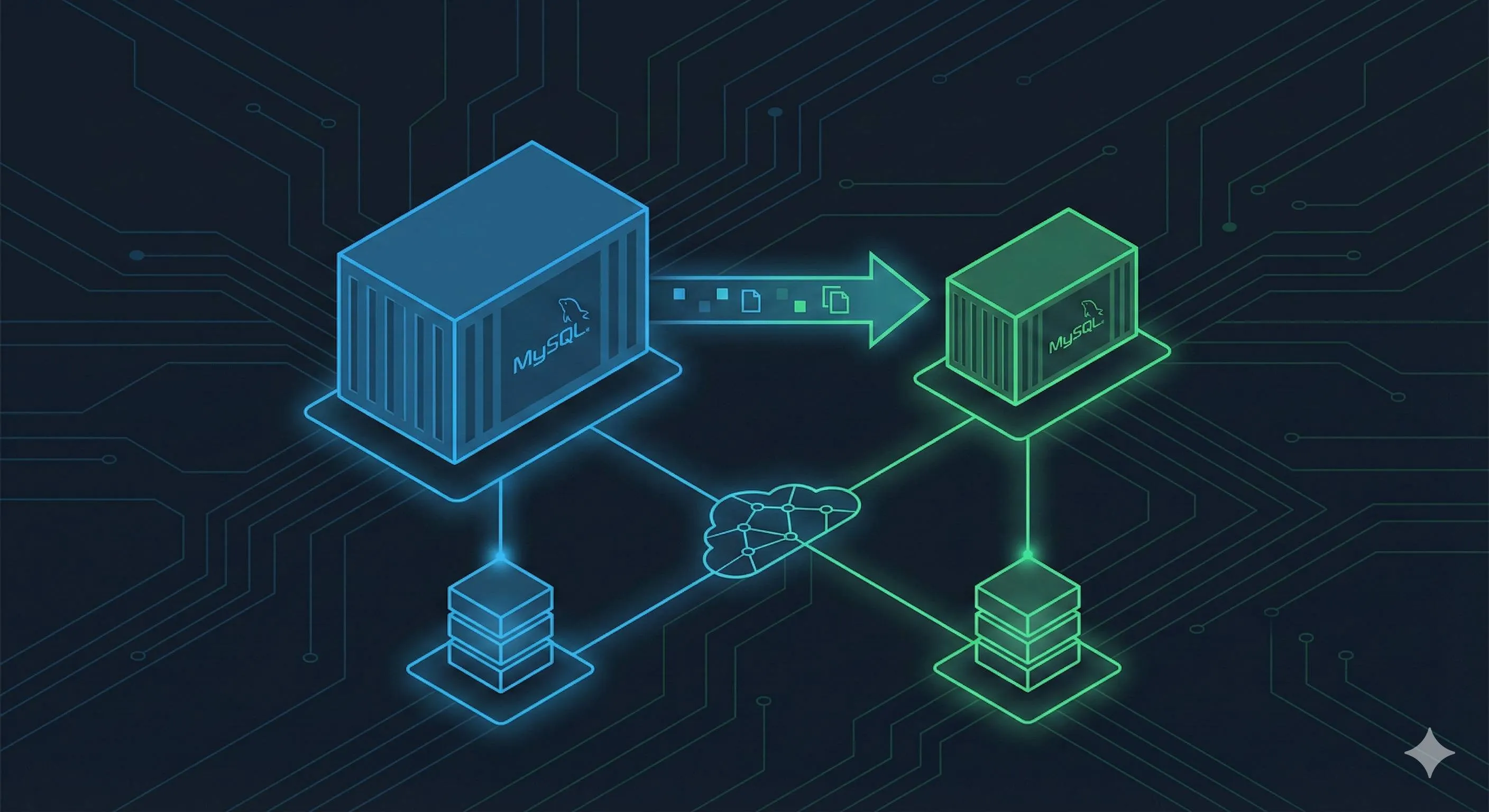
3 AM. Staring at that glaring error message in the terminal, palms sweating. Half a month’s worth of test data—gone. All because I restarted the MySQL container that afternoon.
To be honest, I panicked. Deploying MySQL with Docker seemed straightforward, right? A quick search online, run docker run -e MYSQL_ROOT_PASSWORD=123456 mysql, and you’re good to go. Or so I naively thought—until that late night when the container restarted, the data vanished, and my world collapsed.
Sound familiar? Or maybe you’ve faced these scenarios: wanting to change MySQL charset but not knowing how to mount config files; local apps refusing to connect to containers with cryptic error messages; needing master-slave replication in production but having no clue where to start in a Docker environment.

Truth be told, I’ve stepped on nearly every Docker MySQL landmine. This article is here to fill those gaps—from basic data persistence to config file mounting, all the way to production-grade master-slave replication. Every configuration here is battle-tested and ready to use.
Enough talk. Let’s dive in.
Docker MySQL Standalone Deployment Basics
The Simplest Startup (And Why It’s Not Recommended)
Let’s start with the most common pitfall. Many people deploying MySQL with Docker for the first time do this:
docker run --name mysql-test -e MYSQL_ROOT_PASSWORD=123456 -d mysql:8.0It starts up, container status looks healthy, you can operate the database—everything seems perfect. But this is a ticking time bomb.
Why? Containers are ephemeral by nature. Delete the container, or accidentally restart it, and your data is gone. MySQL stores data in /var/lib/mysql inside the container by default. When the container goes, so does that directory.
The first time I hit this, I thought it was a MySQL bug. Later I realized—it wasn’t MySQL’s fault. I simply hadn’t set up data persistence.
Data Persistence: The Right Way to Mount Volumes
Put simply, data persistence means mapping MySQL’s data directory to the host machine so that even when containers crash, the data survives.
Docker offers three mounting options:
- bind mount: Directly map a host directory like
/home/mysql/data - named volume: Docker-managed volumes without worrying about actual storage locations
- tmpfs: Memory storage, data lost on restart—rarely used
As of 2024, Docker officially recommends named volumes with performance on par with bind mounts. I use both depending on the scenario: named volumes for dev environments (convenient), bind mounts for production (easier backups).
Here’s the complete command:
docker run --name mysql-persistent \
  -e MYSQL_ROOT_PASSWORD=rootpwd123 \
  -p 3306:3306 \
  -v mysql-data:/var/lib/mysql \
  -d mysql:8.0
The key part: -v mysql-data:/var/lib/mysql. mysql-data is the volume name (Docker creates it automatically), and /var/lib/mysql is MySQL’s data directory inside the container.
Let’s verify persistence actually works:
# Create a database inside the container
docker exec -it mysql-persistent mysql -uroot -prootpwd123 -e "CREATE DATABASE testdb;"

# Stop and remove the container
docker stop mysql-persistent
docker rm mysql-persistent

# Restart the container with the same volume
docker run --name mysql-persistent \
  -e MYSQL_ROOT_PASSWORD=rootpwd123 \
  -p 3306:3306 \
  -v mysql-data:/var/lib/mysql \
  -d mysql:8.0

# Check if testdb is still there
docker exec -it mysql-persistent mysql -uroot -prootpwd123 -e "SHOW DATABASES;"
Seeing testdb still there? That’s real data persistence. That feeling of security—priceless.
Mounting Configuration Files: Customizing MySQL Parameters
Data persistence sorted. Next question: how to modify MySQL configuration?
Say you want to change the charset to utf8mb4 or adjust max connections. Without mounting config files, you’d have to manually edit inside the container every time, and repeat it after every restart. Tedious.
MySQL reads configuration files from /etc/mysql/conf.d/. We’ll mount our custom my.cnf to that directory.
First, create the config file on the host:
mkdir -p /home/mysql/conf
cat > /home/mysql/conf/my.cnf << 'EOF'
[mysqld]
# Charset settings
character-set-server=utf8mb4
collation-server=utf8mb4_unicode_ci

# Connection settings
max_connections=1000

# Authentication plugin (resolves some client connection issues)
default_authentication_plugin=mysql_native_password

[client]
default-character-set=utf8mb4
EOF
Then start the container with the config file mounted:
docker run --name mysql-custom \
  -e MYSQL_ROOT_PASSWORD=rootpwd123 \
  -p 3306:3306 \
  -v /home/mysql/conf:/etc/mysql/conf.d \
  -v /home/mysql/data:/var/lib/mysql \
  -d mysql:8.0
Notice we’re mounting two directories: config files and data directory.
Verify the configuration took effect:
docker exec -it mysql-custom mysql -uroot -prootpwd123 -e "SHOW VARIABLES LIKE 'character%';"If character_set_server shows utf8mb4, your config is active.
Solving External Connection Issues
Container’s up, data’s persisted, config’s mounted. Now you want to connect your local app to this MySQL instance, and—
ERROR 2003 (HY000): Can't connect to MySQL server on 'localhost' (Connection refused)Or:
ERROR 1045 (28000): Access denied for user 'root'@'172.17.0.1'I’ve encountered both. Took me a while to figure out.
Issue 1: Connection Refused
Usually means ports aren’t mapped correctly. When starting the container, make sure to add -p 3306:3306 to map container’s 3306 port to host’s 3306 port.
If your host’s 3306 port is already occupied (say you have MySQL installed locally), map to a different port:
-p 3307:3306 # Access via 3307 on host, still 3306 inside containerAnother possibility is firewall blocking. On Linux servers, check your firewall:
# CentOS/RHEL
sudo firewall-cmd --zone=public --add-port=3306/tcp --permanent
sudo firewall-cmd --reload

# Ubuntu
sudo ufw allow 3306/tcp
Issue 2: Access Denied
This is a permissions problem. MySQL’s root user by default only allows connections from localhost, blocking external IPs.
Solution: Change root user’s host to % (allowing connections from any IP):
# Enter the container
docker exec -it mysql-custom mysql -uroot -prootpwd123

# Execute these SQL statements
ALTER USER 'root'@'%' IDENTIFIED WITH mysql_native_password BY 'rootpwd123';
GRANT ALL PRIVILEGES ON *.* TO 'root'@'%' WITH GRANT OPTION;
FLUSH PRIVILEGES;
Two important notes:
- The
mysql_native_passwordauthentication plugin has better compatibility with older MySQL clients - In production, DO NOT do this—don’t allow root access from any IP. Create dedicated users with IP restrictions instead
After these changes, external apps should connect successfully.
That wraps up Part One. With these issues sorted, you’ve got a solid foundation for Docker MySQL standalone deployment.
Elegant Management with Docker Compose
Why Docker Compose is Recommended
If you’re just doing local dev/testing, those docker run commands work fine. But in real work scenarios, you’ll notice several pain points:
- Commands are too long, always digging through history for the right one
- Parameters easy to mess up, like wrong volume paths
- Team collaboration suffers when everyone has different startup commands
- Managing multiple containers together (like MySQL + Redis + Nginx) is a hassle starting them one by one
This is where Docker Compose shines.
Simply put, Docker Compose takes that long docker run command string and puts it in a YAML config file. Starting up becomes docker-compose up -d, shutting down is docker-compose down, and the config file can go in Git for version control.
Oh, and when that new team member asks “how do I start MySQL?”, you just hand them a docker-compose.yml. They git clone, one-click startup, no questions asked. That feeling—satisfying.
Docker Compose Single MySQL Configuration
Here’s the complete configuration with line-by-line explanations:
version: '3.8'

services:
  mysql:
    image: mysql:8.0
    container_name: mysql-standalone
    restart: always
    environment:
      MYSQL_ROOT_PASSWORD: rootpwd123
      MYSQL_DATABASE: myapp
      MYSQL_USER: appuser
      MYSQL_PASSWORD: apppwd123
    ports:
      - "3306:3306"
    volumes:
      - mysql-data:/var/lib/mysql
      - ./conf/my.cnf:/etc/mysql/conf.d/my.cnf
      - ./logs:/var/log/mysql
    networks:
      - mysql-network
    healthcheck:
      test: ["CMD", "mysqladmin", "ping", "-h", "localhost", "-u", "root", "-prootpwd123"]
      interval: 10s
      timeout: 5s
      retries: 3

volumes:
  mysql-data:

networks:
  mysql-network:
    driver: bridge
Let’s break down the key configurations:
environment section:
MYSQL_ROOT_PASSWORD: Root password, requiredMYSQL_DATABASE: Database automatically created on container startupMYSQL_USERandMYSQL_PASSWORD: Auto-created regular user (safer than root)
volumes section:
mysql-data:/var/lib/mysql: Data persistence using named volume./conf/my.cnf:/etc/mysql/conf.d/my.cnf: Config file mount using relative path./logs:/var/log/mysql: Log directory mount for troubleshooting
restart: always: Container auto-restarts on crash, and starts automatically on server reboot
healthcheck: Health monitoring that periodically pings MySQL, auto-restarting if it goes down
networks: Custom network—if you have multiple containers that need to communicate, add them all to this network
Usage steps:
- Create directory structure:
mkdir -p mysql-docker/{conf,logs}
cd mysql-docker- Create config file
conf/my.cnf:
[mysqld]
character-set-server=utf8mb4
collation-server=utf8mb4_unicode_ci
max_connections=1000
default_authentication_plugin=mysql_native_password

[client]
default-character-set=utf8mb4-
Create
docker-compose.yml(the complete config above) -
Start it up:
docker-compose up -d- Check status:
docker-compose psYou’ll see output like this:
       Name                     Command                  State                 Ports
------------------------------------------------------------------------------------------------
mysql-standalone      docker-entrypoint.sh mysqld      Up (healthy)    0.0.0.0:3306->3306/tcp
Notice the (healthy) status—healthcheck passed.
- View logs:
docker-compose logs -f mysqlThe -f flag tails the logs in real-time, similar to tail -f. If startup issues occur, logs usually reveal the cause.
- Stop and remove containers:
docker-compose downNote: This only removes containers, not volumes (i.e., data stays intact). To remove data too:
docker-compose down -v # Use with caution! Deletes all dataHonestly, I use Docker Compose for local dev almost exclusively now. Write the config once, and startup/shutdown is just one command. So convenient.
Production-Grade Master-Slave Replication
MySQL Master-Slave Replication Explained
Let’s talk about why you’d want master-slave replication.
Standalone MySQL works fine for small projects, but scales poorly under heavy traffic. Master-slave replication solves two main problems:
- Read-Write Splitting: Master handles writes (INSERT, UPDATE, DELETE), slaves handle reads (SELECT). Most apps are read-heavy, so distributing read requests across multiple slaves boosts performance significantly
- Data Backup and High Availability: If the master goes down, slaves can step in—at least read services remain unaffected
The concept is straightforward:
- Master opens binlog, recording all data changes
- Slaves connect to master and read binlog contents
- Slaves run two threads: IO thread pulls binlog from master and saves to relay log, SQL thread executes SQL statements from relay log
- This way, master’s data changes sync to slaves
In Docker environments, configuring master-slave boils down to:
- Configure different server-ids for each container
- Enable binlog on master
- Connect slave to master and start replication
Sounds complex, but once you’ve got Docker Compose configured, just start it up. Not as hard as it seems.
Master Node Configuration
Let’s configure the master first. Three things needed: enable binlog, set server-id, create replication user.
- Create master config file
conf/master.cnf:
[mysqld]
# Unique server ID, must differ across master/slaves
server-id=1

# Enable binary logging
log-bin=mysql-bin

# Binlog format, ROW mode records each row change—safer
binlog-format=ROW

# Charset
character-set-server=utf8mb4
collation-server=utf8mb4_unicode_ci

# Optional: set databases to sync (defaults to all if not set)
# binlog-do-db=myapp

# Optional: set databases to ignore
# binlog-ignore-db=mysql
# binlog-ignore-db=information_schema- Master’s docker-compose configuration:
version: '3.8'

services:
  mysql-master:
    image: mysql:8.0
    container_name: mysql-master
    restart: always
    environment:
      MYSQL_ROOT_PASSWORD: rootpwd123
      MYSQL_DATABASE: myapp
    ports:
      - "3306:3306"
    volumes:
      - master-data:/var/lib/mysql
      - ./conf/master.cnf:/etc/mysql/conf.d/master.cnf
      - ./logs/master:/var/log/mysql
    networks:
      - mysql-replication

volumes:
  master-data:

networks:
  mysql-replication:
driver: bridge- Start the master:
docker-compose up -d mysql-master- Create replication user:
Enter the master container and create a dedicated replication user:
docker exec -it mysql-master mysql -uroot -prootpwd123Execute these SQL statements:
-- Create replication user
CREATE USER 'repl'@'%' IDENTIFIED WITH mysql_native_password BY 'replpwd123';

-- Grant replication privileges
GRANT REPLICATION SLAVE ON *.* TO 'repl'@'%';

-- Flush privileges
FLUSH PRIVILEGES;

-- Check master status, note File and Position
SHOW MASTER STATUS;
SHOW MASTER STATUS outputs something like:
+------------------+----------+--------------+------------------+
| File             | Position | Binlog_Do_DB | Binlog_Ignore_DB |
+------------------+----------+--------------+------------------+
| mysql-bin.000003 |      156 |              |                  |
+------------------+----------+--------------+------------------+
Key Point: Write down the File and Position values—you’ll need them for slave configuration.
Slave Node Configuration
Slave configuration is relatively simpler.
- Create slave config file
conf/slave.cnf:
[mysqld]
# Unique server ID, must differ from master
server-id=2

# Relay log
relay-log=relay-bin

# Read-only (prevents accidental writes)
read-only=1

# Charset
character-set-server=utf8mb4
collation-server=utf8mb4_unicode_ci- Update docker-compose.yml, adding slave configuration:
version: '3.8'

services:
  mysql-master:
    image: mysql:8.0
    container_name: mysql-master
    restart: always
    environment:
      MYSQL_ROOT_PASSWORD: rootpwd123
      MYSQL_DATABASE: myapp
    ports:
      - "3306:3306"
    volumes:
      - master-data:/var/lib/mysql
      - ./conf/master.cnf:/etc/mysql/conf.d/master.cnf
      - ./logs/master:/var/log/mysql
    networks:
      - mysql-replication

  mysql-slave:
    image: mysql:8.0
    container_name: mysql-slave
    restart: always
    environment:
      MYSQL_ROOT_PASSWORD: rootpwd123
    ports:
      - "3307:3306"  # Note: access slave via 3307 on host
    volumes:
      - slave-data:/var/lib/mysql
      - ./conf/slave.cnf:/etc/mysql/conf.d/slave.cnf
      - ./logs/slave:/var/log/mysql
    networks:
      - mysql-replication
    depends_on:
      - mysql-master

volumes:
  master-data:
  slave-data:

networks:
  mysql-replication:
driver: bridge- Start the slave:
docker-compose up -d mysql-slave- Configure slave to connect to master:
Enter the slave container:
docker exec -it mysql-slave mysql -uroot -prootpwd123Execute these SQL statements (replace File and Position with your noted values):

-- Configure master connection info
CHANGE MASTER TO
  MASTER_HOST='mysql-master',           -- Master container name (use container name within Docker network)
  MASTER_PORT=3306,                     -- Master port
  MASTER_USER='repl',                   -- Replication user
  MASTER_PASSWORD='replpwd123',         -- Replication user password
  MASTER_LOG_FILE='mysql-bin.000003',   -- Master binlog file (from SHOW MASTER STATUS)
  MASTER_LOG_POS=156;                   -- Master binlog position (from SHOW MASTER STATUS)

-- Start slave replication
START SLAVE;

-- Check slave status
SHOW SLAVE STATUS\G
Verifying Master-Slave Sync
SHOW SLAVE STATUS\G outputs lots of info. Focus on these fields:
Slave_IO_Running: Yes       # IO thread status, must be Yes
Slave_SQL_Running: Yes      # SQL thread status, must be Yes
Seconds_Behind_Master: 0    # Slave lag in seconds, 0 means real-time sync
Last_IO_Error:              # IO error messages, empty means normal
Last_SQL_Error:             # SQL error messages, empty means normal
If both Slave_IO_Running and Slave_SQL_Running are Yes, congratulations—master-slave replication is working!
Let’s test actual sync:
- Create test data on master:
docker exec -it mysql-master mysql -uroot -prootpwd123 -e "
USE myapp;
CREATE TABLE test_table (id INT PRIMARY KEY, name VARCHAR(50));
INSERT INTO test_table VALUES (1, 'test data');
"- Query on slave:
docker exec -it mysql-slave mysql -uroot -prootpwd123 -e "
USE myapp;
SELECT * FROM test_table;
"
If you can see the just-inserted data, master-slave sync is working properly.
That feeling—like watching your code run in production. Sweet!
Common Troubleshooting
Master-slave replication isn’t hard, but first-time setup often hits snags. Here are common pitfalls:
Issue 1: Slave_IO_Running is No
Possible causes:
- Network issues: Check if containers are on same network, test with
docker exec -it mysql-slave ping mysql-master - User permissions wrong: Verify repl user was created successfully on master with correct permissions
- Wrong binlog file name or position: Re-execute
SHOW MASTER STATUSto confirm
Issue 2: Slave_SQL_Running is No
Possible causes:
- SQL execution errors: Check
Last_SQL_Errorfield, troubleshoot based on error messages - Master-slave data inconsistency: If master had data before configuration, export master data, import to slave, then configure replication
Issue 3: Seconds_Behind_Master consistently high
Possible causes:
- Insufficient slave performance: Check slave CPU, memory, disk I/O
- Master writes too frequently: Consider adding more slaves to distribute load
- Insufficient network bandwidth: Check network latency
If issues persist, you can reset the slave and reconfigure:
-- Execute on slave
STOP SLAVE;
RESET SLAVE;

-- Then re-execute CHANGE MASTER TO and START SLAVE
Performance Optimization and Best Practices
Docker MySQL Performance Optimization Tips
Many worry Docker slows down MySQL performance. Honestly, that was true years ago, but 2024 data shows Docker’s performance impact on MySQL has dropped below 5%, with I/O-intensive scenarios showing virtually no difference.
That said, optimization is still worthwhile. Here are practical suggestions:
1. Volume Type Selection
We mentioned named volumes and bind mounts earlier. Performance-wise they’re now equivalent, but there’s a subtle difference:
- named volume: Docker-managed, auto-selects optimal storage driver—recommended for dev environments
- bind mount: Direct host directory mapping—recommended for production (easier backups and monitoring)
# named volume approach
volumes:
  - mysql-data:/var/lib/mysql

# bind mount approach
volumes:
  - /data/mysql:/var/lib/mysql
2. Network Mode Selection
Default bridge networking is usually sufficient, but if you demand ultimate performance, try host network mode:
services:
  mysql:
    network_mode: "host"  # Use host network directly, better performance
Note: With host mode, ports mapping isn’t needed—the container directly listens on host’s 3306 port.
3. Resource Limits Configuration
Production environments must limit resources to prevent MySQL containers from consuming all server resources:

services:
  mysql:
    image: mysql:8.0
    deploy:
      resources:
        limits:
          cpus: '2'        # Max 2 CPU cores
          memory: 2G       # Max 2G memory
        reservations:
          memory: 1G       # Guarantee at least 1G memory
This configuration requires docker-compose --compatibility up (or Docker Swarm mode).
4. Log Management
MySQL container logs, if unlimited, will fill up disk over time. Add log limits:
services:
  mysql:
    logging:
      driver: "json-file"
      options:
        max-size: "100m"    # Max 100M per log file
        max-file: "3"       # Keep max 3 log files
Production Environment Best Practices Checklist
This section is from hard-won lessons. Strongly recommended to follow:
Security Recommendations:
- Don’t use default or weak passwords
# ❌ Don't do this
MYSQL_ROOT_PASSWORD: 123456

# ✅ Use strong passwords or Docker secrets
MYSQL_ROOT_PASSWORD: "Mx8#kL9$pQ2@vN4!"- Use Docker secrets for sensitive information
services:
  mysql:
    image: mysql:8.0
    secrets:
      - mysql_root_password
    environment:
      MYSQL_ROOT_PASSWORD_FILE: /run/secrets/mysql_root_password

secrets:
  mysql_root_password:
file: ./secrets/mysql_root_password.txt- Restrict container network access
networks:
  mysql-network:
    driver: bridge
    internal: true  # Only inter-container communication, block external access
If external access is needed, use a dedicated application container as proxy—don’t expose MySQL containers directly.
Operations Recommendations:
- Regular data directory backups
# Simple backup script
#!/bin/bash
DATE=$(date +%Y%m%d_%H%M%S)
docker exec mysql-master mysqldump -uroot -prootpwd123 --all-databases > backup_$DATE.sql

# Or backup data directory directly
tar -czf mysql-data-backup_$DATE.tar.gz /data/mysql/
Production environments should auto-backup daily, keeping at least 7 days of backups.
- Configure healthcheck for container monitoring
healthcheck:
  test: ["CMD", "mysqladmin", "ping", "-h", "localhost", "-u", "root", "-p$$MYSQL_ROOT_PASSWORD"]
  interval: 10s
  timeout: 5s
  retries: 3
  start_period: 30s
Containers auto-restart on failure—even better paired with monitoring alerts.
- Mount log volume separately
volumes:
  - ./logs:/var/log/mysql
Mounting logs separately makes troubleshooting easier and prevents filling up data volumes.
High Availability Recommendations:
- Minimum one master one slave, ideally one master multiple slaves
For read-heavy scenarios, configure one master with 3-5 slaves, distributing read requests across slaves.
- Implement read-write splitting with load balancing
Use MySQL Router, ProxySQL, or application-layer implementation:
- Write operations (INSERT/UPDATE/DELETE) → Master
- Read operations (SELECT) → Slaves (load balanced)
- Regularly test master-slave failover
Don’t wait until the master actually crashes to discover slaves can’t take over. Regularly drill failover procedures:
-- Execute on slave
STOP SLAVE;
RESET SLAVE ALL;
SET GLOBAL read_only=0;  -- Remove read-only, promote to master
For production, use mature high-availability solutions (like MHA, Orchestrator) for automatic failover.
Conclusion
After covering so much ground, let’s recap the core content of this article.
From basic Docker MySQL standalone deployment through data persistence, config file mounting, and solving external connection issues, to elegant Docker Compose management, and finally production-grade master-slave replication—this complete workflow covers all common Docker MySQL deployment scenarios.
A few key takeaways to emphasize:
- Data persistence is mandatory—never run MySQL in bare containers again. Hard-learned lesson.
- Config file mounting matters—get charset, max connections, and other parameters configured upfront
- Docker Compose is the way forward—centralized config management, team-collaboration friendly
- Master-slave replication isn’t hard—just get the config files and steps right
- Production environments need security and backups—no weak passwords, regular data backups
All configuration code in this article is battle-tested and ready to use. You can copy it directly to your projects—just change passwords and ports.
If you’re deploying Docker MySQL for the first time, start with standalone deployment. Get data persistence and config mounting solid before tackling master-slave replication. Take it step by step, no rush.
If you hit problems, don’t panic—most issues reveal themselves in logs. If you’re really stuck, drop a comment—I’ll respond when I see it.
One last thing: Docker MySQL deployment is so much easier than traditional methods. Configure once, run anywhere. That feeling—absolutely worth it.
FAQ
Why does MySQL container lose data after restart?
When container is deleted or recreated, this data disappears.
Always mount volumes: `-v mysql-data:/var/lib/mysql` to persist data.
How do I configure MySQL charset in Docker?
Set `character-set-server=utf8mb4` and `collation-server=utf8mb4_unicode_ci` in config file.
How do I set up MySQL master-slave replication in Docker?
2) Configure slave: set master host, user, password, log file, position
3) Start replication: `START SLAVE`
Use docker-compose for easier management.
Why can't my application connect to MySQL container?
1) Container is running (`docker ps`)
2) Port is mapped correctly (`-p 3306:3306`)
3) Network mode allows connections
4) Firewall/security groups allow port 3306
5) Use container name as hostname if in same Docker network
How do I backup MySQL data in Docker?
Or backup volume directly: `docker run --rm -v mysql-data:/data -v $(pwd):/backup alpine tar czf /backup/mysql-backup.tar.gz /data`.
What are MySQL production best practices in Docker?
2) Mount config files (not environment variables)
3) Set strong passwords
4) Configure health checks
5) Set up master-slave replication for high availability
6) Regular backups
7) Monitor performance
How do I migrate MySQL data between Docker containers?
Import to target: `docker exec -i mysql-target mysql -u root -p < dump.sql`
Or use volume backup/restore methods.
12 min read · Published on: Dec 18, 2025 · Modified on: Apr 1, 2026

Related Posts
shadcn/ui Composition Patterns: Best Practices for Combining Components

shadcn/ui Composition Patterns: Best Practices for Combining Components
Astro + Tailwind: Configuring Island Components and Global Styles Without Conflicts

Astro + Tailwind: Configuring Island Components and Global Styles Without Conflicts
React Compiler + shadcn/ui: Frontend Development in the Auto-Optimization Era

Comments
Sign in with GitHub to leave a comment