
The Complete Guide to Docker Secrets: Best Practices for Securely Managing Container Passwords and API Keys
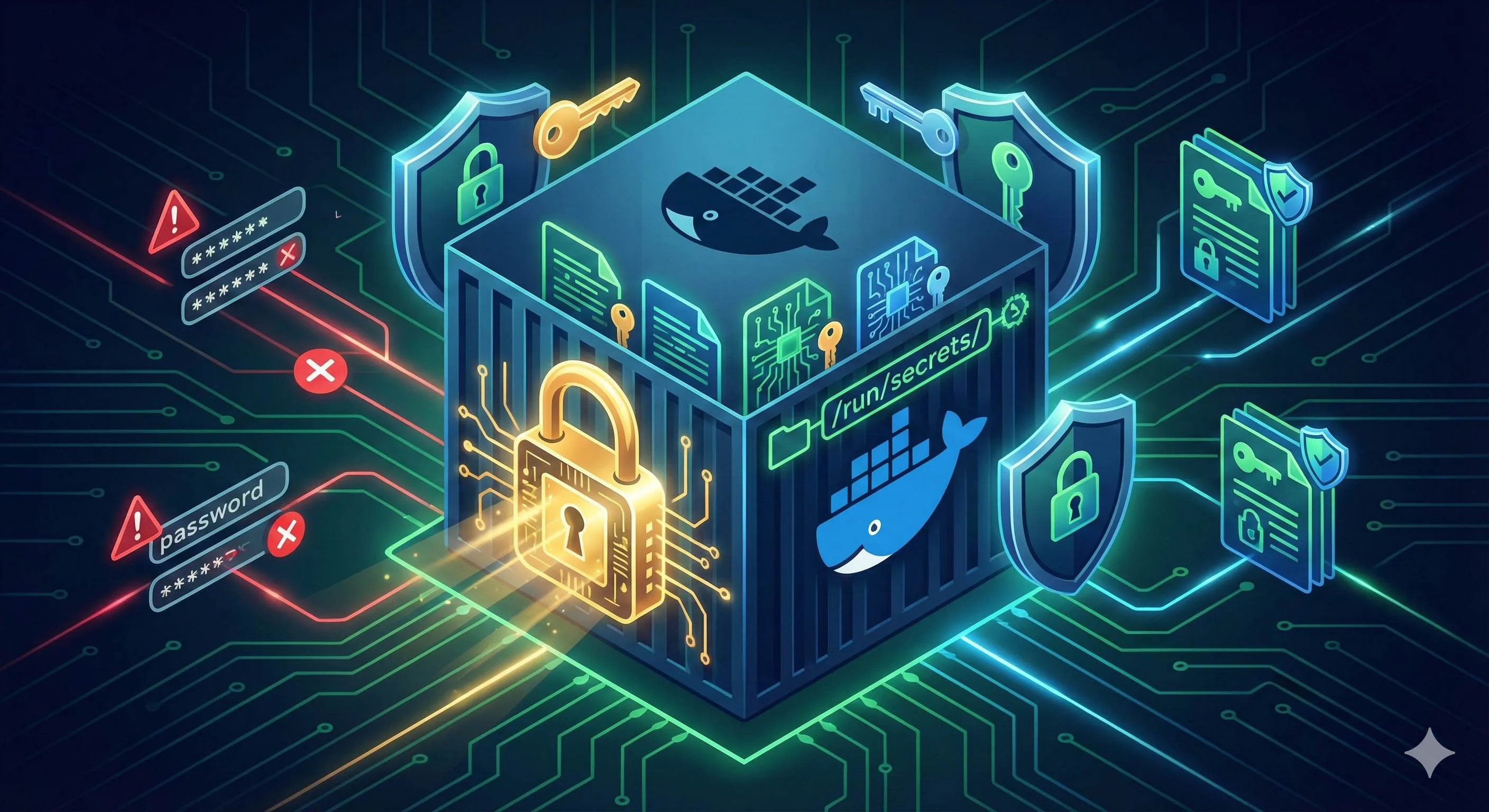
3:30 AM. My phone wouldn’t stop buzzing.
I opened my eyes to see 24 text messages—all database alerts. My heart sank. I grabbed my laptop, SSH’d into the server, and found the database connection pool maxed out. Someone was running a brute force attack.
The cold sweat hit me immediately.

I checked the logs and discovered the attacker was using the correct password—the MySQL password I’d written in docker-compose.yml three months ago, thinking “it’s a private repo, what could go wrong?” Then I remembered: last month an intern had forked the project to their public repo for practice…
To be honest, that night really shook me. What scared me more was realizing how many people around me were doing the same thing: hardcoding passwords in config files, thinking environment variables were secure enough. One friend even told me “my repo is private, it’s fine.”
But here’s the thing: even without considering code leaks, anyone who can run docker inspect can see all your environment variables—in plain text.
This article is about container password management. Not because I’m an expert—quite the opposite. I learned these lessons the hard way, paid the price, and gradually figured out which practices are truly dangerous and which tools actually help.
If your project is still using environment variables to manage database passwords and API keys, I really recommend reading on. You don’t need advanced technical skills—just a different approach can help you avoid many risks.
"Even without considering code leaks, anyone who can run docker inspect can see all your environment variables—in plain text."
Why Are Environment Variables Unsafe?
Three Common Unsafe Practices
Let me start with the mistakes I’ve made. See if you recognize any of these.
First: Hardcoding in Dockerfile
FROM node:18
ENV DATABASE_PASSWORD=MyS3cr3tP@ssw0rd
ENV API_KEY=sk-1234567890abcdef
This is the worst. Every Dockerfile instruction creates an image layer. Even if you later overwrite it with ENV DATABASE_PASSWORD="", the password remains in the history. Anyone with your image can extract it using docker history <image_name>.
Don’t believe me? I didn’t either, until a colleague demonstrated it. He casually pulled one of our company’s internal images and extracted the AWS Access Key with a few commands. That key was from a colleague who left three years ago—we’d forgotten to remove it.
Second: Hardcoding in docker-compose.yml
version: '3.8'
services:
  db:
    image: mysql:8.0
    environment:
      MYSQL_ROOT_PASSWORD: SuperSecretPassword123
      MYSQL_DATABASE: myapp
I used this approach for a long time. The reason was simple: convenience. One docker-compose up -d and everything’s running. Great for development efficiency.
What’s the problem? This file gets committed to Git. Even if the repo is private, if anyone’s permissions aren’t properly managed, or like what happened to me—someone forks it to a public repo—all your passwords are exposed.
Third: Using .env files but tracking them in version control
# .env file
DB_PASSWORD=password123
API_SECRET=abcdef123456
This seems smarter—extracting sensitive data into a separate .env file, then referencing it in docker-compose with ${DB_PASSWORD}.
But many people (including my former self) commit the .env file to Git, thinking “the team needs to run it too.” The result? No different from hardcoding it in docker-compose.
The correct approach is adding .env to .gitignore and providing a .env.example template. But honestly, who thinks about this initially?
Three Major Security Risks with Environment Variables
Even if you add .env to .gitignore, even if your code doesn’t leak, environment variables are still unsafe. Why?
Risk 1: docker inspect reveals everything
Try this command:
docker inspect <container_id> | grep -A 20 "Env"All environment variables, including passwords, displayed in plain text.
What does this mean? Anyone with access to the Docker daemon—operations, DevOps, developers with server permissions—can see your passwords. No hacking required, no advanced techniques needed—just one command.
I once worked at a startup where everyone had SSH access to production servers for convenience. One day, a new frontend developer got curious about “what’s inside the container” and casually ran docker inspect. The database password was right there on their screen. Luckily they were trustworthy—but what if they weren’t?
Risk 2: Processes inside containers can read them
Environment variables aren’t just visible to Docker—all processes inside the container can see them too. On Linux, process environment variables are stored in /proc/<PID>/environ.
This means if any dependency in your application has a vulnerability and someone injects code, attackers can directly read environment variables to get passwords.
Last year a Node.js library was found to have a backdoor that secretly read AWS credentials from environment variables and sent them to external servers. Tens of thousands of projects were affected.
Risk 3: Logs might leak them
This one’s more subtle.
Applications often print configuration on startup, or dump environment variables to logs when errors occur. Log files usually have loose permission management and often get sent to centralized logging systems (like ELK).
I’ve seen a team aggregate all container logs into one Elasticsearch cluster. During a security audit, they found hundreds of database passwords in the logs… Developers had gotten used to console.log(process.env) while debugging and forgot to remove it.
The bigger problem: once passwords enter logs, they’re nearly impossible to completely remove—backups, archives, copies everywhere.
Real-World Case Studies
These incidents are more common online than you might think—many companies just don’t publicize them. Here are a few I know about:
Case 1: GitHub Public Repository Leaks
A 2023 data analysis showed over 1 million public repositories on GitHub contained API keys, database passwords, and other sensitive information. It’s not that these developers were careless—often it’s just momentary oversight: test configurations that weren’t deleted, or accidentally committing .env files.
A friend doing machine learning had their team open-source training code on GitHub and accidentally push AWS credentials along with it. Within 24 hours, someone used their credentials to spin up dozens of GPU instances for crypto mining. The bill shot up to over $20,000.
Case 2: CI/CD Pipeline History Leaks
CI/CD tools (Jenkins, GitLab CI, etc.) usually retain build history including environment variable logs. Without proper sanitization, these logs become password repositories.
I encountered a project using GitLab CI for automated deployment. A colleague gave repository access to an outsourcing team before leaving. Someone on that team went through the build history and obtained production database connection details. Fortunately they reported it to help us, but what if they had malicious intent?
Case 3: Docker Hub Image Scanning
An Alibaba Cloud security report showed they scanned public Docker images and found 76% had security vulnerabilities, many containing hardcoded credentials.
Some companies, for convenience, push internal application images to public Docker Hub, thinking “nobody will specifically target our small company’s images.” But there are many automated crawlers and security scanning tools doing exactly this. Your image might get scanned within minutes of being pushed.
I’m not trying to scare you—these problems really happen, and they’re more common than you imagine. The key is: there are ways to prevent them.
What Is Docker Secrets? How Do You Use It?
How Docker Secrets Works
Alright, now for the solution.
Docker Secrets is Docker’s official secret management mechanism. Simply put, the core idea is: secrets are no longer plain text strings, but encrypted files.
Here’s the workflow:
- You create a secret—Docker encrypts and stores it in the cluster’s Raft log
- When a container needs the secret, Docker transmits it over an encrypted TLS connection
- The secret mounts as a file in the container’s
/run/secrets/directory - This directory is
tmpfs—a pure in-memory filesystem, not written to disk - When the container stops, the secret is automatically cleared from memory
Here’s the key point: secrets don’t appear in environment variables, don’t appear in docker inspect output, and won’t be packaged into images by docker commit.
Sounds a bit abstract? No worries, I was confused reading the Docker docs the first time too. Let’s try it hands-on and it’ll make sense.
First, a limitation: Docker Secrets natively only works in Swarm mode. This initially bothered me—I’m just developing locally, running on a single machine, why can’t I use it?
Later I discovered docker-compose also supports file secrets (weaker functionality, but at least it works). For production cluster environments, you can use Swarm mode or Kubernetes directly.
Step-by-Step Tutorial: MySQL + WordPress Example
Let’s do a complete example. Suppose we’re deploying a WordPress blog and need to protect the MySQL root password and user password.
Step 1: Create secret files
First write passwords to local files (note: don’t commit these files to Git):
echo "MyRootPassword123" > db_root_password.txt
echo "MyUserPassword456" > db_password.txt
Step 2: Initialize Swarm (if not already initialized)
docker swarm initYes, just this one command. If your machine hasn’t enabled Swarm mode yet, run this. You can use Swarm on a single machine—you don’t need multiple machines to form a cluster.
Step 3: Create Docker secrets
docker secret create mysql_root_password db_root_password.txt
docker secret create mysql_password db_password.txt
After creating them, immediately delete the local password files:
rm db_root_password.txt db_password.txtThis step is important. Once Docker reads and encrypts the files, you should destroy the local plain text.
Verify the secrets were created successfully:
docker secret lsYou’ll see output like this:
ID                          NAME                  CREATED         UPDATED
abc123...                   mysql_root_password   5 seconds ago   5 seconds ago
def456...                   mysql_password        3 seconds ago   3 seconds ago
Notice: you cannot see the secret contents, only the name and metadata. That’s the point—once created, even administrators can’t get the plain text.
Step 4: Create docker-compose.yml
version: '3.8'

secrets:
  mysql_root_password:
    external: true
  mysql_password:
    external: true

services:
  db:
    image: mysql:8.0
    secrets:
      - mysql_root_password
      - mysql_password
    environment:
      MYSQL_ROOT_PASSWORD_FILE: /run/secrets/mysql_root_password
      MYSQL_PASSWORD_FILE: /run/secrets/mysql_password
      MYSQL_USER: wordpress
      MYSQL_DATABASE: wordpress
    volumes:
      - db_data:/var/lib/mysql

  wordpress:
    image: wordpress:latest
    depends_on:
      - db
    ports:
      - "8080:80"
    secrets:
      - mysql_password
    environment:
      WORDPRESS_DB_HOST: db:3306
      WORDPRESS_DB_USER: wordpress
      WORDPRESS_DB_PASSWORD_FILE: /run/secrets/mysql_password
      WORDPRESS_DB_NAME: wordpress

volumes:
  db_data:
Note several key points:
secretstop-level configuration: Declares which secrets to use,external: truemeans the secret already exists and isn’t created by composeservices.db.secrets: Specifies which secrets this service usesMYSQL_ROOT_PASSWORD_FILE: The official MySQL image supports_FILEsuffix environment variables, reading passwords from files instead of directly from environment variables
This _FILE suffix is important—not all images support it. If an image doesn’t, you need to read the file yourself in your startup script:

# entrypoint.sh example
export DB_PASSWORD=$(cat /run/secrets/db_password)
# Then start your application
Step 5: Deploy
docker stack deploy -c docker-compose.yml myappNote we’re using docker stack deploy, not docker-compose up. In Swarm mode you need to use the stack command.
Step 6: Verify
Enter the MySQL container to check if the secret was correctly mounted:
docker exec -it <container_id> sh
ls -la /run/secrets/
You’ll see:
total 8
-r--r--r-- 1 root root 18 Dec 18 10:00 mysql_password
-r--r--r-- 1 root root 18 Dec 18 10:00 mysql_root_password
Try reading it:
cat /run/secrets/mysql_root_passwordThe password appears. But here’s the key: this password only exists in memory, won’t be written to disk, and won’t appear in environment variables.
Verify docker inspect can’t see the password:
docker inspect <container_id> | grep -i passwordYou’ll find the output only shows paths like MYSQL_ROOT_PASSWORD_FILE=/run/secrets/mysql_root_password, not the password itself.
This is the power of Docker Secrets—the password can still be read by applications inside the container, but externally you can’t get the plain text.
Docker Secrets Limitations and Alternatives
To be honest, Docker Secrets isn’t perfect. Here are the main limitations:
Limitation 1: Requires Swarm mode
This is the most frustrating. If you’re just developing locally, running containers on a single machine, you need to docker swarm init first to use secrets. Although single machines can run Swarm, it feels like overkill.
And once you enable Swarm, you have to use docker stack deploy instead of the familiar docker-compose up. You’ll need to change your command habits.
Limitation 2: Secrets can’t be modified after creation
Once created, Docker Secrets are read-only. If you need to change a password, you can only delete and recreate:
docker secret rm mysql_password
echo "NewPassword789" | docker secret create mysql_password -
Then you need to update all services using this secret:
docker service update --secret-rm mysql_password --secret-add mysql_password myapp_dbIt’s quite cumbersome. Not like environment variables where you just restart the container after changing them.
Limitation 3: Not suitable for standalone containers
If you use docker run to start containers directly, you can’t use Docker Secrets. It only works for services deployed through docker service create or docker stack.
This isn’t friendly for many quick testing scenarios. Sometimes I just want to temporarily start a database container to test something, but I have to go through the whole Swarm process.
Alternative for single-machine development: docker-compose file secrets
Fortunately docker-compose has a workaround—file secrets. It doesn’t require Swarm mode and directly mounts local files as secrets.
The configuration looks like this:
version: '3.8'

secrets:
  db_password:
    file: ./secrets/db_password.txt

services:
  db:
    image: mysql:8.0
    secrets:
      - db_password
    environment:
      MYSQL_ROOT_PASSWORD_FILE: /run/secrets/db_password
Then create the local password file:
mkdir secrets
echo "MyPassword123" > secrets/db_password.txtImportant: Make sure to add the secrets/ directory to .gitignore!
This approach is more secure than environment variables—at least passwords don’t appear in docker inspect and won’t be packaged into images. But it’s not as good as real Docker Secrets because:
- Password files still exist in plain text on the local disk
- No encrypted transmission
- No centralized management
However, for local development environments, it’s actually sufficient. For real production environments, just use Swarm or Kubernetes properly.
Advanced Tips
Once you’re comfortable with basic operations, here are some practical tips.
Tip 1: Custom secret mount paths
By default secrets mount to /run/secrets/<secret_name>, but you can customize the path and filename:
services:
  myapp:
    image: myapp:latest
    secrets:
      - source: db_password
        target: /app/config/database.pwd
        mode: 0400
Here mode: 0400 sets file permissions (only owner can read), which is more secure.
Tip 2: Multi-environment management
Use different passwords for development, testing, and production environments, but keep secret names consistent:
# Production environment
docker secret create db_password prod_password.txt

# Testing environment (another Swarm cluster)
docker secret create db_password test_password.txt
Application code just reads /run/secrets/db_password, not caring about the actual value. This way code can be completely identical—just deployed to different environment clusters.
Tip 3: Secret rotation
Regularly changing passwords is a good habit. Docker secret rotation is a bit convoluted, but not difficult:
# 1. Create new password
echo "NewPassword" | docker secret create db_password_v2 -

# 2. Update service, add new secret, remove old secret
docker service update \
  --secret-rm db_password \
  --secret-add source=db_password_v2,target=/run/secrets/db_password \
  myapp_db

# 3. After confirming service is working, delete old secret
docker secret rm db_password
Notice the trick here: the new secret is named db_password_v2, but through the target parameter, the mount path is still /run/secrets/db_password. This way the application doesn’t need code changes.
Tip 4: Create secrets from stdin
Don’t want to leave traces on disk? Create directly from standard input:
echo "MySecretPassword" | docker secret create db_password -That final - means read from stdin. This way you don’t even need to create a temporary file.
Or more securely, enter manually (won’t stay in shell history):
docker secret create db_password -
# Then paste password, press Ctrl+D to finish
Comparing Other Secret Management Tools
Comparison Matrix of Four Tools
Docker Secrets isn’t the only option. Depending on project scale and infrastructure, you might need other tools. Here’s a comparison table:
| Tool | Use Case | Core Advantages | Main Drawbacks | Difficulty |
|---|---|---|---|---|
| Docker Secrets | Docker Swarm clusters | Native support, zero extra cost, simple configuration | Swarm only, relatively basic features, not cross-platform | ⭐ Low |
| Kubernetes Secrets | K8s production environments | Native K8s ecosystem support, tied to Pod lifecycle | etcd not encrypted by default, basic features, requires additional configuration for security | ⭐⭐ Medium |
| HashiCorp Vault | Enterprise-level, multi-cloud, strict compliance requirements | Most powerful features, dynamic secrets, fine-grained permissions, audit logs, supports multiple backends | Complex architecture, requires independent deployment/maintenance, steep learning curve | ⭐⭐⭐ High |
| AWS Secrets Manager | All-AWS environments, RDS/Lambda services | Deep AWS service integration, automatic RDS password rotation, managed service no operations needed | Locked to AWS, cross-cloud difficult, has usage fees | ⭐⭐ Medium |
Simply put:
- Small projects, Docker Swarm → Docker Secrets is enough, free and simple
- Kubernetes production → Start with K8s Secrets, use External Secrets Operator to connect to external Vault
- Large companies, multi-cloud, high security requirements → Go with Vault, one-time investment, long-term benefit
- AWS ecosystem → Secrets Manager is most convenient, works great with RDS and Lambda
There’s no best tool, only the most suitable one. My own selection path: initially used docker-compose file secrets for small projects, moved to Docker Swarm + Docker Secrets when the team grew, now the company migrated to K8s and we’re evaluating whether to introduce Vault.
Each migration has costs, but security definitely improves step by step.
Selection Recommendations
More specifically, how do you choose? Here are some decision references:
If you are…
Individual developer/small project:
- Local development: docker-compose file secrets is enough
- Deploying a few services on VPS: Docker Swarm + Docker Secrets
- Limited budget, don’t want hassle: Don’t use Vault, too heavy
Startup (10-50 people):
- Using Docker: Docker Secrets
- Using K8s: K8s Secrets + External Secrets Operator (progressive, can seamlessly migrate to Vault later)
- All on AWS: Go directly with Secrets Manager, hassle-free
Large company/enterprise:
- Multi-cloud environment: Vault is almost the only choice
- Need audit compliance: Vault
- Have dedicated security team: Vault
- Sufficient budget, don’t mind learning cost: Vault
Simplified decision tree:
Are you using K8s?
 └─ Yes → Use K8s Secrets, add Vault for advanced features
 └─ No → Using Docker Swarm?
      └─ Yes → Docker Secrets
      └─ No → On AWS?
           └─ Yes → AWS Secrets Manager
           └─ No → docker-compose file secrets (dev) / Vault (production)
Real-World Cases
Here are two real selection paths I know about:
Case 1: Startup Evolution
A friend’s company does SaaS, initially 5 people, all services Docker-deployed on a single VPS. At first they used docker-compose + file secrets, password files stored on the server, manually managed.
6 months later after seed funding, team grew to 15 people, services split into microservices architecture. Then they moved to Docker Swarm, migrated to Docker Secrets. Mainly because management became easier—no need to put password files on every server, secrets centrally managed in the Swarm cluster.
After another year, post-Series A they migrated to K8s (company hired DevOps), started using K8s Secrets. But they also introduced AWS RDS, S3 and other services—AWS-related credentials managed with Secrets Manager, K8s secrets synced from Secrets Manager using External Secrets Operator.
Now they’re evaluating whether to unify migration to Vault, because of multi-cloud strategy (considering GCP for backup)—Secrets Manager being locked to AWS isn’t ideal.
See? Security architecture evolves with business—no need for the most complex solution from the start.
Case 2: Traditional Enterprise One-Step Implementation
Another friend works tech at a bank, they did containerization transformation last year. Being the financial industry with strict compliance requirements, they went directly with Vault from the start.
Although the learning curve was steep, benefits included:
- Complete audit logs, every secret access recorded
- Support for dynamic secrets (temporary database credentials, auto-expire after use)
- Integration with their existing LDAP for access control
Invested 2 person-months on setup and training, but solved all secret management problems at once—subsequent maintenance costs are very low.
Different scenarios, different choices. Small companies might not benefit from Vault’s complexity, large enterprises might find Docker Secrets insufficient.
Production Environment Best Practices Checklist
Immediate Security Measures
Regardless of whether you use Docker Secrets, these things should be done now:
✅ Check Git history for sensitive information
# Search for possible password keywords
git log -p -S 'password' -S 'secret' -S 'api_key'

# Check if .env files were ever committed
git log --all --full-history -- .env
If found, use git filter-repo or BFG Repo-Cleaner to completely remove history. Then immediately change all leaked passwords.
✅ Configure .gitignore
# .gitignore
.env
*.env
secrets/
db_password.txt
*_password.txt
*_secret.txt
*.pem
*.key
Don’t take chances—definitely add this.
✅ Enable GitHub Secret Scanning
If using GitHub, go to repository settings and enable Security → Secret scanning alerts. If you accidentally push keys, GitHub will automatically alert you.
Free version only supports public repos, private repos need Pro/Team/Enterprise accounts. But public repos need it more—enable it immediately.
✅ Replace all potentially leaked credentials
Take inventory:
- Database passwords
- API keys (AWS/OpenAI/Stripe, etc.)
- JWT secrets
- OAuth client secrets
- SSL private keys
Replace everything you can. Better late than never after a password leak.
Docker Secrets Implementation Steps
Decided on Docker Secrets? Follow this sequence:
Step 1: Inventory sensitive information
Make a list of what’s sensitive:
✓ MySQL root password
✓ Application database password
✓ Redis password
✓ JWT signing key
✓ Third-party API keys (payment/SMS, etc.)
✓ SSL certificate private keys
✓ OAuth client secrets
Step 2: Choose tools
Based on the earlier comparison, choose Docker Secrets, K8s Secrets, or Vault. Don’t overthink it—pick one, you can migrate later.
Step 3: Create secrets
# If using Docker Swarm
docker swarm init
docker secret create db_password <(echo "password")
docker secret create api_key <(echo "key")

# If using docker-compose file secrets
mkdir secrets
echo "password" > secrets/db_password.txt
echo "key" > secrets/api_key.txt
chmod 600 secrets/*
Step 4: Modify configuration files
Change environment fields in docker-compose.yml to secrets:
# Before
services:
  app:
    environment:
      DB_PASSWORD: "hardcoded_password"  # ❌

# After
services:
  app:
    secrets:
      - db_password
    environment:
      DB_PASSWORD_FILE: /run/secrets/db_password  # ✅
Step 5: Modify application code (if needed)
If your framework doesn’t support _FILE suffix, modify code to read files:

// Node.js example
const fs = require('fs');
const dbPassword = process.env.DB_PASSWORD_FILE
  ? fs.readFileSync(process.env.DB_PASSWORD_FILE, 'utf8').trim()
  : process.env.DB_PASSWORD;
Step 6: Test and verify
Run it in test environment first, confirm:
- Service starts normally
- Can correctly read passwords
- docker inspect doesn’t show plain text
- Functionality works
Step 7: Production deployment
Once verified, deploy to production. To be safe, keep old environment variable configuration as fallback, remove it only after confirming the new approach is stable.
Continuous Security Maintenance
Implementing Docker Secrets isn’t a one-time fix—continuous maintenance is needed:
Regular key rotation (recommended every 90 days)
Set a calendar reminder to change passwords quarterly. Especially after someone leaves, definitely change related passwords.
Monitor key access logs
If using Vault, remember to regularly check audit logs. Look for unusual access patterns.
Docker Secrets and K8s Secrets don’t have audit logs by default—that’s a drawback. If you need auditing, use other tools (like Falco).
Principle of least privilege
Don’t let all services access all secrets. Give each service only what it needs:
services:
  frontend:
    secrets:
      - api_key  # Frontend only needs API key

  backend:
    secrets:
      - db_password  # Backend needs database password
      - api_key
Use secret scanning tools
Integrate into CI/CD:
- trufflehog: Scan Git history
- git-secrets: Prevent committing sensitive info
- gitleaks: Detect secrets in code
Run these in pre-commit hooks—they’ll catch many accidental commits.
5 Tips to Avoid Pitfalls
Finally, here are some common traps:
1. Don’t use ARG to pass sensitive information
# ❌ Wrong
ARG DB_PASSWORD=secret
ENV DATABASE_URL=postgres://user:${DB_PASSWORD}@db/myapp
ARG is retained in image build history—visible with docker history.
2. Don’t print secrets to stdout
# ❌ Wrong
password = open('/run/secrets/db_password').read()
print(f"Using password: {password}")  # Goes into docker logs!
Logging systems capture all stdout output. Once passwords enter logs, they’re nearly impossible to remove completely.
3. Don’t use the same secret across multiple environments
Keep development, testing, and production passwords separate. Don’t use the same one for convenience—if the test environment leaks, production is compromised too.
4. Don’t copy secrets to other paths inside containers
# ❌ Wrong
cp /run/secrets/db_password /app/config/password.txt
/run/secrets is tmpfs, an in-memory filesystem that disappears when the container stops. If you copy to other paths, it might write to disk and actually become less secure.
Just read directly from /run/secrets.
5. Don’t forget to monitor secret expiration and rotation
If you use time-limited dynamic secrets (Vault supports this), configure automatic renewal or rotation mechanisms properly. Don’t wait until midnight when passwords expire and all services crash to find out.
Conclusion
After all this, the core message is simple: Don’t put passwords where they can be seen.
Environment variables seem convenient, but docker inspect exposes everything. ENV directives in Dockerfiles are even more dangerous—permanently retained in image layers. Many security incidents happen because of these “convenient shortcuts.”
Docker Secrets isn’t perfect—requires Swarm mode, can’t be modified, not friendly for single-machine development. But it at least solves the core problem: passwords are encrypted in storage and transmission, and don’t appear in environment variables or images. For Docker Swarm clusters, it’s the simplest and most direct solution.
If you’re using Kubernetes, use K8s Secrets; for enterprise-level needs, consider Vault; if you’re all-in on AWS, Secrets Manager works well. There’s no best tool, only the most suitable one.
The key is taking action. Check today:
- Are there passwords in your Git history?
- Is your
.envfile in.gitignore? - Can
docker inspectsee your passwords?
If the answers are “yes,” “no,” and “yes,” then it’s time to make some changes. You don’t need to go all-in with Vault immediately—even just changing environment variables to file secrets is more secure than the current state.
Security is a continuous process, not a one-time configuration. Regularly rotate passwords, monitor abnormal access, use scanning tools to check code—these habits are more important than the tools themselves.
Finally, share this with your team. Secret management isn’t one person’s responsibility—it’s a shared team responsibility. Unified standards and regular reviews are what truly reduce risk.
Stay safe, and may you never be woken by 3 AM alerts again.
FAQ
Why are environment variables unsafe for Docker secrets?
Anyone with container access can see all environment variables.
They're also stored in image layers if used in Dockerfile ENV directives.
What is Docker Secrets and how does it work?
Secrets are encrypted at rest and in transit, never appear in environment variables or image layers.
Can I use Docker Secrets without Swarm mode?
For single-machine development, use docker-compose secrets (similar syntax) or external tools like HashiCorp Vault, AWS Secrets Manager, or Kubernetes Secrets.
What's the difference between Docker Secrets and Kubernetes Secrets?
• For Docker Swarm
• Stores secrets encrypted in Swarm's Raft database
Kubernetes Secrets:
• Base64 encoded (not encrypted by default)
• Stored in etcd
Both mount secrets as files in containers.
Should I use HashiCorp Vault for secret management?
• Dynamic secrets
• Automatic rotation
• Audit logging
• Fine-grained access control
For small teams, Docker Secrets or K8s Secrets may be sufficient. Choose based on scale and requirements.
How do I rotate secrets in production?
• Create new secret
• Update service to use new secret
• Remove old secret
For Vault: configure automatic rotation policies.
Always test rotation in staging first, rotate during low-traffic periods.
What are common mistakes when managing secrets?
1) Hardcoding in Dockerfiles
2) Committing .env files to Git
3) Printing secrets to stdout/logs
4) Using same secrets across environments
5) Copying secrets to other paths in containers
Always use secrets management tools.
References:
- Docker Official Documentation - Manage sensitive data with Docker secrets
- HashiCorp Vault Official Documentation
- AWS Secrets Manager
- trufflehog - Git secret scanning tool
19 min read · Published on: Dec 18, 2025 · Modified on: Apr 1, 2026

Related Posts
shadcn/ui Composition Patterns: Best Practices for Combining Components

shadcn/ui Composition Patterns: Best Practices for Combining Components
Astro + Tailwind: Configuring Island Components and Global Styles Without Conflicts

Astro + Tailwind: Configuring Island Components and Global Styles Without Conflicts
React Compiler + shadcn/ui: Frontend Development in the Auto-Optimization Era

Comments
Sign in with GitHub to leave a comment