
Next.js CI/CD in Action: Automated Testing and Deployment with GitHub Actions
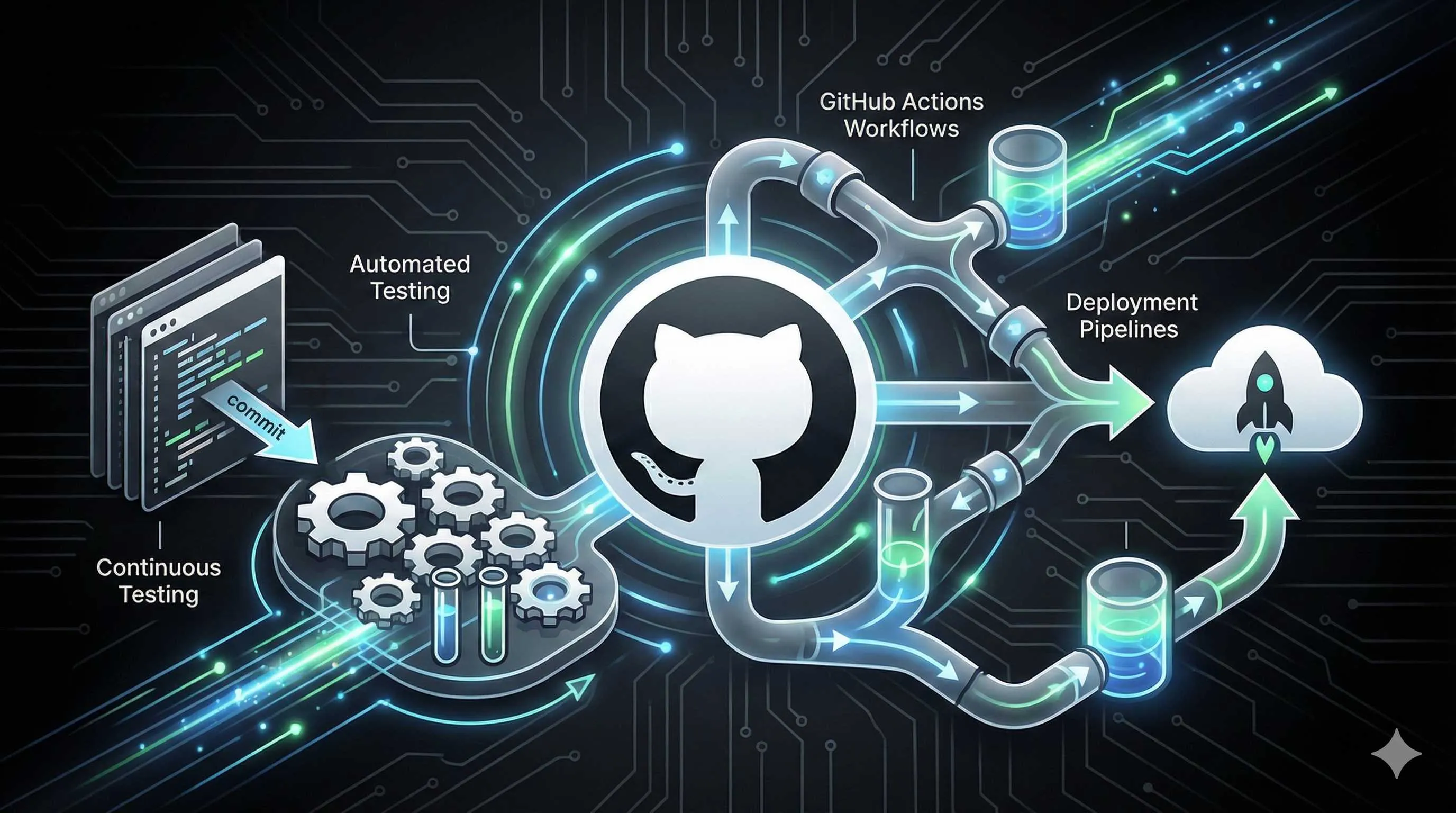
It was 5:30 PM on a Friday. I stared at the logs scrolling in my terminal, my fingers mechanically typing git pull && npm install && npm run build && pm2 restart. This was my third deployment today—a small bug fix in the morning, an API optimization at noon, and now some styling tweaks. Three servers, each requiring the same operation.
By the time I finished the last one, it was 7 PM.
On my way home that evening, I thought: there has to be a better way. I didn’t want to repeat these steps on servers every time I changed code, and I definitely didn’t want to worry about forgetting to restart a server and causing production issues. Honestly, I often forgot to run tests—I’d finish coding and rush to deploy, only to discover a bug later and have to do it all over again.

Then I discovered CI/CD and GitHub Actions, and everything changed. Now I just push code to GitHub, and testing, building, and deployment all happen automatically. By the time I finish my coffee, the new version is already live.
If you’re also struggling with manual deployments, let me show you how to set up automated deployment for Next.js using GitHub Actions. From basic configuration to complete real-world examples, including pitfalls I’ve encountered and their solutions—I’ll cover it all.
Why You Need CI/CD
The Pain of Manual Deployment
When I first started working on Next.js projects, my deployment process went like this: finish coding locally, run some tests, SSH into the server, git pull to fetch code, npm install for dependencies, npm run build to compile, and finally pm2 restart to restart the service. On a good day, this took about 15 minutes.
But it often wasn’t a good day.
Once, while deploying to three servers, the first two succeeded, but the third one disconnected via SSH without me noticing. The next day, users reported that the website sometimes showed the new version and sometimes the old one—turns out the load balancer was routing requests to the server that wasn’t updated. Another time, I was so excited after finishing my code that I deployed immediately, completely forgetting to run tests. After going live, I discovered a critical bug and had to roll back urgently. Cold sweat.
Even worse was the multi-server build issue. Next.js generates a new build ID every time you build. When three servers each built independently, they’d have different IDs. When the load balancer distributed user requests to different servers, Next.js detected the ID change and triggered a hard refresh, reloading all resources. User experience? Don’t even ask.
What CI/CD Actually Solves
Simply put, CI/CD automates these repetitive, error-prone processes.
CI (Continuous Integration) handles testing. Every time you push code, it automatically runs tests—unit tests, type checking, code linting. Tests fail? That commit isn’t getting deployed. It reports an error and tells you to fix it. This prevents problematic code from reaching production.
CD (Continuous Deployment) handles building and deployment. Tests passed? Great, it automatically starts building, and once built, automatically deploys to the server. You don’t lift a finger.
The actual result? My workflow now: write code locally → commit to GitHub → automatic testing → automatic building → automatic deployment. From pushing code to going live takes about 5 minutes, and I don’t need to watch it. I can grab a glass of water, and when I come back, the new version is already online.
Another benefit is traceability. Every deployment has complete logs—which commit triggered it, test results, which server it deployed to—everything is crystal clear. When problems occur, you can quickly pinpoint the issue instead of fumbling around like before.
GitHub Actions Basics
Understanding How It Works
When I first encountered GitHub Actions, I saw a bunch of concepts like workflow, job, step, and my head spun. But it’s actually pretty simple to understand:
Workflow is a complete automation process—like “test + build + deploy” is one workflow. It’s defined by a YAML file placed in your project’s .github/workflows directory.
Job is an independent task within a workflow. For example, you might have a “test” job and a “deploy” job. Jobs can run in parallel or be set up with dependencies to run sequentially.
Step is a specific operation within a job, like “fetch code,” “install dependencies,” “run tests”—these are all steps.
Trigger conditions are flexible too. You can set it to trigger every time you push to the main branch, or only when creating a Pull Request, or even set up scheduled tasks to run automatically every morning.
Creating Your First Workflow
First, create a .github/workflows folder in your project root, then create a ci-cd.yml file. The most basic configuration looks like this:
name: CI/CD Pipeline

# Trigger condition: execute when pushing to main branch
on:
  push:
    branches: [main]

jobs:
  build:
    # Run on latest Ubuntu version
    runs-on: ubuntu-latest

    steps:
      # Step 1: Fetch code
      - uses: actions/checkout@v4

      # Step 2: Set up Node.js environment
      - name: Setup Node.js
        uses: actions/setup-node@v4
        with:
          node-version: '18'

      # Step 3: Install dependencies
      - name: Install dependencies
        run: npm ci

      # Step 4: Build project
      - name: Build
        run: npm run build
This configuration means: whenever code is pushed to the main branch, it executes these steps on an Ubuntu system: fetch code, install Node.js, install dependencies, and build.
After committing this file to GitHub, go to your repository’s “Actions” tab to see the workflow execution. The first time you see that green checkmark, honestly, it feels pretty satisfying.
Configuring Secrets to Protect Sensitive Information
If you’re deploying to a server, you’ll definitely need some sensitive information—server IP, SSH keys, API tokens, etc. Never write these directly in YAML files, or they’ll be exposed when committed to GitHub.
The correct approach is to use GitHub’s Secrets feature. In your repository’s Settings → Secrets and variables → Actions, click “New repository secret” to add secrets. For example, add one called SERVER_HOST with your server’s IP address as the value.
Then reference it in your workflow using ${{ secrets.SERVER_HOST }}. GitHub will automatically replace it with the actual value and mask it in logs, preventing leaks.
Setting Up Automated Testing
Test Environment Configuration
For testing, my philosophy is: if it can be automated, don’t do it manually. My testing pipeline includes code linting (ESLint), type checking (TypeScript), and unit tests (Jest), which catch most issues.
Here’s the complete test job configuration:
jobs:
  test:
    runs-on: ubuntu-latest

    steps:
      - uses: actions/checkout@v4

      - name: Setup Node.js
        uses: actions/setup-node@v4
        with:
          node-version: '18'
          cache: 'npm'  # Cache npm dependencies to speed up subsequent builds

      - name: Install dependencies
        run: npm ci

      - name: Lint check
        run: npm run lint

      - name: Type check
        run: npm run type-check

      - name: Run tests
        run: npm run test -- --coverage
Here’s a neat trick: cache: 'npm' automatically caches node_modules, so the second run doesn’t need to re-download all dependencies, saving several minutes.
Tips for Speeding Up Tests
Initially, my test pipeline took over 10 minutes per run, and I had to wait forever after each commit. After some optimization, it now completes in 3 minutes.
First trick is caching. Besides the npm cache mentioned above, you can also cache Next.js build artifacts:
- name: Cache Next.js build
  uses: actions/cache@v3
  with:
    path: |
      ~/.npm
      .next/cache
    key: ${{ runner.os }}-nextjs-${{ hashFiles('**/package-lock.json') }}
This way, Next.js doesn’t need to rebuild all pages every time, which is much faster.
Second trick is parallel execution. If tests don’t depend on each other, split them into multiple jobs to run in parallel:
jobs:
  lint:
    runs-on: ubuntu-latest
    steps: [...]  # Only run lint

  test:
    runs-on: ubuntu-latest
    steps: [...]  # Only run unit tests

  type-check:
    runs-on: ubuntu-latest
    steps: [...]  # Only run type checking
These three jobs start simultaneously, and the total time is the duration of the slowest job, not the sum of all three.
Pitfalls I’ve Encountered
Once, I configured tests that worked fine locally but kept failing on GitHub Actions. After debugging for ages, I discovered that GitHub Actions, when fetching Pull Request code, defaults to merging the PR branch into the target branch, creating a new temporary commit. This temporary commit doesn’t exist locally, which can cause strange issues.
The solution is to add a parameter when checking out:
- uses: actions/checkout@v4
  with:
    ref: ${{ github.head_ref }}  # Use the original PR branch code
Another pitfall is test timeouts. Some E2E tests run slow, and the default timeout isn’t enough. You can set a longer timeout in the job:
jobs:
  test:
    runs-on: ubuntu-latest
    timeout-minutes: 15  # Default is 6 minutes
Configuring Automated Deployment
Deploying to Vercel: The Simplest Option
If your project is hosted on Vercel, congratulations—you barely need to configure anything. Vercel and GitHub integrate naturally; after connecting your repository to your Vercel project, code automatically deploys every time you push.
But if you want finer control, like deploying only after tests pass, you can use Vercel’s official GitHub Action:
jobs:
  deploy:
    runs-on: ubuntu-latest
    needs: test  # Wait for test job to complete before executing
    if: github.ref == 'refs/heads/main'  # Only deploy on main branch

    steps:
      - uses: actions/checkout@v4

      - name: Deploy to Vercel
        uses: amondnet/vercel-action@v25
        with:
          vercel-token: ${{ secrets.VERCEL_TOKEN }}
          vercel-org-id: ${{ secrets.VERCEL_ORG_ID }}
          vercel-project-id: ${{ secrets.VERCEL_PROJECT_ID }}
          vercel-args: '--prod'  # Deploy to production environment
You need to generate a token in Vercel’s backend, find the org ID and project ID in project settings, and add them to GitHub Secrets.
Another nice thing about Vercel is it automatically creates preview environments for each PR. When you submit a PR, Vercel automatically deploys a temporary environment and gives you a preview link where you can directly see the changes. Super convenient.
Deploying to Self-Hosted Servers: More Flexible but Slightly Complex
My own projects deploy to my own servers mainly because I want more control. This requires configuring SSH connections, then having GitHub Actions execute deployment commands on the server via SSH.
First, generate an SSH key pair locally:

ssh-keygen -t ed25519 -C "github-actions"Add the public key to your server’s ~/.ssh/authorized_keys, and add the private key to GitHub Secrets (call it something like SSH_PRIVATE_KEY).
Then configure the deployment job:
jobs:
  deploy:
    runs-on: ubuntu-latest
    needs: test
    if: github.ref == 'refs/heads/main'

    steps:
      - name: Deploy to server
        uses: appleboy/ssh-action@master
        with:
          host: ${{ secrets.SERVER_HOST }}
          username: ${{ secrets.SERVER_USER }}
          key: ${{ secrets.SSH_PRIVATE_KEY }}
          script: |
            cd /var/www/my-nextjs-app
            git pull origin main
            npm install
            npm run build
            pm2 restart nextjs-app
This configuration SSHs into the server, pulls the latest code, installs dependencies, builds, and restarts the application. The entire process is fully automated—you no longer need to manually log into servers.
Solving Multi-Server Build ID Inconsistency
If you, like me, need to deploy to multiple servers for load balancing, there’s an important thing: the build ID must be consistent across all servers, otherwise users will experience constant page refreshes.
The solution is to build in one place, then distribute the build artifacts to all servers. Here’s how I do it:
jobs:
  build:
    runs-on: ubuntu-latest
    steps:
      - uses: actions/checkout@v4
      - name: Setup Node.js
        uses: actions/setup-node@v4
        with:
          node-version: '18'
      - run: npm ci
      - run: npm run build

      # Package and upload build artifacts
      - name: Upload build artifacts
        uses: actions/upload-artifact@v3
        with:
          name: next-build
          path: |
            .next
            public

  deploy:
    runs-on: ubuntu-latest
    needs: build
    strategy:
      matrix:
        server: [server1, server2, server3]  # Multiple servers

    steps:
      # Download build artifacts
      - name: Download build artifacts
        uses: actions/download-artifact@v3
        with:
          name: next-build

      # Deploy to corresponding server
      - name: Deploy to ${{ matrix.server }}
        uses: appleboy/scp-action@master
        with:
          host: ${{ secrets[format('{0}_HOST', matrix.server)] }}
          username: ${{ secrets.SERVER_USER }}
          key: ${{ secrets.SSH_PRIVATE_KEY }}
          source: ".next,public"
          target: "/var/www/my-nextjs-app"
This way, you only build once, then distribute the same build artifacts to all three servers, naturally ensuring consistent build IDs.
Optimization and Best Practices
What to Do When Builds Fail
Automation is great, but sometimes things go wrong. When a build fails, you need to know, right? Otherwise, you commit code, deployment fails, and you’re oblivious—that’s awkward.
My approach is to configure failure notifications. You can send emails or post to Slack or DingTalk. Here’s a Slack example:
jobs:
  deploy:
    runs-on: ubuntu-latest
    steps:
      [...deployment steps...]

      # Send Slack notification if deployment fails
      - name: Notify on failure
        if: failure()
        uses: 8398a7/action-slack@v3
        with:
          status: ${{ job.status }}
          text: 'Deployment failed! Go check what happened'
          webhook_url: ${{ secrets.SLACK_WEBHOOK }}
          channel: '#deploy-notifications'
This way, if deployment fails, Slack receives a notification immediately, and you’ll know right away.
Branch Strategy: Separating Development and Production Environments
In real projects, I use different branches for different environments. The develop branch deploys to the staging environment, and the main branch deploys to production. The configuration looks like this:
on:
  push:
    branches:
      - main      # Production environment
      - develop   # Staging environment

jobs:
  deploy-staging:
    if: github.ref == 'refs/heads/develop'
    runs-on: ubuntu-latest
    steps:
      - [...deploy to staging...]

  deploy-production:
    if: github.ref == 'refs/heads/main'
    runs-on: ubuntu-latest
    steps:
      - [...deploy to production...]
This way, during regular development, you commit to develop, which automatically deploys to staging for verification. Once confirmed okay, merge to main, which automatically deploys to production.
Some teams also require manual approval before production deployment. GitHub Actions supports this feature—add an environment configuration in the job, then configure approvers in repository settings:
jobs:
  deploy-production:
    runs-on: ubuntu-latest
    environment:
      name: production  # Environment requiring approval
    steps: [...]
This way, every time you want to deploy to production, it pauses first and waits for an approver to click “approve” before continuing. For important projects, this extra layer of protection is pretty necessary.
Rollback Mechanism
Despite having tests and approvals, sometimes production issues still occur. When they do, you need to quickly roll back to a previous version.

A simple rollback solution is to tag each deployment and keep build artifacts from recent versions. When you need to roll back, manually trigger a workflow specifying the tag to roll back to:
on:
  workflow_dispatch:  # Manual trigger
    inputs:
      tag:
        description: 'Tag to roll back to'
        required: true

jobs:
  rollback:
    runs-on: ubuntu-latest
    steps:
      - uses: actions/checkout@v4
        with:
          ref: ${{ github.event.inputs.tag }}  # Use specified tag

      - name: Deploy
        [...normal deployment process...]
This way, on the GitHub Actions page, you can click “Run workflow,” enter a tag, and quickly roll back.
Environment Variable Management
Next.js projects often need environment variables configured—API addresses, database connection strings, etc. Never hardcode these in your code, and don’t commit them to your Git repository.
Best practice:
- Put sensitive information in GitHub Secrets
- Inject into environment variables in the workflow
- Read environment variables during Next.js build
- name: Build
  run: npm run build
  env:
    NEXT_PUBLIC_API_URL: ${{ secrets.API_URL }}
    DATABASE_URL: ${{ secrets.DATABASE_URL }}
This way, different environments can use different environment variables without changing any code.
Real-World Example: Complete Configuration
After all this talk, let’s look at a complete configuration example. This config includes the full pipeline for testing, building, and deployment, and you can basically use it directly in your projects:
name: Next.js CI/CD

on:
  push:
    branches: [main, develop]
  pull_request:
    branches: [main]

jobs:
  # Job 1: Code checking and testing
  test:
    runs-on: ubuntu-latest
    steps:
      - uses: actions/checkout@v4

      - name: Setup Node.js
        uses: actions/setup-node@v4
        with:
          node-version: '18'
          cache: 'npm'

      - name: Install dependencies
        run: npm ci

      - name: Lint check
        run: npm run lint

      - name: Type check
        run: npm run type-check

      - name: Run tests
        run: npm run test -- --coverage

  # Job 2: Build
  build:
    runs-on: ubuntu-latest
    needs: test  # Only build after tests pass
    if: github.event_name == 'push'  # Only build on push, not on PR

    steps:
      - uses: actions/checkout@v4

      - name: Setup Node.js
        uses: actions/setup-node@v4
        with:
          node-version: '18'

      - name: Cache dependencies and build
        uses: actions/cache@v3
        with:
          path: |
            ~/.npm
            .next/cache
          key: ${{ runner.os }}-nextjs-${{ hashFiles('**/package-lock.json') }}

      - name: Install dependencies
        run: npm ci

      - name: Build
        run: npm run build
        env:
          NEXT_PUBLIC_API_URL: ${{ secrets.API_URL }}

      # Upload build artifacts for deployment
      - name: Upload build artifacts
        uses: actions/upload-artifact@v3
        with:
          name: next-build
          path: |
            .next
            public
            package.json

  # Job 3: Deploy to staging environment
  deploy-staging:
    runs-on: ubuntu-latest
    needs: build
    if: github.ref == 'refs/heads/develop'

    steps:
      - name: Download build artifacts
        uses: actions/download-artifact@v3
        with:
          name: next-build

      - name: Deploy to staging server
        uses: appleboy/ssh-action@master
        with:
          host: ${{ secrets.STAGING_HOST }}
          username: ${{ secrets.SERVER_USER }}
          key: ${{ secrets.SSH_PRIVATE_KEY }}
          script: |
            cd /var/www/staging
            pm2 stop nextjs-app || true
            rm -rf .next public
            pm2 start npm --name "nextjs-app" -- start
            pm2 save

      - name: Notify Slack
        if: always()
        uses: 8398a7/action-slack@v3
        with:
          status: ${{ job.status }}
          text: 'Staging deployment ${{ job.status == "success" && "succeeded" || "failed" }}'
          webhook_url: ${{ secrets.SLACK_WEBHOOK }}

  # Job 4: Deploy to production environment
  deploy-production:
    runs-on: ubuntu-latest
    needs: build
    if: github.ref == 'refs/heads/main'
    environment:
      name: production  # Requires manual approval

    steps:
      - name: Download build artifacts
        uses: actions/download-artifact@v3
        with:
          name: next-build

      - name: Deploy to production server
        uses: appleboy/ssh-action@master
        with:
          host: ${{ secrets.PROD_HOST }}
          username: ${{ secrets.SERVER_USER }}
          key: ${{ secrets.SSH_PRIVATE_KEY }}
          script: |
            cd /var/www/production
            pm2 stop nextjs-app || true
            rm -rf .next public
            pm2 start npm --name "nextjs-app" -- start
            pm2 save

      - name: Notify Slack
        if: always()
        uses: 8398a7/action-slack@v3
        with:
          status: ${{ job.status }}
          text: 'Production deployment ${{ job.status == "success" && "succeeded" || "failed" }}'
          webhook_url: ${{ secrets.SLACK_WEBHOOK }}
In this configuration, PRs only run tests, not builds or deployments. Commits to the develop branch automatically deploy to staging, and commits to the main branch deploy to production (requiring manual approval). Every deployment sends a Slack notification, so you’ll know immediately if it fails.
When actually using this, you need to configure these Secrets in your GitHub repository settings:
API_URL: API addressSTAGING_HOST/PROD_HOST: Staging/production server addressesSERVER_USER: SSH usernameSSH_PRIVATE_KEY: SSH private keySLACK_WEBHOOK: Slack webhook address (optional)
After configuration, the entire pipeline runs. All you need to do is write code and commit—the rest is fully automatic.
Conclusion
The shift from manual deployment to automation has truly transformed my development experience. No more repeating commands on servers after every code change, no more worrying about forgetting to run tests, no more staring at terminals waiting for builds to complete.
Configuring a GitHub Actions CI/CD pipeline might take some time to figure out initially, but it’s absolutely worth it. Once set up, you continue benefiting from it. You can start with the simplest configuration, get testing and building working first, then gradually add deployment, notifications, and rollback features.
Honestly, looking back now, I don’t know how I survived manually deploying before. If you’re still manually deploying, I really recommend spending some time setting up automated workflows. Push code, grab a coffee, come back and the new version is live—once you experience that feeling, there’s no going back.
Give it a try. Start with your Next.js project, create your first workflow file, and the moment you see GitHub Actions running automatically, you’ll understand what I’m talking about.
FAQ
What is CI/CD and why do I need it?
• Automates testing, building, and deployment
• Catches bugs before production
• Consistent deployment process
• Saves time and reduces errors
Benefits:
• No manual server operations
• Automatic testing before deployment
• Consistent deployment across environments
• Easy rollback if issues occur
How do I set up GitHub Actions for Next.js?
1) Create .github/workflows/deploy.yml
2) Configure triggers (push, PR, etc.)
3) Set up Node.js environment
4) Run tests and build
5) Deploy to server
Basic workflow:
• Checkout code
• Setup Node.js
• Install dependencies
• Run tests
• Build project
• Deploy to server
How do I deploy to server using GitHub Actions?
1) SSH deployment: Use SSH keys to connect to server
2) Deployment keys: Use deployment keys for Git operations
3) FTP/SFTP: Upload files via FTP
4) Cloud platforms: Use platform-specific actions (Vercel, etc.)
Most common: SSH deployment using secrets for credentials.
How do I handle environment variables in CI/CD?
1) Go to repository Settings > Secrets
2) Add secrets (DATABASE_URL, API_KEY, etc.)
3) Reference in workflow: ${{ secrets.SECRET_NAME }}
For different environments:
• Use different workflow files
• Or use environment-specific secrets
• Or use conditional logic in workflow
How do I run tests before deployment?
Example:
- name: Run tests
run: npm test
Or:
- name: Run tests
run: npm run test:ci
If tests fail, deployment won't proceed.
How do I implement rollback?
1) Keep previous deployment as backup
2) Use Git tags for versions
3) Deploy previous version if new one fails
4) Use deployment platforms with rollback features
Example:
- Keep last 3 deployments
- Tag releases with version numbers
- Quick rollback to previous tag
What are common CI/CD pitfalls?
• Not running tests before deployment
• Exposing secrets in logs
• Not handling deployment failures
• Missing environment-specific configs
• Not monitoring deployment status
Best practices:
• Always run tests
• Use secrets for sensitive data
• Implement error handling
• Monitor deployment logs
• Test in staging first
12 min read · Published on: Dec 20, 2025 · Modified on: Mar 3, 2026

Related Posts
AI Keeps Writing Wrong Code? Master These 5 Prompt Techniques to Boost Efficiency by 50%

AI Keeps Writing Wrong Code? Master These 5 Prompt Techniques to Boost Efficiency by 50%
Cursor Advanced Tips: 10 Practical Methods to Double Development Efficiency (2026 Edition)

Cursor Advanced Tips: 10 Practical Methods to Double Development Efficiency (2026 Edition)
Complete Guide to Fixing Bugs with Cursor: An Efficient Workflow from Error Analysis to Solution Verification

Comments
Sign in with GitHub to leave a comment