
Escape from Vercel: Complete Guide to Self-Hosting Next.js with Docker
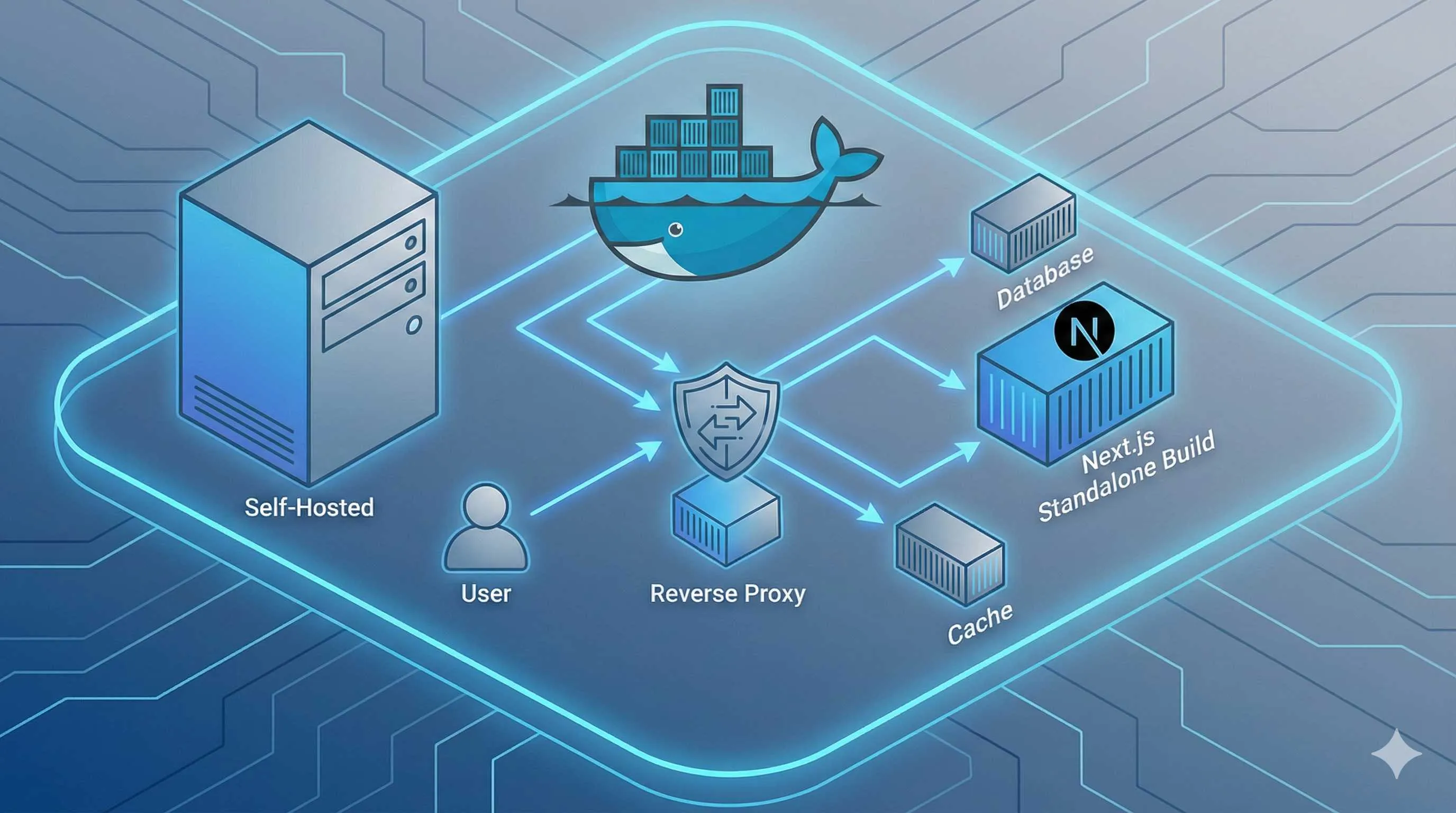
At the end of last month, I opened Vercel’s billing page as usual. $47.32.
I stared at that number for three seconds, quickly calculating in my head: this month’s blog traffic only increased by 20%, how did the bill double? Opening the detailed bill, I found the problem was in serverless function call counts—an API route without proper caching was running three times on every page refresh.
Honestly, Vercel’s developer experience is indeed smooth: git push and it auto-deploys, global edge network acceleration, and various out-of-the-box features. But when your project traffic goes up a bit, the bill skyrockets like a rocket. The $20 Pro plan is just the entry fee; what really burns money are those pay-as-you-go parts.
At that moment, I suddenly realized: it’s time to move this project out.
This article documents my complete process of migrating a Next.js project from Vercel to Docker self-hosting. The pitfalls I stepped into, the documentation I checked, the configurations I tried—I’ve organized them all here. If you’re also considering self-hosting, or have tried but encountered various strange issues (like static resource 404s, streaming rendering not working), I hope this helps.
Why Escape from Vercel?
Let me be clear first—I’m not trying to bash Vercel. For many scenarios, it’s still the optimal solution—especially for enterprise projects, global edge network needs, or teams without operations capabilities. But for personal projects and small teams, cost is indeed a hard constraint.
Vercel’s Pricing Logic
The free tier looks quite generous: 100GB bandwidth, 1 million Edge Requests. The problem is these quotas aren’t enough for projects with even moderate traffic. Once you upgrade to Pro ($20/month), you’ll find this is just the entry ticket:
- Serverless Function Calls: Pay-as-you-go after exceeding 1 million
- Edge Function Execution Time: Additional charges after exceeding 1 million GB-s
- Image Optimization: Pay per use after exceeding 5000 times
- Bandwidth: Pay per GB after exceeding 1TB
The worst part is, these usage amounts are hard to predict in advance. An API route without proper caching, a page being crawled heavily by bots, and the bill will spike.
How Much Can Self-Hosting Save?
I did the math. My project on Vercel costs about $35-50 per month, fluctuating with traffic. After migrating to a DigitalOcean $12/month server:
- Server: $12/month (2 cores, 4GB RAM, enough to run two or three Next.js apps)
- Cloudflare CDN: Free (using it anyway)
- Additional storage: $0 (local disk is sufficient)
Saving $25-40 per month, that’s $300-500 per year. More importantly, this cost is fixed—it won’t spike suddenly with traffic surges.
When Is Self-Hosting Suitable?
Not everyone should self-host. I think you can consider it if you meet these conditions:
- ✅ Already have some Linux/Docker foundation
- ✅ Project traffic is relatively stable, don’t need global edge network
- ✅ Can accept 5-10 minute manual deployment process
- ✅ Budget-sensitive (personal projects, early-stage startups)
Conversely, if you’re in these situations, stick with Vercel:
- ❌ Team has no operations capabilities and doesn’t want to learn
- ❌ Traffic fluctuates wildly, need auto-scaling
- ❌ Need Vercel’s Analytics, Edge Config, and other proprietary features
- ❌ Budget is sufficient, development efficiency is more important
Think it through before acting—don’t torture yourself just to save money.
Next.js Docker Deployment Core Configuration
Alright, let’s get to the point. Next.js Docker deployment has three core configuration points. Get these three right, and you’ll basically avoid major issues.
1. Standalone Output Mode
This is the most critical step. By default, next build generates a bunch of files, including the full node_modules. Put this in Docker and the image is huge, startup is slow.
Add this line in next.config.js:
/** @type {import('next').NextConfig} */
const nextConfig = {
  output: 'standalone',
}

module.exports = nextConfig
After running npm run build, you’ll see the .next/standalone directory. This directory contains:
server.js: Startup script- Trimmed
node_modules: Only packages needed at runtime - Application code
Key point: Standalone mode doesn’t automatically copy public and .next/static. These two must be manually copied to the standalone directory, otherwise all static resources will 404. I spent two days discovering this pitfall.
2. Multi-Stage Dockerfile
Here’s the Dockerfile I use, comments are clear:
# ============ Stage 1: Dependency Installation ============
FROM node:20-alpine AS deps
RUN apk add --no-cache libc6-compat
WORKDIR /app

# Only copy dependency manifests, leverage Docker cache
COPY package.json package-lock.json ./
RUN npm ci

# ============ Stage 2: Build Application ============
FROM node:20-alpine AS builder
WORKDIR /app

# Copy dependencies and source code
COPY --from=deps /app/node_modules ./node_modules
COPY . .

# Build-time environment variables (if needed)
ENV NEXT_TELEMETRY_DISABLED=1

# Build
RUN npm run build

# ============ Stage 3: Production Runtime ============
FROM node:20-alpine AS runner
WORKDIR /app

ENV NODE_ENV=production
ENV NEXT_TELEMETRY_DISABLED=1

# Create non-root user (security best practice)
RUN addgroup --system --gid 1001 nodejs
RUN adduser --system --uid 1001 nextjs

# Copy public folder (static resources)
COPY --from=builder /app/public ./public

# Copy standalone output
COPY --from=builder --chown=nextjs:nodejs /app/.next/standalone ./
# Copy static files (CSS/JS build artifacts)
COPY --from=builder --chown=nextjs:nodejs /app/.next/static ./.next/static

USER nextjs

EXPOSE 3000

ENV PORT=3000
ENV HOSTNAME="0.0.0.0"

# Startup command
CMD ["node", "server.js"]
Key explanations:
- Three-stage build: Dependency installation, build, runtime separated—final image only contains files needed at runtime, size can drop from 1.5GB to 200MB
COPY --from=builder /app/public: Don’t forget this, otherwise favicon, robots.txt won’t be accessibleCOPY ./.next/static: This is even more critical—without it, all JS/CSS will 404- Non-root user: Security best practice—don’t run applications as root in production
3. Environment Variable Pitfalls
I stepped into this one too. Next.js environment variables come in two types:
- Build-time variables: Prefixed with
NEXT_PUBLIC_, compiled into code - Runtime variables: Server-side use, like database addresses
In standalone mode, runtimeConfig doesn’t work. Official recommendation is to use the App Router approach:
// app/api/example/route.ts
export async function GET() {
  // Read directly from process.env
  const dbUrl = process.env.DATABASE_URL
  // ...
}
Pass environment variables at Docker runtime:
docker run -p 3000:3000 \
  -e DATABASE_URL="postgres://..." \
  -e API_KEY="xxx" \
  your-image-name
Or use docker-compose.yml:

version: '3.8'
services:
  nextjs:
    image: your-image-name
    ports:
      - "3000:3000"
    environment:
      DATABASE_URL: "postgres://..."
      API_KEY: "xxx"
restart: unless-stoppedNote: Variables prefixed with NEXT_PUBLIC_ must be set at build time; they can’t be changed at runtime. If you need runtime dynamic configuration, you can only use server-side environment variables.
Reverse Proxy Configuration Essentials
You can directly expose the Next.js container to the public internet, but really don’t do this. A bare Node.js application facing various malicious requests and slow attacks won’t last long. Reverse proxy isn’t optional—it’s essential.
Why Do You Need a Reverse Proxy?
- Security Protection: Intercept malicious requests, rate limiting, DDoS protection
- HTTPS Support: Unified SSL certificate management
- Multi-Application Deployment: Run multiple projects on one server, distinguish by domain/path
- Static Resource Caching: Reduce application server pressure
I use Nginx—stable and reliable. If you want simpler configuration, Caddy is also good (automatic HTTPS, more human-friendly config files).
Nginx Configuration Example
server {
    listen 80;
    server_name yourdomain.com;

    # Force redirect to HTTPS (if SSL is configured)
    return 301 https://$server_name$request_uri;
}

server {
    listen 443 ssl http2;
    server_name yourdomain.com;

    # SSL certificate configuration (Let's Encrypt)
    ssl_certificate /etc/letsencrypt/live/yourdomain.com/fullchain.pem;
    ssl_certificate_key /etc/letsencrypt/live/yourdomain.com/privkey.pem;

    # Reverse proxy to Next.js container
    location / {
        proxy_pass http://localhost:3000;
        proxy_http_version 1.1;

        # Required request headers
        proxy_set_header Host $host;
        proxy_set_header X-Real-IP $remote_addr;
        proxy_set_header X-Forwarded-For $proxy_add_x_forwarded_for;
        proxy_set_header X-Forwarded-Proto $scheme;

        # Critical: Disable buffering, support streaming rendering
        proxy_buffering off;
        proxy_cache off;
        proxy_set_header X-Accel-Buffering no;

        # WebSocket support (if needed)
        proxy_set_header Upgrade $http_upgrade;
        proxy_set_header Connection "upgrade";
    }

    # Static resource caching (optional but recommended)
    location /_next/static/ {
        proxy_pass http://localhost:3000;
        proxy_cache_valid 200 60m;
        add_header Cache-Control "public, max-age=3600, immutable";
    }
}
Three critical configurations:
proxy_buffering off: Disable buffering, otherwise streaming output will hangX-Accel-Buffering: no: Explicitly tell Nginx not to buffer response body- WebSocket support: If you use Socket.io or real-time features, the
Upgradeheader must be added
Caddy’s Simplified Configuration
If you find Nginx configuration too cumbersome, try Caddy:
yourdomain.com {
    reverse_proxy localhost:3000 {
        # Caddy doesn't buffer by default, no special config needed
    }
}
That’s it. Caddy automatically requests and renews Let’s Encrypt certificates, config file is that simple.
Docker Compose Integration
Containerize Nginx too for easier management:
version: '3.8'
services:
  nextjs:
    build: .
    restart: unless-stopped
    environment:
      DATABASE_URL: "postgres://..."
    # Don't expose to host, only let nginx access
    expose:
      - "3000"
    networks:
      - app-network

  nginx:
    image: nginx:alpine
    ports:
      - "80:80"
      - "443:443"
    volumes:
      - ./nginx.conf:/etc/nginx/conf.d/default.conf
      - ./certs:/etc/letsencrypt
    depends_on:
      - nextjs
    networks:
      - app-network

networks:
  app-network:
    driver: bridge
Note that the nextjs service uses expose instead of ports, so only containers in the same network can access it—more secure.
Streaming Rendering Failure Problem Solution
This problem troubled me for a full day. An AI chat feature that worked perfectly in local development completely failed after Docker deployment—streaming output either waited forever then came out all at once, or just hung.
Problem Symptoms
Typical symptoms:
- OpenAI/Anthropic API streaming responses don’t work
- Server-Sent Events (SSE) don’t push in real-time
- Page waits a long time then suddenly refreshes, no character-by-character output effect
Local npm run dev works perfectly, but production environment has issues.
Root Cause
Two places can cause this problem:
- Reverse Proxy Buffering: Nginx buffers response body by default, waits for complete content before sending to client
- Next.js Runtime: Non-Edge Runtime API routes don’t support streaming output in certain situations
Solution 1: Nginx Configuration
The three lines mentioned in the reverse proxy section, emphasizing again:
proxy_buffering off;
proxy_cache off;
proxy_set_header X-Accel-Buffering no;
These three lines must be added to the location / configuration block. After changing, restart Nginx:
nginx -t  # Test configuration syntax
nginx -s reload  # Reload configuration
Solution 2: Use Edge Runtime
If your API route is for streaming output (like AI chat), add this line at the top of the file:
// app/api/chat/route.ts
export const runtime = 'edge'

export async function POST(req: Request) {
  const stream = new ReadableStream({
    async start(controller) {
      // Your streaming logic
      const response = await openai.chat.completions.create({
        model: 'gpt-4',
        messages: [...],
        stream: true,
      })

      for await (const chunk of response) {
        controller.enqueue(chunk.choices[0]?.delta?.content || '')
      }

      controller.close()
    },
  })

  return new Response(stream, {
    headers: {
      'Content-Type': 'text/event-stream',
      'Cache-Control': 'no-cache',
      'Connection': 'keep-alive',
    },
  })
}
Edge Runtime is a lightweight runtime optimized specifically for streaming responses, performing more stably in Docker environments.
Verify If Fixed
Test with curl—if you see line-by-line output, it’s successful:

curl -N http://yourdomain.com/api/chat \
  -X POST \
  -H "Content-Type: application/json" \
  -d '{"message": "Hello"}'
The -N parameter disables buffering—you should see content coming out bit by bit, not waiting forever then suddenly all appearing.
Still Not Working? Check These
- Cloudflare Proxy: If using CF’s orange cloud, it also buffers responses. Either turn it off (gray cloud) or upgrade to Pro plan (supports Streaming)
- Docker Health Check: Some health check configurations might interfere with streaming connections—check
healthcheckconfig indocker-compose.yml - Load Balancer: If there’s a Load Balancer in front, it might also buffer responses—needs separate configuration
Common Issues Diagnosis and Fixes
I’ve compiled several pitfalls I stepped into and questions frequently asked by community members, covering about 80% of deployment failure scenarios.
Issue 1: Static Resources 404
Symptoms: Page loads but styles are completely broken, console full of 404 errors, paths all /_next/static/...
Cause: Dockerfile didn’t correctly copy .next/static folder.
Fix: Check your Dockerfile, ensure you have these two lines:
COPY --from=builder /app/.next/static ./.next/static
COPY --from=builder /app/public ./public
If you already have these and still getting 404, check file permissions:
COPY --from=builder --chown=nextjs:nodejs /app/.next/static ./.next/staticIssue 2: Docker Build Failure
Symptoms: docker build errors with “Could not find a production build in the ‘.next’ directory”
Cause: .dockerignore misconfigured, or build order issue.
Fix: Create .dockerignore file, exclude unnecessary directories:
.next
node_modules
.git
.env*.local
out
.DS_Store
*.log
Note: .next should be excluded because we’re rebuilding inside the Docker container.
Issue 3: Environment Variables Not Working
Symptoms: Code reading process.env.DATABASE_URL returns undefined
Cause: Environment variables passed incorrectly, or confused build-time vs runtime.
Fix:
-
Runtime variables (database addresses, API keys, etc.), pass with
docker run -eordocker-compose.yml:docker run -e DATABASE_URL="..." your-image -
Build-time variables (prefixed with
NEXT_PUBLIC_), must be passed duringdocker build:docker build --build-arg NEXT_PUBLIC_API_URL="https://api.example.com" .Declare in Dockerfile:
ARG NEXT_PUBLIC_API_URL
ENV NEXT_PUBLIC_API_URL=$NEXT_PUBLIC_API_URL
Issue 4: Build Failure Due to Insufficient Memory
Symptoms: Build gets stuck halfway or errors with “JavaScript heap out of memory”

Cause: Node.js default memory limit insufficient, Next.js large projects are memory-intensive.
Fix: Increase memory in Dockerfile build stage:
# In builder stage
ENV NODE_OPTIONS="--max-old-space-size=4096"
RUN npm run build
Or use Docker BuildKit to limit resources:
docker build --memory=8g --memory-swap=8g -t your-image .Issue 5: Container Running But Can’t Access
Symptoms: Container runs normally, but accessing http://localhost:3000 connection refused.
Cause: Next.js listens on 127.0.0.1 by default, can’t be accessed externally from inside Docker container.
Fix: Set in Dockerfile:
ENV HOSTNAME="0.0.0.0"
ENV PORT=3000
Or pass at startup:
docker run -p 3000:3000 -e HOSTNAME="0.0.0.0" your-imageQuick Diagnosis Commands
When encountering issues, run these commands first to troubleshoot:
# 1. Check if container is running
docker ps

# 2. View container logs
docker logs <container-id>

# 3. Enter container to check file structure
docker exec -it <container-id> sh
ls -la .next/
ls -la public/

# 4. Test if service inside container is normal
docker exec -it <container-id> wget -O- http://localhost:3000

# 5. Check port mapping
docker port <container-id>
Conclusion
Migrating from Vercel to Docker self-hosting, honestly, wasn’t as scary as I imagined. Initial configuration does take some time, but once it’s working, maintenance costs are low. My current state: fixed $12/month server cost, running three Next.js projects, completely worry-free about bill spikes.
Let me summarize the three core configurations from this article:
- Standalone Mode - Add one line to
next.config.js, remember to manually copypublicand.next/static - Multi-Stage Dockerfile - Three-stage build, final image around 200MB, fast startup
- Reverse Proxy - Nginx must disable buffering (
proxy_buffering off), otherwise streaming rendering breaks
If you’re stuck on streaming rendering issues, 99% of the time it’s reverse proxy buffering—adding export const runtime = 'edge' should basically solve it.
Vercel vs Self-Hosting Comparison
| Dimension | Vercel | Docker Self-Hosting |
|---|---|---|
| Deployment Speed | ⚡️ git push = deploy | 🐢 5-10 min manual operation |
| Developer Experience | 🌟 Preview environments, logs, Analytics | 🔧 Need to configure monitoring yourself |
| Cost | 💸 $20+/month, more expensive with traffic | 💰 $12/month fixed (can run multiple projects) |
| Scalability | 📈 Auto-scaling | 📊 Manual resource adjustment |
| Control | ⚠️ Limited by platform rules | ✅ Complete control |
| Use Cases | Enterprise projects, global services | Personal projects, small teams, budget-limited |
Final Recommendations:
- If you’re an indie developer with multiple side projects, self-hosting can save significant money
- If your team has no operations capabilities, or project traffic fluctuates wildly, stick with Vercel
- There’s no right or wrong in tech choices—only what fits
Complete configuration files and more details are in my GitHub repository (placeholder, replace when actually using). Questions welcome in comments—let’s not let others step into the same pitfalls we did.
FAQ
Why should I self-host instead of using Vercel?
• Cost savings ($300-500/month for moderate traffic)
• Full control over infrastructure
• No serverless function limits
• Better for high-traffic projects
But requires:
• DevOps knowledge
• Server management
• Monitoring setup
For personal projects or small teams, self-hosting can save significant costs.
How do I configure Next.js for Docker?
1) Set output: 'standalone' in next.config.js
2) Create Dockerfile with multi-stage build
3) Copy .next/standalone and .next/static
4) Set correct Node.js version
Example Dockerfile:
FROM node:18-alpine AS builder
WORKDIR /app
COPY package*.json ./
RUN npm ci
COPY . .
RUN npm run build
FROM node:18-alpine
WORKDIR /app
COPY --from=builder /app/.next/standalone ./
COPY --from=builder /app/.next/static ./.next/static
CMD ["node", "server.js"]
How do I configure Nginx reverse proxy?
• Proxy /api routes to Next.js server
• Serve static files directly
• Handle WebSocket connections
• Configure SSL certificates
Example:
location / {
proxy_pass http://nextjs:3000;
proxy_http_version 1.1;
proxy_set_header Upgrade $http_upgrade;
proxy_set_header Connection 'upgrade';
}
location /_next/static {
alias /app/.next/static;
}
Why are static assets returning 404?
• Nginx not configured to serve static files
• Wrong path in Nginx config
• Next.js standalone output not copied correctly
Solutions:
• Configure Nginx to serve /_next/static
• Check Dockerfile copies .next/static correctly
• Verify file permissions
How do I fix streaming rendering not working?
• Using standalone output mode
• Node.js server.js is running (not npm start)
• Nginx proxy_http_version 1.1
• WebSocket connections enabled
Streaming requires proper HTTP/1.1 support and WebSocket connections.
How do I automate deployment?
• GitHub Actions for automation
• Build Docker image on push
• Deploy to server via SSH
• Restart containers automatically
Or use:
• Docker Compose for local deployment
• Kubernetes for production
• Portainer for GUI management
What are the costs of self-hosting?
• VPS: $5-20/month (DigitalOcean, Linode, etc.)
• Domain: $10-15/year
• SSL: Free (Let's Encrypt)
• Monitoring: Free (self-hosted) or $10-20/month
Total: ~$10-30/month vs Vercel's $20-100+/month
For moderate traffic, can save $300-500/month.
10 min read · Published on: Dec 20, 2025 · Modified on: Mar 3, 2026

Related Posts
AI Keeps Writing Wrong Code? Master These 5 Prompt Techniques to Boost Efficiency by 50%

AI Keeps Writing Wrong Code? Master These 5 Prompt Techniques to Boost Efficiency by 50%
Cursor Advanced Tips: 10 Practical Methods to Double Development Efficiency (2026 Edition)

Cursor Advanced Tips: 10 Practical Methods to Double Development Efficiency (2026 Edition)
Complete Guide to Fixing Bugs with Cursor: An Efficient Workflow from Error Analysis to Solution Verification

Comments
Sign in with GitHub to leave a comment