
Next.js API Performance Optimization Guide: Caching, Streaming, and Edge Computing
Friday night, 9 PM. The product manager dropped a screenshot in our Slack channel. In the user testing video, the tester tapped to open our blog list page on mobile. The loading spinner spun for a full 5 seconds with nothing but a white screen. There was a comment at the bottom: “What era is this website from?”
I fired up Chrome DevTools. Holy smokes—the API request took 3200ms. To be honest, I panicked a bit. I knew this endpoint was slow, but I’d been too busy to optimize it. I didn’t realize it was this bad.
After spending two days diving into Next.js performance optimization, I found it wasn’t that complicated. By using the right caching strategies, adding streaming responses, and implementing edge computing, I brought the response time down from 3 seconds to under 500ms. More importantly, I figured out when to use which approach—that matters way more than just knowing the technologies exist.

Today, let’s talk about these three techniques: how to choose caching strategies, how to implement streaming responses, and which scenarios suit Edge Functions. All the code examples are battle-tested, and the performance data is real. You can use them right away.
Why Is Your Next.js API So Slow?
Let me start with the common performance bottlenecks. When I debugged that 3-second endpoint, I found several typical issues:
Unoptimized database queries. The code had a loop that queried author info separately for each article—the classic N+1 query problem. With 100 articles, that’s 100 database requests. How could it not be slow? To make it worse, some tables didn’t even have indexes.
Absolutely no caching. Every time a user refreshed the page, the server re-queried the database, re-calculated, and re-formatted everything. Configuration data that only changed once a month was being recomputed every second.
Returning all data in one shot. The endpoint returned complete content for 100 articles, including the full article text. The JSON response was over 2MB, taking a full second just to transfer. The list page didn’t even need the full text—just titles and summaries.
Server geographic location. We deployed our server on the US West Coast. For users in China, just the round trip was 200ms minimum, plus the GFW impact… let’s not go there.
Next.js 16 Caching Changes
In October 2025, Next.js 16 released a pretty important update: switching from implicit caching to explicit caching.
Before, Next.js would automatically cache lots of stuff for you. Sounds convenient, right? But in practice, you’d often be confused: Is this thing cached or not? For how long? How do I clear it? Many times, data would clearly update but the page still showed the old version. You’d debug for ages only to discover it was the cache’s fault.
Now you have to explicitly tell Next.js what to cache and for how long. It’s a bit more work, but at least you know what’s happening. Much more controllable.
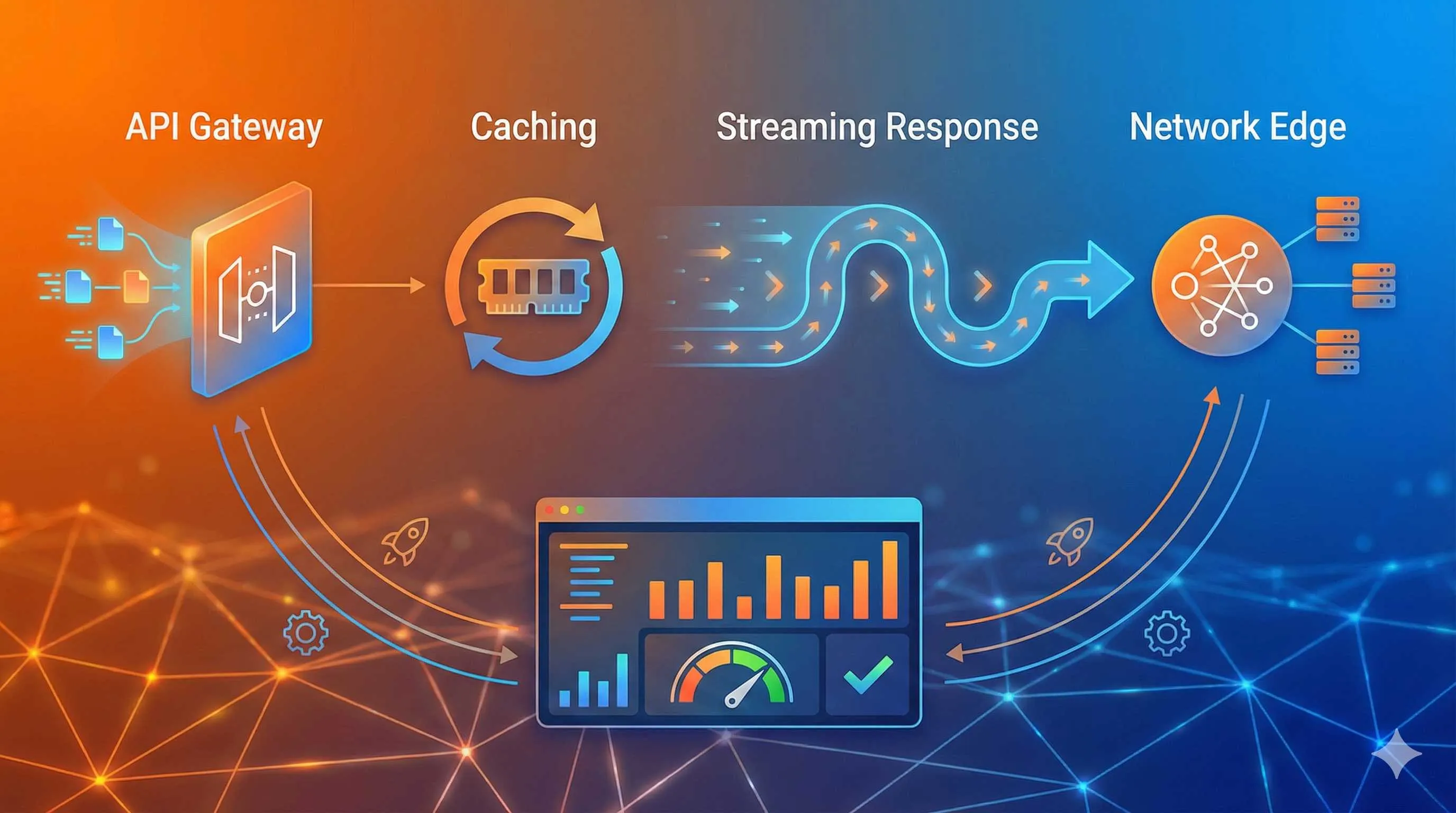
Three Directions for Performance Optimization
Once I understood the problems, the optimization directions became clear:
- Caching: Don’t repeat work you’ve already done
- Streaming responses: Compute and transmit simultaneously—don’t wait until everything’s ready
- Edge computing: Move servers closer to users
Let’s go through them one by one.
Caching Strategies: Choosing the Right Method Multiplies Your Efficiency
Next.js has four caching mechanisms: Request Memoization, Data Cache, Full Route Cache, and Router Cache. The first time I read the docs, I was confused too. How do you remember all these types?
Actually, you don’t need to remember them all. For API Routes, the most commonly used is Data Cache—caching database query results or external API responses.
Scenario One: Static Data Caching
For data that rarely changes, like site configuration or category lists, you can totally cache them for an hour or more.
// app/api/categories/route.js
export async function GET() {
  const data = await fetch('https://api.example.com/categories', {
    next: { revalidate: 3600 } // Cache for 1 hour
  })

  return Response.json(await data.json())
}
That simple. revalidate: 3600 means cache for 1 hour, then auto-refresh.
Scenario Two: User-Related Data Caching
User profile data doesn’t change frequently, but you can’t use stale data forever. That’s when you use the stale-while-revalidate strategy:
// app/api/user/profile/route.js
export async function GET(request) {
  const user = await getUserFromDB()

  return new Response(JSON.stringify(user), {
    headers: {
      'Content-Type': 'application/json',
      'Cache-Control': 's-maxage=60, stale-while-revalidate=300'
    }
  })
}
This strategy is clever: it returns cached data first (even if potentially stale) while asynchronously updating the cache in the background. Users don’t perceive any delay, but the data won’t be too old either.
s-maxage=60 means the cache is fresh for 60 seconds. stale-while-revalidate=300 means that after expiration, stale data can continue being used for another 300 seconds while updating in the background.
Scenario Three: Don’t Cache Real-Time Data
For data requiring high real-time accuracy, like stock prices or chat messages, skip caching. Either don’t cache at all, or use WebSocket or Server-Sent Events for pushing.
export async function GET() {
  const price = await getStockPrice()

  return new Response(JSON.stringify(price), {
    headers: {
      'Cache-Control': 'no-store' // Don't cache
    }
  })
}
Cache Invalidation: What About Data Updates?
What if a user updates their profile but the cache still shows old data? That’s when you need manual cache clearing.
Next.js provides revalidateTag and revalidatePath APIs:
// app/api/user/update/route.js
import { revalidateTag } from 'next/cache'

export async function POST(request) {
  const data = await request.json()
  await updateUserProfile(data)

  // Clear user-related cache
  revalidateTag('user-profile')

  return Response.json({ success: true })
}
Correspondingly, tag the cache in the query endpoint:
export async function GET() {
  const data = await fetch('db-api/user', {
    next: {
      revalidate: 3600,
      tags: ['user-profile'] // Tag
    }
  })

  return Response.json(await data.json())
}
This way, after updating profile data, the related cache immediately invalidates. The next request will fetch fresh data.
Common Pitfalls
Pitfall One: Over-caching. I’ve seen people cache order status for 1 hour, resulting in users not seeing status updates for ages after payment. Cache duration should match data characteristics—longer isn’t always better.
Pitfall Two: Forgetting cache warmup. The first request is still slow because the cache is empty. You can proactively call the endpoint once after deployment to preload hot data into cache.
Pitfall Three: Poor cache key design. For example, User A’s data gets cached, and User B ends up getting A’s data too. Make sure cache keys include distinguishing info like user IDs.
Streaming Responses: No More Stuttering with Large Data Transfers
Caching solves the repeat computation problem, but some data is just slow to compute or large in volume. That’s where streaming responses come in handy.
What Are Streaming Responses?
Traditional API responses are like dining at a restaurant: the chef waits until all dishes are ready before bringing them out together. If you ordered 10 dishes, you wait for the slowest one.
Streaming responses are different: dishes come out as they’re ready. You eat while waiting for the next one. The total time might be similar, but you started eating way earlier instead of starving while waiting.
For users, it transforms from “staring at a white screen for 3 seconds” to “seeing the first few items in 500ms and browsing while the rest loads.” Completely different experience.
When to Use Streaming Responses?
I’ve summarized a few typical scenarios:
- Long lists: Product listings, article lists, search results
- AI-generated content: That ChatGPT typing effect is actually streaming response
- Large file processing: Excel exports, PDF generation
- Real-time logs: Build logs, task progress
Basically, whenever data volume is large or computation is time-consuming, consider streaming responses.
How to Implement in Next.js?
The most common approach uses ReadableStream:
// app/api/posts/stream/route.js
export async function GET() {
  const encoder = new TextEncoder()

  const stream = new ReadableStream({
    async start(controller) {
      // Fetch data in batches
      for (let page = 0; page < 5; page++) {
        // Query 20 items at a time
        const posts = await fetchPostsFromDB({ page, limit: 20 })

        // Send this batch
        const chunk = JSON.stringify(posts) + '\n'
        controller.enqueue(encoder.encode(chunk))

        // Simulate processing time
        await new Promise(r => setTimeout(r, 100))
      }

      // Data sending complete
      controller.close()
    }
  })

  return new Response(stream, {
    headers: {
      'Content-Type': 'text/plain; charset=utf-8',
      'Transfer-Encoding': 'chunked'
    }
  })
}
The code isn’t complex. The core steps are:
- Create
ReadableStream - Fetch data in batches inside the
startmethod - Send each batch using
controller.enqueue() - Call
controller.close()when done
How Does the Frontend Receive It?
When the backend sends streaming data, the frontend needs to handle it accordingly:
async function fetchStreamData() {
  const response = await fetch('/api/posts/stream')
  const reader = response.body.getReader()
  const decoder = new TextDecoder()

  let allPosts = []

  while (true) {
    const { done, value } = await reader.read()

    if (done) {
      console.log('Data reception complete')
      break
    }

    // Decode data
    const chunk = decoder.decode(value)

    // Parse JSON (one per line)
    const posts = JSON.parse(chunk)
    allPosts = [...allPosts, ...posts]

    // Update UI in real-time
    updatePostList(allPosts)
  }
}
After users open the page, the list progressively displays content instead of showing a long white screen.
Real Performance Comparison
After I added streaming responses to the blog list:
Though total time only decreased 1300ms, users perceived it as more than twice as fast. Because they could interact after 500ms, the remaining time was spent browsing content—no waiting at all.
A Little Trick
For really large data volumes, combine with Virtual Scrolling. The frontend only renders visible data, leaving the rest unrendered. This way, even if you receive 1000 items, the page won’t lag.
For React, use react-window or react-virtualized libraries. For Vue, use vue-virtual-scroller.
Edge Functions: Bringing APIs to Users’ Doorsteps
Caching and streaming are software-level optimizations, but there’s a more direct approach: move servers closer to users.
The Impact of Physical Distance
Network request latency mainly comes from physical distance. Light speed is finite. A data packet round trip from Beijing to the US West Coast takes at least 200ms—that’s physics, can’t be optimized.
Before, we could only deploy servers in fixed locations, like Alibaba Cloud Beijing. Beijing users got fast access, but US users experienced slowness.
Edge Functions have a simple idea: deploy code to dozens or even hundreds of global nodes. Users automatically route to the nearest node when accessing. Beijing users hit Beijing nodes, New York users hit New York nodes. Latency can drop below 50ms.
Edge Runtime vs Node.js Runtime
Next.js API Routes run on Node.js Runtime by default, allowing all Node.js APIs like fs, crypto, database connections, etc.
Edge Runtime is different. It’s based on the V8 engine (the one Chrome uses), not a full Node.js environment. The upside? Lightning-fast startup (0-5ms). The downside? Many Node.js APIs won’t work.
Quick comparison:
| Feature | Node.js Runtime | Edge Runtime |
|---|---|---|
| Startup speed | 100-500ms | 0-5ms |
| Available APIs | All Node.js APIs | Limited (Web standard APIs only) |
| Use cases | Complex business logic, database ops | Lightweight logic, auth, proxying |
| Global latency | Depends on deployment location | Worldwide <50ms |
| Memory limit | Higher | Lower (128MB) |
Which Scenarios Suit Edge Functions?
Not all APIs should migrate to Edge. I’ve summarized a few typical scenarios:
Scenario One: Authentication
Edge’s best use case is auth. Checking JWT tokens and verifying API keys—lightweight logic that can be completed at the edge. Invalid requests never even reach the central server.
// app/api/auth/route.js
export const runtime = 'edge'

export async function GET(request) {
  const token = request.headers.get('authorization')

  if (!token) {
    return new Response('Unauthorized', { status: 401 })
  }

  // Verify token (can use jose library, Edge-compatible)
  const isValid = await verifyToken(token)

  if (!isValid) {
    return new Response('Invalid token', { status: 401 })
  }

  return Response.json({ user: 'authenticated' })
}Scenario Two: Geolocation Personalization
Return different content based on user IP—different languages, currencies, recommendations.
export const runtime = 'edge'

export async function GET(request) {
  // Get user geolocation (Vercel auto-injects)
  const country = request.geo?.country || 'US'
  const city = request.geo?.city || 'Unknown'

  // Return different content based on location
  const content = getLocalizedContent(country)

  return Response.json({
    country,
    city,
    content,
    currency: country === 'CN' ? 'CNY' : 'USD'
  })
}
No database queries needed. Edge handles it directly. Super fast.
Scenario Three: API Proxying
Sometimes frontends need to call multiple external APIs. You can aggregate them at the Edge layer, reducing client requests.
export const runtime = 'edge'

export async function GET(request) {
  // Parallel requests to multiple APIs
  const [weather, news] = await Promise.all([
    fetch('https://api.weather.com/...'),
    fetch('https://api.news.com/...')
  ])

  return Response.json({
    weather: await weather.json(),
    news: await news.json()
  })
}
Users send one request, backend handles it in parallel. Total latency drops significantly.

Scenario Four: A/B Testing
Decide which content version to return at the edge layer without modifying the main app.
export const runtime = 'edge'

export async function GET(request) {
  const userId = request.headers.get('x-user-id')

  // Simple A/B split logic
  const variant = parseInt(userId) % 2 === 0 ? 'A' : 'B'

  const content = variant === 'A' ? getContentA() : getContentB()

  return Response.json({ variant, content })
}
Edge Functions Limitations
Edge is so good—why not migrate everything? Because limitations are significant:
Limitation One: Can’t Use Node.js-Specific APIs
fs, path, child_process—none of these work. If your code uses them, migrating to Edge will throw errors.
Limitation Two: Database Connections
Traditional database connection methods (like pg, mysql2) won’t work because they depend on Node.js’s net module. You need HTTP-based solutions like:
- Prisma Data Proxy
- PlanetScale (MySQL)
- Supabase (PostgreSQL)
- Redis (supports HTTP API)
Limitation Three: Memory and Execution Time Limits
Edge Functions typically have memory limits (128MB) and execution time limits (30 seconds). Complex computations or big data processing don’t fit.
My Recommendation: Hybrid Approach
No need to choose one or the other. My approach:
- Edge layer (Edge): Auth, geolocation checks, simple proxying
- Central layer (Node.js): Complex business logic, database operations, file processing
The Edge layer blocks invalid and simple requests. Complex ones get forwarded to the central server. This lowers latency without Edge limitations.
Performance Benchmarks
According to a benchmark study on Medium:
- Vercel Edge Functions: Average latency 48.3ms
- Cloudflare Workers (custom): Average latency 36.37ms
- Traditional Node.js API (single region): Average latency 200-500ms
Edge is indeed fast, but actual results depend on your user distribution. If all users are in China, a traditional server deployed domestically might be faster.
Comprehensive Case Study: Blog Post List API Optimization
We’ve covered three techniques. Now let’s see how to use them together. Take that blog list API that was so slow users complained.
Problems Before Optimization
Here’s the original code:
// app/api/posts/route.js
export async function GET() {
  // Problem 1: Query database every time, no cache
  const posts = await db.post.findMany({
    take: 100,
    include: {
      author: true, // Problem 2: N+1 query
      tags: true
    }
  })

  // Problem 3: Return full article content, large data volume
  return Response.json(posts)
}
Performance data:
- Response time: 2800ms
- JSON size: 2.3MB
- User experience: 3-second white screen
Step One: Optimize Database Queries
First, fix the N+1 query problem and only return necessary fields:
export async function GET() {
  const posts = await db.post.findMany({
    take: 100,
    select: {
      id: true,
      title: true,
      summary: true,  // Just summary, not full text
      createdAt: true,
      author: {
        select: { name: true, avatar: true }
      }
    }
  })

  return Response.json(posts)
}
Result: Response time dropped to 800ms, JSON from 2.3MB to 180KB.
Step Two: Add Caching
Post lists don’t change frequently. Cache for 5 minutes:

export async function GET() {
  const posts = await db.post.findMany({
    // ... same as above
  }, {
    next: {
      revalidate: 300,  // Cache for 5 minutes
      tags: ['posts']
    }
  })

  return Response.json(posts)
}
Coordinate with cache clearing when publishing posts:
// app/api/posts/publish/route.js
import { revalidateTag } from 'next/cache'

export async function POST(request) {
  const newPost = await request.json()
  await db.post.create({ data: newPost })

  // Clear post list cache
  revalidateTag('posts')

  return Response.json({ success: true })
}
Result: Cache hits respond in 50ms, server load reduced 90%.
Step Three: Switch to Streaming Response
Although much faster, first access (cache miss) still waits 800ms. Switch to streaming:
export async function GET() {
  const encoder = new TextEncoder()

  const stream = new ReadableStream({
    async start(controller) {
      const batchSize = 20

      for (let page = 0; page < 5; page++) {
        const posts = await db.post.findMany({
          skip: page * batchSize,
          take: batchSize,
          select: { /* same as above */ }
        })

        const chunk = JSON.stringify(posts) + '\n'
        controller.enqueue(encoder.encode(chunk))
      }

      controller.close()
    }
  })

  return new Response(stream, {
    headers: {
      'Content-Type': 'application/x-ndjson', // Newline Delimited JSON
      'Cache-Control': 's-maxage=300, stale-while-revalidate=600'
    }
  })
}
Result: First batch returns in 300ms. Users can browse immediately. Total time is 800ms but users don’t notice.
Step Four: Edge Layer Auth (Optional)
If auth is needed, do initial verification at the Edge layer:
// app/api/posts/route.js (Edge auth layer)
export const runtime = 'edge'

export async function GET(request) {
  const token = request.headers.get('authorization')

  if (!token) {
    return new Response('Unauthorized', { status: 401 })
  }

  // Verification passed, forward to actual API (Node.js Runtime)
  return fetch(`${process.env.API_BASE_URL}/posts/internal`, {
    headers: { authorization: token }
  })
}
Invalid requests get blocked at the edge, never hitting the central server.
Optimization Results Comparison
| Metric | Before | After | Improvement |
|---|---|---|---|
| First access response time | 2800ms | 300ms (first batch) | 89% ↓ |
| Cache hit response time | - | 50ms | 98% ↓ |
| JSON size | 2.3MB | 180KB | 92% ↓ |
| Time to interactive | 2800ms | 300ms | 89% ↓ |
| Server load | 100% | 10% | 90% ↓ |
Users won’t complain “what era is this website from” anymore.
Performance Monitoring and Continuous Optimization
Optimization isn’t the end. You need continuous monitoring to know if it’s working.
Key Metrics
I focus on these metrics:
-
Response time distribution (P50, P95, P99)
- P50 (median): Half of users’ experience
- P95: 95% of users’ experience
- P99: Slowest 1% of users’ experience (may reflect anomalies)
-
Cache hit rate
- Hit rate <70% indicates caching strategy issues
- Hit rate >95% might mean cache is too long, data too stale
-
Error rate
- Ensure error rate doesn’t rise post-optimization
- Streaming responses might fail mid-stream—watch carefully
-
Geographic distribution
- Latency differences across regions
- Determines whether Edge Functions are needed
Monitoring Tools
Vercel Analytics: If deployed on Vercel, built-in performance monitoring shows response time distribution for each API.
Next.js Instrumentation API (2026 feature): Insert monitoring points in code:
// instrumentation.js
export function register() {
  if (process.env.NEXT_RUNTIME === 'nodejs') {
    require('./monitoring')
  }
}

// monitoring.js
export function onRequestEnd(info) {
  console.log(`API ${info.url} took ${info.duration}ms`)

  // Send to monitoring platform
  sendToMonitoring({
    url: info.url,
    duration: info.duration,
    status: info.status
  })
}
Custom logging: Simple but effective:
export async function GET() {
  const start = Date.now()

  const data = await fetchData()

  const duration = Date.now() - start
  console.log(`API /posts took ${duration}ms`)

  return Response.json(data)
}
Continuous Optimization Tips
- Regularly review caching strategies: Business changes, caching should adapt
- A/B testing: Not sure which approach is better? Test it
- Adjust based on real data: Don’t guess—check monitoring data first
Performance optimization is an ongoing process, not a one-time fix.
Summary
After all that, here are the core takeaways:
Caching strategies: Choose based on data characteristics. Static data gets long cache, user data gets short cache with stale-while-revalidate, real-time data stays uncached. Remember to clear cache after data updates.
Streaming responses: The silver bullet when data volume is large or computation is slow. Let users see content earlier instead of staring at white screens. Combine with virtual scrolling for better results.
Edge Functions: Perfect for auth, geolocation checks, API proxying—lightweight logic. Don’t expect it to handle complex business. Hybrid use with Node.js Runtime is the way.
Optimization isn’t instant. Start with the slowest endpoint, apply these three techniques, test results, then adjust. One step at a time. Don’t aim for perfection all at once.
I optimized that blog list API from 3 seconds to 300ms. User experience improved dramatically. You can try it too—pick a slow endpoint and start optimizing today. Questions? Drop a comment. Let’s grow together.
FAQ
When does Next.js API cache invalidate?
Are streaming responses suitable for all endpoints?
What are Edge Functions limitations?
How to choose a caching strategy?
How to verify optimization results?
14 min read · Published on: Jan 5, 2026 · Modified on: Mar 3, 2026

Related Posts
AI Keeps Writing Wrong Code? Master These 5 Prompt Techniques to Boost Efficiency by 50%

AI Keeps Writing Wrong Code? Master These 5 Prompt Techniques to Boost Efficiency by 50%
Cursor Advanced Tips: 10 Practical Methods to Double Development Efficiency (2026 Edition)

Cursor Advanced Tips: 10 Practical Methods to Double Development Efficiency (2026 Edition)
Complete Guide to Fixing Bugs with Cursor: An Efficient Workflow from Error Analysis to Solution Verification

Comments
Sign in with GitHub to leave a comment