
Complete Guide to Cursor Agent Mode: Start AI-Powered Automation in 3 Steps (2026)
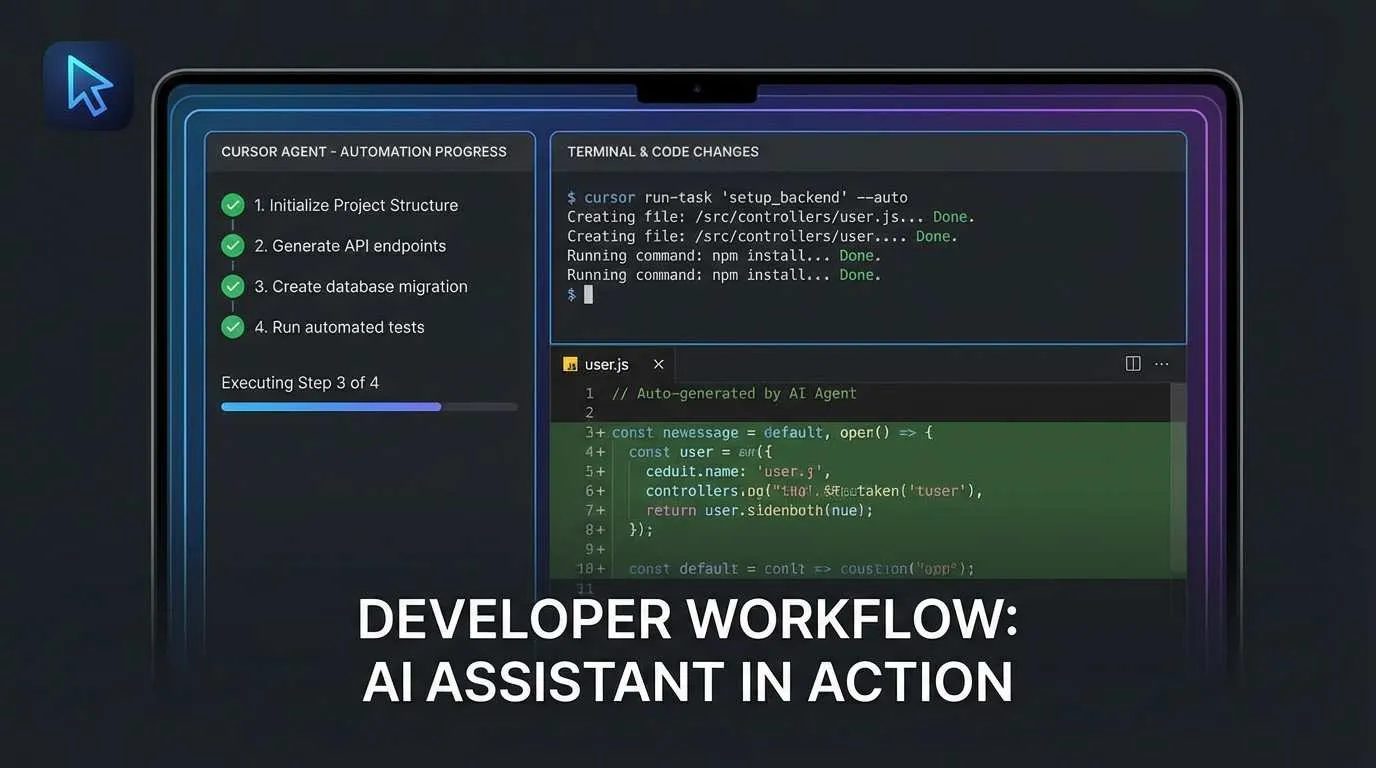
A few days ago, I was fixing a bug and went back and forth with AI in Cursor Chat for over ten rounds. AI would say “you can fix it like this,” I’d copy the code, paste it, run it, and get an error. Then I’d ask AI again, get a new solution, copy and paste again… endless loop.
Later, when I ran the project and got a dependency error, AI told me “you need to run npm install xxx,” and I had to manually switch to the terminal and type it in. At that moment, I thought: if AI already knows what needs to be installed, why can’t it just install it for me?
Then I discovered Cursor’s Agent mode, and everything changed. Agent no longer just “gives suggestions”—it actually does the work: automatically creates files, runs commands, and fixes bugs. Honestly, the first time I used it, I was amazed—AI coding can be this “automated.”

This article will teach you how to enable Agent mode in 3 steps, then walk you through 5 real-world case studies. After reading, you’ll see that all those repetitive development tasks can really be handed over to AI.
What is Agent Mode?
A Simple Analogy
If we compare Cursor’s different modes to team members:
- Chat mode is like a consultant: you ask questions, they give advice, but you still have to do the actual work
- Agent mode is like an assistant: you assign a task, they complete it directly, including creating files, running commands, and fixing errors
That’s why Cursor officially calls Agent “the most autonomous mode”—it really can work on its own.
Agent mode was released on November 24, 2024, with Cursor version 0.43. By now (January 2026), it’s become a primary tool for many developers.
Agent vs Chat: What’s the Real Difference?
I made a comparison table so you can see at a glance:
| Dimension | Chat Mode | Agent Mode |
|---|---|---|
| Permissions | Only gives code suggestions | Can automatically create/modify files |
| Terminal Commands | You copy and execute manually | Auto-runs (with Yolo mode enabled) |
| Task Scope | Single conversation | Multi-step automatic completion |
| Use Cases | Consulting, code review | Feature development, bug fixes, project setup |
Here’s a concrete example:
Chat mode:
- You: “Help me create a login component”
- AI: “Sure, here’s the code… (gives you a long code snippet)”
- You: (Copy and paste into a newly created file)
Agent mode:
- You: “Help me create a login component”
- AI: (Automatically creates Login.tsx, writes the code, adds necessary imports, and even installs missing dependencies)
- You: (Do nothing, just use it)
The difference is that obvious.
Agent’s 4 Core Capabilities
From my experience, Agent has these “superpowers”:
1. Automatic codebase search
- It can use semantic search to quickly find relevant code
- You don’t need to tell it “check src/utils/auth.ts”—it finds it on its own
2. Automatic creation and modification of multiple files
- Can edit several files at once (e.g., adding a feature that requires changes to components, routes, and API)
- Maintains consistent code style, automatically adds imports
3. Automatic terminal command execution
- Install dependencies:
npm install - Start service:
npm run dev - Run tests:
npm test - With Yolo mode enabled, it doesn’t even need your confirmation—it just executes
4. Automatic error reading and fixing
- It can see terminal error messages
- Analyzes the problem (missing dependency? code error? config issue?)
- Auto-fixes, retries if unsuccessful
3 Steps to Enable Agent Mode
Method 1: Keyboard Shortcut (Fastest)
This is my most common method, takes 1 second:
- Mac users: Press
⌘ + .(Command + period) - Windows/Linux users: Press
Ctrl + .
Once pressed, you’ll see the Agent interface pop up. Simple and straightforward.
Method 2: Interface Toggle (Recommended for Beginners)
If you’re using it for the first time, I recommend using the interface toggle for better visibility:
- Open Cursor, click the Composer panel on the right (or use shortcut
⌘/Ctrl + I) - At the top of the panel, you’ll see the mode switcher
- Click to select “Agent” mode
- The input box prompt will change to something like “Tell me what to build…”
Now you’ve successfully enabled Agent.
Verify Success
How do you know Agent is running? Look for these signs:
- ✅ Interface shows “Agent mode” or similar indicator
- ✅ Input box prompt changes (no longer “ask me code questions,” but “tell me what to build”)
- ✅ Toolbar shows additional options (like Yolo mode toggle)
If you don’t see these, you might not have switched successfully—try the steps above again.
Configuration Suggestions (Optional but Useful)
After enabling Agent, I recommend configuring these settings:
1. Enable Yolo Mode
- Location: Agent interface settings
- Purpose: Allows Agent to auto-run commands without confirmation each time
- Best for: When you trust Agent’s operations and want full automation
Honestly, I usually keep Yolo mode on, unless I’m working on a very important production project.
2. Windows Users: Switch to Git Bash
- Why: Agent defaults to Linux commands, which Windows native CMD might not support
- How: Settings → Terminal → Default Profile → Select Git Bash
3. Choose the Right AI Model
- Recommended:
claude-3.5-sonnet(smartest, best understanding) - Alternative:
gpt-4o(also good, sometimes faster) - Beginners:
o3-mini(cheap, good for practice)
All three models currently support Agent mode.
5 Real-World Case Studies: What Can Agent Actually Do?
Talk is cheap, let’s see some action. Next, I’ll use 5 real scenarios to show you Agent’s practical capabilities.
Case 1: Build a Todo List Project from Scratch (Beginner Level)
Scenario: You want to quickly set up a simple React Todo List app but don’t want to configure the project from scratch.
Traditional approach:
- Create project:
npx create-react-app my-todo - Install TypeScript:
npm install --save-dev typescript - Configure tsconfig.json
- Create component folders
- Write TodoList.tsx, TodoItem.tsx…
- (Takes at least half an hour)
Agent approach:
Open Agent and type one sentence:
Help me create a React + TypeScript Todo List projectThen go grab a cup of water. When you come back, Agent has already:
- ✅ Created the project folder structure
- ✅ Generated package.json
- ✅ Written App.tsx, TodoList.tsx, TodoItem.tsx
- ✅ Auto-ran
npm install - ✅ Maybe even added basic styling
The whole process takes 3-5 minutes, and you just need to review the code at the end.

Beginner tip: If errors occur, Agent will automatically retry fixes. I’ve tried it several times, and the success rate is pretty high.
Case 2: Auto-Install Dependencies (High-Frequency Scenario)
Scenario: You cloned a project from GitHub, ran npm start, and got an error:
Error: Cannot find module 'axios'Traditional approach:
- Read the error message, realize axios is missing
- Run
npm install axios - Start again, get another error about missing react-router-dom
- Install again… (endless loop)
I used to encounter this situation often—super annoying.
Agent approach:
Just throw the error message to Agent:
I got this error when running the project, please fix it:
Error: Cannot find module 'axios'
Agent will:
- Analyze the error, recognize axios is missing
- Auto-run
npm install axios - Check for other missing dependencies
- If there are more errors, continue fixing
Real data: According to community feedback, Agent’s success rate for auto-fixing dependency issues is around 70%. If it still can’t fix after 2 attempts, having it add logging can improve the success rate.
Case 3: Auto-Fix Bugs (Core Scenario)
Scenario: You wrote some code that errors at runtime, but you can’t figure out what’s wrong.
For example, this code:
function calculateTotal(items) {
  return items.reduce((sum, item) => sum + item.price, 0)
}

calculateTotal(null) // error
Traditional approach:
- Read error message:
Cannot read property 'reduce' of null - Check docs, search Stack Overflow
- Realize you need null checking
- Manually fix the code
Agent approach:
Select this code and tell Agent:
This code errors at runtime, please fix itAgent will:
- Read the error log
- Identify the problem: items might be null
- Auto-modify the code:
function calculateTotal(items) {
  if (!items) return 0
  return items.reduce((sum, item) => sum + item.price, 0)
}- Verify the fix is effective
Advanced tip:
If Agent fails after 2 fix attempts, try this instruction:
First add console.log at key positions to help me locate the problemWith logging added, Agent can find bugs more accurately, improving fix success rate to 70%+.
This is my most common use case—much faster than debugging myself.
Case 4: Multi-File Feature Development (Advanced Scenario)
Scenario: Your project already has basic architecture, and now you need to add a “user login” feature.
This feature requires:
- Create login component (Login.tsx)
- Add route configuration (routes.ts)
- Write API call logic (api.ts)
- Might also need to modify global state management
Traditional approach:
- Chat mode can only give you code file by file
- You have to create files and copy-paste yourself
- Reference relationships between multiple files need manual maintenance
Agent approach:
Tell Agent:
Help me add user login functionality, including login component, route configuration, and API callsAgent will:
- Auto-search the project, find relevant files (where’s the route config, where’s the API file)
- Modify multiple files simultaneously:
- Create Login.tsx
- Update routes.ts, add login route
- Add login method in api.ts
- Auto-add necessary imports
- Maintain consistent code style (e.g., if your project uses functional components, it won’t write class components)
This is the biggest difference between Agent and Chat: Agent can work across files and understand the overall project architecture.
I once asked Agent to add dark mode to a project—it modified 7 files, all correctly, saving me at least 1 hour.
Case 5: Playwright Automated Testing (Advanced Scenario)
Scenario: You want to add end-to-end testing to your project but don’t want to write test cases manually.
Agent + MCP Magic Combination:
If you’ve configured Playwright MCP (Model Context Protocol, Cursor’s extension protocol), Agent can achieve this automation loop:
You: Add E2E tests for user login functionality

Agent:
1. Generate test cases based on Playwright
2. Auto-run tests
3. Discover test failure (e.g., login button selector is wrong)
4. Auto-fix the code
5. Run tests again
6. Until tests pass
The entire “requirement → test → fix” loop is fully automated.
Honestly, I’ve only recently gotten into this feature, but I’m already amazed. Writing tests used to be the most tedious task—now AI can really take over.
Agent Usage Tips and Precautions
After using Agent for so long, I’ve summarized some best practices and pitfalls I’ve encountered.
4 Tips to Make Agent Work Better
1. Instructions Should Be Specific, Not Vague
❌ Bad instruction:
Optimize this code✅ Good instruction:
Reduce this function's time complexity from O(n²) to O(n) using a hash tableAgent isn’t a mind reader—the more specific, the better.
2. Provide Sufficient Context
When using Agent for the first time, it’s best to tell it about the project background:
This is a React + TypeScript + Tailwind CSS project using ESLint and Prettier.
Please help me add a user settings page.
This way, Agent’s generated code will better match your project standards.
3. Use Yolo Mode Wisely (When You Trust Agent)
If your task is “building a new project” or “adding new features,” you can enable Yolo mode to let Agent auto-execute all commands.
But if it’s “modifying core business logic,” I recommend turning off Yolo and manually confirming each operation.
4. Leverage the Checkpoint Mechanism
Agent creates checkpoints before modifying code (similar to Git’s staging area). If it makes a mistake, you can:
- Press
Ctrl+Zto undo - Or tell Agent: “The last modification was wrong, restore to the previous version”
So don’t be afraid to experiment—worst case, you can undo.
Pitfall Guide
Here are the pitfalls I’ve encountered to help you avoid detours:

❌ Don’t Give Too Complex Tasks at Once
- Like “help me refactor the entire project”—Agent will be confused too
- Better to break it down: “First refactor the Auth module, then…”
❌ Don’t Frequently Switch Files While Agent Is Running
- Might interrupt Agent’s thought process
- Wait until it’s done before reviewing the code
❌ Don’t Let Agent Modify Important Projects Directly
- First
git committo save current state - Let Agent modify on a branch
- Test before merging
✅ Practice with Small Projects First
- Like Todo List, calculator, etc.
- Get familiar before using on real projects
✅ Use “Undo” and “Retry” Liberally
- If it messes up, just undo—no big deal
- Agent makes mistakes too; try a few more times
Complete Process for Enabling and Using Cursor Agent Mode
Detailed steps for configuring and using Cursor Agent mode for automated programming from scratch
⏱️ Estimated time: 15 min
- 1
Step1: Step 1: Quickly Launch Agent Mode
Keyboard shortcut launch (recommended):
• Mac users: Press ⌘ + . (Command + period)
• Windows/Linux users: Press Ctrl + .
Interface launch (recommended for beginners):
• Open Cursor, click Composer panel on the right (shortcut ⌘/Ctrl + I)
• Click mode switcher at top of panel
• Select "Agent" mode
Verify success:
• Interface shows "Agent mode" indicator
• Input box prompt changes to "Tell me what to build..."
• Toolbar shows Yolo mode toggle - 2
Step2: Step 2: Configure Agent Settings (Optional but Recommended)
Enable Yolo mode:
• Location: Agent interface settings
• Purpose: Allows Agent to auto-run commands without confirmation each time
• Recommendation: Enable for non-core business projects, use cautiously for production
Windows users switch terminal:
• Settings → Terminal → Default Profile → Select Git Bash
• Reason: Agent defaults to Linux commands, Windows CMD might not be compatible
Choose AI model:
• claude-3.5-sonnet: Smartest, best understanding (recommended)
• gpt-4o: Fast, good results too
• o3-mini: Low cost, good for practice - 3
Step3: Step 3: Write Effective Agent Instructions
Be specific with instructions:
• ❌ Wrong example: "Optimize this code"
• ✅ Right example: "Reduce this function's time complexity from O(n²) to O(n) using a hash table"
Provide project context:
• First-time use, explain tech stack: "This is a React + TypeScript + Tailwind CSS project"
• Explain code standards: "Using ESLint and Prettier"
Common instruction templates:
• Create project: "Help me create a React + TypeScript Todo List project"
• Fix bug: "This code errors at runtime, please fix it"
• Install dependencies: "I got this error running the project, please fix: Error: Cannot find module 'axios'"
• Add feature: "Help me add user login functionality, including login component, route configuration, and API calls" - 4
Step4: Step 4: Use Agent to Execute Tasks and Handle Issues
Task execution:
• Agent will auto-search codebase, create/modify files, run commands
• With Yolo mode enabled, commands execute automatically; otherwise manual confirmation needed
Common issue handling:
• Code error: Press Ctrl+Z to undo, or tell Agent "restore to previous version"
• Command stuck: Check if manual password input or confirmation needed, turn off Yolo mode to check manually
• Fix failed: After 2+ failures, have Agent "first add console.log at key positions"
• Project too large: Tell Agent which specific files/folders to work in
Security recommendations:
• Important projects: git commit first to save current state
• Let Agent modify on a branch, test before merging
• Beginners: practice with small projects (Todo List, calculator) first
Final Thoughts
While writing this article, I reflected on how I’ve changed since first discovering Cursor Agent.
I used to spend 50% of my coding time on logic, and 50% on repetitive work: creating files, copy-pasting, installing dependencies, changing configs, fixing small bugs…
Now with Agent, these repetitive tasks are basically handed over to AI. I just need to focus on “figuring out what needs to be done,” and Agent handles the rest.
Honestly, after using Agent, I can’t go back.
Try It Now
If you’ve read this far, I suggest you open Cursor right now and try:
- Press
⌘ + .(orCtrl + .) to enable Agent - Start with something simple: “Help me fix this bug”
- Or create a small project: “Help me make a simple Todo List”
Gradually you’ll find that Agent can save you 30%-50% of development time.
Don’t be afraid to make mistakes—worst case, Agent messes up the code and you Ctrl+Z. The important thing is taking the first step.
Advanced Resources (If You Want to Learn More)
If you want to dive deeper into Agent, here are some recommended resources:
Official Documentation:
Practical Tutorials:
Chinese Community:
- Cursor Efficiency Guide: Agent Mode + 7 Advanced Tips
- 72 Hours of Hardcore Cursor Agents Research
- Cursor Practical Experience Sharing (10,000 words)
Video Tutorials:
FAQ
Why should I use Agent instead of Chat mode?
• Chat mode: Only gives code suggestions, you need to manually copy-paste, create files, run commands
• Agent mode: Directly auto-creates/modifies files, auto-runs terminal commands, auto-fixes bugs
Specific advantages:
• Time-saving: Agent can save 30%-50% of development time
• Multi-file operations: Can modify multiple files simultaneously while maintaining consistent code style
• Auto-fix: Can read error logs and automatically retry fixes
• Full automation: With Yolo mode enabled, no manual command confirmation needed
Use cases: Chat is good for consulting and code review; Agent is ideal for feature development, bug fixes, and project setup.
What should I do if Agent messes up the code?
Quick undo:
• Method 1: Press Ctrl+Z (or ⌘+Z) to immediately undo
• Method 2: Tell Agent "Your last modification was wrong, specifically..., please redo it"
• Method 3: Use Git to restore: git checkout . or git reset --hard
Prevention measures:
• Important projects: git commit first to save current state
• Let Agent modify on a branch, merge after testing passes
• Turn off Yolo mode, manually confirm each operation
• Beginners: practice with small projects first, then use on real projects after getting familiar
Agent has a checkpoint mechanism (like Git staging area), so don't worry about being unable to recover.
How do I fix Windows users' command errors when running Agent?
Solution:
• Open Cursor settings
• Find "Terminal → Default Profile"
• Select Git Bash (requires Git for Windows to be installed first)
Why switch to Git Bash:
• Agent defaults to Linux-style commands (like ls, rm, mkdir, etc.)
• Windows CMD only supports some commands (dir, del, md, etc.)
• Git Bash provides Windows implementations of Linux commands with best compatibility
After switching, Agent's commands will run normally.
How high is Agent's bug-fixing success rate? How can I improve it?
Baseline success rates:
• Auto-install dependencies: about 70%
• Auto-fix bugs: about 60-70%
• Project setup: about 80%+
Methods to improve success rate:
• Add logging to locate issues: Tell Agent "first add console.log at key positions," can improve success rate to 70%+
• Provide specific error information: Paste complete error logs instead of just saying "got an error"
• Provide project context: Explain tech stack, code standards, special configurations
• Break down complex tasks: Don't give too complex tasks at once, proceed step by step
If still failing after 2 fix attempts:
• Have Agent add logging and retry
• Or manually intervene, tell Agent what issues you've discovered
How large of a project can Agent handle? Are there limitations?
Small projects (<100 files):
• No problem at all, can freely use all features
• Fast codebase search, high modification accuracy
Medium projects (100-500 files):
• Can handle most scenarios
• Recommend providing specific file paths or module names to help Agent locate quickly
Large projects (>500 files):
• Need to clearly tell Agent which files/folders to work in
• Example: "Only modify in the src/components/auth/ directory"
Best practices:
• First-time use, tell Agent the project architecture: "This is a React project, components are in src/components, API is in src/api"
• Break complex tasks into smaller ones: "First refactor the Auth module, then handle the User module"
• Leverage Agent's semantic search capability—it will automatically find relevant code
Should I always enable Yolo mode?
Recommend enabling Yolo for:
• Setting up new projects: Projects starting from scratch, low risk
• Adding new features: Features not involving core business logic
• Learning and practice: Practicing Agent usage on small projects
• Fixing minor bugs: Code fixes not on critical paths
Recommend disabling Yolo for:
• Production environment projects: Important projects currently running
• Modifying core business logic: Code affecting main functionality
• Database operations: Sensitive operations involving data migration, cleanup, etc.
• Unfamiliar projects: Code repositories you just took over
Security recommendations:
• Whether Yolo is enabled or not, git commit first for important projects
• Beginners should disable Yolo first, manually confirm each operation
• After getting familiar with Agent, can enable Yolo in trusted scenarios to improve efficiency
How can I make Agent generate code that better matches project standards?
Explain project info on first use:
• Tech stack: "This is a React + TypeScript + Tailwind CSS project"
• Code standards: "Using ESLint and Prettier, components use functional style"
• Directory structure: "Components are in src/components, utility functions in src/utils"
Include specific requirements in instructions:
• "Use Tailwind CSS class names, don't write inline styles"
• "Use Zustand for state management, not Redux"
• "Follow existing naming conventions, component file names use PascalCase"
Have Agent reference existing code:
• "Reference the approach in src/components/UserProfile.tsx"
• "Maintain consistent code style with existing components"
Agent has codebase search capability and will automatically learn the project's coding style. The more detailed the context you provide, the more standards-compliant the generated code will be.
Closing Words
What do you most want to use Agent for? Auto-fixing bugs, quickly setting up projects, or something else?
Feel free to share your thoughts in the comments, or share your interesting experiences using Agent. I’m also curious what everyone is doing with Agent.
Happy Coding! 🚀
12 min read · Published on: Jan 10, 2026 · Modified on: Mar 22, 2026

Related Posts
From Copilot to Antigravity: Mastering the Agent-First Development Paradigm

From Copilot to Antigravity: Mastering the Agent-First Development Paradigm
AI Keeps Writing Wrong Code? Master These 5 Prompt Techniques to Boost Efficiency by 50%

AI Keeps Writing Wrong Code? Master These 5 Prompt Techniques to Boost Efficiency by 50%
Cursor Advanced Tips: 10 Practical Methods to Double Development Efficiency (2026 Edition)

Comments
Sign in with GitHub to leave a comment