
Stop Using Cursor Wrong! The Right Way to Use These 3 Core Features
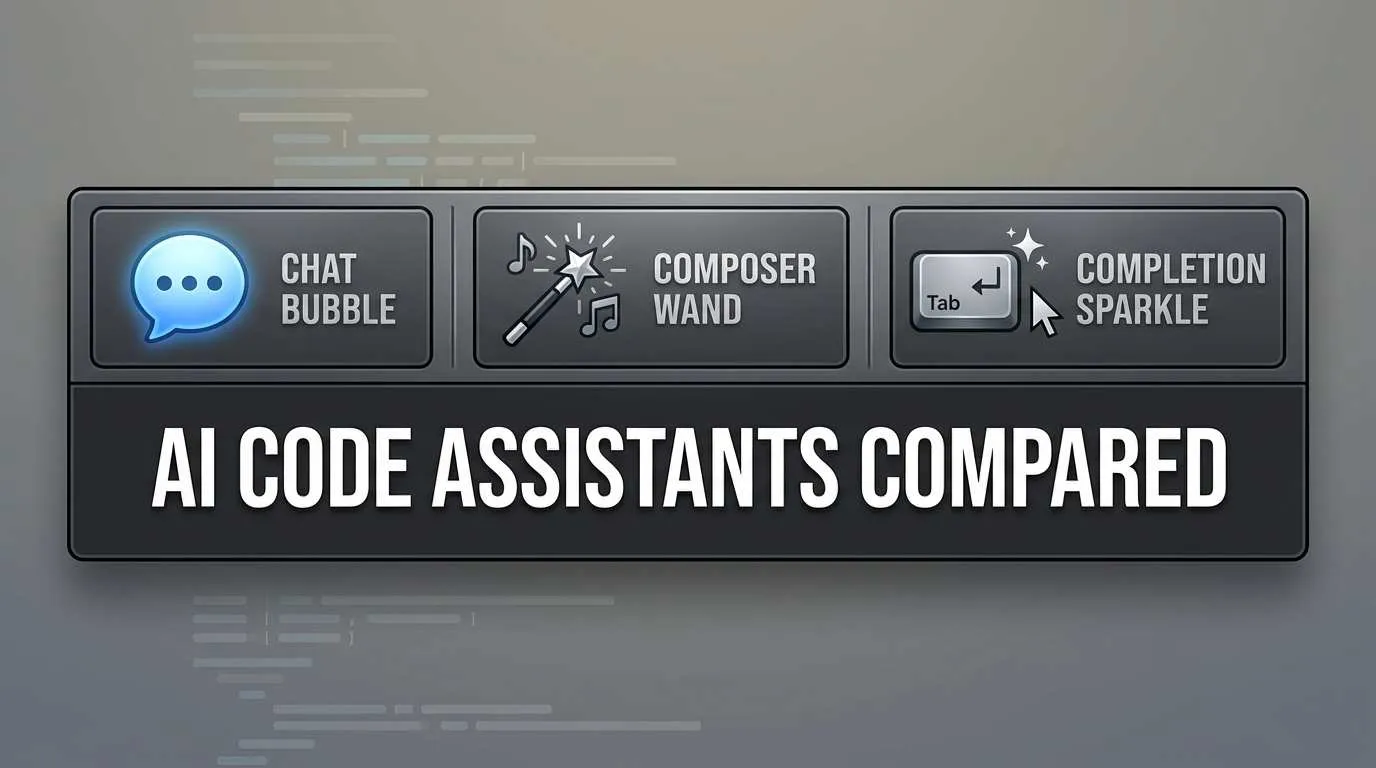
Friday night, 10 PM. I’m staring at my freshly installed Cursor, cursor hovering over the Chat, Composer, and Tab icons for several seconds. Which one do I click?
It feels like your first time at the gym—all the equipment is there, but you have zero clue where to start or what happens if you use the wrong one.
I wanted to modify a config file. Spent ages in Chat. The AI was super helpful, gave me a bunch of code, but I had to copy-paste line by line. Later I learned this kind of multi-file operation should just use Composer—one command and boom, changes applied automatically.

Even more embarrassing: watching my colleague demo Cursor, his fingers flying across the keyboard, switching between Cmd+L and Cmd+I like poetry in motion. Me? Every single time I had to move my mouse to the menu bar, click, find the feature… my train of thought long gone.
Took two weeks of trial and error, countless mistakes, before I finally figured out what these three features actually do.
The 3 Core Features in One Sentence
Forget the complicated jargon. Let me explain what they do in simple terms.
Chat: Your AI Programming Advisor
Imagine a senior developer sitting next to you, ready to answer questions anytime while coding. That’s Chat.
Core Role: Interactive Q&A assistant
Press Cmd+L (Mac) or Ctrl+L (Windows), and a chat window pops up on the right. You can:
- Ask “Why is this code throwing an error?”
- Ask “How can I optimize this function?”
- Ask “How do I use React’s useEffect?”
- Have it review your code
Chat looks at the current file, like pointing at code on your screen and asking a colleague: “Hey, is there a bug here?” It only sees what you’re pointing at.
Biggest newbie mistake: Trying to configure multiple files, asking AI for suggestions file by file in Chat, then copy-pasting everything yourself. Exhausting. This is Composer’s job.
Memory trick: L = Let’s chat
Composer: Code Generation Master
Composer is a different vibe. It’s not here to chat—it’s here to get work done.
Core Role: Structured code generation tool
Press Cmd+I (Mac) or Ctrl+I (Windows), and a floating window appears in the center of your screen. Now you can say: “Create a user login feature with a login form, API calls, and state management.”
Then it will:
- Understand your entire project structure
- Automatically create new files
- Modify multiple related files
- Apply changes directly—no manual copy-pasting
Composer sees the entire project, like throwing a requirements doc at an outsourced team: “Build this.” It figures out which files to modify on its own.
Key trait: Changes apply to files immediately. Open the file and see the modifications. Unlike Chat where you manually copy.
Biggest newbie mistake: Using Composer for simple questions like “how do I use this function?” Wastes time waiting for AI to spin its wheels before giving you an answer, burning tokens for nothing. These small questions get instant Chat responses.
Memory trick: I = Implement
Tab Completion: Your Code Prediction Assistant
You’ve definitely seen this. While coding, gray suggestion code suddenly appears on screen. Press Tab to accept it.
Core Role: Intelligent code auto-completion
Unlike traditional code completion, Cursor’s Tab completion is AI-powered. It can:
- Predict what you’re about to write
- Auto-import missing modules (TypeScript and Python)
- Jump across files (modify this file, auto-jump to the next place that needs changes)
- Partially accept suggestions (press Ctrl+→ or ⌘+→ to accept just part of it)
Trigger mechanism: With every character you type or cursor movement, AI judges in the background “should I give a suggestion?” Not every time means AI thinks “not needed right now.” This is normal.
How to use:
- Tab - Accept suggestion
- Esc - Reject suggestion
- Ctrl/⌘ + → - Accept only part of suggestion
Biggest newbie mistake: Thinking Tab completion is “broken” or “network issues,” but actually AI judged that current context doesn’t need suggestions. Don’t panic, this is normal behavior.
One sentence summary:
- Chat is your advisor—use it for questions
- Composer is your executor—use it to generate/modify code
- Tab is your assistant—it automatically helps while you code
Chat vs Composer: Deep Comparison
Many people can’t figure out the real difference. I couldn’t either at first, often choosing the wrong tool and wasting time.
Later I discovered a judgment method: check how many files are involved.
| Dimension | Chat | Composer |
|---|---|---|
| Shortcut | Cmd/Ctrl + L | Cmd/Ctrl + I |
| Interface | Right sidebar | Center floating window |
| Understanding Scope | Only current file | Entire project |
| How Changes Apply | Gives you code, you copy | Applies directly to files |
| Recommended AI Model | GPT-4o, DeepSeek-R1 | Claude 3.7 (Agent mode) |
| Best For | Q&A, learning, debugging | Code generation, refactoring, multi-file ops |
| Token Consumption | Low | High (sees whole project) |
| Response Speed | Fast | Slow (network-dependent) |
When to Use Chat?
In these situations, just hit Cmd+L:
-
Ask questions
- “What does this code mean?”
- “Why is this throwing an error?”
- “What are the gotchas with React Hooks?”
-
Review code
- Select a block of code, ask “Any issues?”
- “Are there performance problems with this approach?”
-
Learn new concepts
- “Explain closures to me”
- “What’s the difference between async/await and Promises?”
-
Modify single files
- “Add error handling to this function”
- “Adjust the spacing in this style”
Decision criteria: Only 1 file involved, or just asking questions → use Chat.
When to Use Composer?
In these situations, just hit Cmd+I:
-
Add new features (involves multiple files)
- “Create a user login module”
- “Add a comment feature with frontend component, API endpoint, database model”
-
Refactor code
- “Split this component into smaller sub-components”
- “Organize these utility functions into utils directory”
-
Batch modifications
- “Add error handling to all API calls”
- “Standardize component naming style across the board”
-
Set up project scaffolding
- “Create basic structure for a Next.js project”
- “Set up RESTful API scaffolding”
Decision criteria: 2+ files involved, or generating new code → use Composer.
Practical Advice
Here’s how I use them now:
Chat first, then Composer
- Use Chat to clarify thinking: “I want to add a login feature, which files need to change?”
- Chat provides a plan
- After confirming the plan, Cmd+I to open Composer: “Implement the plan we just discussed”
This way you don’t waste tokens and won’t miss details.
Quick edits with Cmd+K
Here’s a hidden trick: select code, press Cmd+K (Mac) or Ctrl+K (Windows) for quick edits. This sits between Chat and Composer—perfect for “just modify this part of the current file.”
For example:
- Select a function
- Cmd+K
- Say “add parameter validation”
- Enter, done
No need to open Chat or Composer. Super fast.
Shortcut Cheat Sheet
Honestly, you don’t need to deliberately memorize shortcuts. Use them enough and they’ll stick naturally.
But there are 3 you must remember—these solve 90% of daily needs.
Must-Remember Shortcuts (3)
1. Cmd/Ctrl + L - Open Chat
- Memory trick: L = Let’s chat
- When to press: Want to ask a question? Press it
2. Cmd/Ctrl + I - Open Composer
- Memory trick: I = Implement
- When to press: Need to generate/modify code? Press it
3. Tab - Accept code completion
- When to press: See gray suggestions? Press it
Just these three. Everything else is icing on the cake.

Advanced Shortcuts (use after getting comfortable)
| Shortcut | Function | Use Case |
|---|---|---|
| Cmd/Ctrl + K | Quick edit selected code | Modify part of current file |
| Ctrl/⌘ + → | Partially accept Tab completion | Want only part of suggestion |
| Esc | Reject Tab completion | Don’t want AI’s suggestion |
| Cmd/Ctrl + Shift + L or @ | Add specific code blocks to Chat context | Want Chat to see code from multiple places |
| Cmd/Ctrl + Enter | Scan entire codebase | Let AI understand whole project |
| Cmd/Ctrl + D | Merge Composer and Chat into one window | For all-in-one interface lovers |
My Memory Technique
To be honest, I couldn’t remember all these shortcuts at first. Then I realized, just remember what the letters mean:
- L (Let’s chat) - chatting uses L
- I (Implement) - implementing code uses I
- K (Korrect) - quick correction uses K
As for the rest, look them up when needed. I saved a screenshot of this cheat sheet on my desktop, glance at it when necessary.
Now Cmd+L and Cmd+I are muscle memory—my fingers don’t even need my brain to press them.
Tab Completion Advanced Tips
Tab completion looks simple, but there are details many people don’t know.
Why Does Tab Completion Sometimes “Not Respond”?
This is the most common newbie question.
It’s not “not responding”—AI judged “no suggestion needed right now.” This is normal.
Imagine a colleague sitting next to you helping code. They won’t interrupt with every character you type, right? That would be annoying. They judge “okay, they definitely know how to write this” and stay quiet.
Tab completion is the same. AI runs in the background constantly, but it decides:
- This code you’re writing is clear, no suggestion needed
- Not enough context, suggestions wouldn’t be accurate
- Nothing to complete at this position
All normal. Don’t doubt your network or settings.
Hidden Features of Tab Completion
1. Auto-import unreferenced symbols
In TypeScript or Python, you use a module that’s not imported yet—Tab completion automatically adds the import statement for you.
This is such a time-saver. I used to write code, see errors, then go back to add imports. Now press Tab, even imports are written for you.
2. In-file navigation
After accepting a Tab suggestion, if AI judges “next place to change is elsewhere in this file,” the cursor automatically jumps there.
For example, you changed a function name—it jumps to where that function is called, prompting “this needs changing too.”
3. Cross-file navigation (portal window)
Even better: if AI judges “next place to change is in another file,” a portal window pops up at the bottom of the screen, letting you edit directly there.
After editing, click “next,” it continues jumping to the next place needing changes.
I was blown away when I first discovered this. Used to change a variable name by manually global searching, opening files one by one. Now AI directly guides you on a “tour.”
How to Make Tab Completion More Accurate?
Simply put: give AI enough context.
1. Write clear comments
// ❌ AI doesn't know what you want
function handle() {

}

// ✅ Now AI knows
// Handle user login, validate email and password, return token on success
function handleLogin() {

}
See? Second approach, AI reads the comment and knows what code to write.
2. Keep code style consistent
If your code switches between camelCase and snake_case, AI gets confused too.
Keep style consistent, AI’s completions become more accurate.
3. Use descriptive variable names
// ❌ AI doesn't know what u is
const u = getUser();

// ✅ AI knows this is user data, gives relevant suggestions
const userData = getUser();
Tab Completion Settings Adjustment
Some people don’t like AI constantly popping suggestions—you can adjust settings.
Open Cursor Settings > Tab Completion:
- Partial Accepts: Enable to use Ctrl/⌘+→ to accept only part of suggestions
- Cursor Prediction: AI predicts where you’ll move cursor next
- Trigger in Comments: Turn this off to stop frequent suggestions while writing comments
- Auto Import: Automatically add missing import statements
My personal settings:
- Turn off “Trigger in Comments” (too annoying while writing comments)
- Enable “Auto Import” (too useful)
- Keep everything else default
You can also set manual trigger mode. AI only gives suggestions when you actively press a shortcut. Configuration method: search AI.Autocomplete.AutoTrigger in settings, change to false.
But I don’t recommend this. Auto-trigger is the essence of Tab completion—you’ll get used to it.
Newbie Pitfall Guide
Honestly, you’ll probably step in all the traps I did. Here are the most typical ones to help you avoid detours.
Pitfall 1: Content Loss When Using Chat on Long Files
Scenario recreation:
You have a 500-line file, want AI to help modify some code. You state your needs in Chat, AI gives you new code. You copy-paste, discover other parts of the file disappeared!
Why does this happen?
When Chat handles long files, sometimes it only returns partial code, “omitting” other parts. If you select all and copy, you’ll overwrite original content.
How to avoid?
- Use Composer for long file modifications, not Chat
- Chat is for simple Q&A only—don’t let it modify code over 100 lines
- If you must use Chat, ask for only the changed portion, not the entire file
I fell for this once. Modifying a 600-line config file, Chat gave me a “simplified version,” I copied it in—half the config vanished. Worked overtime until midnight to recover.
Pitfall 2: Composer Spinning Forever
Scenario recreation:
Cmd+I to open Composer, enter requirements, press Enter, then… spinning… keeps spinning… 5 minutes and still nothing.
Why does this happen?
Composer has high network requirements. It needs to understand your entire project first, then generate code. Domestic users with poor networks may indeed lag.
How to fix?
- Check network connection (look at “Cursor” icon status in bottom right)
- Switch to Chat for simple tasks, don’t stubbornly stick with Composer
- If possible, consider using a proxy
- If project is particularly large, Composer’s first load will be slower—be patient
Sometimes it’s not a network issue but the AI model itself processing complex requests. Waiting 1-2 minutes is normal.
But if it spins for over 3 minutes, hit Esc to cancel and try Chat instead.
Pitfall 3: Not Knowing Chat vs Composer
Most common. Many people agonize over this, choose the wrong tool, waste time.
Decision criteria (repeating again):
| Situation | Use Which |
|---|---|
| Only 1 file involved | Chat |
| 2+ files involved | Composer |
| Just asking questions | Chat |
| Need to generate/modify code | Composer |
| Unsure | Try Chat first, then Composer if needed |
Remember this table, covers 90% of situations.
There’s also a simple brute-force method: Cmd+L to ask Chat first, have it help you decide which tool to use.
For example: “I want to add dark mode to my project, should I use Chat or Composer?”
Chat will tell you: “This involves multiple files, recommend using Composer.”
Pitfall 4: Poor Tab Completion Suggestion Quality
Scenario recreation:
Tab completion suggestions are completely not what you want. Often bizarre code that makes no sense.
Why does this happen?
- Insufficient context: expecting completions in empty files, AI has no information to reference
- Messy code style: writing one way then another, AI can’t figure out your habits
- No comments: AI doesn’t know what functionality you’re implementing
How to improve?
-
Write clear comments explaining intent
// Send email verification code to user and record send time in database async function sendVerificationEmail(email) { // AI sees this comment and knows what code to write } -
Keep consistent naming conventions
- Don’t switch between
getUserDataandget_user_info - Consistently use camelCase or snake_case, don’t mix
- Don’t switch between
-
Give AI enough context
- Don’t expect completions in empty files
- Write a few lines first to establish basic structure, then AI can understand
My habit now: before starting new features, write a detailed comment describing what to do. Then AI’s completions become much more accurate.
Pitfall 5: Always Pressing Wrong Shortcuts or Forgetting Them
No magic solution here—just use them more and you’ll remember naturally.
But here’s a small trick: tape shortcuts to the edge of your monitor.
I printed a small card and taped it to the bottom of my screen:

Cmd+L = Chat
Cmd+I = Composer
Cmd+K = Quick Edit
Looked at it for a month, now I can press them with my eyes closed.
Also, don’t try to memorize all shortcuts at once. Remember Cmd+L and Cmd+I first, look up others as needed.
Hands-On Practice
Theory alone is useless—let’s go through actual scenarios step by step.
Scenario 1: Fixing a Bug
Suppose your login feature has a bug—after users enter wrong password, page freezes.
Operation flow:
-
Locate problem (use Chat)
- Open the problematic file
- Cmd+L to open Chat
- Select suspicious code
- Ask: “What’s wrong with this code? Why does it freeze?”
-
Chat provides analysis
- “You’re missing error handling, no response when login fails”
- “Suggest adding try-catch to handle async errors”
-
Quick fix (use Cmd+K)
- Select that function
- Cmd+K
- Say: “add try-catch error handling”
- Enter, code automatically fixed
-
If multiple files involved (use Composer)
- For example, Chat says “API layer also needs error handling”
- Cmd+I to open Composer
- Say: “add error handling to all login-related API calls”
- Composer automatically finds relevant files and modifies
Whole flow: Chat diagnose → Cmd+K quick fix → Composer batch fix
Scenario 2: Adding New Feature
You want to add a comment feature to your blog system.
Operation flow:
-
Clarify thinking first (use Chat)
- Cmd+L to open Chat
- Ask: “I want to add a comment feature, which files are needed? How to roughly implement?”
-
Chat provides plan
Need these: - Frontend: Comment components (CommentList.tsx, CommentForm.tsx) - API: Comment endpoint (/api/comments) - Database: Comment table schema - State management: Comment CRUD logic -
Use Composer to implement (multi-file operation)
- Cmd+I to open Composer
- Describe requirements in detail:
Create comment feature: - Comment list component showing username, time, content - Comment form with input box and submit button - API endpoint handling GET/POST requests - Integrate into article detail page - Enter, wait for Composer to auto-generate
-
Perfect details (use Tab completion)
- After Composer generates framework, open files
- While writing specific logic, Tab completion gives suggestions
- For example, writing validation logic, Tab auto-completes validation rules
-
Test and debug (use Chat)
- Run code, find issues
- Cmd+L ask Chat: “Why doesn’t page refresh after submitting comment?”
- Chat gives suggestions, Cmd+K to fix
Whole flow: Chat plan → Composer generate framework → Tab complete details → Chat debug
Scenario 3: Refactoring Code
Your UserProfile component is 300 lines—too bloated, want to split into smaller components.
Operation flow:
-
Use Composer to refactor (involves multiple new files)
- Open
UserProfile.tsx - Cmd+I to open Composer
- Say:
Split this UserProfile component into:
- UserAvatar (avatar section)
- UserInfo (basic info)
- UserActions (action buttons)
Keep functionality unchanged
- Open
-
Composer auto-operates
- Creates 3 new component files
- Modifies UserProfile, imports new components
- Adjusts props passing
-
Verify refactoring results (use Chat)
- Cmd+L to open Chat
- Ask: “Any potential issues with this refactoring? Performance impact?”
- Chat provides review feedback
-
Optimize details (use Cmd+K)
- If Chat suggests optimizations
- Select code, Cmd+K, apply suggestions
- Quickly apply changes
Whole flow: Composer refactor → Chat review → Cmd+K optimize
Practical Tips Summary
Through these three scenarios, you’ll notice a pattern:
- Chat: Brain, helps you think clearly
- Composer: Hands, does the heavy lifting
- Cmd+K: Tool, quick local adjustments
- Tab: Assistant, gives suggestions while coding
They’re not isolated—they work together.
My habit now:
- Encounter problem, Cmd+L to ask Chat first
- After Chat gives plan, Cmd+I to use Composer for implementation
- While writing code, Tab auto-completes
- Local adjustments, Cmd+K for quick fixes
- After writing, Cmd+L for Chat review
Once this flow is smooth, efficiency really can double.
Complete Workflow for Cursor's Three Core Features in Practice
Complete development workflow from problem diagnosis to code generation to debugging optimization
⏱️ Estimated time: 15 min
- 1
Step1: Bug Fix Flow: Chat Diagnose → Cmd+K Quick Fix → Composer Batch Fix
Applicable scenarios: Login errors, page freezes, API call failures, etc.
Steps:
1. Locate problem (use Chat)
• Open problematic file
• Cmd+L to open Chat
• Select suspicious code, ask "What's wrong with this code?"
2. Quick fix (use Cmd+K)
• Select function to modify
• Cmd+K, enter modification needs
• Enter to auto-apply changes
3. Batch processing (use Composer)
• If multiple files involved
• Cmd+I to open Composer
• Specify scope of batch modifications
• Composer auto-finds relevant files and modifies
Decision criteria:
• Single file small change → Cmd+K
• Single file needs analysis → Chat
• Multi-file batch change → Composer - 2
Step2: Add Feature Flow: Chat Plan → Composer Generate Framework → Tab Complete Details
Applicable scenarios: Add comment feature, create user login module, build payment system, etc.
Steps:
1. Clarify thinking (use Chat)
• Cmd+L to open Chat
• Ask "I want to add XX feature, which files needed?"
• Chat lists needed components, APIs, database models, etc.
2. Generate framework (use Composer)
• Cmd+I to open Composer
• Describe requirements in detail (including frontend components, API endpoints, state management, etc.)
• Composer auto-creates files and implements basic structure
3. Perfect details (use Tab completion)
• Open files generated by Composer
• While writing specific logic, Tab auto-completes
• Supports auto-import modules, cross-file navigation, etc.
4. Test and debug (use Chat)
• Run code and find issues
• Cmd+L to ask Chat specific error reasons
• Use Cmd+K for quick fixes
Key tips:
• Chat plans first to avoid missing critical files
• Composer generates framework to save repetitive work
• Tab completes details to improve coding efficiency - 3
Step3: Refactor Code Flow: Composer Refactor → Chat Review → Cmd+K Optimize
Applicable scenarios: Component too bloated, code duplication, need to split modules, etc.
Steps:
1. Execute refactoring (use Composer)
• Open file needing refactoring
• Cmd+I to open Composer
• State refactoring goal (e.g., "split this component into 3 sub-components")
• Composer auto-creates new files and adjusts import relationships
2. Verify results (use Chat)
• Cmd+L to open Chat
• Ask "Any potential issues with this refactoring?"
• Chat points out performance issues, code standards, etc.
3. Optimize details (use Cmd+K)
• Based on Chat suggestions
• Select code needing optimization
• Cmd+K, enter optimization needs
• Quickly apply changes
Refactoring checklist:
• Functionality fully preserved?
• Props passing correct?
• Imports/exports complete?
• Any performance issues?
Conclusion
After all this, the core is just three sentences:
Chat is your advisor—just ask.
Not sure how to write? Ask Chat. Code has bugs? Ask Chat. Want to learn new concepts? Ask Chat.
Composer is your executor—explain needs clearly and let it work.
Multiple files involved? Use Composer. Need to generate new features? Use Composer. Batch modify code? Use Composer.
Tab is your assistant—gives suggestions while you code.
Don’t doubt why it’s not triggering—AI judges for itself. Keep code style consistent, write clear comments, it gets more accurate.
After mastering these three features, my development efficiency at least doubled. Before, writing new features meant checking docs, searching Stack Overflow, typing code line by line. Now I Cmd+L to clarify thinking, Cmd+I for Composer to generate framework, Tab to complete details, finally Cmd+L for Chat review.
Don’t deliberately memorize shortcuts—use them enough and they’ll stick. Cmd+L and Cmd+I are muscle memory for me now, fingers don’t need brain to press them.
Three action items:
-
Open Cursor right now and try the difference between Cmd+L and Cmd+I
- Ask Chat a random question, feel its response speed
- Use Composer to create a simple component, watch how it generates multiple files
-
Save the shortcut cheat sheet
- Screenshot or print it, tape it by your monitor
- Just remember Cmd+L and Cmd+I first
-
When encountering problems, think: should this use Chat or Composer?
- If unsure, ask Chat first: “Is this task better for Chat or Composer?”
- Don’t fear trial and error—using wrong tool is fine, just start over
These three Cursor features can truly transform your development experience. Don’t just read articles—try it hands-on to appreciate its power.
Oh, and if you found this article useful, share it with friends using Cursor. Let’s all avoid pitfalls together and write more code.
FAQ
Why recommend GPT-4o for Chat and Claude 3.7 for Composer?
• Chat suits GPT-4o and DeepSeek-R1: Fast response, low token consumption, ideal for quick Q&A and single-file operations. GPT-4o excels at code understanding and explanation, DeepSeek-R1 performs better in Chinese environments.
• Composer suits Claude 3.7 (Agent mode): Excels at understanding entire project structure, outstanding in multi-file collaborative editing. Agent mode handles complex code generation tasks better, automatically determining which files need modification.
Practical usage advice: Chat model choice doesn't matter much, but Composer should prioritize Claude 3.7 for better generation quality.
What to do when Composer spins for over 3 minutes?
• Check network connection: Look at Cursor bottom-right status icon, confirm if connected normally. Domestic users recommended to use proxy.
• Cancel current request: Press Esc to cancel, don't wait endlessly. Over 3 minutes basically means it's stuck.
• Simplify requirements: If requirement too complex, try breaking into multiple small tasks. For example, "create complete user system" can split into "create user model first" "then create login endpoint" etc.
• Switch tools: Use Chat for simple tasks, don't stubbornly stick with Composer. Chat responds fast, consumes fewer tokens.
• Check project size: When project has tons of files, Composer's first load is slow. In this case, patiently waiting 1-2 minutes is normal.
Which languages support Tab completion's auto-import feature?
• TypeScript/JavaScript: Full support, including ES6 modules, CommonJS, npm packages, etc. Best supported language.
• Python: Supports auto-import for standard library and third-party packages, requires properly configured virtual environment.
• Other languages: Go, Rust, Java partially supported, but accuracy not as good as TS and Python.
Usage tips:
• Ensure project has correct config files (package.json, requirements.txt, etc.)
• Enable "Auto Import" option in Cursor Settings
• If auto-import inaccurate, manually import once and AI learns your habits
Note: Auto-import only works when Tab completion triggers—Cmd+K and Chat won't automatically add imports.
What's the difference between Cmd+K and Chat/Composer? When to use it?
• Cmd+K characteristics:
- Only modifies selected code block
- Changes apply directly to file
- No need to open additional windows
- Fast response, low token consumption
• Compared to Chat:
- Chat gives suggestions, needs manual copying
- Cmd+K directly modifies, no copy-pasting
- Cmd+K suits "I know what to change, just do it"
• Compared to Composer:
- Composer sees entire project, involves multiple files
- Cmd+K only sees selected code, single-file local modification
- Cmd+K faster, doesn't need understanding whole project
Use cases:
• Add parameter validation to function → Cmd+K
• Adjust style spacing → Cmd+K
• Optimize certain logic → Cmd+K
• Rename variable (within single file) → Cmd+K
Remember: select code + Cmd+K = quick change, especially suitable for small-scope precise modifications.
How to improve Tab completion accuracy? Any practical tips?
1. Write clear comments explaining intent
• Write detailed comments before functions explaining functionality and parameters
• Chinese or English both work, AI understands both
• Example: // Send email verification code to user and record send time in database
2. Keep consistent code style
• Consistently use camelCase or snake_case naming, don't mix
• Keep indentation and formatting consistent
• Use unified code standards for project (ESLint, Prettier)
3. Use descriptive variable names
• Avoid meaningless names like u, d, tmp
• Use clear names like userData, userEmail
• AI can infer subsequent operations from variable names
4. Give AI enough context
• Don't expect accurate completions in empty files
• Write a few lines of basic code first to establish structure
• Import necessary dependencies and type definitions
5. Adjust Tab completion settings
• Enable "Auto Import" for automatic imports
• Disable "Trigger in Comments" to avoid frequent suggestions while writing comments
• Enable "Partial Accepts" to support partially accepting suggestions
Core principle: More information you give AI, more accurate the completion. Like assigning tasks to colleagues—clearer you explain, better they perform.
How to avoid code loss when using Chat on long files?
• Core principle: Don't use Chat for long files, use Composer instead
• Safe practices:
1. Files over 100 lines needing changes → use Composer
2. If must use Chat → only have it return changed portion, not entire file
3. Before copying, check carefully → is Chat returning complete code or fragment
4. Before changes, backup first → commit with Git or copy file
• Correct Chat usage:
- Ask "What's wrong with this code?" → ✅ Suitable
- Ask "Help me fix this function" → ✅ Suitable
- Say "Help me refactor this 500-line file" → ❌ Not suitable, use Composer
• If code already lost:
- Immediately restore with Git (git checkout -- filename)
- Or use editor's undo (Cmd+Z)
- Going forward, form habit of frequent commits
Lesson learned: I took a huge fall on this—600-line config file, half the code vanished after changes, worked overtime until midnight to recover. So for long files, definitely use Composer, or commit first before changing.
Always forgetting shortcuts? Any quick memorization methods?
Method 1: Letter meaning memorization (most recommended)
• Cmd+L: L = Let's chat → Open Chat
• Cmd+I: I = Implement → Open Composer
• Cmd+K: K = Korrect (correct) → Quick edit
This way is super fast because letters relate to functions.
Method 2: Physical reminder method (most practical)
• Print shortcut card and tape to bottom of monitor
• Or screenshot as desktop wallpaper
• Look at it for a month and you'll remember
That's exactly what I did—now Cmd+L and Cmd+I are muscle memory.
Method 3: Phased memorization method (most scientific)
• Week 1: Only remember Cmd+L and Cmd+I (solves 90% of needs)
• Week 2: Add Cmd+K (quick editing)
• Week 3: Then learn Tab, Ctrl+→ and other advanced shortcuts
Don't try memorizing all shortcuts at once—completely unrealistic. Remember most common ones first, look up others as needed.
Practical tips:
• Newbie stage can check menu bar—shortcuts shown right there
• Using wrong tool is fine, just start over
• Use more and naturally remember, no need to deliberately memorize
Core: Hands faster than brain. Use enough and fingers will remember on their own, no brain thinking needed to press them.
18 min read · Published on: Jan 10, 2026 · Modified on: Mar 22, 2026

Related Posts
From Copilot to Antigravity: Mastering the Agent-First Development Paradigm

From Copilot to Antigravity: Mastering the Agent-First Development Paradigm
AI Keeps Writing Wrong Code? Master These 5 Prompt Techniques to Boost Efficiency by 50%

AI Keeps Writing Wrong Code? Master These 5 Prompt Techniques to Boost Efficiency by 50%
Cursor Advanced Tips: 10 Practical Methods to Double Development Efficiency (2026 Edition)

Comments
Sign in with GitHub to leave a comment