
Complete Guide to Integrating DeepSeek API with Cursor: Step-by-Step Configuration to Reduce Monthly Costs from $20 to ¥5
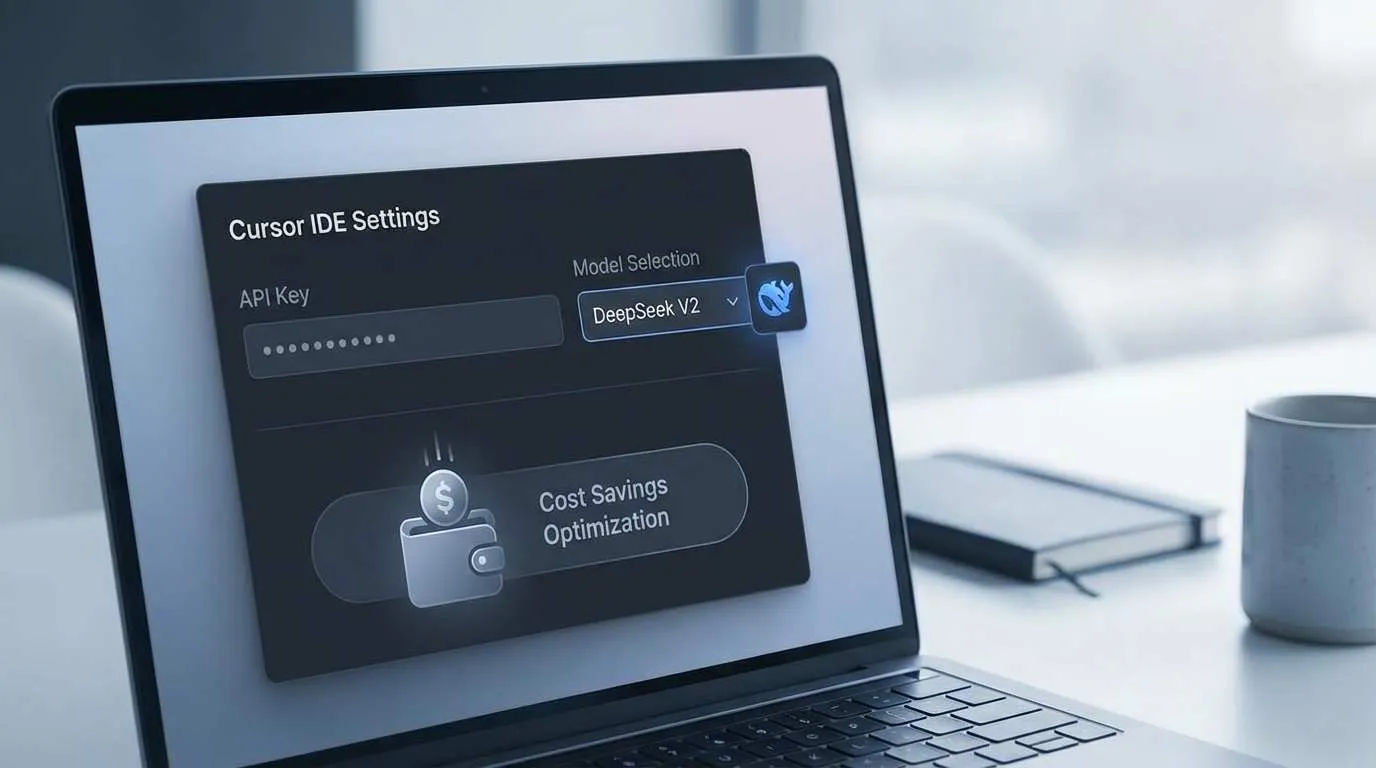
At the end of last month, I froze when I saw my bank statement—Cursor Pro charged me $20 again. Over three months, this single tool cost me 60 bucks.
To be honest, Cursor is genuinely useful. The AI-assisted programming experience makes it indispensable. But every time I see the bill, I can’t help wondering: is it really worth the price? Especially when the Ultra version goes up to $200/month, which is astronomical for indie developers.
Then one day, I saw someone in a tech group mention that you could configure DeepSeek API to work with Cursor. My first thought was: does this actually work? Won’t it be complicated? Will the code quality be good enough?

After trying it out—game changer.
The configuration took me 5 minutes, and my first month cost only 3 yuan (about $0.40). Code quality? While there’s a gap compared to Claude 3.5, it’s perfectly adequate for daily coding, and some aspects are even surprisingly good.
This article will walk you through the configuration step-by-step. I guarantee you’ll be up and running after reading it. I’ll also share all the pitfalls, including limitations that official docs don’t always spell out.
Why Choose DeepSeek API?
Let’s talk money first.
Cursor Pro costs $20 per month, and Ultra is $200. For individual developers, this isn’t a small expense—especially if you’re just writing code and debugging bugs, not using it intensively every day.
What about DeepSeek API?
Here’s the pricing:
- Input: ¥2/million tokens (¥0.5 with cache hits)
- Output: ¥8/million tokens
Sounds abstract? Let me put it in context: I have about 100-150 AI conversations per month, with each involving a few hundred lines of code. That works out to about ¥2-5 per month.
Yes, you read that right—Chinese yuan, not US dollars.
Cost comparison at a glance:
| Option | Monthly Cost | Annual Cost | Savings |
|---|---|---|---|
| Cursor Pro | $20 (¥145) | $240 (¥1740) | - |
| Cursor Ultra | $200 (¥1450) | $2400 (¥17400) | - |
| DeepSeek API | ¥2-5 | ¥24-60 | 95%+ savings |
Money aside, let’s talk quality.
DeepSeek-V3’s coding capabilities are top-tier among open-source models. From my experience, it performs well for regular business code, refactoring, and explaining complex logic. Sure, there’s still a gap compared to Claude 3.5 Sonnet, but it doesn’t impact daily usage.
There’s also a pleasant surprise—DeepSeek-R1’s reasoning ability is particularly strong. For problems requiring multi-step reasoning or algorithm design, its performance sometimes exceeds expectations.
Who should use it?
Frankly, DeepSeek API is perfect if you’re:
- Individual/indie developer - Limited budget but want AI assistance
- Student - $20/month really hurts
- Small team - Too expensive to buy Pro for everyone
- Light user - Use it a few times daily, not a power user
But if you need intensive usage with the ultimate experience, stick with Cursor Pro. It has Tab autocomplete, Composer multi-file editing, and other features that DeepSeek API doesn’t support yet.
Preparation (5 Minutes)
Before configuration, you need a few things. Really simple, just follow along.
Get DeepSeek API Key
First step is registering on the DeepSeek Open Platform and creating an API Key.
- Visit DeepSeek Open Platform
- Register and log in (supports phone, email, or GitHub account)
- Go to console, find “API Keys” option
- Click “Create API Key”, give it a name (anything works, like “cursor-use”)
- After creation, copy and save the API Key (shown only once!)
Remember to top up your account. Minimum ¥10, supports Alipay and WeChat Pay. New users apparently get ¥5 credit to try it out.
Understand Cursor’s Two Modes
Many people get confused here. Cursor actually has two ways to use DeepSeek:
1. Built-in Membership Mode
Cursor Pro members can directly use the built-in deepseek-r1 model. No API configuration needed, but requires Pro subscription and uses Cursor’s quota.
2. Custom API Mode (our focus)
Configure DeepSeek API yourself, using your own API Key and quota. No Pro subscription needed, full control over costs.
We’re configuring the second option—custom API mode.
Get These Details Ready
Before starting configuration, make sure you have:
- API Key: The string you copied from DeepSeek platform
- Base URL:
https://api.deepseek.com(needed for configuration) - Model names:
deepseek-chat- Non-reasoning mode, for daily codingdeepseek-reasoner- Reasoning mode, for complex problems
Choose one to start. I usually use deepseek-chat—fast and sufficient. Switch to deepseek-reasoner for complex problems.
Step-by-Step Configuration Tutorial
Alright, let’s start configuring. I’ll explain each step in detail so you won’t get stuck.
Step 1: Open Cursor Settings
Two methods:
- Keyboard shortcut: Mac press
Cmd + ,, Windows/Linux pressCtrl + , - Click: Top-right gear icon ⚙️, select “Settings”
Once in settings, find and click “Models” in the left sidebar.
Step 2: Add Custom Model
On the Models page, you’ll see an “Add model” button. Click it.
A dialog will pop up asking for the model name. You have two choices:
- deepseek-chat - Use this for daily coding, faster response
- deepseek-reasoner - Use this for complex reasoning problems
I suggest starting with deepseek-chat. If you want reasoning mode later, come back and add deepseek-reasoner.
Type deepseek-chat in the input box, then confirm.
Step 3: Configure Base URL
This step is crucial. Many people make mistakes here.
After adding the model, you’ll see its configuration page. Find the “Override OpenAI Base URL” option and expand it.
Then fill in the input box:
https://api.deepseek.comSome tutorials say to add /v1 suffix, but both work:

https://api.deepseek.com✅https://api.deepseek.com/v1✅
I usually skip the suffix—simpler.
Note: Don’t accidentally add extra spaces or line breaks. This URL must be exact.
Step 4: Enter API Key
Still on this configuration page, scroll down to find the “API Key” input box.
Paste the API Key you copied from DeepSeek platform.
Important tips:
- Ensure complete API Key copy, don’t miss beginning or end
- No spaces before or after
- No line breaks
After pasting, double-check visually. The Key typically starts with sk- followed by a long string.
Step 5: Save and Verify
After filling everything out, click the “Save” button at the bottom.
Cursor will automatically test the connection. Wait a few seconds—if you see a green checkmark ✓, configuration succeeded!
If you see a red X ✗ or error message, don’t panic. Jump to the “Common Issues” section below for solutions.
Step 6: Start Using
After successful configuration, you’re ready to go.
Open Cursor’s chat interface (shortcut Cmd/Ctrl + L). In the model selection dropdown, you’ll see the deepseek-chat you just added.
Select it, and start chatting. Try asking it to write a simple function to test it out.
First-use suggestion:
Start with a simple question like “write a Fibonacci sequence function in Python.” Check response speed and code quality to get a feel for it.
Important Limitations (Must Read)
Don’t celebrate just yet after configuration. There are several limitations you must know. These are pitfalls I encountered after a month of actual use that official docs don’t always clarify.
Chat Mode Only
This is the biggest limitation.
DeepSeek configured via custom API only works in the chat interface. You can chat with it, generate code, explain logic, and review code—all fine.
However:
- Generated code needs manual copy-paste to editor
- Can’t directly “Apply” to files like Pro does
- No Composer mode (multi-file editing)
Basically, it can only “chat,” not “take action.”
For me, this isn’t a big deal—I’m used to editing code myself. But if you heavily rely on Cursor’s code application features, this might frustrate you.
No Tab Autocomplete
Cursor’s Tab autocomplete is incredibly useful—it intelligently predicts what you’ll write next.
Unfortunately, this feature only supports Cursor’s built-in models. Custom API doesn’t work with it.
Tab Completion continues using Cursor’s native model. So if you don’t have a Pro subscription, Tab completion won’t work.
Not a huge problem though. Chat mode solves most issues. Tab completion is more icing on the cake.
Limited Model Compatibility
Cursor’s custom API only supports OpenAI-compatible format APIs.
DeepSeek happens to be compatible, so it works. But other API formats won’t work, like:
- OpenAI’s reasoning models (o1, o1-mini, o3-mini) not supported
- Custom local LLMs won’t work
- Other non-OpenAI format APIs can’t integrate
Luckily DeepSeek is fully compatible, so we’re good.
Security Notes
Using a custom API Key means your Key is sent to Cursor’s servers with each request.
Cursor officially says they don’t store your Key, but all requests go through their backend routing. Keep this in mind.
If security is a major concern:
- Regularly rotate API Keys
- Set usage limits for API Key in DeepSeek console
- Regularly check API call logs
Personally, I think the risk is manageable. Even if the DeepSeek Key leaks, you only lose account balance—not as sensitive as cloud service keys.
Real Usage Experience and Cost Analysis
Enough theory. Let me share real experiences and costs from over a month of use.
Daily Use Cases
I mainly use DeepSeek API for these tasks:
1. Code Review and Optimization
Throw finished code at it for issue spotting and optimization suggestions. It performs well here, catching details I missed.
2. Bug Debugging
When I encounter confusing error messages, I send the error log and related code. It analyzes possible causes and provides fix directions. Accuracy is about 70-80%—much better than random guessing.
3. Code Snippet Generation
For utility functions and data processing logic, I let it generate an initial version. While not directly usable, it saves typing time. I usually take the code and adapt it to actual needs.
4. Algorithm Discussion
This was a pleasant surprise. For algorithm problems or complex logic, using deepseek-reasoner mode for discussion yields clear reasoning processes. Sometimes it suggests approaches I hadn’t considered.
Actual Cost Calculation
I’m a frontend developer, using it 5-10 times daily on weekdays, occasionally on weekends.
Here’s my first month’s bill:
- Total conversations: About 120
- Average per conversation: 800 input tokens, 500 output tokens
- Monthly total: 96k input tokens, 60k output tokens
Cost calculation:
- Input cost: 96k ÷ 1000 × ¥2 = ¥0.192
- Output cost: 60k ÷ 1000 × ¥8 = ¥0.48
- Total: ¥0.67
Yes, you read that right—first month cost 67 cents.
Of course, this is because I’m a light user. If you’re a power user with dozens of daily AI conversations, costs might reach ¥3-5/month. But compared to Cursor Pro’s ¥145/month, that’s still 95%+ savings.
Comparison:
| My Usage Pattern | DeepSeek API | Cursor Pro | Savings |
|---|---|---|---|
| Light (5/day) | ¥1-2/month | ¥145/month | Save 99% |
| Medium (15/day) | ¥3-5/month | ¥145/month | Save 97% |
| Heavy (30/day) | ¥8-12/month | ¥145/month | Save 92% |
Usage Tips
After using it for a while, I’ve compiled some cost-effective tips:
1. Keep Queries Concise
Don’t send entire files—just relevant code snippets. This significantly reduces token consumption.
2. Leverage Caching
DeepSeek’s cache hits cost only ¥0.5/million tokens. Multiple conversations in the same context get much cheaper.
3. Use Chat First, Then Reasoner
Use deepseek-chat for routine questions—fast and cheap. Only switch to deepseek-reasoner for complex reasoning problems.
4. Break Down Code Questions
Split complex problems into several smaller questions. Better results than asking everything at once, with controlled token usage.
Common Issues Troubleshooting
You might encounter some issues during configuration. Here are pitfalls I and fellow developers have hit.
Configuration Fails with Connection Error
Symptom: Red X after clicking Save, with connection or validation failure message.
Troubleshooting steps:

-
Check API Key correctness
- Re-copy from DeepSeek console
- Ensure no extra spaces or line breaks
- Confirm Key starts with
sk-
-
Verify account balance
- Log into DeepSeek console to check balance
- Top up if insufficient
-
Try adding /v1 suffix
- Change Base URL to
https://api.deepseek.com/v1 - Sometimes this resolves the issue
- Change Base URL to
-
Check network connection
- Ensure you can access DeepSeek website normally
- If using proxy, may need configuration adjustment
Connection Works but Call Errors
Symptom: Configuration validates successfully, but errors occur during actual use.
Possible causes:
- Insufficient balance - Most common reason, top up ¥10 first
- Rate limit reached - DeepSeek has call frequency limits, wait a few minutes
- Model name error - Confirm you entered
deepseek-chatordeepseek-reasonerexactly, no typos
Very Slow Response
Symptom: Takes ages to get replies to questions.
Solutions:
- Switch to chat mode -
deepseek-reasoneris slower, usedeepseek-chatfor daily tasks - Reduce context - Don’t send overly long code at once, break it down
- Check network - DeepSeek servers are in China, should respond quickly normally
Can’t Find Added Model
Symptom: Configuration succeeded, but can’t find model in chat interface.
Solutions:
- Restart Cursor
- Confirm configuration was actually saved (go back to Settings > Models to check)
- Sometimes takes a few seconds for model list to refresh
Advanced Optimization Tips
Once you’re comfortable, try these advanced strategies.
Configure Multiple Models
My configuration strategy:
- deepseek-chat: Daily coding, quick Q&A
- deepseek-reasoner: Complex algorithms, architecture discussions
- Claude 3.5 Sonnet (Pro subscription): Key feature development, major refactoring
Choose models based on task complexity—balance quality and cost.
If you don’t have Pro subscription, consider configuring multiple providers:
- DeepSeek for daily use
- OpenRouter or Groq free quotas for trying other models
Hybrid Usage Plans
Plan 1: Save weekdays, use Pro weekends
Use DeepSeek API weekdays to save money, activate Pro for a day on weekends for personal projects to enjoy full features.
Plan 2: API for Chat, Pro for Tab
If you heavily rely on Tab autocomplete, subscribe to basic Pro, then use custom API for Chat conversations. This saves part of Pro quota.
Cost Monitoring
Recommend regular usage checks:
-
Check DeepSeek console
- Log into backend, view API call statistics
- Monitor daily/weekly consumption trends
- Sudden spikes might indicate unnoticed repeated calls
-
Set budget alerts
- Configure usage alerts in console
- Like “notify when balance below ¥5”
- Prevent service interruption from depleted balance
-
Regular reviews
- Check total monthly spending
- Evaluate if usage habits need adjustment
- Compare with Pro subscription to confirm this plan still makes sense
Conclusion
Let me sum things up.
Configuring DeepSeek API for Cursor really isn’t complicated. Takes 5 minutes, reduces monthly costs from ¥145 to ¥2-5—immediate savings.
Code quality? While there’s a gap compared to Claude 3.5, it’s perfectly adequate for daily coding, debugging, and code reviews. DeepSeek-R1’s reasoning ability is especially impressive in certain scenarios.
Key points to emphasize:
- ✅ Ultra-low cost: Average ¥2-5/month, 95%+ savings
- ✅ Simple configuration: Follow steps for 5-minute setup
- ✅ Reliable quality: Fully adequate for daily coding scenarios
- ⚠️ Feature limitations: Chat only, no Tab completion or Composer
If you’re an individual developer or budget-conscious small team, I genuinely recommend trying this approach. Configure it and use for a week to see if it fits your workflow. Topping up ¥10 lasts ages—practically zero trial cost.
Go register at DeepSeek Open Platform now. After configuration, come back and share your experience in the comments. I’m really curious about real-world feedback from different work scenarios.
By the way, if you want to learn more AI programming tool money-saving tips, follow me. I’ll share other useful tools and configuration methods going forward.
The money you save—enough for several coffees!
FAQ
Do I need a Cursor Pro subscription to configure DeepSeek API?
How much does DeepSeek API actually cost per month?
How's DeepSeek's code quality?
What are the limitations of configuring DeepSeek API?
What if configuration fails?
13 min read · Published on: Jan 10, 2026 · Modified on: Mar 22, 2026

Related Posts
From Copilot to Antigravity: Mastering the Agent-First Development Paradigm

From Copilot to Antigravity: Mastering the Agent-First Development Paradigm
AI Keeps Writing Wrong Code? Master These 5 Prompt Techniques to Boost Efficiency by 50%

AI Keeps Writing Wrong Code? Master These 5 Prompt Techniques to Boost Efficiency by 50%
Cursor Advanced Tips: 10 Practical Methods to Double Development Efficiency (2026 Edition)

Comments
Sign in with GitHub to leave a comment