
Ollama GPU Acceleration: Complete Guide for CUDA, ROCm & Metal
Updated 2026-06-08: rechecked against Ollama’s official hardware-support docs — AMD ROCm now officially requires ROCm v7/HIP7 on both Linux and Windows (no longer a Windows-only preview), and Apple Silicon switched to an MLX backend in Ollama 0.19 (preview, Mar 2026), enabled via OLLAMA_BACKEND=mlx. Commands and performance figures below are updated accordingly.
Text crawled line by line in the terminal—47 seconds for Llama 3 8B on an old laptop, CPU pegged, fan loud, about five tokens per second. I wanted coding help; waiting for replies was slower than searching myself.
Same GPU in a desktop with CUDA drivers, same model and settings—about three seconds.
Not hype: nearly a minute down to a few seconds. Ask a question, get an answer while it still matters.
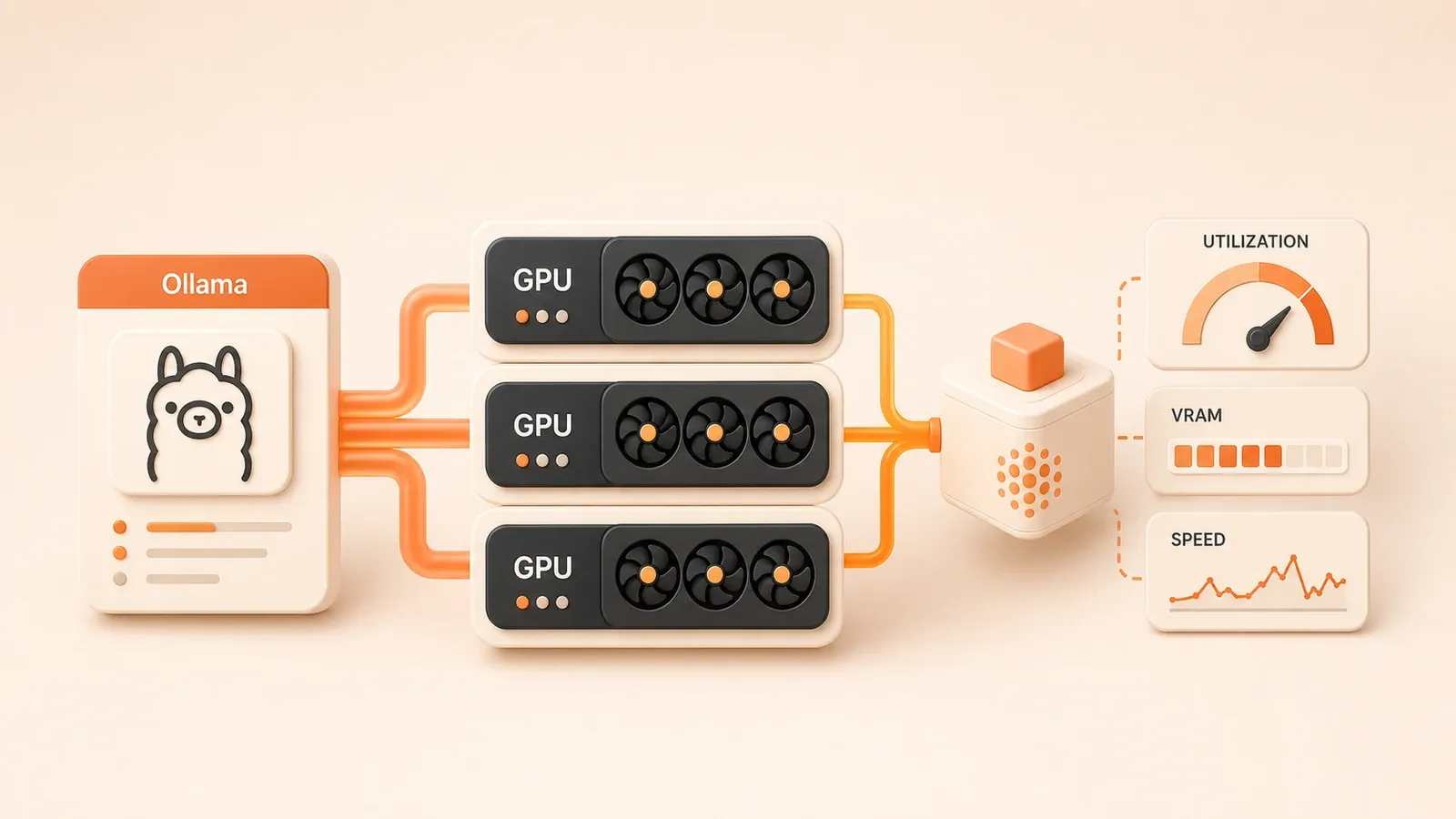
This article walks through Ollama GPU setup for NVIDIA, AMD, and Apple Silicon: configure, verify, and recover from the usual mistakes—so you spend less time waiting.
How Good is GPU Acceleration: The Real Gap from 30 Seconds to 3 Seconds
Let’s cut to the chase: running local LLMs on GPU delivers 10-20x speed improvement. This isn’t marketing hype—it’s my real-world testing data and the consensus across the community.
You might ask: can’t CPU run these models? Why bother with GPU setup?
It can run, but the experience is completely different. A CPU running a 7B model manages 3-8 tokens per second, meaning a 500-word response takes 20-60 seconds. Switch to GPU, and the same model hits 40-80 tokens per second, done in a few seconds. This gap isn’t just “faster”—it’s the difference between “barely usable” and “actually usable.”
Does Your GPU Support It?
Ollama supports three GPU platforms, each with its own requirements:
NVIDIA GPUs: The most mainstream and hassle-free option. Official requirement is Compute Capability 5.0 or higher, which basically means GTX 900 series and later. GTX 1060, RTX 3060, RTX 4090—all good. I have an RTX 3060 12GB that handles models under 14B parameters without breaking a sweat.
AMD GPUs: Slightly more involved setup, but runs just as well. Both Linux and Windows now require the ROCm v7 / HIP7 driver stack (Windows is officially supported, not just a preview anymore). RX 6000 and RX 7000 series are the safest bets; the newest RDNA4 cards (RX 9000, gfx1200/1201) may still need newer builds or a manual library swap, and older cards need extra configuration.
Apple Silicon: M1/M2/M3/M4 all supported, and it’s automatic. Mac users basically don’t need any configuration—install Ollama and Metal acceleration kicks in. After 2026, there’s also the MLX backend option, pushing performance even higher.
Is Your VRAM Enough?
This is something many people overlook. GPU model inference has one hard requirement: VRAM.
Let’s do some quick math: a 7B model with 4-bit quantization needs roughly 5-6GB VRAM, 14B needs 10-12GB, and 70B requires 40GB+. Your GPU’s VRAM directly determines what model size you can run. My RTX 3060 12GB runs Llama 3 8B comfortably, but Mixtral 8x7B is tight—I have to offload some layers to CPU.

So before configuring GPU, know your card’s model and VRAM capacity. It sets your expectations.
NVIDIA CUDA: The Most Hassle-Free Solution (With a Few Caveats)
If you’re using NVIDIA, congrats—your setup might be the simplest of the three platforms.
First, Check If Drivers Are Installed
Open your terminal and run:
nvidia-smiIf you see a table with GPU model, VRAM size, and driver version, your drivers are good to go. Ollama will automatically detect and use CUDA—no need to install CUDA Toolkit separately. Yep, you read that right. Ollama bundles the necessary CUDA libraries, saving you a step.
If the command isn’t found, you’ll need to install drivers first. Ubuntu users can run:
sudo apt install nvidia-driver-535 # or newer versionReboot after installation, then verify with nvidia-smi again.
What About Multiple GPUs?
If the model fits entirely in the available VRAM of one GPU, Ollama loads it on that card to reduce PCI bus transfers. It spreads the model across available GPUs only when no single card has enough room. You can still choose specific cards—for example, reserving one GPU for other work.
Set an environment variable:
# Use only GPU 0
export CUDA_VISIBLE_DEVICES=0

# Use GPU 0 and GPU 2
export CUDA_VISIBLE_DEVICES=0,2
Add this line to ~/.bashrc or your systemd service config for persistence.
Running Ollama in Docker?
Some folks like putting all services in containers—Ollama can too. But note: Docker containers can’t access host GPU by default, needs extra configuration.
Use NVIDIA’s official nvidia-container-toolkit:
# Install toolkit
sudo apt install nvidia-container-toolkit

# Configure Docker runtime
sudo nvidia-ctk runtime configure --runtime=docker
sudo systemctl restart docker
Then when starting the Ollama container, add the --gpus all flag:
docker run -d --gpus all -v ollama:/root/.ollama -p 11434:11434 ollama/ollamaHow to Confirm GPU Is Actually Being Used?
A simple verification: while running a model, open another terminal and run:
ollama psThe output shows the currently running model and GPU usage. If you see something like GPU: 100%, acceleration is working.
You can also use nvidia-smi -l 1 for real-time VRAM monitoring—VRAM should spike noticeably when the model runs.
AMD ROCm: Slightly More Setup, Runs Just As Fast
I feel the AMD struggle—most tutorials online are NVIDIA-focused, and AMD documentation is scattered. But good news: Ollama’s ROCm support has stabilized. Just a few more steps.
The Right Path for Linux Users: ROCm v7
If you’re on Ubuntu 22.04 or newer, ROCm installation isn’t too painful:
# Add AMD official repository
sudo apt update
sudo apt install amdgpu-install
sudo amdgpu-install --usecase=rocm

# Add yourself to render group
sudo usermod -aG render,video $USER

# Reboot to apply
sudo reboot
After reboot, verify with rocminfo command. If you see your GPU info, Ollama is ready to install. AMD version of Ollama auto-detects ROCm environment—no extra config needed.
Windows Users: Officially Supported Now
Windows AMD support has matured a lot this year. Ollama now requires the ROCm v7 / HIP7 driver stack on Windows too (install AMD Adrenalin), not the old v6.1 preview. RX 7000/6000 series mostly run out of the box; the newest RDNA4 cards (RX 9000, gfx1200/1201) can still hit kernel gaps and may need a newer build or a manual library swap.

If a very new card just won’t start, fall back to WSL2 + Ubuntu for Ollama — it’s often more stable.
Older GPUs? HSA_OVERRIDE to the Rescue
AMD GPU architecture codenames get complicated. ROCm officially supports newer architectures (gfx900, gfx1030, etc.). If your card is older, like RX 580 (gfx803), ROCm won’t recognize it by default.
Use an environment variable to force override:
export HSA_OVERRIDE_GFX_VERSION=10.3.0 # Force gfx1030 compatibility modeThis doesn’t work in all cases, but community feedback shows it helps many older cards. Give it a try—if it fails, you’re back to CPU.
Multi-GPU Configuration
Similar to NVIDIA, AMD also supports specifying which GPUs to use:
export ROCR_VISIBLE_DEVICES=0,1 # Use GPU 0 and GPU 1Check GPU numbers with rocm-smi command.
Common AMD GPU Architecture Codenames
Here are common models and their architectures for troubleshooting:
| GPU Model | Architecture | ROCm Support |
|---|---|---|
| RX 7900 XTX | gfx1100 | Native |
| RX 6800 XT | gfx1030 | Native |
| RX 5700 XT | gfx1010 | Native |
| RX 580 | gfx803 | Needs HSA_OVERRIDE |
| Vega 56/64 | gfx900 | Native |
Overall, AMD setup has a few more pitfalls than NVIDIA, but once it works, performance is comparable.
Apple Metal: Hidden Bonus for Mac Users
If you’re using Apple Silicon Mac (M1/M2/M3/M4), here’s the good news: you don’t need to configure anything.
Really, nothing at all. Install Ollama, run a model, GPU acceleration activates automatically. Apple’s Metal framework is built into Ollama—the system automatically loads models onto GPU.
M-Series Chip Performance
Based on community testing, Mac local LLM performance is actually quite decent:
- M1/M2 8GB: Running 7B models, around 15-20 tok/s
- M2 Pro 16GB: Running 14B models, hits 25-30 tok/s
- M3 Max 36GB: Running 30B+ models, maintains 30+ tok/s
Compared to older CPU-only machines, this speed is practical. Not quite RTX 4090 “instant response” level, but perfectly fine for coding assistance, translation, and polishing.
2026 Bonus: MLX Backend
Starting with Ollama 0.19 (shipped as a preview in March 2026), inference on Apple Silicon moved from llama.cpp to Apple’s own MLX framework — it taps unified memory directly and skips the CPU↔GPU copy step.
Per Ollama’s own numbers, MLX speeds up decoding by roughly 1.6-2x (about 85 → 134 tok/s at int4) and shortens time-to-first-token. On M5/M5 Pro/M5 Max it also uses the new GPU Neural Accelerators.
Most of the time you don’t enable it manually: once you’re on 0.19+, Apple Silicon uses MLX automatically. To force it explicitly (or to debug), start the server with the environment variable:
OLLAMA_BACKEND=mlx ollama serveTwo caveats: MLX is still a preview and wants 32GB+ unified memory to be stable, and only some model architectures are supported — unsupported ones fall back to Metal silently.
How to Confirm GPU Is Working?
Open Activity Monitor, switch to GPU History tab. When running a model, you should see GPU usage spike. If only CPU moves and GPU stays flat, Metal might not be enabled—rare, but reinstalling Ollama usually fixes it.
GPU Detection Failed: Common Troubleshooting
Hardware configuration issues are almost inevitable. Here are problems I’ve encountered and their solutions—hopefully saves you some detours.

Problem 1: no compatible GPUs were discovered
Most common error—Ollama can’t find a usable GPU.
Possible causes:
- Drivers not installed or too old
- GPU model unsupported (like GTX 700 series)
- Docker container lacks GPU access permissions
Troubleshooting steps:
# NVIDIA: verify driver
nvidia-smi

# AMD: verify ROCm
rocminfo

# If commands fail, install drivers first
Problem 2: Not compiled with GPU offload support
This error means your downloaded Ollama version lacks GPU support.
Solution: Re-download the correct version from the official site. AMD users note: Ollama has a dedicated ROCm version with a different download link than CUDA. Don’t download the wrong one.
Problem 3: NVIDIA Driver Version Too Old
Ollama requires NVIDIA driver 450 or higher. If your system runs 400-series old drivers, CUDA won’t work.
# Check current driver version
nvidia-smi | grep "Driver Version"

# If too old, update driver
sudo apt install nvidia-driver-535
Problem 4: AMD amdgpu Driver Missing
Linux AMD GPUs need amdgpu driver for ROCm. Some systems default to older radeon driver, which doesn’t support ROCm.
# Check currently loaded driver
lsmod | grep amdgpu

# If no output, install manually
sudo apt install amdgpu-dkms
Problem 5: SELinux Blocking Container GPU Access
Ran into this on CentOS/RHEL systems. SELinux default policy blocks container access to GPU devices.
Quick fix:
sudo setenforce 0 # Temporarily disable SELinuxPermanent fix requires adjusting SELinux policy—complex, check Red Hat official docs. Or just switch to Ubuntu, simpler.
Verification Commands Summary
Here’s a quick command checklist for troubleshooting:
# 1. Check if GPU recognized by system
nvidia-smi       # NVIDIA
rocminfo         # AMD
system_profiler SPDisplaysDataType  # macOS

# 2. Check Ollama process status
ollama ps

# 3. Real-time GPU monitoring (while running model)
watch -n 1 nvidia-smi    # NVIDIA
rocm-smi -a              # AMD

# 4. Check environment variables
echo $CUDA_VISIBLE_DEVICES
echo $ROCR_VISIBLE_DEVICES
Most issues can be pinpointed with these commands. If still stuck, search Ollama GitHub Issues—plenty of people have been down these rabbit holes.
Further Reading
- Ollama local LLM hardware guide
- Complete Ollama performance optimization guide
- Ollama multi-GPU scheduling in practice
Final Thoughts
After all this, here’s a quick reference table:
| Platform | Prerequisites | Setup Difficulty | Recommendation |
|---|---|---|---|
| NVIDIA | Driver 450+ | Easy (basically zero config) | First choice |
| AMD (Linux) | ROCm v7 | Medium (a few commands) | Second choice |
| AMD (Windows) | ROCm v7 / HIP7 driver | Medium (newest RDNA4 may need patches) | Second choice |
| Apple Silicon | None required | Simplest | First choice for Mac |
GPU acceleration—configure once, benefit long-term. The gap between CPU “barely runs” and GPU “actually works” is massive. What platform is your GPU on? Any issues during setup? Share in the comments, I’ll reply when I can.
Ollama GPU Acceleration Setup
Complete GPU acceleration configuration for three platforms
⏱️ Estimated time: 30 min
- 1
Step 1: Verify GPU Model and Drivers
Choose verification method based on your GPU type:
• NVIDIA: Run nvidia-smi to view GPU info
• AMD: Run rocminfo to confirm ROCm detection
• macOS: No verification needed, Metal auto-enables - 2
Step 2: NVIDIA CUDA Configuration
Simplest solution, just install drivers:
1. Install driver: sudo apt install nvidia-driver-535
2. Reboot system
3. Verify: nvidia-smi should show GPU info
4. Ollama auto-detects CUDA, no extra config needed - 3
Step 3: AMD ROCm Configuration (Linux)
Requires ROCm v7 installation:
1. Install: sudo apt install amdgpu-install
2. Configure: sudo amdgpu-install --usecase=rocm
3. Permissions: sudo usermod -aG render,video $USER
4. Reboot and verify: rocminfo
5. Older GPUs may need: export HSA_OVERRIDE_GFX_VERSION=10.3.0 - 4
Step 4: Verify GPU Acceleration is Active
Confirm GPU is working while running model:
• Run ollama ps to check GPU usage
• NVIDIA: nvidia-smi -l 1 for real-time monitoring
• AMD: rocm-smi -a for real-time monitoring
• macOS: Activity Monitor GPU History - 5
Step 5: Multi-GPU Environment Setup
Specify which GPUs to use:
• NVIDIA: export CUDA_VISIBLE_DEVICES=0,2
• AMD: export ROCR_VISIBLE_DEVICES=0,1
• Add environment variable to ~/.bashrc for persistence
FAQ
What GPU platforms does Ollama support?
What if my GPU VRAM isn't enough?
How do I confirm GPU acceleration is working?
Can older AMD GPUs like RX 580 work?
How to use GPU in Docker containers?
How to enable Apple Silicon MLX backend?
What if I get 'no compatible GPUs were discovered' error?
10 min read · Published on: Apr 25, 2026 · Modified on: Jul 14, 2026

Ollama: Local LLM Setup, Configuration, and Integration
If you landed here from search, the fastest way to build context is to jump to the previous or next post in this same series.
Previous
Ollama Hardware Selection Guide: VRAM, Quantization & GPU Comparison (2026)
A comprehensive Ollama hardware selection table: VRAM requirements for 7B/13B/70B models, Q4/Q8 quantization comparison, and detailed breakdown of NVIDIA CUDA/AMD ROCm/Apple Metal acceleration. Tiered GPU recommendations from RTX 3060 to 5090 help you match the right graphics card to your model needs.
Part 6 of 18
Next
Ollama GPU Scheduling and Resource Management: VRAM Optimization, Multi-GPU Load Balancing
Deep dive into Ollama GPU scheduling and resource management, covering VRAM optimization parameters, multi-GPU load balancing architecture, and llama.cpp technical principles. Includes 3 real-world scenarios to help you run large models stably and maximize multi-GPU hardware
Part 8 of 18


Comments
Sign in with GitHub to leave a comment