
Deploy PHP Environment with Docker Compose: Complete DNMP Guide (Nginx+MySQL+PHP)
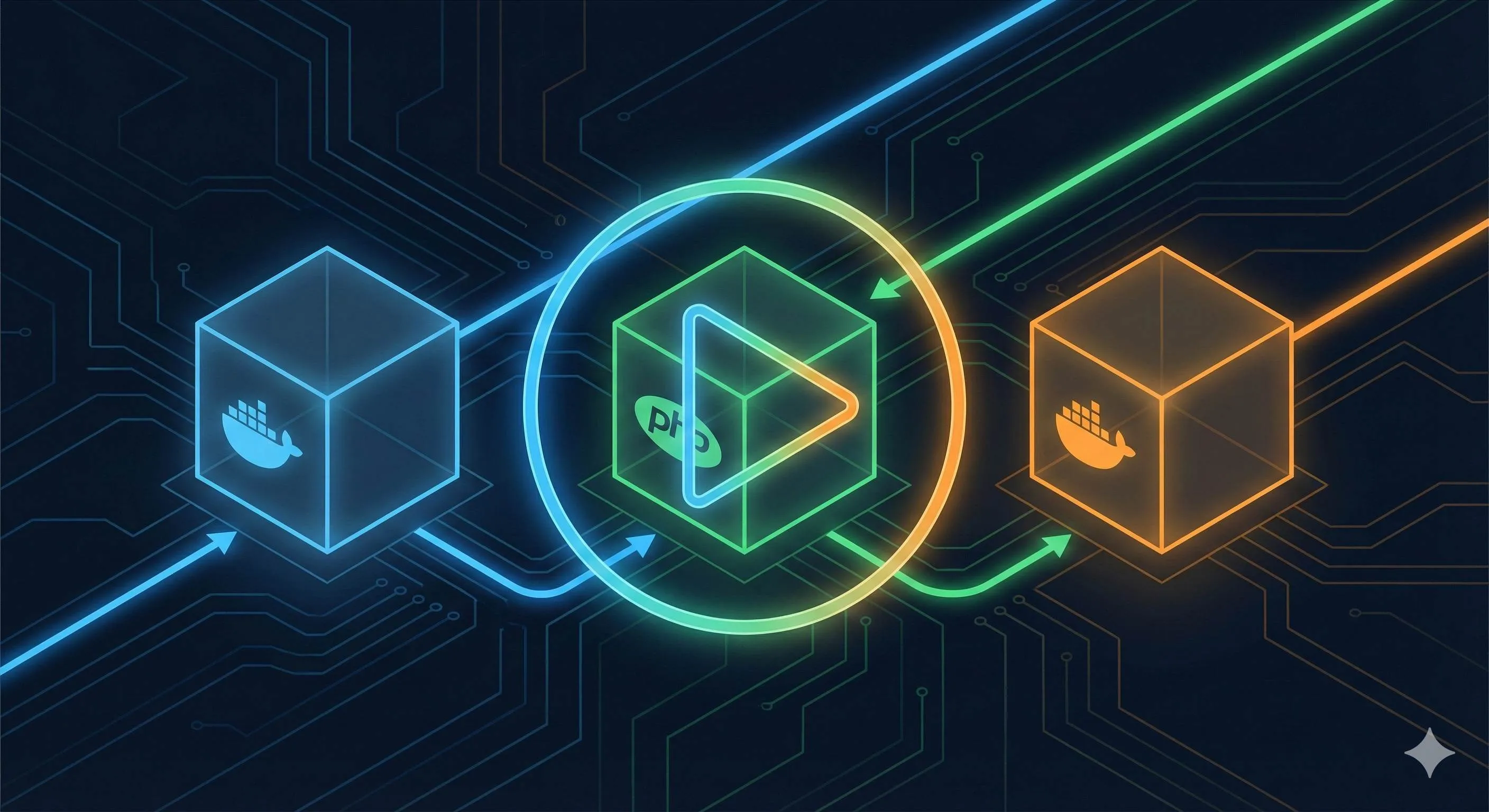
2 AM. Staring at error messages scrolling in the terminal, I slammed my hand on the desk.
“Nginx can’t find PHP-FPM socket file” — that was the 8th error tonight. Manually setting up a LNMP environment, I had modified nginx.conf, php-fpm.conf, my.cnf, and restarted services dozens of times. Dawn was breaking outside, and the environment still wouldn’t run.
Even more frustrating, my colleague said: “It works fine on my computer. Is your PHP version wrong?”

Great. He was using PHP 7.4, while I had installed 8.1. His MySQL was 5.7, and I accidentally installed 8.0. No wonder the code wouldn’t run.
To be honest, you’ve probably experienced this too. Everyone on the team has a different development environment. New hires spend half a day just setting up their environment, with senior developers having to guide them one-on-one. Code works on computer A but crashes on computer B. Deploying to the server? That’s just luck of the draw.
Until I tried one-click DNMP deployment with Docker Compose, these problems completely disappeared. 10 minutes to set up Nginx, MySQL, PHP, and Redis — the whole stack. Everyone on the team uses the same configuration file, and no one says “it works on my machine” anymore.
Why Choose Docker Compose for PHP Environment
Three Major Pain Points of Traditional LNMP Deployment
Pain Point 1: Manual Configuration is Tedious and Error-Prone
Remember your first time setting up LNMP? First apt-get install nginx, then install php-fpm, then MySQL. After installation, you still need to modify configuration files — nginx.conf needs location rules, php.ini needs extensions enabled, my.cnf needs parameter tuning.
Three configuration files scattered across different directories: /etc/nginx/, /etc/php/, /etc/mysql/. One configuration error and the service won’t start. Troubleshooting means digging through logs — Nginx logs, PHP-FPM logs, MySQL logs — enough to make your head spin.
I’ve seen someone spend three hours debugging because they wrote listen = /run/php/php7.4-fpm.sock instead of listen = 127.0.0.1:9000 in php-fpm.conf, and Nginx couldn’t find PHP.
Pain Point 2: Version Compatibility Issues Drive You Crazy
There are always those “version holdouts” on the team. Legacy projects run on PHP 5.6, while new projects need PHP 8.1. MySQL 5.7’s GROUP BY syntax throws errors on MySQL 8.0 because 8.0 enables ONLY_FULL_GROUP_BY mode by default.
Even worse, different team members have completely different versions:
- Li’s Mac has PHP 7.4 + MySQL 5.7
- Wang’s Ubuntu has PHP 8.0 + MySQL 8.0
- The new intern’s Windows has PHP 8.1 + MariaDB 10.6
Code runs perfectly on Li’s computer, but after pushing to Git, Wang pulls it down and gets errors. The test environment has yet another set of versions, and production has a different one still. Isn’t that asking for trouble?
Pain Point 3: Team Collaboration Efficiency Drops to Rock Bottom
On a new hire’s first day, senior developers spend half a day teaching them to set up the environment:
- Install Nginx (20 minutes)
- Install PHP and extensions (30 minutes, plus compilation time)
- Install MySQL (15 minutes)
- Configure three services to communicate (1 hour, lots of trial and error)
- Import test data (10 minutes)
If lucky, they can start coding in the afternoon. If not? See you tomorrow.
At a startup I worked at, due to environment inconsistency, a simple user registration feature passed development environment testing but failed in production with “database connection failed.” The reason? Development environment had MySQL user root with no password, production had a password, and the config file wasn’t updated. Emergency rollback at 3 AM. The boss was furious.
Three Major Advantages of Docker Compose
Advantage 1: Configuration as Code, One File for the Whole Team
Docker Compose writes all configuration into one docker-compose.yml file:
- Which Nginx version to use? (nginx:1.25-alpine)
- Which PHP extensions to install? (mysqli, pdo_mysql, redis)
- What are the MySQL configuration parameters? (managed in my.cnf)
- How do services communicate? (automatic DNS resolution)
Throw this file into Git, and everyone on the team pulls down the same environment. New hire onboarding? Clone the project, run docker-compose up -d, grab a coffee, and the environment is running when you get back.
No more asking “What’s your MySQL password?” “Where’s your php.ini?” “Can I see your Nginx config?” One file solves all problems.
Advantage 2: One-Command Start/Stop, Clean and Simple
Start all services:
docker-compose up -dStop and remove all containers:
docker-compose downWant to switch PHP versions? Change one line image: php:7.4-fpm to image: php:8.1-fpm, run up again, done.
Unlike the traditional way where uninstalling an old PHP version means cleaning up tons of leftover files, worried about deleting something important and crashing the system. Docker containers are completely isolated — delete them and they’re gone, clean and tidy.
Advantage 3: Environment Isolation and Multiple Version Coexistence
Want to run both PHP 7.4 and PHP 8.1 simultaneously? The traditional way requires installing two sets of PHP, configuring different ports, modifying Nginx configuration to specify different fastcgi_pass. Such a hassle.
With Docker Compose? Define two PHP services in the configuration file:
php74:
  image: php:7.4-fpm

php81:
  image: php:8.1-fpm
In Nginx configuration, point to whichever service name you want. Legacy projects continue using php74, new projects use php81, no interference.
The most popular DNMP project on GitHub (imeepo/dnmp) has 5000+ stars, proving this solution has been validated by many teams. It’s not some new gimmick — it’s a mature, reliable solution.
DNMP Architecture Design Explained
What is DNMP
DNMP is simply the Docker version of LNMP, with four letters representing components:
- D = Docker: Containerization platform, packaging each service into independent “containers”
- N = Nginx: Web server, receiving HTTP requests and forwarding to PHP for processing
- M = MySQL: Relational database for storing data (can also use MariaDB or PostgreSQL)
- P = PHP: PHP-FPM runtime environment for executing PHP code
Besides these four core components, typically you’ll also add:
- Redis: Caching service to speed up data retrieval
- PHPMyAdmin: Database management tool for visual MySQL operations
In traditional LNMP, these services are installed directly on the system, all mixed together. DNMP packages them into separate Docker containers — like installing different software in different virtual machines, but much lighter than VMs.
Service Orchestration Architecture
Imagine assembling a sound system: amplifier, speakers, player. Each device works independently but needs cables to connect and work together.
DNMP works the same way. Nginx, PHP, MySQL are three independent containers that need to connect through Docker networking:
Request Processing Flow:
- Browser sends HTTP request to
localhost:80 - Nginx container receives request, identifies it as a PHP file
- Nginx forwards through port 9000 to PHP container (via service name
php) - PHP container executes code, connects to MySQL container when database queries are needed (via service name
mysql) - PHP returns results to Nginx
- Nginx returns HTML to browser
Communication Mechanism:
Docker Compose automatically creates a bridge network, connecting all services. Each service has its own service name, with Docker automatically doing DNS resolution.
For example, when PHP connects to MySQL, you don’t write 127.0.0.1:3306, you just write mysql:3306. Docker automatically resolves mysql to the MySQL container’s IP address. Super convenient.
Port Mapping:
- Nginx container: port 80 → host port 80 (access localhost to see the website)
- MySQL container: port 3306 → host port 3306 (connect with tools like Navicat)
- PHPMyAdmin container: port 80 → host port 8080 (access localhost:8080 to manage database)
- Redis container: port 6379 → host port 6379
Volume Mounting:
If containers are deleted, is data lost? No. Through volume mounting, important directories in containers are mapped to the host:
./www→ Nginx and PHP containers’/var/www/html(code directory)./mysql/data→ MySQL container’s/var/lib/mysql(database files)./nginx/logs→ Nginx container’s/var/log/nginx(access logs)
This way, even if containers are deleted and recreated, data remains on the host machine and isn’t lost.
Directory Structure Design
A standard DNMP project directory looks like this:
dnmp/
├── docker-compose.yml       # Core orchestration file defining all services
├── .env                     # Environment variables (passwords, ports, etc.)
├── .gitignore               # Git ignore file (.env not uploaded)
├── nginx/
│   ├── conf.d/
│   │   └── default.conf    # Site configuration (root directory, PHP forwarding rules)
│   └── logs/               # Access and error logs
│       ├── access.log
│       └── error.log
├── php/
│   ├── Dockerfile          # PHP image customization (install extensions)
│   ├── php.ini             # PHP configuration (memory limits, upload size)
│   └── php-fpm.conf        # PHP-FPM configuration (process count)
├── mysql/
│   ├── data/               # Database file persistence directory
│   └── my.cnf              # MySQL configuration (charset, max connections)
└── www/                    # Project code directory
    └── index.php           # Test file
Key File Descriptions:
docker-compose.yml: The most critical file, defining which images to use, which directories to mount, which ports to map.env: Environment variables likeMYSQL_ROOT_PASSWORD=123456, managing sensitive information separatelynginx/conf.d/default.conf: Nginx site configuration, setting website root directory and PHP forwarding rulesphp/Dockerfile: Based on official PHP image, additionally installing mysqli, redis and other extensionsmysql/data/: Database files stored here, data persists even if container is deleted and recreated
This structure looks like many files, but each file has a clear responsibility. Unlike traditional LNMP where configurations are scattered everywhere — such a headache to find things.
10-Minute Hands-On: Building DNMP from Scratch
Prerequisites
1. Install Docker
- Mac/Windows: Download Docker Desktop, install it, done — includes docker-compose
- Linux (Ubuntu example):
sudo apt update
sudo apt install docker.io docker-compose -y
sudo systemctl start docker
sudo systemctl enable docker
2. Verify Installation
docker --version
# Output: Docker version 24.0.6, build xxx

docker-compose --version
# Output: Docker Compose version v2.21.0
Seeing version numbers means it’s installed.
3. Recommended Configuration

- RAM: at least 4GB (adjustable in Docker Desktop settings)
- Disk: at least 20GB free space (images will take up some space)
- Network: access to Docker Hub (if slow, configure domestic mirror sources)
Quick Deployment Option 1: Using Mature Open Source Project (Recommended)
Don’t want the hassle? Use an open source project directly, done in 10 minutes.
1. Clone Project
I recommend imeepo/dnmp, supports Arm CPU (works on Apple M-series chips too):
git clone https://github.com/imeepo/dnmp.git
cd dnmp
2. Configure Environment Variables
Copy example configuration file:
cp .env.example .envOpen .env file and change key configurations:
# MySQL root password (don't use 123456, too weak)
MYSQL_ROOT_PASSWORD=your_strong_password

# Timezone setting
TZ=Asia/Shanghai

# Port mapping (if port 80 is occupied, change to 8080)
NGINX_HTTP_PORT=80
MYSQL_PORT=3306
3. One-Click Startup
docker-compose up -dThe -d parameter means run in background. First startup pulls images, may take a few minutes. Seeing this output means success:
Creating network "dnmp_default" with the default driver
Creating dnmp_mysql_1 ... done
Creating dnmp_php_1   ... done
Creating dnmp_nginx_1 ... done
Creating dnmp_redis_1 ... done
4. Verify Installation
Open browser, visit http://localhost, should see phpinfo page showing PHP version, installed extensions, etc.
Seeing this page means Nginx and PHP are both running.
Visit http://localhost:8080, should see PHPMyAdmin login interface:
- Server:
mysql(note: not localhost) - Username:
root - Password: password you set in .env
Successful login means MySQL is working too.
5. Check Container Status
docker-compose psOutput should look like this:
Name               Command              State           Ports
--------------------------------------------------------------------
dnmp_nginx_1   nginx -g daemon off;   Up      0.0.0.0:80->80/tcp
dnmp_php_1     php-fpm                Up      9000/tcp
dnmp_mysql_1   docker-entrypoint...   Up      0.0.0.0:3306->3306/tcp
dnmp_redis_1   redis-server           Up      6379/tcp
State showing Up means containers are running.
Custom Option 2: Write docker-compose.yml Yourself (Advanced)
Want to deeply understand the principles? Write the configuration file yourself.
1. Create Project Directory
mkdir my-dnmp && cd my-dnmp
mkdir -p nginx/conf.d php mysql/data www
2. Write docker-compose.yml
Create docker-compose.yml with the following content:
version: '3.8'

services:
  # Nginx service
  nginx:
    image: nginx:1.25-alpine  # Use alpine version, smaller image
    container_name: dnmp-nginx
    ports:
      - "80:80"  # Map port 80 to host
    volumes:
      - ./www:/var/www/html  # Code directory
      - ./nginx/conf.d:/etc/nginx/conf.d  # Site configuration
      - ./nginx/logs:/var/log/nginx  # Log directory
    depends_on:
      - php  # Depends on PHP service, starts PHP first then Nginx
    networks:
      - dnmp-network

  # PHP service
  php:
    build: ./php  # Build image using Dockerfile
    container_name: dnmp-php
    volumes:
      - ./www:/var/www/html  # Code directory (consistent with Nginx)
    networks:
      - dnmp-network

  # MySQL service
  mysql:
    image: mysql:8.0
    container_name: dnmp-mysql
    ports:
      - "3306:3306"
    environment:
      MYSQL_ROOT_PASSWORD: root123456  # root password
      MYSQL_DATABASE: test_db  # Default database to create
      TZ: Asia/Shanghai  # Timezone
    volumes:
      - ./mysql/data:/var/lib/mysql  # Data persistence
    networks:
      - dnmp-network

  # Redis service (optional)
  redis:
    image: redis:7-alpine
    container_name: dnmp-redis
    ports:
      - "6379:6379"
    networks:
      - dnmp-network

networks:
  dnmp-network:
    driver: bridge  # Bridge network, containers can access each other
3. Create PHP Dockerfile
Create php/Dockerfile to install common extensions:
FROM php:8.1-fpm

# Install system dependencies
RUN apt-get update && apt-get install -y \
    libzip-dev \
    zip \
    unzip

# Install PHP extensions
RUN docker-php-ext-install \
    mysqli \
    pdo_mysql \
    zip \
    opcache

# Install Redis extension
RUN pecl install redis && docker-php-ext-enable redis

# Set working directory
WORKDIR /var/www/html
4. Create Nginx Site Configuration
Create nginx/conf.d/default.conf:
server {
    listen 80;
    server_name localhost;
    root /var/www/html;
    index index.php index.html;

    # Access log
    access_log /var/log/nginx/access.log;
    error_log /var/log/nginx/error.log;

    # Forward PHP files to PHP-FPM for processing
    location ~ \.php$ {
        fastcgi_pass php:9000;  # php is service name, Docker auto-resolves IP
        fastcgi_index index.php;
        fastcgi_param SCRIPT_FILENAME $document_root$fastcgi_script_name;
        include fastcgi_params;
    }

    # Return static files directly
    location ~ \.(js|css|png|jpg|gif|ico)$ {
        expires 7d;
    }
}
5. Create Test Files
Create www/index.php:
<?php
phpinfo();
Create www/db_test.php to test database connection:
<?php
$host = 'mysql';  // Service name, not localhost
$user = 'root';
$pass = 'root123456';
$db = 'test_db';

try {
    $pdo = new PDO("mysql:host=$host;dbname=$db", $user, $pass);
    echo "Database connection successful!<br>";
    echo "MySQL version: " . $pdo->getAttribute(PDO::ATTR_SERVER_VERSION);
} catch(PDOException $e) {
    echo "Connection failed: " . $e->getMessage();
}
6. Start Services
docker-compose up --build -dThe --build parameter means rebuild PHP image. First startup will be slower because it needs to download base image and install extensions.
Verification and Testing
1. Test PHP
Visit http://localhost, should see phpinfo page, check:
- PHP version is 8.1
- mysqli, pdo_mysql, redis extensions all show as enabled
2. Test Database Connection
Visit http://localhost/db_test.php, should see “Database connection successful” and MySQL version number.
If connection fails, check:
- Is MySQL container started:
docker-compose ps - Is host written as
localhost(should bemysql) - Is password correct
3. Check Container Status
docker-compose psAll containers’ State should be Up.
4. View Logs for Debugging
If a container fails to start, view logs:
docker-compose logs php  # View PHP container logs
docker-compose logs -f nginx  # View Nginx logs in real-time (-f parameter)
Logs will tell you exactly what went wrong, like configuration file syntax errors, port occupation, etc.
Team Collaboration Best Practices
Version Control Strategy
Key Principle: Upload Config, Don’t Upload Sensitive Information
Create .gitignore file:
# Don't upload sensitive information
.env

# Don't upload database files (too large)
mysql/data/

# Don't upload log files
nginx/logs/*.log
php/logs/*.log

# Code directory managed by business projects, not in DNMP
www/*
!www/.gitkeep  # Keep directory structure
Files to Commit to Git:
git add docker-compose.yml
git add .env.example  # Example config, no real passwords
git add nginx/conf.d/
git add php/Dockerfile
git add php/php.ini
git add mysql/my.cnf
git commit -m "feat: add DNMP environment config"
git push
New Member Onboarding Process (3 minutes):
- Clone project:
git clone xxx - Copy config:
cp .env.example .env - Change password: edit
.env, changeMYSQL_ROOT_PASSWORD - Start environment:
docker-compose up -d - Import data:
docker exec -i dnmp-mysql mysql -uroot -p < backup.sql
Done. No need to ask senior developers “Where’s your Nginx config?” “What PHP extensions do you have?” Everything’s in the configuration files.
Multi-PHP Version Coexistence Solution
Scenario: Legacy project runs PHP 7.4, new project needs PHP 8.1, what to do?
Solution: Define Multiple PHP Services in docker-compose.yml
services:
  php74:
    image: php:7.4-fpm
    container_name: dnmp-php74
    volumes:
      - ./www:/var/www/html
    networks:
      - dnmp-network

  php81:
    image: php:8.1-fpm
    container_name: dnmp-php81
    volumes:
      - ./www:/var/www/html
    networks:
      - dnmp-network
Nginx Configuration Points Different Projects to Different PHP Versions:
nginx/conf.d/old-project.conf (legacy project):
server {
    listen 80;
    server_name old.local;
    root /var/www/html/old-project;

    location ~ \.php$ {
        fastcgi_pass php74:9000;  # Point to PHP 7.4
        fastcgi_index index.php;
        fastcgi_param SCRIPT_FILENAME $document_root$fastcgi_script_name;
        include fastcgi_params;
    }
}
nginx/conf.d/new-project.conf (new project):
server {
    listen 80;
    server_name new.local;
    root /var/www/html/new-project;

    location ~ \.php$ {
        fastcgi_pass php81:9000;  # Point to PHP 8.1
        fastcgi_index index.php;
        fastcgi_param SCRIPT_FILENAME $document_root$fastcgi_script_name;
        include fastcgi_params;
    }
}
Configure hosts file:
127.0.0.1 old.local
127.0.0.1 new.local
Visiting http://old.local uses PHP 7.4, visiting http://new.local uses PHP 8.1. No interference.
Data Persistence and Backup
Data persistence is already achieved through volume mounting. ./mysql/data maps to container’s /var/lib/mysql, data persists even if container is deleted.
Database Backup Script:
Create scripts/backup.sh:
#!/bin/bash
BACKUP_DIR="./backups"
DATE=$(date +%Y%m%d_%H%M%S)
MYSQL_CONTAINER="dnmp-mysql"
MYSQL_USER="root"
MYSQL_PASSWORD="root123456"
DATABASE="test_db"

mkdir -p $BACKUP_DIR

echo "Starting database backup for $DATABASE..."
docker exec $MYSQL_CONTAINER mysqldump -u$MYSQL_USER -p$MYSQL_PASSWORD $DATABASE > $BACKUP_DIR/${DATABASE}_${DATE}.sql

echo "Backup complete: $BACKUP_DIR/${DATABASE}_${DATE}.sql"
Regular Backups (using cron):
# Edit crontab
crontab -e

# Backup daily at 2 AM
0 2 * * * /path/to/scripts/backup.sh
Restore Database:
docker exec -i dnmp-mysql mysql -uroot -proot123456 test_db < ./backups/test_db_20251218.sqlCommon Issues and Troubleshooting Guide
Issue 1: Port Occupied, Container Fails to Start
Symptom:
Error starting userland proxy: listen tcp4 0.0.0.0:80: bind: address already in useDiagnosis:
# Mac/Linux
lsof -i :80

# Windows
netstat -ano | findstr :80Solutions:
- Solution 1: Stop the program occupying port 80 (like Apache, IIS)
- Solution 2: Change port mapping in
.env, changeNGINX_HTTP_PORT=8080, visitlocalhost:8080
Issue 2: File Permission Problems (Linux/Mac)
Symptoms:
- Nginx reports
403 Forbidden - PHP can’t write files, reports
Permission denied
Cause:
Container’s www-data user (UID 33) and host user (UID 1000) don’t match, causing inability to access mounted files.

Temporary Solution (dev environment):
chmod -R 777 ./wwwProper Solution (Modify Container User UID):
Modify php/Dockerfile to match container user UID with host:
FROM php:8.1-fpm

# Modify www-data user's UID to match host user's UID (e.g., 1000)
RUN usermod -u 1000 www-data && groupmod -g 1000 www-data

# Other configuration...
Rebuild image:
docker-compose build php
docker-compose up -d
Issue 3: Missing PHP Extensions
Symptom:
Fatal error: Call to undefined function mysqli_connect()Diagnosis:
docker exec dnmp-php php -m # View installed extensionsIf you don’t see mysqli, the extension isn’t installed.
Solution:
Modify php/Dockerfile to add extension:
RUN docker-php-ext-install mysqli pdo_mysqlRebuild:
docker-compose build php
docker-compose restart php
Issue 4: Database Connection Failed
Symptom:
SQLSTATE[HY000] [2002] Connection refusedCommon Mistakes:
- Mistake 1: host written as
localhostor127.0.0.1 - Mistake 2: MySQL container hasn’t finished starting when connection attempted
- Mistake 3: Wrong password
Correct Approach:
$host = 'mysql';  // Must use service name, not localhost
$user = 'root';
$pass = 'root123456';  // Check if consistent with .env

try {
    $pdo = new PDO("mysql:host=$host;dbname=test_db", $user, $pass);
    echo "Connection successful";
} catch(PDOException $e) {
    echo "Failed: " . $e->getMessage();
}
If still can’t connect, check if MySQL has finished starting:
docker-compose logs mysqlSeeing mysqld: ready for connections means it’s started.
Issue 5: Container Exits Immediately After Starting
Symptom:
docker-compose ps
# Some container Status shows Exit 1 or Exit 127
Diagnosis Command:
docker-compose logs service_nameCommon Causes:
-
Configuration File Syntax Error:
- Nginx config missing semicolon
; - docker-compose.yml indentation wrong (must use spaces, not tabs)
- Nginx config missing semicolon
-
Environment Variable Missing:
- MySQL didn’t set
MYSQL_ROOT_PASSWORD, startup failed
- MySQL didn’t set
-
Dependent Service Not Started:
- Nginx depends on PHP, but PHP container can’t start
Solution:
Fix configuration file based on log hints, then restart:
docker-compose down  # Delete all containers
docker-compose up -d  # Recreate and start
Conclusion
After all that, the core value of deploying DNMP environment with Docker Compose really boils down to three points:
- Save Time: Done in 10 minutes, extra time for two more coffees
- Fewer Bugs: Unified team environment, no more emergency debugging at 3 AM for “it works on my machine” bugs
- Easy Maintenance: Configuration files are documentation, new hires understand at a glance, no need for senior developers to teach step by step
I used to manually install LNMP, often working until 2 AM without getting it running. Since using Docker Compose, it’s literally “run up, grab a coffee, environment is ready.”
Don’t hesitate, spend 10 minutes before leaving work to try it. First clone an open source project (imeepo/dnmp) and run it, feel the satisfaction of one-click startup. Once familiar, write configuration files yourself for deeper learning.
By the way, if you run into problems, don’t panic:
- First check
docker-compose logsfor logs - Search GitHub Issues, probably someone else has encountered it
- If all else fails, post an Issue in the project repo, the community is quite active
One more thing, Docker Compose isn’t just for PHP environments — Node.js, Python, Go all work. Once you learn this approach, you won’t fear environment configuration when switching tech stacks.
Next Steps:
- Take Action Now:
git clone https://github.com/imeepo/dnmp.git, spin up your first DNMP environment - Deep Dive: Check Docker Compose official docs, learn advanced usage (like docker-compose.override.yml)
- Share the Knowledge: If this article helped you, share it with colleagues still manually setting up environments, let them liberate themselves too
FAQ
How do I deploy a PHP environment with Docker Compose?
One file defines all services: Nginx, MySQL, PHP-FPM, Redis.
Run `docker-compose up -d` to start entire environment in 10 minutes. Everyone uses same configuration.
What is DNMP and why use it?
Solves team environment inconsistency - everyone uses same PHP/MySQL versions.
No more 'works on my machine' issues.
Easy to switch versions by changing image tags.
How do I handle different PHP versions for different projects?
Specify exact PHP version in image tag: `php:7.4-fpm` or `php:8.1-fpm`.
Each project can have different version without conflicts.
How do I connect Nginx to PHP-FPM in Docker?
In nginx.conf: `fastcgi_pass php:9000` (where 'php' is service name).
Or use Unix socket: `/var/run/php-fpm.sock` if both share volume.
How do I access MySQL from PHP container?
Containers on same Docker network can resolve service names via built-in DNS.
What if services won't start?
Common issues:
• Port conflicts (change ports)
• Missing environment variables (set in docker-compose.yml)
• Network issues (use docker-compose down -v to clean)
How do I persist MySQL data?
Data persists across container restarts.
Backup with `docker-compose exec mysql mysqldump -u root -p database > backup.sql`.
12 min read · Published on: Dec 18, 2025 · Modified on: Apr 1, 2026

Related Posts
shadcn/ui Composition Patterns: Best Practices for Combining Components

shadcn/ui Composition Patterns: Best Practices for Combining Components
Astro + Tailwind: Configuring Island Components and Global Styles Without Conflicts

Astro + Tailwind: Configuring Island Components and Global Styles Without Conflicts
React Compiler + shadcn/ui: Frontend Development in the Auto-Optimization Era

Comments
Sign in with GitHub to leave a comment