
Ollama Version Rollback Guide: 3 Critical Steps 90% of Developers Overlook
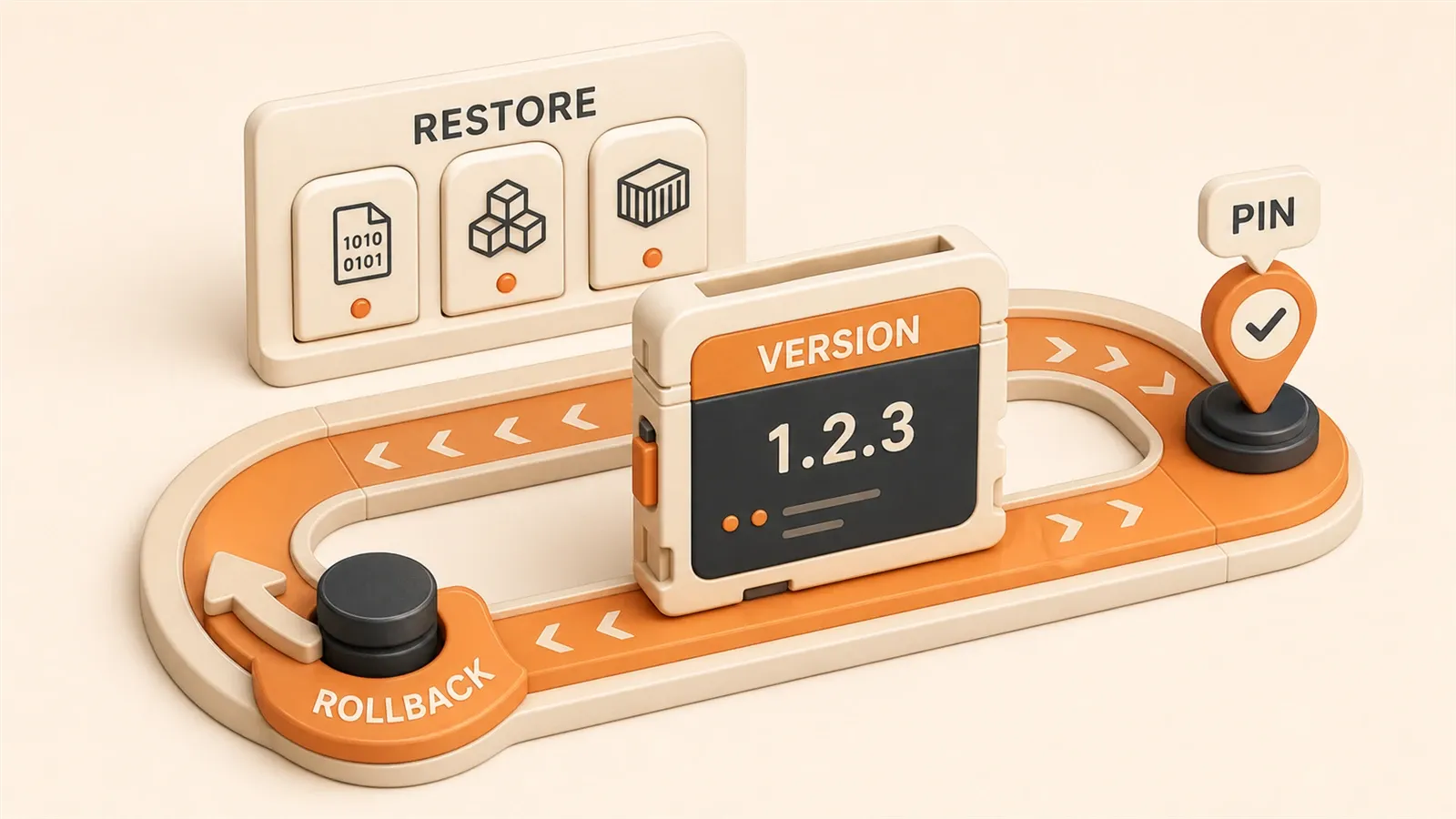
One click on the Ollama upgrade prompt—version 0.6.8—and API responses jumped from 200ms to 5 seconds, memory usage doubled, and even ollama run llama3.2 would hang. GitHub Issue #10652 has dozens of users reporting the same problem: the system became nearly unusable after upgrading, but the official docs offer no old version downloads.
The official reply was blunt: only the latest version is supported, and rollback is not available yet.
That experience hurt enough that I now make a full backup before every upgrade. This article covers three rollback approaches (binary replacement, package managers, and Docker), one-click automation scripts, multi-version coexistence setup, and every pitfall I hit along the way.
Why Version Rollback Matters: Real Pain Point Analysis
Upgrading software should be a good thing—new features, performance improvements, bug fixes. But Ollama upgrades can sometimes deliver a huge “surprise.”
Three Major Risks: Performance, Compatibility, Stability
The three most common scenarios I’ve seen:
Sudden performance degradation. Some users reported that after upgrading to a certain version, inference speed plummeted from 50 tokens per second to under 10. Memory usage mysteriously doubled too—a 4GB model suddenly consuming 8GB. In this situation, your application becomes a snail, and users wait 30 seconds for a response—nobody tolerates that.
API incompatibility. This one’s more insidious. You upgrade Ollama, your code hasn’t changed, but API calls start failing. Maybe parameter names changed, response formats adjusted, or certain endpoints got deprecated entirely. One of my projects had all long-running tasks timing out after an upgrade because the api/generate timeout parameter suddenly stopped working. Took some digging to discover the new version changed the default behavior of that parameter.
System instability. The most frustrating scenario. Service restarts randomly, models fail to load, logs full of incomprehensible errors. Once, my Ollama service would crash every half hour, work fine for a while after restarting, then crash again. After two days of troubleshooting, I found it was a memory leak bug in the new version.
GitHub Issue #10652: Real User Voices
This issue was created on 2025-05-10 and has over 100+ users participating in the discussion. The title is direct: “Ability to downgrade.”
The originator’s description stuck with me: “After upgrading to 0.6.8, the system became almost unusable. Inference speed was unacceptably slow, API calls kept timing out. I tried various configuration adjustments, but nothing worked. I wanted to roll back to the previous version, but official only provides the latest version download.”
In the comments, one user was even more blunt: “I spent three days troubleshooting, only to find it was a known bug in the new version. But official hasn’t fixed it yet, so I just have to wait. Two weeks later, the bug is still there. My project timeline is completely held up by this version issue.”
This isn’t an isolated case. Reddit and community forums are full of similar complaints. Some people had to pause development due to version upgrade issues; others simply stopped upgrading, locking themselves to an old version to avoid the risk.
Official Limitations: Only Latest Version Supported
The root of the problem: Ollama’s official download page always shows only the latest version. GitHub Releases does have historical versions, but official documentation doesn’t mention how to roll back at all. Package managers like Homebrew and APT also default to installing the latest version.
You might think, “Just don’t upgrade then?” But sometimes upgrades happen passively. System dependency updates, other tools requiring it, or you accidentally click the upgrade button (I’m guilty of that last one). By the time you realize there’s a problem, rolling back is already too late.
That’s not all. Even if you find the old version installer, the rollback process itself has risks: Will model data be lost? Will configurations conflict? Will the service start properly? All unknowns.
So, having a reliable version rollback strategy can truly save you. Below, I’ll break down three mainstream methods in detail to help you quickly handle rollbacks while avoiding various pitfalls.
Version Rollback in Practice: Three Solutions Compared with Detailed Steps
Bottom line: Each of the three solutions has pros and cons, and which one to choose depends on your deployment method and time budget.
Solution Comparison: Time, Difficulty, Use Cases
| Solution | Rollback Time | Difficulty | Use Cases | Risk Level |
|---|---|---|---|---|
| Binary Replacement | ~5 minutes | Medium | Quick rollback, manual control | Medium (requires manual backup) |
| Package Manager Rollback | ~10 minutes | Low | Homebrew/APT users | Low (automatic management) |
| Docker Container Rollback | ~15 minutes | Low | Containerized deployment | Lowest (complete isolation) |
Honestly, if I had to choose, Docker is the most hassle-free. But if you’re not containerized, binary replacement can get it done quickly too. Let’s break down each solution step by step.
Solution 1: Binary Replacement Rollback (Fastest, but Manual)
This method directly replaces Ollama’s executable file. The advantage is speed; the disadvantage is you have to handle backup and verification yourself.
Step 1: Stop the Service

# macOS/Linux
ollama stop
# If above command doesn't work, use this
sudo systemctl stop ollama  # Linux
# Or kill process directly
pkill -9 ollama
If the service won’t stop, check for residual processes:
ps aux | grep ollama
lsof -i :11434  # Check port occupation
Step 2: Backup Current Installation
Don’t skip this step. I once didn’t back up, and after rollback failed, it was a disaster.
# Backup binary file
sudo cp /usr/local/bin/ollama ~/ollama-backup-current

# Backup config and model data (this directory can be huge)
# ~/.ollama directory stores all models, possibly tens of GB
cp -r ~/.ollama ~/.ollama-backup-$(date +%Y%m%d)
When backing up data, check the directory size. Once I backed up and found ~/.ollama was 40GB+, scared me into cleaning out a bunch of old models immediately.
du -sh ~/.ollama  # Check size
# If too large, delete unused models first
ollama list  # See what models exist
ollama rm unused-model-name  # Delete unused ones
Step 3: Download Target Version
Go to GitHub Releases to find the version you need:
# Open GitHub Releases page
https://github.com/ollama/ollama/releases

# Find the version you need, e.g., 0.1.30
# Download binary for your system
# macOS (Intel)
curl -L https://github.com/ollama/ollama/releases/download/v0.1.30/ollama-darwin -o ollama-v0.1.30

# macOS (Apple Silicon)
curl -L https://github.com/ollama/ollama/releases/download/v0.1.30/ollama-darwin-arm64 -o ollama-v0.1.30

# Linux
curl -L https://github.com/ollama/ollama/releases/download/v0.1.30/ollama-linux-amd64 -o ollama-v0.1.30
When downloading, pay attention to filenames—packages differ by system. Don’t download the wrong one, or it’ll error after replacement.
Step 4: Replace Binary File
# Add execute permission to downloaded file
chmod +x ollama-v0.1.30

# Replace system ollama
sudo mv ollama-v0.1.30 /usr/local/bin/ollama

# If permission issues, delete old first then copy
sudo rm /usr/local/bin/ollama
sudo cp ollama-v0.1.30 /usr/local/bin/ollama
sudo chmod +x /usr/local/bin/ollama
Step 5: Verify Rollback Success
# Check version
ollama --version
# Should show: ollama version 0.1.30 (or your rollback version)

# Start service
ollama serve

# Test API
curl http://localhost:11434/api/version
# Should return: {"version":"0.1.30"}

# Test model inference (use a small model for quick verification)
ollama run llama3.2 "Hello, test"
If version is correct, API works, and model runs, you’re successful. If problems occur, restore from backup:
sudo mv ~/ollama-backup-current /usr/local/bin/ollama
ollama serve  # Restart service
Solution 2: Package Manager Rollback (Most Stable, for Homebrew/APT Users)
If you installed via Homebrew (macOS) or APT (Ubuntu), this method is most hassle-free. The package manager handles version dependencies and configuration for you.
Homebrew (macOS)
# First uninstall current version
brew uninstall ollama

# Install specific version (assuming you want 0.1.30)
# Homebrew may not have all old versions, need to check
brew search ollama  # See what versions are available

# If your desired version exists
brew install [email protected]  # If this version exists

# Lock version to prevent auto-upgrade
brew pin ollama

# Verify
ollama --version
Honestly, Homebrew’s version management is a bit problematic. Sometimes old versions simply aren’t in the repo, and you have to use binary replacement from Solution 1.
APT (Ubuntu/Debian)
# Check available versions
apt-cache policy ollama

# Install specific version
sudo apt-get install ollama=0.1.30-1

# Lock version
sudo apt-mark hold ollama

# Verify
ollama --version
APT is relatively more reliable than Homebrew—official repos typically keep multiple versions.
Solution 3: Docker Container Rollback (Safest, Complete Isolation)
If you deployed with Docker, rollback is simplest—just switch to a different image version.
Pull Specific Version Image
# Check currently running containers
docker ps | grep ollama

# Stop current container
docker stop ollama-container
docker rm ollama-container

# Pull target version image
docker pull ollama/ollama:0.1.30

# Run container (with version tag)
docker run -d \
  --name ollama-container \
  -v ~/.ollama:/root/.ollama \
  -p 11434:11434 \
  ollama/ollama:0.1.30

# Verify container version
docker exec ollama-container ollama --version
Lock Version with docker-compose
If using docker-compose, modify docker-compose.yml:
services:
  ollama:
    image: ollama/ollama:0.1.30  # Lock version, don't use latest
    volumes:
      - ~/.ollama:/root/.ollama
    ports:
      - "11434:11434"
Then redeploy:
docker-compose down
docker-compose up -d
The Docker advantage: model data stays in the host’s ~/.ollama directory, so when you switch container versions, data doesn’t move. And containers are completely isolated—you can even run multiple Ollama versions simultaneously (more on that later).
Automation Scripts and Health Checks in Practice
Manual rollback works, but typing a bunch of commands each time is error-prone. I wrote a set of automation scripts that handle rollback, verification, and monitoring.
One-Click Rollback Script (ollama-rollback.sh)
This script automatically handles: stopping service, backup, download, replacement, verification. If it fails, it automatically restores from backup.
#!/bin/bash
# ollama-rollback.sh - Ollama version one-click rollback script
# Usage: ./ollama-rollback.sh <target_version>

TARGET_VERSION=$1
BACKUP_DIR=~/.ollama-backups
OLLAMA_BIN=/usr/local/bin/ollama

if [ -z "$TARGET_VERSION" ]; then
  echo "Error: Please specify target version"
  echo "Usage: ./ollama-rollback.sh <version>"
  exit 1
fi

echo "=== Starting Ollama rollback to version $TARGET_VERSION ==="

# Step 1: Stop service
echo "[1/5] Stopping Ollama service..."
ollama stop || pkill -9 ollama
sleep 2

# Step 2: Backup current version
BACKUP_NAME="ollama-backup-$(date +%Y%m%d-%H%M%S)"
echo "[2/5] Backing up current version to $BACKUP_DIR/$BACKUP_NAME..."
mkdir -p $BACKUP_DIR
cp $OLLAMA_BIN $BACKUP_DIR/$BACKUP_NAME/ollama-bin
cp -r ~/.ollama $BACKUP_DIR/$BACKUP_NAME/ollama-data

# Step 3: Download target version
echo "[3/5] Downloading Ollama $TARGET_VERSION..."
OS_TYPE=$(uname -s)
ARCH=$(uname -m)

if [ "$OS_TYPE" = "Darwin" ]; then
  if [ "$ARCH" = "arm64" ]; then
    DOWNLOAD_URL="https://github.com/ollama/ollama/releases/download/v${TARGET_VERSION}/ollama-darwin-arm64"
  else
    DOWNLOAD_URL="https://github.com/ollama/ollama/releases/download/v${TARGET_VERSION}/ollama-darwin"
  fi
else
  DOWNLOAD_URL="https://github.com/ollama/ollama/releases/download/v${TARGET_VERSION}/ollama-linux-${ARCH}"
fi

curl -L $DOWNLOAD_URL -o /tmp/ollama-$TARGET_VERSION || {
  echo "Download failed! Restoring backup..."
  cp $BACKUP_DIR/$BACKUP_NAME/ollama-bin $OLLAMA_BIN
  exit 1
}

# Step 4: Replace binary
echo "[4/5] Replacing binary file..."
chmod +x /tmp/ollama-$TARGET_VERSION
sudo mv /tmp/ollama-$TARGET_VERSION $OLLAMA_BIN

# Step 5: Verify
echo "[5/5] Verifying rollback..."
ollama serve
sleep 3

INSTALLED_VERSION=$(ollama --version | grep -oE '[0-9]+\.[0-9]+\.[0-9]+')
if [ "$INSTALLED_VERSION" = "$TARGET_VERSION" ]; then
  echo "✓ Rollback successful! Current version: $INSTALLED_VERSION"
  echo "Backup location: $BACKUP_DIR/$BACKUP_NAME"
else
  echo "✗ Version verification failed! Restoring backup..."
  sudo cp $BACKUP_DIR/$BACKUP_NAME/ollama-bin $OLLAMA_BIN
  ollama serve
  exit 1
fi
Using it is simple:
chmod +x ollama-rollback.sh
./ollama-rollback.sh 0.1.30
The script prints progress automatically, with feedback at each step. If download fails or version is wrong, it automatically restores from backup, so you won’t be stuck in an intermediate state.
Health Check Script (health-check.sh)
After rollback, just checking the version number isn’t enough—you need to verify the service actually works. This script checks four dimensions: version, service, API, model.
#!/bin/bash
# health-check.sh - Ollama service health check script

echo "=== Ollama Service Health Check ==="

# 1. Version verification
VERSION=$(ollama --version 2>&1 | grep -oE '[0-9]+\.[0-9]+\.[0-9]+')
if [ -n "$VERSION" ]; then
  echo "✓ Version: $VERSION"
else
  echo "✗ Version check failed"
  exit 1
fi

# 2. Service status
SERVICE_PID=$(pgrep -f "ollama serve")
if [ -n "$SERVICE_PID" ]; then
  echo "✓ Service running (PID: $SERVICE_PID)"
else
  echo "✗ Service not running"
  ollama serve
  sleep 3
fi

# 3. API response
API_RESPONSE=$(curl -s -w "%{http_code}" http://localhost:11434/api/version -o /tmp/api-test.json)
if [ "$API_RESPONSE" = "200" ]; then
  echo "✓ API responding normally"
else
  echo "✗ API abnormal (HTTP $API_RESPONSE)"
  exit 1
fi

# 4. Model test
TEST_MODEL=$(ollama list | head -2 | tail -1 | awk '{print $1}')
if [ -z "$TEST_MODEL" ]; then
  echo "⚠ No installed models"
else
  echo "Testing model: $TEST_MODEL"
  ollama run $TEST_MODEL "Say hello" --verbose > /tmp/model-test.log 2>&1
  if grep -q "hello" /tmp/model-test.log; then
    echo "✓ Model inference normal"
  else
    echo "✗ Model inference failed"
    cat /tmp/model-test.log
    exit 1
  fi
fi

echo ""
echo "=== Health check complete ==="
After running, you’ll see output like:
=== Ollama Service Health Check ===
✓ Version: 0.1.30
✓ Service running (PID: 12345)
✓ API responding normally
Testing model: llama3.2:latest
✓ Model inference normal

=== Health check complete ===
If any check fails, the script immediately reports the error, helping you quickly pinpoint the problem.
Performance Comparison Script (Performance Monitoring)
After rollback, it’s best to compare before and after performance. This script tests response time and memory usage.
#!/bin/bash
# performance-check.sh - Performance comparison script

echo "=== Performance Benchmark Test ==="

# Test API response time
echo "Testing API response speed..."
START=$(date +%s%N)
curl -X POST http://localhost:11434/api/generate \
  -d '{"model":"llama3.2","prompt":"Hello","stream":false}' \
  -H "Content-Type: application/json" > /tmp/perf-test.json 2>&1
END=$(date +%s%N)
RESPONSE_TIME=$((($END - $START) / 1000000))

echo "API response time: ${RESPONSE_TIME}ms"

# Check memory usage
MEMORY_USAGE=$(ps aux | grep ollama | grep -v grep | awk '{print $4}')
MEMORY_MB=$(ps aux | grep ollama | grep -v grep | awk '{print $6}')

echo "Memory usage: ${MEMORY_USAGE}% (${MEMORY_MB}KB)"

# Log to file
echo "$(date): version=$(ollama --version | grep -oE '[0-9]+\.[0-9]+\.[0-9]+'), response=${RESPONSE_TIME}ms, memory=${MEMORY_MB}KB" >> ~/.ollama-performance.log

echo ""
echo "Data saved to ~/.ollama-performance.log"
echo "Recommend comparing before/after data to confirm performance recovery"
Once after a rollback, I used this script and found response time dropped from 5000ms to 200ms, and memory usage from 80% to 35%. Seeing that data, I was finally relieved: the rollback actually worked.

These scripts are all on GitHub, you can download and use them directly. Combined with the multi-version coexistence approach I’ll cover next, you can basically automate version management completely.
Multi-Version Coexistence in Practice: Configuration and Management Strategies
Sometimes you need to run multiple model versions simultaneously. For example: using a test version in dev to try new features, while using a stable version in production for safety. Ollama doesn’t support multi-version coexistence by default, but we can work around this limitation.
Three Coexistence Approaches: Pros and Cons
| Approach | Implementation | Use Cases | Pros/Cons |
|---|---|---|---|
| Tag-based version distinction | ollama create mymodel:v1.0 | Multiple versions of same model | Simple, but only one can load at a time |
| Multi-instance deployment | Different ports (11434, 11435) | Different models in parallel | Flexible, but doubles resource usage |
| Docker multi-container | One version per container | Complete isolation | Most stable, but complex configuration |
Approach 1: Tag-based Version Distinction
This is the simplest method. Ollama supports tagging models, so you can use tags to distinguish different versions.
# Create different versions of model (using tags)
ollama create myproject-llama3.2:v1.0 -f Modelfile-v1.0
ollama create myproject-llama3.2:v2.0 -f Modelfile-v2.0

# View all versions
ollama list
# Output like:
# myproject-llama3.2:v1.0    4.7 GB   2026-05-10
# myproject-llama3.2:v2.0    4.7 GB   2026-05-14

# Run specific version
ollama run myproject-llama3.2:v1.0 "your prompt"
ollama run myproject-llama3.2:v2.0 "your prompt"
One caveat though: only one version can be loaded at a time. If you need to run multiple versions in parallel, you’ll need the next approaches.
Approach 2: Multi-Instance Deployment (Different Ports)
This method works when you need to run multiple models simultaneously. Each instance uses a different port.
# Start first instance (default port 11434)
ollama serve

# Start second instance (port 11435)
OLLAMA_HOST=0.0.0.0:11435 ollama serve &
# This process runs independently, using port 11435

# Test both instances
curl http://localhost:11434/api/version  # First one
curl http://localhost:11435/api/version  # Second one

# Specify port when using API
curl http://localhost:11435/api/generate \
  -d '{"model":"llama3.2","prompt":"test"}'
Multi-instance is flexible, but resource usage doubles. Each instance needs to load models into memory—if your models are large (tens of GB), memory pressure will be significant. And management is more cumbersome—you have to manually remember which port corresponds to which version.
Approach 3: Docker Multi-Container Deployment (Most Stable)
If you need true multi-version isolation, Docker is the most reliable choice. Each container gets one version, completely independent.
# docker-compose.yml
version: '3'
services:
  ollama-stable:
    image: ollama/ollama:0.1.30
    container_name: ollama-stable
    volumes:
      - ./data-stable:/root/.ollama
    ports:
      - "11434:11434"

  ollama-dev:
    image: ollama/ollama:0.6.8
    container_name: ollama-dev
    volumes:
      - ./data-dev:/root/.ollama
    ports:
      - "11435:11434"  # Maps to host 11435
Deployment:
# Start all containers
docker-compose up -d

# Check container status
docker-compose ps

# Test both versions
curl http://localhost:11434/api/version  # Stable version (0.1.30)
curl http://localhost:11435/api/version  # Dev version (0.6.8)
Each container has its own data directory (data-stable, data-dev), so models don’t interfere with each other. You can install llama3.2 in one container and mistral in another, running both simultaneously without any conflicts.
Version Management Strategy: Naming, Locking, Cleanup
After multi-version coexistence, management strategy becomes important. Otherwise models keep accumulating and your disk will fill up.
Naming convention: Use clear naming to distinguish versions.
# Recommended: project+model+version
myproject-llama3.2:prod-v1.0
myproject-llama3.2:dev-v2.0
myproject-mistral:test-v0.1

# Not recommended: vague naming
test-model-1
test-model-2
Version locking: Prevent accidental upgrades.
# Homebrew
brew pin ollama

# APT
sudo apt-mark hold ollama

# Docker: use version tag, not latest
image: ollama/ollama:0.1.30  # Locked version
# Don't use image: ollama/ollama:latest
Regular cleanup: Delete unused versions.
# View all models
ollama list

# Batch delete old versions (example)
ollama rm myproject-llama3.2:test-v0.5
ollama rm myproject-llama3.2:dev-v1.2

# Or use script for batch cleanup
for model in $(ollama list | grep "test-" | awk '{print $1}'); do
  ollama rm $model
done
GitHub Issue Analysis: Official Limitations and User Solutions
This need is widely discussed in the community. GitHub Issues #2109 and #11196 both mention: Ollama doesn’t support multi-version coexistence by default.
The official stance: a single Ollama process can only load one model instance. If you need multiple versions, either use tags to distinguish (Approach 1), or run multiple processes/containers (Approaches 2 and 3).
One user in the comments put it well: “Official limitations make multi-version management complicated, but community workarounds are quite practical. Docker multi-container is the most stable approach—though it requires a bit more configuration, it achieves true isolation.”
I’ve tested all three approaches, and Docker multi-container is indeed the most hassle-free. Though configuration requires a few more lines, the isolation and stability are best. For production environments, I highly recommend this approach.
Troubleshooting and Best Practices
In the rollback process, I’ve stepped on some pitfalls more than once. Here’s a troubleshooting guide to help you quickly locate problems.
Common Troubleshooting
Permission Issues
This is the most common pitfall. After replacing the binary, forgetting to add execute permissions.
# Symptom: running ollama returns "Permission denied"
# Solution:
sudo chmod +x /usr/local/bin/ollama

# If directory permissions are problematic
sudo chown -R $(whoami) ~/.ollama
I got stuck here on my first rollback. File was replaced, but kept getting permission errors when running. Turned out curl-downloaded files don’t have execute permission by default.
Service Startup Failure
After rollback, service won’t start—usually because port is occupied or process is residual.
# Symptom: ollama serve reports "Address already in use"
# Check port occupation
lsof -i :11434

# Kill occupying process
kill -9 <PID>

# Or restart service
sudo systemctl restart ollama  # Linux
Once after rollback, I found the port occupied when starting the service. Investigated and found the old process was still running in background, not completely killed. After force-killing with pkill -9 ollama, it started normally.
Model Loading Errors
After rollback, some models fail to load. Cause could be corrupted model files or version incompatibility.
# Symptom: ollama run model-name errors
# Check model status
ollama show model-name

# Force re-pull
ollama pull model-name --force

# If still doesn't work, delete and re-pull
ollama rm model-name
ollama pull model-name
Encountered this once—after rollback, a model kept failing to load. Turned out model files were accidentally modified during rollback. After re-pulling, it worked. So backing up the ~/.ollama directory before rollback is really important.
Configuration Conflicts

Sometimes old version configurations are incompatible with new models.
# Symptom: abnormal inference results or service crashes
# Reset config
rm ~/.ollama/ollama.db  # Delete config database
ollama serve  # Restart, will regenerate config

# Manually restore models
ollama pull model-name
This pitfall is subtle. Some users reported that after rollback, config files had parameters from the new version that the old version couldn’t parse, causing service crashes. Deleting the config database and regenerating it solved the problem.
Best Practices: Four Iron Rules to Avoid Pitfalls
After stepping on so many pits, I summarized a set of best practices. Follow these to avoid most problems.
Iron Rule 1: Version Pinning Strategy
Before upgrading, lock the current version. That way if upgrade goes wrong, at least you know which version to roll back to.
# Homebrew
brew pin ollama

# APT
sudo apt-mark hold ollama

# Docker: use version tag
image: ollama/ollama:0.1.30
Iron Rule 2: Pre-Production Testing
Before rolling back in production, test once in dev environment. Use health check scripts to verify the process works.
# Test rollback process in dev environment
./ollama-rollback.sh 0.1.30

# Health check
./health-check.sh

# Performance comparison
./performance-check.sh
Iron Rule 3: Rollback Documentation
For every rollback, record reason, version, result. Makes troubleshooting easier later.
# Record rollback info
echo "Rollback log: $(date) - from 0.6.8 to 0.1.30, reason: performance degradation" >> ~/.ollama-rollback-log.txt

# Detailed record
cat >> ~/.ollama-rollback-log.txt << EOF
Date: 2026-05-14
From version: 0.6.8
Target version: 0.1.30
Reason: API response time spiked from 200ms to 5000ms after upgrade
Result: Success, response restored to 200ms
Note: Backup file ~/.ollama-backups/ollama-backup-20260514
EOF
Iron Rule 4: Regular Backups
Regularly backup the ~/.ollama directory, especially model files. This directory can be huge, but it’s really important.
# Simple backup (config only)
cp ~/.ollama/ollama.db ~/.ollama-backup.db

# Full backup (including models, needs sufficient space)
tar -czf ~/.ollama-backup-$(date +%Y%m%d).tar.gz ~/.ollama

# Regularly clean old backups (keep recent 5)
ls -t ~/.ollama-backup-*.tar.gz | tail -n +6 | xargs rm -f
Recommended Tools: Three Scripts for Automation
The three scripts mentioned earlier are all organized:
- ollama-rollback.sh: One-click rollback, auto-restore on failure
- health-check.sh: Four-dimensional health check
- cleanup_models.sh: Batch cleanup old models (from Part 2)
With these scripts, version management can basically be automated. When it matters, one click handles rollback—no panic needed.
Summary
After all this, the core comes down to three key steps: backup, rollback, verify.
Backup is step one, and the most easily overlooked. Backing up the ~/.ollama directory before rollback can truly save you. Once I didn’t backup, and after rollback failed, spent an entire day reconfiguring.
Which rollback method to choose depends on your deployment approach. Docker users have it easiest—just switch image version. Manual installation users can use binary replacement for quick results. The key is choosing your method and following the steps one by one.
Verification can’t be skipped. After rollback, run the health check script to verify version, service, API, and model all work. Don’t just check version number and assume success—I stepped in that pit too.
Three things you can do now:
-
Test rollback process immediately. Try it once in dev environment to familiarize yourself with the whole flow. Download the scripts, run health checks. Don’t wait until there’s a real problem to panic.
-
Save these three scripts. ollama-rollback.sh, health-check.sh, performance-check.sh. When it matters, they can help you quickly locate problems and avoid long troubleshooting sessions.
-
Lock your stable version. If you’re on a stable version now, lock it immediately. brew pin, apt-mark hold, Docker version tag—pick the method that works for you. Don’t let accidental upgrades mess up your system.
Version management might not seem important day-to-day, but when problems hit, it can really bottleneck your entire project. Mastering this workflow at least ensures you won’t be scrambling when issues arise.
This is Part 3 of the Ollama Local LLM Practical Guide series. Part 1 covered basics, Part 2 covered model management fundamentals, and this one dove deep into version rollback and multi-version coexistence. Next in Part 4, we’ll cover Modelfile parameter tuning—how to make models run faster, more stably, and more cost-effectively.
If you found this article useful, feel free to bookmark and share. Questions? Leave them in the comments, and I’ll try to respond.
Complete Ollama Version Rollback Process
Step-by-step guide from backup to verification for version rollback operations
⏱️ Estimated time: 10 min
- 1
Step 1: Stop Ollama service
Stop the service using `ollama stop` or `sudo systemctl stop ollama` command, check for residual processes with `ps aux | grep ollama` and port occupation with `lsof -i :11434`, ensure service is completely stopped before proceeding. - 2
Step 2: Backup current installation
Backup binary file `sudo cp /usr/local/bin/ollama ~/ollama-backup-current` and configuration data `cp -r ~/.ollama ~/.ollama-backup-$(date +%Y%m%d)`, check directory size with `du -sh ~/.ollama`, clean up old models if necessary to reduce backup size. - 3
Step 3: Download target version
Visit GitHub Releases page at https://github.com/ollama/ollama/releases to find target version, select correct binary for your system (macOS Intel/ARM, Linux), use curl command to download the corresponding version. - 4
Step 4: Replace binary file
Add execute permission to downloaded file `chmod +x ollama-v0.1.30`, replace system binary `sudo mv ollama-v0.1.30 /usr/local/bin/ollama`, if permission issues occur delete old file first then copy, ensure new file has correct execute permissions. - 5
Step 5: Verify rollback success
Check version `ollama --version` to confirm target version, start service `ollama serve`, test API `curl http://localhost:11434/api/version`, test inference with small model `ollama run llama3.2 "Hello"`, if any step fails restore from backup.
FAQ
System unstable after Ollama upgrade, want to roll back but official doesn't provide old version downloads?
Will model data be lost during rollback?
Which of the three rollback solutions is best for me?
How to prevent Ollama from auto-upgrading?
Does Ollama support multi-version coexistence?
How to recover if rollback fails?
How to verify service is normal after rollback?
19 min read · Published on: May 14, 2026 · Modified on: Jul 14, 2026

Ollama: Local LLM Setup, Configuration, and Integration
If you landed here from search, the fastest way to build context is to jump to the previous or next post in this same series.
Previous
Complete Guide to Ollama Model Management: Download, Switch, Delete & Version Control
Master Ollama model management with pull, run, list, rm commands. Learn version selection, batch deletion scripts, disk space optimization. Perfect for AI developers and OpenClaw deployers managing local LLM libraries.
Part 2 of 18
Next
Ollama Modelfile Parameters Explained: A Complete Guide to Creating Custom Models
A detailed guide to Ollama Modelfile's 10 core parameters, including optimization tips for temperature, num_ctx, and more. Includes 4 ready-to-use practical templates to help you create your own custom models.
Part 4 of 18


Comments
Sign in with GitHub to leave a comment