
Claude Code CLI Efficiency: 7 Tips and Automation Practices
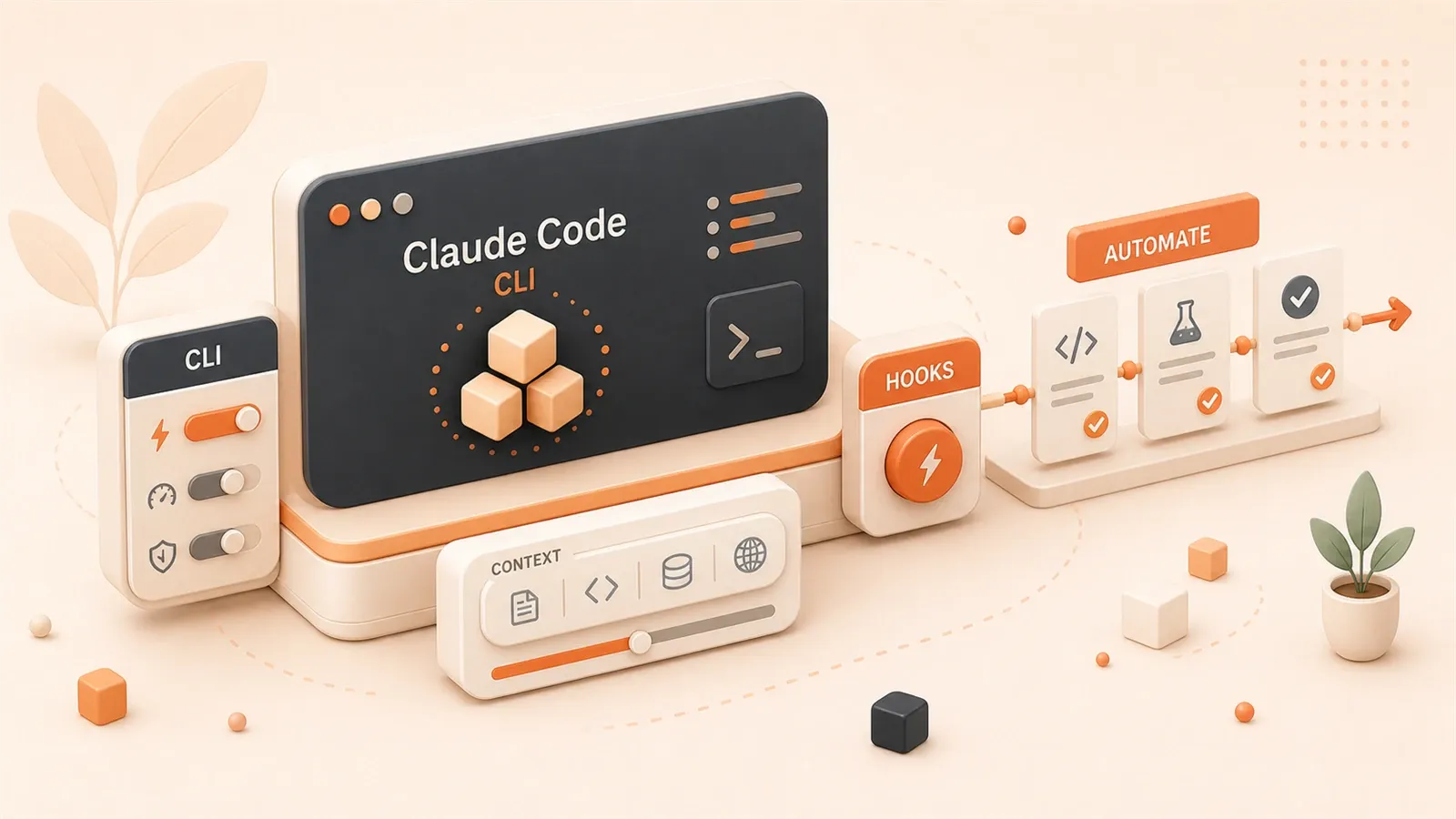
The terminal shows the 18th failed test run. If I had known about /clear earlier, I would have wrapped up much sooner.
Official data shows Claude Code can autonomously solve 80.9% of code problems in SWE-bench tests. The question is whether you are actually using its core capabilities. Most people start Claude Code, run claude, chat a bit, tweak some code, and call it done. Out of 50+ commands, they use maybe 3 to 5—leaving 90% of the efficiency on the table.
This article shares 7 CLI tips and 3 automation case studies, organized by scenario—from basic commands and context management to Hooks configuration and CI/CD integration. After reading, you should move from “knows how to use it” to “uses it efficiently.”
Chapter 1: The CLI Trinity — Startup, Modes, Commands
Let’s nail the basics first, so advanced techniques make sense later.
1.1 Three Startup Methods, Each with a Purpose
claude              # Start interactive interface in current directory
claude -c           # Continue most recent session
claude --print "Check this function's type definition"  # Single query then exit
Many only know the first method. The second -c is actually quite practical—when you just closed a session and realize there’s still an unresolved issue, claude -c picks up right where you left off without re-explaining the project context.
The third --print I use for quick queries. Want to verify a type definition? One command, no need to enter full interactive mode. Saves time.
1.2 Three Working Modes, Switch by Scenario
This is a core concept from official documentation, and Alibaba Cloud’s deep-dive article covered it extensively:
| Mode | Safety | Use Case |
|---|---|---|
| Default | High | Exploring new projects, uncertain operations |
| Auto-Accept | Medium | Familiar codebases, batch modifications |
| Plan | Highest | Analyzing problems, formulating plans |
In Default mode, every file modification and command execution requires manual confirmation. Tedious, but safe. Perfect for when you’re getting familiar with unfamiliar projects.
Auto-Accept mode—file modifications execute automatically, shell commands still need confirmation. When doing batch refactoring in your own project, this mode lets Claude finish everything in one go, then you do a final check. Efficiency doubled.
I like Plan mode for analyzing complex problems. Let Claude read through the entire project first, then output a detailed execution plan. No modifications at this stage, just planning. Once the plan looks solid, switch to Auto-Accept mode to execute.
1.3 Three Slash Commands to Remember
Official docs have 50+ commands, most people use less than 10%. Here are the three I use most:
/init     # Scan project and generate CLAUDE.md configuration
/clear    # Clear session history
/compact  # Compress context to save tokens
/init Use this when starting in a new project for the first time. Claude scans the entire codebase and generates a configuration file telling it about project structure, dependencies, and conventions. All subsequent operations reference this config.
/clear I’ll dedicate a section to this later—it’s the biggest efficiency boost I’ve discovered.
/compact Use when context accumulates too much conversation history. Claude keeps key information, removes redundancy, saves token consumption. Perfect for when you’ve done many rounds of modifications in the same session.
Chapter 2: The Art of Context Management — Clear, Compress, Parallel
This section came from inspiration in Builder.io’s practical article—they called /clear “the biggest productivity boost.” I tried it for a week, and it really is.
2.1 The Right Way to Use /clear
When to clear a session?

When switching tasks.
Say you just spent twenty rounds debugging an issue with Claude, pinpointing the problem. Suddenly your boss asks you to handle another urgent issue. Most people’s approach: continue in the same session, switch topics.
Wrong.
At this point, you should /clear first, wiping all that previous conversation history. Why? Because that history is consuming tokens and has nothing to do with the new task. Claude gets “polluted” by old context, reducing understanding quality for the new problem.
My habit: switching from one task to another, first /clear, then briefly explain the new task background. Works way better than continuing in an old session.
2.2 When to Use /compact
When you’ve done many rounds of modifications in the same task—modified a dozen files, chatted through thirty-plus messages—context is already quite long.
/compact compresses this history, keeping key information (modified files, critical decisions), removing redundant conversation.
When to trigger it? I set a rough rule for myself: compress when conversation exceeds 30 messages. No need to be precise, just compress when it feels “a bit long.”
2.3 Parallel Session Strategy
This tip comes from Claude’s official Help Center: run 3-5 sessions simultaneously, each in a different git worktree handling different parts of the codebase.
What’s git worktree? Simply put, creating multiple working directories from the same repository, each directory can switch to different branches.
# Create worktrees
git worktree add ../feature-A feature-branch-A
git worktree add ../feature-B feature-branch-B

# Start Claude in different worktrees
cd ../feature-A && claude
cd ../feature-B && claude
This way you can work in two terminal windows simultaneously: one having Claude write feature-A code, another handling feature-B. Two sessions don’t interfere, contexts completely independent.
Another practical terminal tip: press Ctrl+B to move long-running bash commands to background. Perfect for when Claude is executing time-consuming operations (like npm install, long test runs), your session interface won’t get blocked.
Chapter 3: The Three Automation Pillars — Hooks, Routines, CI/CD
The techniques covered so far are manual. This section moves to automation—letting Claude handle repetitive work while you focus on other things.
3.1 Hooks Mechanism: Task Triggers
Hooks are Claude Code’s automation core. Three main types:
| Hook Type | Trigger Timing | Typical Use |
|---|---|---|
| PreToolUse | Before tool execution | Permission checks, parameter preprocessing |
| PostToolUse | After tool execution | Auto-run tests, code formatting |
| Notification | Event notification | Send Slack messages, log events |
The most practical is PostToolUse. Configure a hook that automatically runs tests after Claude modifies code.
// Configuration example in settings.json
{
  "hooks": {
    "PostToolUse": [{
      "command": "npm test",
      "timeout": 60000
    }]
  }
}
This configuration’s effect: every time Claude uses the Write tool to modify files, npm test executes automatically. If tests fail, Claude sees the output and fixes the issue itself.
3.2 Routines: Define Repeated Workflows
Routines are suitable for defining those recurring task workflows.
The official docs give an example: when Claude detects a certain condition (like a specific file existing), it automatically executes a series of preset commands.
The specific configuration is somewhat complex, and I haven’t used it extensively in production yet. But this direction is worth exploring—solidify “checks that need doing every time,” so you don’t have to manually remind Claude each time.
3.3 CI/CD Integration: GitHub Actions in Practice
This is the official headless mode: claude -p.
Using it in GitHub Actions lets Claude automatically handle PR reviews, issue implementation, security audits.
# .github/workflows/claude-review.yml
name: Claude Code Review
on: [pull_request]

jobs:
  review:
    runs-on: ubuntu-latest
    steps:
      - uses: actions/checkout@v4
      - name: Run Claude Review
        run: claude -p "Review this PR and suggest improvements"
        env:
          ANTHROPIC_API_KEY: ${{ secrets.ANTHROPIC_API_KEY }}
GitLab’s official blog covered three workflows:

- Create MR from issue
- Analyze performance regressions
- Directly implement features and let CI verify
I’m still researching this direction, but the potential is already visible—embed Claude Code into the entire development process, making it part of your CI/CD pipeline.
Chapter 4: Case Studies — From Configuration to Automation
Covered the principles, now let’s see practical usage.
Case 1: Git Commit in One Sentence
This is my most common use case.
Traditional approach: git add, git status, write commit message, git commit. The whole process takes several minutes.
With Claude Code:
claude
> commit these changes
One sentence. Claude automatically reads your current changes, generates an appropriate commit message, then commits. It analyzes the modification content, understands the core intent of this change, and writes a meaningful message.
From my actual testing, the generated message quality is better than what I write myself—because it actually reads the diff content, rather than writing randomly.
Case 2: PostToolUse Hook Auto-Running Tests
Back to that hook configuration mentioned earlier. Here’s the complete version:
// .claude/settings.json
{
  "hooks": {
    "PostToolUse": [
      {
        "matcher": "Write",
        "command": "npm run test:related",
        "timeout": 30000
      }
    ]
  }
}
matcher: "Write" means only monitoring the Write tool (file modifications). npm run test:related is a custom command I defined, only running tests related to modified files—not full test suite, much faster.
Effect: every time Claude finishes modifying code, test results appear within 30 seconds. If failed, Claude receives the output and automatically fixes.
I stepped into a pitfall: initially configured full test suite with npm test, ran too slowly, frequently timed out. Changed to only testing related files, problem solved.
Case 3: GitHub Actions Auto PR Review
This configuration comes from official docs:
# .github/workflows/claude-pr-review.yml
name: Claude PR Review

on:
  pull_request:
    types: [opened, synchronize]

jobs:
  claude-review:
    runs-on: ubuntu-latest
    permissions:
      contents: read
      pull-requests: write
    steps:
      - name: Checkout PR
        uses: actions/checkout@v4
        with:
          ref: ${{ github.event.pull_request.head.ref }}

      - name: Claude Review
        uses: anthropics/claude-code-action@v1
        with:
          prompt: |
            Review this PR for:
            - Code quality issues
            - Potential bugs
            - Security vulnerabilities
            - Performance concerns
          api_key: ${{ secrets.ANTHROPIC_API_KEY }}
This workflow triggers when a PR is created or updated, letting Claude automatically review code, then comment on the PR. It can check code quality, potential bugs, security vulnerabilities, performance issues.
After using it for a month, I found it catches more bugs than I do in manual review—because it doesn’t slack off, examines every file seriously.
Chapter 5: Productivity Multiplier Tips — Configuration Simplification and Toolchain Integration
The final tips come from articles I read at Marmelab and Builder.io—about how to make the entire workflow smoother.
5.1 The CLAUDE.md Brevity Philosophy
Many people write CLAUDE.md configuration files with extreme detail—project background, tech stack conventions, code style, prohibited items… thousands of words.
Marmelab’s advice is the opposite: keep CLAUDE.md as short as possible.
Why? Because the longer the configuration, the more likely Claude will “over-follow”—checking the config for every operation, limiting flexibility. Plus long configurations themselves consume tokens.
Their recommended approach: only write the most core 3-5 conventions, treating configuration as a “forcing function for simplifying the codebase.” For example:
# CLAUDE.md
- TypeScript strict mode, all variables must have types
- Component files go in src/components/
- Test files go in the same directory as source files
- Don't use var, only const and let
Just these few lines. Enough.
5.2 Bash Wrapper Strategy
Builder.io’s article had a point that impressed me: don’t write long documentation explanations, write bash wrapper scripts.

For example, if you want team members to quickly start a project, instead of writing a complex README telling them “first npm install, then configure environment variables, then start dev server,” just write a script:
#!/bin/bash
# dev.sh - Quick start development environment

npm install
source .env.local
npm run dev
Then in Claude Code you just say “run dev.sh.” Simple, no brain power needed.
This approach can also be applied to Claude itself: encapsulate commonly used command combinations into aliases or scripts. Saves typing long strings every time.
5.3 MCP Server Integration: Security Checks and Output Filtering
Finally, MCP (Model Context Protocol) related tool integration.
Two practical examples:
Snyk MCP Server: Lets Claude automatically check for security vulnerabilities and dependency issues while writing code. No need for manual reminders, it runs a security scan every time new dependencies are introduced.
rtk tool: Filters and compresses command output. GitHub has a dedicated tip about this—many CLI command outputs are extremely long (like npm install logs), consuming lots of tokens. rtk can compress these outputs, keeping only key information.
I haven’t fully integrated these two tools yet, but the direction is clear: make Claude Code not just write code, but integrate into the entire security check and dependency management toolchain.
Conclusion
After all this, the core comes down to a few things:
Master basic commands—three startup methods, three working modes, switch by scenario. Don’t just use the simplest one.
Don’t slack on context management—/clear when switching tasks, /compact when conversation gets too long. These two habits save massive token waste.
Automation is worth the investment—Hooks configuration, GitHub Actions integration, spend time learning upfront, the time saved later multiplies.
Keep configuration concise—write CLAUDE.md short, encapsulate complex processes in scripts. Longer documentation isn’t better.
My recommendations:
- Try it today: Enter
/clearin your current session, feel the freshness after clearing - This week’s task: Configure a PostToolUse hook, let Claude automatically run tests after modifying code
- Long-term goal: Embed Claude Code into your CI/CD process, make it a standard team tool
If you want to dive deeper into Claude Code configuration optimization, check out our series’ first article “Stop Letting Claude Write Messy Code! One Config File to Boost AI Accuracy by 10%” (on how to write CLAUDE.md). For Subagent mechanisms, see the second article “Claude Too Verbose? Build Your Dedicated AI Team with Subagent.” This article is the seventh in the series, focusing on CLI command-line tips.
I learned these tips the hard way, through trial and error. Hope you can avoid some pitfalls after reading this and boost efficiency sooner.
Claude Code CLI Efficiency Guide
Systematically master Claude Code CLI's basic commands, context management, and automation configuration
- 1
Step 1: Master basic startup methods
Choose the right startup command based on scenario: `claude` (interactive in current directory), `claude -c` (continue session), `claude --print` (single query) - 2
Step 2: Choose working mode
Default mode for unfamiliar project exploration, Auto-Accept for batch modifications in familiar codebases, Plan mode for analyzing complex problems and formulating solutions - 3
Step 3: Manage context
Use `/clear` to clear sessions when switching tasks, use `/compact` to compress context and save tokens when conversations exceed 30 messages - 4
Step 4: Configure automation Hooks
Configure PostToolUse hook in `.claude/settings.json`, monitor Write tool to automatically run related tests - 5
Step 5: Integrate CI/CD workflows
Use `claude -p` headless mode in GitHub Actions to automatically handle PR reviews and code audits
FAQ
When should I use /clear to clear the session?
How do I implement parallel sessions for multiple tasks?
Is Auto-Accept mode safe?
What are the best practices for Hooks configuration?
How long should the CLAUDE.md configuration file be?
11 min read · Published on: May 15, 2026 · Modified on: Jul 14, 2026

Claude Code Guide
If you landed here from search, the fastest way to build context is to jump to the previous or next post in this same series.
Previous
Not Using Claude Well Wastes Money? 10 Advanced Tips to 3x Your Efficiency
In-depth guide to Claude's Artifacts, Projects, Extended Thinking and 10+ advanced features. Includes 20+ practical Prompt templates to boost efficiency 3x. Perfect for developers, content creators, product managers—from system prompts to complete workflows, fully covered.
Part 4 of 5
Next
This is the latest post in the series so far.


Comments
Sign in with GitHub to leave a comment