
Codex Automations for Long-Running Tasks: Scheduled Triggers, Heartbeats, and Cross-Day Work
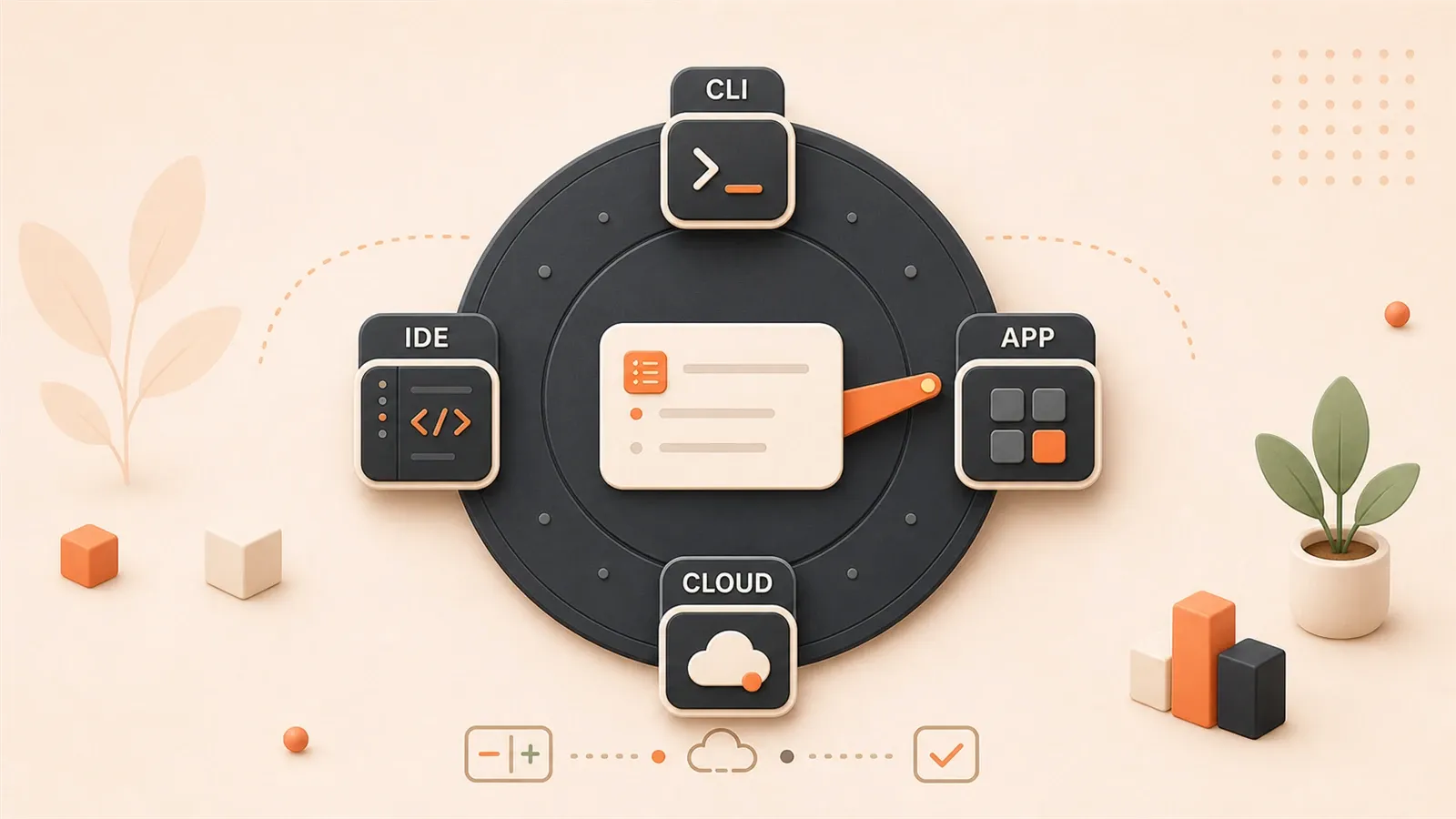
"OpenAI's official documentation explains Automations, thread automation, worktree/local project behavior, sandboxing, and approval policy."
Codex Automations for Long-Running Tasks: Scheduled Triggers, Heartbeats, and Cross-Day Work
If you keep handing repetitive checks, PR tracking, post-deploy follow-up, and cross-day triage to Codex, the first question is not whether automation is possible. It is which kind of task should be automated, and how. Automations are not about turning Codex into an always-on background agent. They are about bringing it back at the right time, inside the right boundary, to do one clear thing.
1. First Judge Whether the Task Should Be Automated
1.1 standalone/project automation: independent background jobs
Standalone automation and project automation are both independent background jobs. The difference is scope. Standalone is not tied to a specific project. Project automation is bound to a project path, which makes it a better fit for repeated work around a fixed repository.
Each trigger starts a fresh execution. When it finishes, the result goes into inbox or triage; if nothing new is found, it can be archived automatically. Typical use cases include weekly dependency checks, daily issue triage, and scheduled review checks for a repository after deployment.
The key limitation is the local environment: the machine running the Codex app must stay on, the app must keep running, and the project path must still exist. If the machine sleeps, shuts down, or the app closes, it will not keep going. This is not the right layer for long-term unattended hosting.
1.2 thread automation (heartbeat): periodic wakeups on the same thread
Thread automation is a heartbeat-style recurring wakeup attached to the current conversation thread. The core idea is to preserve context: when it wakes up, it continues the same conversation instead of creating a new independent run.
It is a good fit for post-deploy log checks, cross-day follow-up, and continuous triage. For example, you can ask Codex to inspect deployment logs every 10 minutes, report only when it sees an error or a success signal, and stay silent otherwise. That kind of work needs context continuity, so standalone automation is a poor fit.
Heartbeat is not an eternal daemon or a forever loop. It is a rhythm of wake up -> inspect -> report -> wait. If the app pauses or closes, the heartbeat stops too.
1.3 Type comparison table
| Dimension | standalone/project automation | thread automation (heartbeat) |
|---|---|---|
| Runtime location | Independent background thread | Current conversation thread |
| Context retention | Fresh context each run | Keeps the current session context |
| Best use cases | Repeating independent tasks, issue triage, dependency checks | Long-task follow-up, continuous triage, deploy log checks, cross-day work |
| Dependencies | Local app / machine / project path must exist | Current thread must stay attached |
| Result surface | inbox / triage, auto-archive when nothing is found | Current conversation window |
| Stop mechanism | Turn off the automation | Pause or close the app |
When deciding, ask first: does the task need to preserve context? If yes, use thread automation. Then ask: is it tied to a specific project? If yes, use project automation; otherwise use standalone automation.

2. Judge Which Tasks Are Good Candidates for Automation
Not every repetitive task belongs in Automations. Look at the task shape first, then decide.
2.1 Traits of tasks that fit Automations
Tasks that fit Automations usually share three traits: high repetition, clear rules, and verifiable output.
High-repetition work shows up on a schedule and usually aims at the same outcome each time. Weekly dependency checks, daily issue triage, and fixed-time post-deploy checks are all good examples. In those cases, the inspection scope, decision criteria, and output format can be defined up front.
Rule-based work is especially easy to turn into a prompt. For example: “Check the dependency versions in package.json, list the packages with newer versions, and recommend upgrade priorities.” The judgment criteria stay stable, so there is no need to restate them manually every time.
Verifiable output matters too. Good automation results should flow back into inbox / triage, archive themselves when there is nothing to do, and surface a clear next step when there is a finding. That is how you know the automation is saving time instead of just moving noise somewhere else.
2.2 Traits of tasks that do not fit Automations
Tasks that do not fit Automations usually have four traits: they need frequent human judgment, they depend on fast-changing external state, the prompt is not stable yet, or they require long-term unattended hosting.
Tasks that need frequent human judgment tend to have fuzzy boundaries. Architecture decisions, complex bug hunts, and situational trade-offs all require adaptation based on the current case, so they are a poor match for a fixed automation.
Tasks that depend on fast-changing external state also deserve caution. Real-time monitoring of a production service, for example, changes too quickly and is better handled by specialized monitoring tools than by Automations.
Do not automate an unproven prompt either. Run it manually a few times first, get the rules, scope, and output stable, and only then turn it into an automation.
Long-term unattended hosting is the wrong layer for project-scoped automation. It depends on the local app, machine, and project path. If the machine goes away, the automation stops. That is not a cloud-hosting solution.

2.3 Task fit table
| Task type | Good fit? | Why | Recommended approach |
|---|---|---|---|
| Weekly dependency checks | Yes | Repetitive, rule-based, verifiable | standalone automation or project automation |
| Daily issue triage | Yes | Can land in inbox, can auto-archive, prompt is stable | standalone automation or thread heartbeat |
| Post-deploy log checks | Yes | Same-thread follow-up, needs context | thread automation |
| Architecture decisions | No | Needs frequent human judgment, boundaries are fuzzy | manual conversation |
| Complex bug hunts | No | Needs situational adaptation | manual conversation |
| Real-time monitoring | No | Depends on fast-changing external state | specialized monitoring tools |
| Long-term unattended hosting | No | Project-scoped automation depends on local environment | CI or cloud approach |
| Unproven automation flows | No | Prompt is unstable, manual runs are inconsistent | stabilize manually first |
The decision flow is simple: first verify that the prompt is stable, then decide whether the task needs context retention, and finally decide whether you need long-term cloud hosting.
3. Create Your First standalone/project automation
3.1 Creation flow
- Write the task clearly first. Define scope, input, output, success criteria, and stop conditions.
- Pick the automation type. Use standalone for independent repeated work; use project automation for repeated work around a fixed repository.
- Pick the runtime location. For Git repos, start with a worktree so you do not disturb the current workspace.
- Set the frequency. Minute-based jobs need explicit stop conditions so they do not wake forever.
- Run a few trial cycles first. Once the output is stable, move to the real frequency.
3.2 How to choose between worktree and local project
| Runtime location | Isolation | Best suited for | Risk note |
|---|---|---|---|
| worktree | Changes are isolated from the current working directory | Tasks that edit files, write code, or suggest PRs | Mistakes usually stay inside the worktree and are easy to discard |
| local project | No isolation; runs directly in the current directory | Read-only checks, report generation, dependency triage | It may affect files you are currently editing |
For Git repos, modification tasks should default to a worktree. Only use local project when the task is explicitly read-only, inspection-only, or confirmation-only.
4. Create thread automation (heartbeat)
4.1 Creation flow
- Make sure the current conversation is already handling a long task.
- Attach the thread automation to that conversation.
- Write down exactly what it should inspect at each wakeup, when it should report, and when it should stay silent.
- Define stop conditions such as success, failure, timeout, or a maximum number of rounds.
- Start with a low frequency and verify it does not spam before moving into the final cadence.
4.2 Heartbeat prompt template example
Check the deployment log every 10 minutes and report only in the following cases:

1. An error signal appears (contains "error", "failed", or "exception")
2. A completion signal appears (contains "deployed", "success", or "completed")
3. It is still not done after 30 minutes

Report format:
- Status: [in progress / success / failure]
- Key log excerpt: [up to 3 lines]
- Next step: [if any]

Stay silent when nothing changes.
This prompt makes the inspection scope, output boundary, and stop conditions explicit. It should not restate “check complete” on every wakeup, and it should not turn the no-change state into a wall of noise.
5. Security Settings: sandbox, approval policy, and team governance
5.1 sandbox and approval policy settings
Automations run inside a sandbox by default. The sandbox decides what files it can touch, whether it can cross boundaries, and whether extra approval is needed. For background automation, the smaller the default boundary, the better.
| sandbox mode | Permission scope | Good for | Risk level |
|---|---|---|---|
| read-only | Read-only, no writes | Pure inspection and analysis tasks | Low |
| workspace-write | Read/write inside the workspace; external actions still need approval | Daily automations, file edits, PR suggestions | Medium |
| danger-full-access | Unrestricted system access | Isolated environments or highly trusted tasks | High |
Approval policy controls whether the agent should ask for permission when it encounters a higher-risk action.
| approval policy | Behavior | Use case |
|---|---|---|
| on-request | Ask for higher permission when needed | A little autonomy, but still with human review |
| never | Execute fully automatically without prompting | Automation scripts or non-interactive environments |
The default should be workspace-write + rules/allowlist, not full access + unattended. The latter is simply too wide when something goes wrong.
5.2 Team governance advice
Teams can pin down sandbox and approval through requirements.toml so people do not casually grant too much.
[agent]
approval_policy = "never"
sandbox = "workspace-write"
The goal is not to block everything. The goal is to keep the default narrow and widen it only when a task really needs it.
6. Three Automation Templates You Can Copy Right Now
6.1 Weekly dependency sweep
- Trigger frequency: once a week
- Runtime location: prefer worktree for Git repos
- Successful output: list upgradable dependencies and suggested priorities
- Stop condition: if nothing is upgradable, keep it to one short result
- Permission boundary: read-only or light report writing
6.2 Post-deploy heartbeat follow-up
- Trigger frequency: every 10 minutes, up to 30 minutes
- Runtime location: thread automation
- Successful output: deployment success, failure, or timeout summary
- Stop condition: success signal, failure signal, or timeout
- Permission boundary: read logs only, do not touch production
6.3 Daily issue / PR triage
- Trigger frequency: once per day
- Runtime location: standalone automation or thread heartbeat
- Successful output: send items that need human attention into inbox
- Stop condition: stay silent when there is nothing new
- Permission boundary: default to workspace-write; avoid full access
7. Six Things to Check When Automation Fails
- Is the Codex app still running, and is the machine awake?
- Does the project path still exist, and has the worktree been moved or removed?
- Did sandbox block a write or a network action?
- Does the thread automation really need context retention?
- Has the worktree piled up and needs cleanup?
- Does the prompt clearly say when to stop and when to report?
8. FAQ Checklist
8.1 Is Automations a scheduled job or an always-running agent?
It is closer to a scheduled or periodic background job. Each wakeup does a check, some work, and a report, then returns to waiting. It is not a forever loop.
8.2 What is the difference between standalone/project and thread automation?
Standalone/project automation is an independent background run that starts fresh each time, and its result goes to inbox / triage. Thread automation is a heartbeat on the same thread and preserves the current conversation context.

8.3 What tasks fit Automations, and what tasks do not?
Good fits are repetitive, rule-based, and verifiable. Poor fits are tasks that need frequent human judgment, depend on fast-changing external state, or have unstable prompts.
8.4 How do I choose between worktree and local project?
Prefer worktree for anything that may edit files and change the workspace. Use local project only for read-only checks and report-style tasks.
8.5 Will it keep running if the app is closed or the computer sleeps?
No. Project-scoped automation depends on the local app, machine, and project path, so it stops when the app closes or the machine sleeps.
8.6 When should I use Computer Use?
Only when you must operate a GUI directly and there is no API or web interface to use. If normal code can do the job, Computer Use is usually not worth it.
8.7 How do I control cost and frequency?
Keep frequency only as high as you need, check state with /status, define stop conditions for every automation, and avoid over-polling.
9. Summary
Computer Use, the built-in browser, and Automations solve different layers of the problem. Automations are for giving stable, verifiable, repeated work to Codex in the background; thread automation is for cross-day long-task follow-up; worktree and sandbox are there to keep risk under control.
The safest order is always the same: judge whether the task should be automated, then choose the runtime location and permissions, and only then tune the frequency. First make the human-shaped process reliable, then let Codex keep it running a little longer.
Get Codex automation running safely
Judge the task, choose the automation type, then set the runtime location, permissions, frequency, and stop conditions.
- 1
Step 1: Judge first
Check whether the task is repetitive, rule-based, and verifiable. - 2
Step 2: Choose the type
Use standalone/project automation for independent repeated work; use thread automation for long tasks that need context. - 3
Step 3: Choose the location
For Git repos, prefer a worktree; only fall back to local project for read-only or confirmation tasks. - 4
Step 4: Set permissions
Start with sandbox and minimum access, then widen only if needed. - 5
Step 5: Run a few cycles
Watch for stable output first, then move to the frequency that actually makes sense.
FAQ
Is Codex Automations a scheduled job or an always-running agent?
What is the difference between standalone/project automation and thread automation?
How do I choose between worktree and local project?
Will automation keep running if the app is closed or the computer sleeps?
When should I use Computer Use?
How do I control cost and frequency?
11 min read · Published on: Aug 13, 2026 · Modified on: Aug 13, 2026

OpenAI Codex: CLI, Desktop, Cloud, and Team Workflows
If you landed here from search, the fastest way to build context is to jump to the previous or next post in this same series.
Previous
Codex Cost Optimization in Practice: How to Save Tokens Without Making It Dumber
A practical guide to where Codex token/credit costs come from, plus a ranked cost-cutting checklist: model and reasoning tiers, shorter sessions, prompt cache, lean AGENTS.md, controlled concurrency, and sensible plan mode use.
Part 13 of 15
Next
Codex Team Adoption in Practice: A One-Stop Decision Guide for Permissions, Conventions, and the Bedrock Path
If your team wants to standardize on Codex, you need to define the permission boundary, AGENTS.md conventions, the Bedrock route, and who owns governance and cost first. This article gives you a decision framework, least-privilege design, compliance paths, and rollout advice for enterprise adoption.
Part 15 of 15


Comments
Sign in with GitHub to leave a comment