
Docker Log Management in Practice: From Driver Configuration to Centralized Collection
Phone buzzed: production disk at 85%.
df -h showed 12% free. The culprit sat under /var/lib/docker/containers—an Nginx container running two weeks with a 12GB log file.
Docker does not cap log size by default. json-file kept every access line until the disk filled.
We deleted the file, added rotation everywhere, and finished near 4 a.m.
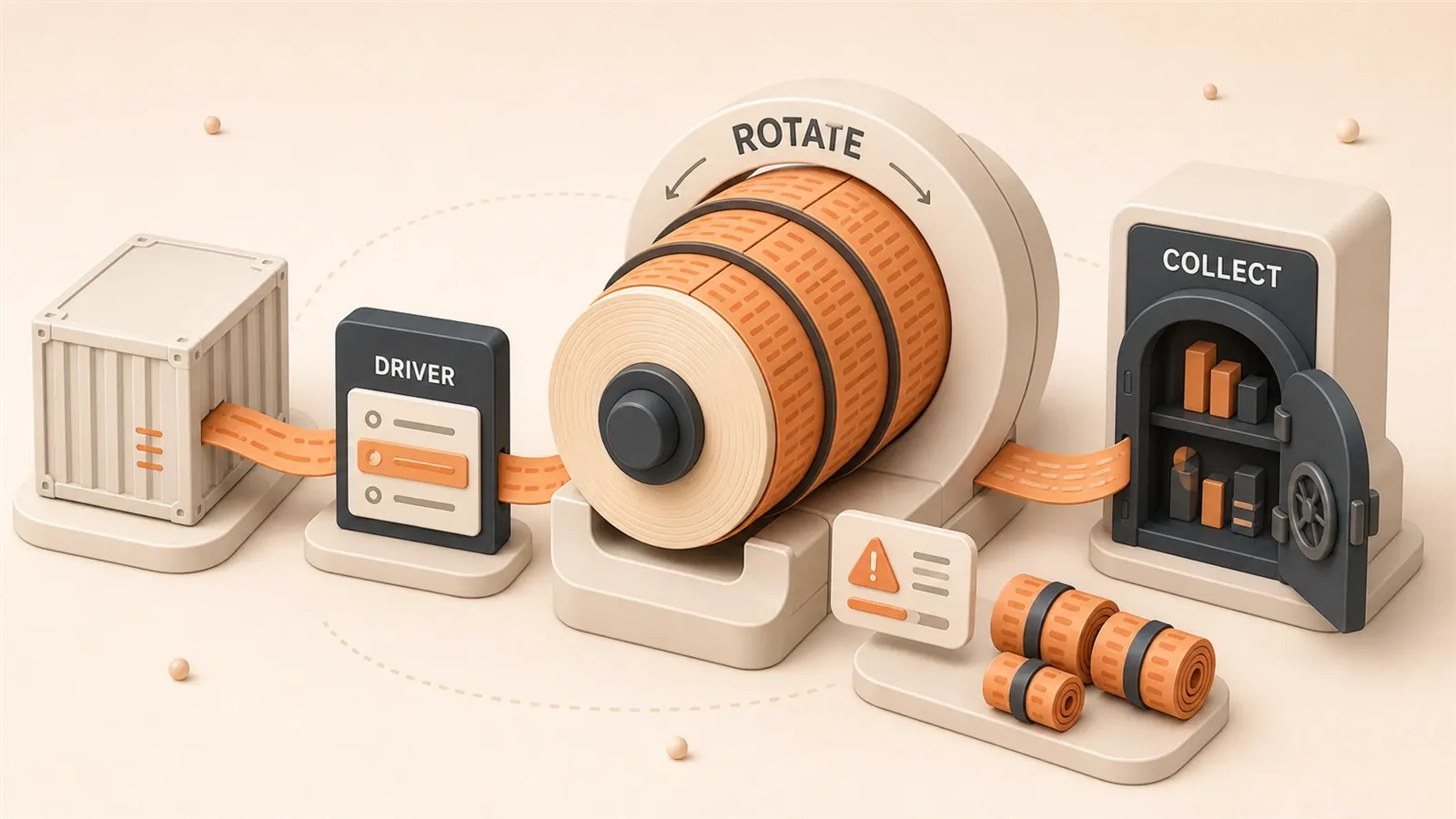
This article is the week-after write-up: drivers, rotation, and centralized collection for many containers.
1. Docker Log Drivers Explained
Let’s start with a fundamental concept: Docker container logs aren’t written randomly. A “log driver” determines where logs go and how they’re stored.
Docker supports multiple log drivers, each suited to different scenarios. When you run a container, Docker defaults to the json-file driver—capturing stdout and stderr content in JSON format to a local file. This file lives at /var/lib/docker/containers/<container-id>/<container-id>-json.log.
json-file is simple—no extra configuration needed, unified log format, and Docker commands like docker logs can read it directly. But the trap is obvious: no size limit by default. Run a container long enough, and logs accumulate until they fill your disk.
Here’s a comparison of 6 common drivers:
| Driver | Use Case | Structured Support | External Dependencies | Performance Impact |
|---|---|---|---|---|
| json-file | Development, single-host deployment | Yes (auto JSON) | No | Low |
| syslog | Existing syslog infrastructure | No (requires parsing) | Yes (rsyslog) | Low |
| journald | systemd environments | Partial | No | Low |
| fluentd | Cloud-native observability, centralized logging | Yes (custom tags) | Yes (Fluentd service) | Medium |
| gelf | Graylog platform users | Yes | Yes (Graylog) | Medium |
| none | Disable logging, temporary containers | No | No | None |
json-file and syslog are the most common choices. json-file works for local debugging and lightweight deployments; syslog fits enterprises with existing syslog infrastructure—logs go directly to rsyslog or syslog-ng for unified processing.
The journald driver hands logs to systemd journal. If your servers use systemd (most modern Linux distributions do), journald is convenient—logs are viewable with journalctl.
fluentd and gelf are designed for centralized log collection. fluentd can ship logs to Elasticsearch, Kafka, cloud storage, and other backends; gelf is Graylog’s native format. Both suit multi-container cluster environments but require deploying additional log collection services.
The none driver simply disables logging. For temporary containers or batch jobs where logs don’t matter, none saves resources.

How to choose?
- Single-host deployment, development/debugging: json-file is sufficient—just add rotation parameters (covered next).
- Enterprise with existing syslog: Use syslog to leverage existing infrastructure.
- Container clusters, centralized log viewing: fluentd or Loki (detailed later).
- Temporary containers, logs irrelevant: Use none.
2. Log Rotation Configuration in Practice
Back to the opening problem: logs ballooning to 12GB. How to prevent it? Add rotation parameters.
The json-file driver supports three key parameters:
- max-size: Maximum size of a single log file. When exceeded, Docker creates a new file and increments the old one. For example,
max-size=10mmeans each file maxes out at 10MB. - max-file: Number of historical files to retain. When exceeded, the oldest file gets deleted. For example,
max-file=3keeps up to 3 historical files plus 1 current file. - compress: Whether to compress rotated old files. Default is false. Setting it to true saves disk space with minimal CPU overhead.
Combining these parameters effectively controls log disk usage. For example, max-size=10m, max-file=3 means logs occupy at most 30MB (less with compression).
Configuration Methods: Global vs. Per-Container
Docker log rotation can be configured at three levels:
1. Global Configuration (daemon.json)
Applies to all containers, set-and-forget. Add to /etc/docker/daemon.json:
{
  "log-driver": "json-file",
  "log-opts": {
    "max-size": "10m",
    "max-file": "3",
    "compress": "true"
  }
}
After editing, restart Docker daemon: sudo systemctl restart docker. All new containers will inherit this configuration.
Note: Global configuration only affects new containers. Existing containers need separate handling or must be deleted and recreated.
2. Per-Container Configuration (docker run)
Suitable for customizing individual containers:
docker run -d \
  --name nginx \
  --log-driver json-file \
  --log-opt max-size=50m \
  --log-opt max-file=5 \
  --log-opt compress=true \
  nginx:alpine
High-traffic applications can relax parameters, like max-size=50m, max-file=10, allowing more log space.
3. Docker Compose Configuration
This is the most common approach—production deployments typically use Compose:
version: "3.9"
services:
  webapp:
    image: webapp:latest
    logging:
      driver: "json-file"
      options:
        max-size: "10m"
        max-file: "3"
        compress: "true"

  nginx:
    image: nginx:alpine
    logging:
      driver: "json-file"
      options:
        max-size: "50m"
        max-file: "5"
Each service can be configured independently, offering high flexibility.
Recommended Production Values
SigNoz’s 2024 practice guide offers some recommendations:
- Development/Testing:
max-size=10m, max-file=3—sufficient for most cases. - Medium-traffic applications:
max-size=50m, max-file=5—more history for troubleshooting. - High-traffic applications:
max-size=100m, max-file=10—avoid losing history due to rapid rotation.
Honestly, specific values depend on your scenario. The key principle: balance disk capacity and log importance. More disk space, important logs—keep more. Tight disk, unimportant logs—tighten up.
3. Centralized Log Collection Solutions Compared
Log rotation works for single-machine environments. But with dozens of containers scattered across multiple servers, troubleshooting becomes painful—you’re logging into each machine, running docker logs repeatedly.

Centralized log collection solves this: aggregate all container logs in one place for unified storage and querying.
Three mainstream approaches exist:
ELK Stack (Elasticsearch + Logstash + Kibana)
ELK is the classic solution, around for years. Logstash collects logs, Elasticsearch stores and indexes them, Kibana provides visualization and querying.
Pros: powerful—full-text search, complex queries, visualization dashboards, mature ecosystem. Cons: resource-heavy. Elasticsearch itself is a heavyweight service, often consuming several GB of memory; Logstash isn’t lightweight either, with complex configuration and steep learning curve.
Best for large enterprises with dedicated ops teams, high log volumes, and complex query requirements.
EFK (Fluentd Replaces Logstash)
EFK is an ELK variant, replacing Logstash with Fluentd. Fluentd is lighter—memory footprint in the hundreds of MB—and has a rich plugin ecosystem supporting multiple input/output sources.
Configuration is cleaner than Logstash, but Elasticsearch’s weight remains. Overall resource consumption is still high, suitable for medium-to-large teams.
Loki + Promtail + Grafana
Loki is Grafana Labs’ log system with a unique design philosophy: no full-text index, only indexing log labels (like container name, application name). Log content is stored in compressed files. Queries use grep-style matching—performance is sufficient.
This design makes Loki extremely lightweight—memory footprint in the hundreds of MB, storage costs far lower than Elasticsearch. Promtail is Loki’s dedicated collection agent with simple configuration; Grafana serves as the query interface, integrating seamlessly with Loki.
Ideal for cloud-native environments, especially Kubernetes. Small teams with limited budgets—Loki offers excellent value.
Solution Comparison Table
| Solution | Pros | Cons | Suitable Scale | Cost |
|---|---|---|---|---|
| ELK | Powerful, flexible queries, mature ecosystem | High resource consumption, complex config, expensive storage | Large enterprises | High |
| EFK | Fluentd lightweight, rich plugins | Elasticsearch still heavy, config still complex | Medium-to-large | Medium-high |
| Loki | Extremely lightweight, low cost, cloud-native friendly | Weaker queries, not ideal for full-text search | Small teams/K8s | Low |
How to choose?
Here’s my simple recommendation:
- Small teams (under 10 people), limited budget: Loki. Simple deployment, low resource consumption, friendly Grafana interface.
- Medium teams (10-50 people), some ops capability: Loki or EFK, depending on log volume.
- Large enterprises, professional ops teams: ELK. Comprehensive features, mature ecosystem, worth the investment.
If you’re already using Grafana for monitoring, Loki is the natural choice—viewing metrics and logs in the same interface is a smooth experience.
4. Production Pitfalls Guide
Final chapter—let me share some traps I’ve fallen into, so you can avoid them.
1. Forgetting Rotation Configuration, Disk Fills Up
This is the most common pitfall. Many deploy containers without thinking about log rotation, then months later get disk alerts—investigation reveals log files of tens of GB.
Recommendation: Configure global defaults in Docker daemon.json. New containers inherit automatically. Don’t rely on remembering parameters for every docker run—people forget, configurations don’t.

2. Container Restart, Logs Lost
json-file driver has a characteristic: when a container is deleted, its log file is deleted too. If you restart a container with docker rm + docker run instead of docker restart, logs are gone.
This creates problems for historical troubleshooting. Say a container crashes at 2 AM and restarts—you want to see pre-crash logs, but the container was recreated, logs already vanished.
Recommendations:
- Use
docker restartto restart containers, not delete-and-recreate. - For critical applications, use fluentd or syslog drivers to ship logs to external storage, avoiding log loss on container deletion.
- Regularly back up important log files, especially in production.
3. Fluentd Address Misconfiguration
With the fluentd driver, logs are sent via TCP to the Fluentd service. If the Fluentd address is wrong, the container starts without error—but logs aren’t collected. You think logs are in centralized storage, but they’re actually lost in transit.
Configuration example:
docker run -d \
  --log-driver fluentd \
  --log-opt fluentd-address=127.0.0.1:24224 \
  --log-opt tag="docker.{{.Name}}" \
  my-web-app
fluentd-address must match the actual address Fluentd listens on. Default port is 24224, TCP protocol.
Troubleshooting steps:
- First confirm Fluentd service is running:
curl http://localhost:24224ornetstat -tlnp | grep 24224. - Use
docker inspect <container-id>to check if log driver configuration is correct. - Check Fluentd logs to see if it’s receiving Docker log streams.
4. Monitoring and Alerting
Log management doesn’t end with configuration—you need monitoring.
Two key metrics:
- Disk space: Regularly check
/var/lib/docker/containersdirectory size. Set alert thresholds, like notify when exceeding 10GB. - Log latency: In centralized collection scenarios, monitor Fluentd or Loki write latency. High latency could indicate network issues or storage bottlenecks.
You can use Prometheus + Grafana for monitoring, or keep it simple—write a script to check periodically, run with Cron.
Summary
This article covered several key aspects of Docker log management:
- Log driver selection: json-file is most versatile, syslog suits enterprise infrastructure, fluentd for centralized collection.
- Log rotation configuration:
max-size+max-filecombination. Global configuration is worry-free, per-container configuration is flexible. - Centralized collection solutions: Small teams use Loki, enterprises use ELK—depends on scale and budget.
- Pitfall guide: Global default rotation, avoid log loss, troubleshoot Fluentd addresses, monitor disk space.
Here’s a quick configuration template:
// /etc/docker/daemon.json
{
  "log-driver": "json-file",
  "log-opts": {
    "max-size": "10m",
    "max-file": "3",
    "compress": "true"
  }
}
Action item: If you haven’t configured log rotation yet, check now. Look for oversized log files in /var/lib/docker/containers, add rotation parameters to daemon.json, restart Docker daemon. A few minutes’ work saves you from a 2 AM disk alert wake-up call.
Docker Log Rotation Configuration
Configure log rotation for Docker containers to prevent log files from filling up disk space
⏱️ Estimated time: 10 min
- 1
Step 1: Check current log status
Run the following commands to check container log usage:
```bash
# Check total log directory size
du -sh /var/lib/docker/containers
# Check individual container log sizes
docker ps -q | xargs -I {} sh -c 'echo -n "{}: "; docker inspect --format="{{.LogPath}}" {} | xargs du -sh 2>/dev/null || echo "N/A"'
```
If you find a container with logs exceeding 1GB, you need rotation. - 2
Step 2: Configure global default rotation
Edit `/etc/docker/daemon.json` and add log driver configuration:
```json
{
"log-driver": "json-file",
"log-opts": {
"max-size": "10m",
"max-file": "3",
"compress": "true"
}
}
```
Parameter explanation:
- max-size: Max 10MB per file
- max-file: Keep 3 historical files
- compress: Compress old files to save space - 3
Step 3: Restart Docker to apply
Run the restart command to apply configuration:
```bash
sudo systemctl restart docker
```
**Note**: Global configuration only affects new containers. Existing containers need recreation or individual configuration. - 4
Step 4: Verify configuration
Create a test container to verify configuration is applied:
```bash
# Create test container
docker run -d --name test-nginx nginx:alpine
# Check log configuration
docker inspect --format='{{.HostConfig.LogConfig}}' test-nginx
```
Output should show `max-size=10m,max-file=3` parameters. - 5
Step 5: Clean up old container logs (optional)
If existing container logs are too large, you can clean manually:
```bash
# Method 1: Truncate log file (without restarting container)
sudo truncate -s 0 $(docker inspect --format='{{.LogPath}}' container-name)
# Method 2: Recreate container (recommended)
docker rm -f container-name
docker run ... # Recreate with log parameters
```
After recreation, new containers inherit global configuration.
FAQ
What is Docker's default log driver? Why doesn't it limit size?
What's the best combination of max-size and max-file parameters?
Do logs persist after container deletion? How to save them permanently?
How to choose between ELK and Loki? Which suits small teams?
What happens if Fluentd address is misconfigured? How to troubleshoot?
How to apply new log rotation configuration to existing containers?
How to monitor Docker log disk usage?
9 min read · Published on: Apr 30, 2026 · Modified on: Jul 14, 2026

Docker: Setup, Networking, Errors, and Production
If you landed here from search, the fastest way to build context is to jump to the previous or next post in this same series.
Previous
Complete Guide to Docker Log Cleanup: 5 Ways to Prevent Disk from Being Filled by json.log
Docker log files growing continuously and filling up your disk? Learn how to clean up json.log files, configure log rotation, and choose the right log driver to solve Docker log disk space issues.
Part 34 of 38
Next
Docker Container Debugging Guide: The Right Way to Use exec Command
A complete guide to debugging Docker containers with exec command, covering exec vs attach differences, tool installation tips, user permission settings, and practical examples to help you troubleshoot container issues effectively.
Part 36 of 38


Comments
Sign in with GitHub to leave a comment