
React Server Components Performance Optimization: Data Fetching and Caching in Practice
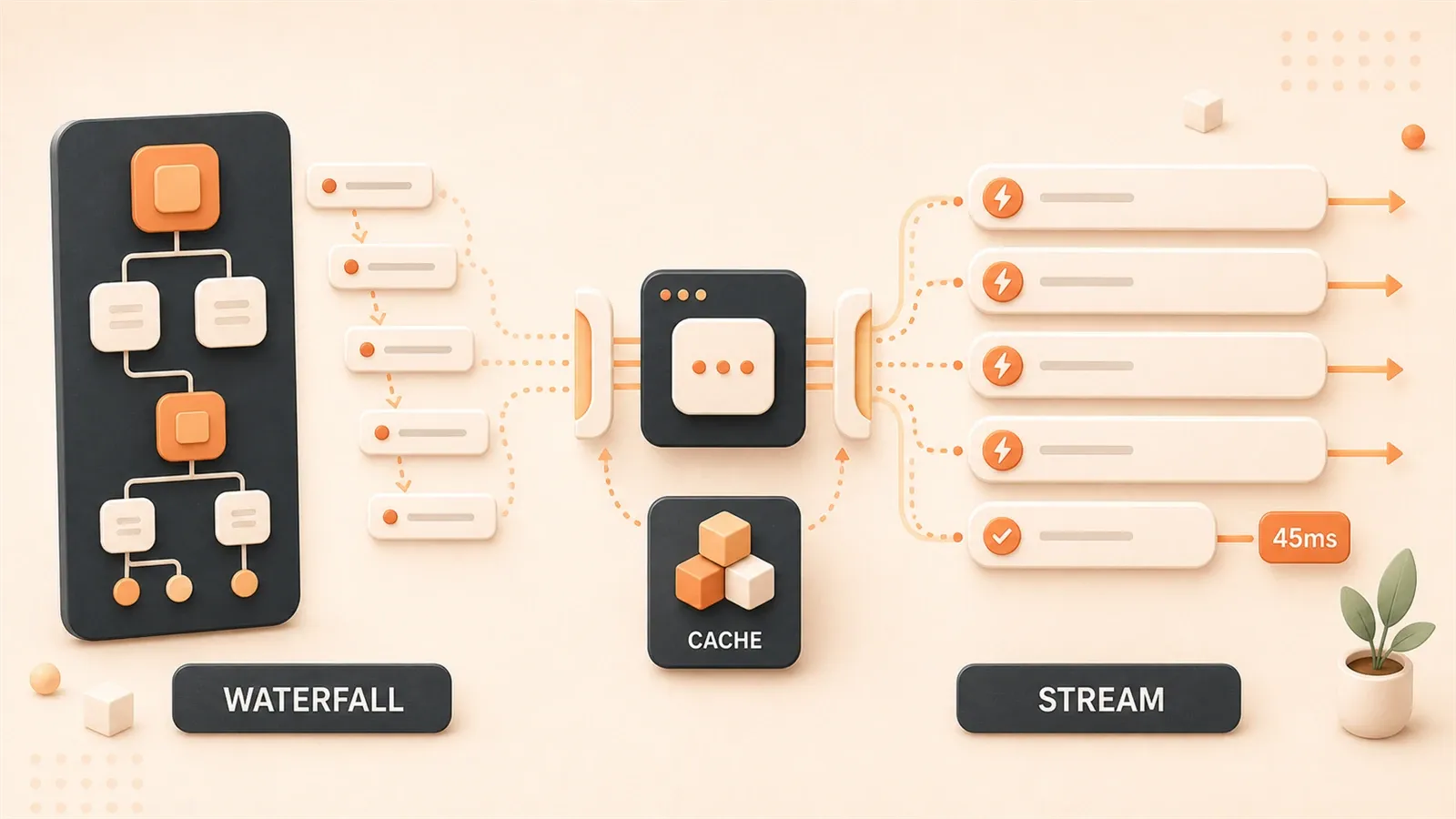
If your RSC pages still show 300–500ms TTFB, you may be leaving most of the win on the table. With streaming done right, we’ve seen TTFB near 45ms—not magic, just Suspense boundaries in the right places.
An ecommerce detail page last year: App Router enabled, TTFB stuck around 380ms. Nested fetches waterfall—product, then reviews, then price, then stock. Nine seconds of white screen.
We’ll compare four ways to break waterfalls, when to use five cache APIs, and a template you can paste. TTFB from 450ms to 45ms is often boundary placement.
The Waterfall Problem: RSC’s Biggest Performance Killer
Let’s look at a real scenario. You open a product detail page on an e-commerce site. The product name loads, then you wait 3 seconds for the price to appear, then another 5 seconds for reviews. User experience? A disaster.
This is the waterfall problem. Nested components fetch their own data, executing sequentially instead of in parallel. React Server Components’ data fetching is synchronous by default — any request with await blocks rendering unless you wrap it in Suspense.
Two Forms of Waterfalls
Type 1: Server-internal waterfall. Within the same page, the parent component fetches data before rendering child components, which then fetch their own data. Typical code:
// Waterfall example — this is problematic code
async function ProductPage({ id: string }) {
  // First request: 1 second
  const product = await db.getProduct(id);

  // These requests only start after child components render
  return (
    <div>
      <ProductDetails product={product} />
      <ProductPrice id={id} />      {/* Internal await getPrice(id), 3 seconds */}
      <ProductReviews id={id} />    {/* Internal await getReviews(id), 5 seconds */}
    </div>
  );
}

// ProductPrice.tsx
async function ProductPrice({ id }) {
  const price = await getPrice(id);  // Executes after parent renders
  return <span>{price}</span>;
}
Total time? 9 seconds. Users stare at a blank page for 9 seconds.
Type 2: Client-Server waterfall. Client components request from the server, which then requests from the database. This is more subtle — you’ll only catch it with React DevTools Profiler. It’s a variant of the N+1 problem.
How to Identify Waterfalls
Open React DevTools Profiler and record a page load. If the timeline shows distinct stair-step request distribution — each request waiting for the previous one to complete — you have a waterfall.
There’s an even more intuitive method. Open your browser’s Network panel and check request start times. If data requests are scattered rather than fired together, the problem is clear.
Interestingly, many developers assume using RSC automatically delivers performance gains. Not quite. According to SitePoint’s 2026 report, most teams only unlock about 30% of RSC’s performance potential. The reason? Untreated waterfalls.
Four Solutions Compared: From Blunt to Elegant
There are four mainstream solutions to the waterfall problem. From simple to complex, blunt to elegant.
Solution 1: Promise.all Parallel Fetching
The most direct approach. Fire all requests together, wait for all to complete with Promise.all.
// Solution 1: Promise.all parallel fetching
async function ProductPage({ id: string }) {
  // Fire all requests simultaneously
  const [product, price, reviews] = await Promise.all([
    getProduct(id),      // 1 second
    getPrice(id),        // 3 seconds
    getReviews(id),      // 5 seconds
  ]);

  return (
    <div>
      <ProductDetails product={product} />
      <ProductPriceDisplay price={price} />
      <ProductReviewsList reviews={reviews} />
    </div>
  );
}
Total time? 5 seconds. The slowest request determines the overall time.
Pros: Simple, minimal changes.
Cons: Users still wait for the slowest request before seeing anything. Another issue — data coupling. The parent component needs to know what data child components need, violating component independence.
Solution 2: Suspense Boundary Isolation
Add Suspense around data-dependent parts to show critical content first.

// Solution 2: Suspense boundary isolation
async function ProductPage({ id: string }) {
  const product = await getProduct(id);  // Wait for critical data first

  return (
    <div>
      <ProductDetails product={product} />  {/* Shows after 1 second */}

      {/* Non-critical parts wrapped in Suspense */}
      <Suspense fallback={<PriceSkeleton />}>
        <ProductPrice id={id} />
      </Suspense>

      <Suspense fallback={<ReviewsSkeleton />}>
        <ProductReviews id={id} />
      </Suspense>
    </div>
  );
}
User experience: Product info appears in 1 second, price in 3 seconds, reviews load in 5 seconds.
Pros: Critical content shows first, better perceived performance.
Cons: Data requests still fire sequentially. ProductPrice and ProductReviews requests start only after the parent component renders, not truly parallel.
Solution 3: Passing Promises as Props
The parent component starts all requests and passes Promises as props to child components. Child components await themselves.
// Solution 3: Promise passing pattern
async function ProductPage({ id: string }) {
  // Start all requests immediately, don't await
  const productPromise = getProduct(id);
  const pricePromise = getPrice(id);
  const reviewsPromise = getReviews(id);

  // Only await critical data
  const product = await productPromise;

  return (
    <div>
      <ProductDetails product={product} />

      <Suspense fallback={<PriceSkeleton />}>
        <ProductPrice pricePromise={pricePromise} />
      </Suspense>

      <Suspense fallback={<ReviewsSkeleton />}>
        <ProductReviews reviewsPromise={reviewsPromise} />
      </Suspense>
    </div>
  );
}

// ProductPrice.tsx — receives Promise
async function ProductPrice({ pricePromise }) {
  const price = await pricePromise;  // Reuse Promise started by parent
  return <span>{price}</span>;
}
All three requests start simultaneously in the parent. Critical data shows in 1 second, price in 3 seconds, reviews in 5 seconds.
Pros: All requests fire in parallel, critical content shows first, data decoupled (child components receive Promises, not data).
Cons: Requires changing component interfaces — child components go from receiving id to receiving a Promise.
Solution 4: React cache() + preload (Recommended)
React 19 introduced the cache() API. Combined with the preload pattern, this is the most elegant solution.
// Solution 4: React cache() + preload
import { cache } from 'react';

// Wrap data fetching function with cache
const getComments = cache(async (postId: string) => {
  return db.getComments(postId);
});

// Export preload function, clearly marking its purpose
export const preloadComments = (id: string) => {
  void getComments(id);  // Don't await, start but don't block
};

// Parent component
async function PostPage({ postId: string }) {
  preloadComments(postId);  // Preload comments

  const post = await getPost(postId);  // Only await critical data

  return (
    <div>
      <PostContent post={post} />
      <Suspense fallback={<CommentsSkeleton />}>
        <Comments postId={postId} />  {/* Use id directly, cache auto-reuses */}
      </Suspense>
    </div>
  );
}

// Comments.tsx — component interface unchanged
async function Comments({ postId }) {
  const comments = await getComments(postId);  // Reuse preloaded Promise
  return <CommentList comments={comments} />;
}
How it works: The cache() function automatically memoizes within the same render cycle. Preload triggers the request without waiting, and when child components await, they reuse the same Promise.
Pros:
- Component interface stays the same (still pass
id) - Requests auto-memoized, no data coupling
- When child components are deleted, the preload becomes dead code — easy to spot
Cons: Requires understanding the cache() mechanism, watch for hidden coupling (delete preload when deleting Comments component).
Comparing the Four Solutions
| Solution | Total Time | Critical Content Visible | Data Coupling | Change Cost |
|---|---|---|---|---|
| Sequential fetch | 9s | 9s | None | None |
| Promise.all | 5s | 5s | Yes | Low |
| Suspense | 5s | 1s | None | Low |
| Promise passing | 5s | 1s | Decoupled | Medium |
| cache() + preload | 1s | 1s | None | Medium |
Choose based on your team’s situation. For quick migrations, use Solution 2. For new projects, Solution 4 is recommended.
Streaming Rendering Architecture: The Secret to 45ms TTFB
Traditional SSR works like this: wait for all data fetching to complete, render the full HTML, send it to the browser in one shot. TTFB (Time to First Byte) equals data fetching time plus rendering time.
Specific numbers: database query 400ms, rendering 50ms, TTFB around 450ms. Users stare at a blank page for nearly half a second.
How RSC Streaming Changes This Flow
The core of streaming rendering isn’t about reducing anything — it’s about changing the order content reaches users. Static parts are sent immediately; dynamic parts stream in later.
// Streaming architecture example
export default async function Dashboard() {
  return (
    <Layout>                          {/* Static shell, no Suspense wrap */}
      <Nav />                         {/* Renders immediately */}
      <Sidebar />                     {/* Renders immediately */}

      <Suspense fallback={<ChartSkeleton />}>
        <DynamicChart />               {/* Dynamic data, streams in */}
      </Suspense>

      <Suspense fallback={<TableSkeleton />}>
        <DataTable />                  {/* Dynamic data, streams in }}
      </Suspense>
    </Layout>
  );
}
Workflow breakdown:
- T=0ms: Static shell (Layout, Nav, Sidebar) sent immediately from CDN edge cache
- T=30-50ms: Browser starts rendering static shell, shows skeletons
- T=200ms: DynamicChart data fetching completes, corresponding Suspense boundary content streams in
- T=400ms: DataTable data fetching completes, corresponding content streams in
TTFB? Around 45ms. Just the time to send the static shell.
The Role of PPR (Partial Prerendering)
PPR is a Next.js 15 feature, and Next.js 16 will enable it by default. It pre-renders static parts to CDN while keeping dynamic parts streaming.
Configuration:
// next.config.js — Next.js 15
module.exports = {
  experimental: {
    ppr: true,  // Enable PPR
  },
};

// next.config.js — Next.js 16 (preview)
module.exports = {
  experimental: {
    ppr: 'incremental',  // Gradual enablement
    cacheComponents: true,  // New caching model
  },
};
With PPR enabled, the static shell (navigation, layout, skeletons) is pre-rendered and stored in CDN. When users visit, CDN immediately returns static HTML while the server streams dynamic parts.
Suspense Boundary Design Principles
Key principle: Forgetting to mark streaming blocks with Suspense causes React to treat the entire app as one giant block.
Correct approach:
- Don’t wrap static parts in Suspense: Navigation, Layout, skeletons that don’t depend on data
- Do wrap dynamic parts in Suspense: Components that depend on databases/APIs
// Correct example
export default async function Page() {
  return (
    <>
      <Header />                     {/* Static, no wrap */}
      <main>
        <Suspense fallback={<HeroSkeleton />}>
          <HeroSection />             {/* Dynamic, wrapped */}
        </Suspense>

        <Suspense fallback={<ContentSkeleton />}>
          <MainContent />             {/* Dynamic, wrapped */}
        </Suspense>
      </main>
      <Footer />                      {/* Static, no wrap */}
    </>
  );
}
Wrong example (entire page blocks):
// Wrong example — forgot Suspense
export default async function Page() {
  const data = await fetchDashboard();  // await blocks entire page
  return (
    <>
      <Header />
      <Dashboard data={data} />
      <Footer />
    </>
  );
}
Without Suspense boundaries, the entire page is treated as one streaming block. TTFB stays at 450ms.

Performance Data Comparison
| Rendering Mode | TTFB | LCP | Notes |
|---|---|---|---|
| Traditional SSR | ~450ms | ~500ms | Waits for all data |
| RSC (no Suspense) | ~450ms | ~500ms | Same as traditional SSR |
| RSC Streaming | ~45ms | ~200ms | Static shell sent immediately |
| RSC + PPR | ~30ms | ~150ms | CDN caches static shell |
Source: SitePoint 2026 report. Actual numbers may vary based on data sources and CDN configuration.
Five Cache API Usage Guide
Next.js and React provide five caching mechanisms. Choose correctly and you’ll get twice the results with half the effort. Choose wrong and you might create duplicate requests.
1. fetch cache (Most Common)
Fetch requests in Server Components are automatically memoized. Within the same render cycle, requests with identical URLs and parameters only fire once.
// fetch cache example
async function ProductCard({ id }) {
  // Auto-cached, same URL won't request twice
  const res = await fetch(`https://api.example.com/products/${id}`, {
    cache: 'force-cache',      // Force cache (default)
    next: {
      revalidate: 3600,         // Revalidate after 1 hour
      tags: ['products'],       // Tag for revalidateTag
    },
  });
  return <Card data={res.json()} />;
}

async function ProductList() {
  // This request reuses the above cache
  const res = await fetch('https://api.example.com/products', {
    next: { tags: ['products'] },
  });
  return <List data={res.json()} />;
}
Configuration options:
cache: 'force-cache': Prefer cache (default)cache: 'no-store': Re-request every timenext.revalidate: Time-based revalidation (seconds)next.tags: Tags for manual refresh with revalidateTag
2. React cache() (New in React 19)
For caching function call results. Use for database queries, custom data fetching functions.
import { cache } from 'react';

// Wrap database query with cache
export const getUser = cache(async (id: string) => {
  const user = await db.query('SELECT * FROM users WHERE id = ?', [id]);
  return user;
});

// Use in multiple components, auto-memoized
async function UserProfile({ id }) {
  const user = await getUser(id);
  return <Profile user={user} />;
}

async function UserStats({ id }) {
  const user = await getUser(id);  // Reuses above result
  return <Stats user={user} />;
}Note: cache() only works within the same render cycle. For cross-request persistence, use unstable_cache.
3. unstable_cache (Next.js 14-15)
Persistent cache across requests. Use for expensive computations, data shared across pages.
import { unstable_cache } from 'next/cache';

// Wrap function, add persistent cache
export const getPopularProducts = unstable_cache(
  async () => {
    const products = await db.getPopularProducts();
    return products;
  },
  ['popular-products'],           // Cache key
  {
    revalidate: 3600,              // Revalidate after 1 hour
    tags: ['products', 'popular'], // Multiple tags
  }
);

// Usage
async function HomePage() {
  const products = await getPopularProducts();
  return <ProductGrid products={products} />;
}
Manual refresh:
import { revalidateTag } from 'next/cache';

// In Server Action or API Route
async function updateProduct() {
  await db.updateProduct();
  await revalidateTag('products');  // Refresh all cache with products tag
}
4. use cache (New in Next.js 16)
Component-level cache directive. Add ‘use cache’ at the top of a function or component, and output is automatically cached.
// Function-level 'use cache'
'use cache';
export async function getRecommendations(userId: string) {
  return db.getRecommendations(userId);
}

// Component-level 'use cache'
'use cache';
export async function CachedFooter() {
  const links = await getFooterLinks();
  return <Footer links={links} />;
}
Use cases: Frequently accessed components, static content. Experimental feature, officially supported in Next.js 16.
5. revalidatePath / revalidateTag
Methods for manual cache refresh.
import { revalidatePath, revalidateTag } from 'next/cache';

// Refresh by path
await revalidatePath('/products');      // Refresh all cache for that path
await revalidatePath('/products/[id]', 'page');  // Refresh specific page

// Refresh by tag
await revalidateTag('products');        // Refresh all cache with products tag
Selection guide:
- For precise control, use revalidateTag (recommended)
- For batch refresh, use revalidatePath
Cache API Comparison
| API | Cache Scope | Persistent | Use Case | Version |
|---|---|---|---|---|
| fetch cache | Single request | Configurable | API requests | Next.js 13+ |
| React cache() | Single render cycle | No | Database queries, custom functions | React 19 |
| unstable_cache | Cross-request | Yes | Expensive computations, shared data | Next.js 14-15 |
| use cache | Function/component level | Yes | Frequently accessed components | Next.js 16 |
| Cache Components | Component output | Yes | With PPR | Next.js 16 |
Practical Configuration Templates and Common Pitfalls
Theory’s done. Here are copy-paste configurations.
Complete next.config.js
// next.config.mjs
/** @type {import('next').NextConfig} */
const nextConfig = {
  experimental: {
    // Next.js 15: Enable PPR
    ppr: true,

    // Next.js 16: New cache model
    // cacheComponents: true,  // Enable in production
  },

  // Performance related
  images: {
    formats: ['image/avif', 'image/webp'],
  },

  // Output optimization
  output: 'standalone',  // For Docker deployment
};

export default nextConfig;
preload Function Export Standards
preload functions can create hidden coupling. When deleting deep child components, the preload might become dead code.
Recommended practice: Add comments above preload functions marking their purpose.
// comments.ts
import { cache } from 'react';

const getComments = cache(async (postId: string) => {
  return db.getComments(postId);
});

/**
 * preloadComments: Preloads comment data for Comments component
 * Note: Delete this preload function when removing Comments component
 */
export const preloadComments = (id: string) => {
  void getComments(id);
};

export async function Comments({ postId }) {
  const comments = await getComments(postId);
  return <CommentList comments={comments} />;
}
Common Pitfall Cases
Pitfall 1: Forgetting Suspense Boundaries
Symptoms: Entire page TTFB still at 450ms, no streaming effect.
Cause: No Suspense boundaries, React treats the entire page as one streaming block.
Solution: Add Suspense to data-dependent components.
// Before fix
async function Page() {
  const data = await getData();  // Blocks entire page
  return <Dashboard data={data} />;
}

// After fix
async function Page() {
  return (
    <Suspense fallback={<DashboardSkeleton />}>
      <Dashboard />
    </Suspense>
  );
}
Pitfall 2: preload But Unused
Symptoms: Request fires but data unused, wasting resources.
Cause: Deleted child component but kept preload function.

Solution: Delete preload when deleting component, or use comments to mark relationships.
Pitfall 3: Cache Tag Conflicts
Symptoms: revalidateTag refreshes too broadly, data that shouldn’t refresh gets refreshed.
Cause: Multiple unrelated caches use the same tag.
Solution: Use different tags for different business data.
// Wrong example
await fetch(url, { next: { tags: ['data'] } });  // All data uses 'data' tag
await revalidateTag('data');  // Refreshes all data cache

// Correct example
await fetch(productsUrl, { next: { tags: ['products'] } });
await fetch(usersUrl, { next: { tags: ['users'] } });
await revalidateTag('products');  // Only refresh products
Pitfall 4: Mixing fetch cache with React cache
Symptoms: Same data fires two requests.
Cause: fetch used ‘no-store’, React cache() can’t reuse it.
Solution: Use force-cache or default configuration with fetch, so React cache can reuse.
// Wrong example
const data1 = await fetch(url, { cache: 'no-store' });  // No caching
const data2 = await getData();  // React cache wrapper, but can't reuse

// Correct example
const data1 = await fetch(url);  // Default force-cache
const data2 = await getData();  // Can reuse
Debugging Tools
- React DevTools Profiler: Record render process, see waterfall distribution
- Next.js Analysis Tools:
next build --experimental-debugoutputs build analysis - Chrome DevTools: Network panel for request timing, Performance panel for render timing
Key metrics:
- TTFB: Time to First Byte, target < 100ms
- LCP: Largest Contentful Paint, target < 2.5s
- CLS: Cumulative Layout Shift, target < 0.1
Migration Recommendations
Migrating from existing SSR pages to RSC streaming:
- Identify waterfalls first: Use Profiler to record, find sequential data fetching
- Add Suspense boundaries: Add Suspense to data-dependent components, critical paths first
- Add preload: Use cache() + preload for deep components
- Configure cache: Add tags to fetch for precise refresh control
Migrate gradually, don’t refactor everything at once. Handle the slowest pages first, measure gains, then expand.
Summary
After all this, the core comes down to three steps: identify waterfalls, choose a solution, configure streaming architecture.
Waterfall problems are easy to identify — nested components each awaiting data, showing stair-step patterns on the timeline. Four solutions each have their place: for quick migrations use Suspense boundaries, for new projects use React cache() + preload.
The key to streaming architecture is Suspense boundary placement. Static parts (navigation, Layout) don’t get wrapped, dynamic parts (data-dependent components) must be wrapped. Forget this boundary and the entire page still blocks rendering.
Performance gains are quantifiable: TTFB drops from 450ms to 45ms — a 10x difference. What’s in between is just a few Suspense boundaries and a preload function.
Now open your Next.js project and check if any nested components are fetching data independently. If TTFB is still above 300ms, try wrapping critical content in Suspense. Your users will feel the difference immediately.
References
- Data Fetching Patterns and Best Practices — Next.js Official Documentation
- React Server Components Streaming Performance Guide 2026 — SitePoint, 2026-02
- Avoiding Server Component Waterfall Fetching with React 19 cache() — Aurora Scharff, 2025-02
- Avoiding Waterfalls in React Server Components — Akhila Ariyachandra, 2026-01
- Functions: revalidatePath — Next.js Official Documentation
- Functions: revalidateTag — Next.js Official Documentation
- Partial Prerendering (PPR) — Next.js Official Documentation
- React v19 Release — React Official Blog
React Server Components Performance Optimization Process
Complete optimization steps from waterfall identification to streaming architecture configuration
⏱️ Estimated time: 60 min
- 1
Step 1: Identify Waterfall Issues
Use React DevTools Profiler to record page load:
• Open Chrome DevTools, switch to Profiler tab
• Click record, refresh page, wait for load to complete
• Check request distribution on timeline
• Stair-step pattern = waterfall problem
• Watch if TTFB exceeds 300ms - 2
Step 2: Choose Solution
Select based on team situation:
• Quick migration: Solution 2 (Suspense boundary isolation)
• New project: Solution 4 (React cache() + preload)
• Can tolerate data coupling: Solution 1 (Promise.all)
• Keep component interface: Solution 4 (recommended) - 3
Step 3: Add Suspense Boundaries
Add Suspense to data-dependent components:
• Don't wrap static parts (navigation, Layout)
• Must wrap dynamic parts (data-dependent components)
• Provide appropriate fallback skeletons
• Handle critical paths first - 4
Step 4: Configure React cache() + preload
Use React 19 cache() API:
• Wrap data fetching functions with cache
• Export preload function, don't await
• Add comments marking relationships
• Delete preload when deleting component - 5
Step 5: Configure Cache Strategy
Choose appropriate cache API:
• fetch cache: API requests (most common)
• React cache(): Database queries
• unstable_cache: Cross-request sharing
• Add tags to cache for precise refresh - 6
Step 6: Measure Performance Gains
Verify optimization results:
• TTFB target: < 100ms
• LCP target: < 2.5s
• CLS target: < 0.1
• Compare performance data before and after
FAQ
What is the waterfall problem in React Server Components?
How do I choose between the four waterfall solutions?
• Promise.all: Simple and direct, good for quick fixes, but still has data coupling
• Suspense boundaries: Critical content shows first, good for quick migrations
• Promise passing: All requests parallel, good when component interfaces can change
• React cache() + preload: Most elegant solution, good for new projects (recommended)
Where should I place Suspense boundaries?
What's the difference between the five cache APIs?
• fetch cache: API requests, auto-memoized (Next.js 13+)
• React cache(): Database queries, single render cycle cache (React 19)
• unstable_cache: Cross-request persistence, expensive computations (Next.js 14-15)
• use cache: Function/component level cache (Next.js 16)
• revalidatePath/Tag: Manual cache refresh
How do I measure RSC performance optimization results?
What is PPR (Partial Prerendering)?
What are common cache configuration pitfalls?
• Forgetting Suspense boundaries: Entire page blocks, TTFB unchanged
• Preload but unused: Deleted component but kept preload, wasting requests
• Cache tag conflicts: revalidateTag refreshes too broadly
• Mixing fetch cache with React cache: Using no-store prevents reuse
15 min read · Published on: May 13, 2026 · Modified on: Jul 14, 2026

Next.js: App Router, Auth, APIs, and Production
If you landed here from search, the fastest way to build context is to jump to the previous or next post in this same series.
Previous
Next.js App Router + shadcn/ui: A Guide to Mixing Server and Client Components
A practical guide to properly mixing Server Components and Client Components in Next.js App Router, including shadcn/ui integration patterns, data flow design, common error fixes, and performance optimization tips
Part 46 of 51
Next
NextAuth.js Starter Guide: Complete Tutorial on Credentials Login and Session Management
Struggling with NextAuth.js? This guide focuses on Credentials login, JWT vs Session choices, complete code examples, and common pitfalls. Perfect for Next.js developers diving into authentication.
Part 48 of 51


Comments
Sign in with GitHub to leave a comment