
Cursor @Codebase vs @Docs vs @Files: A Practical Decision Guide
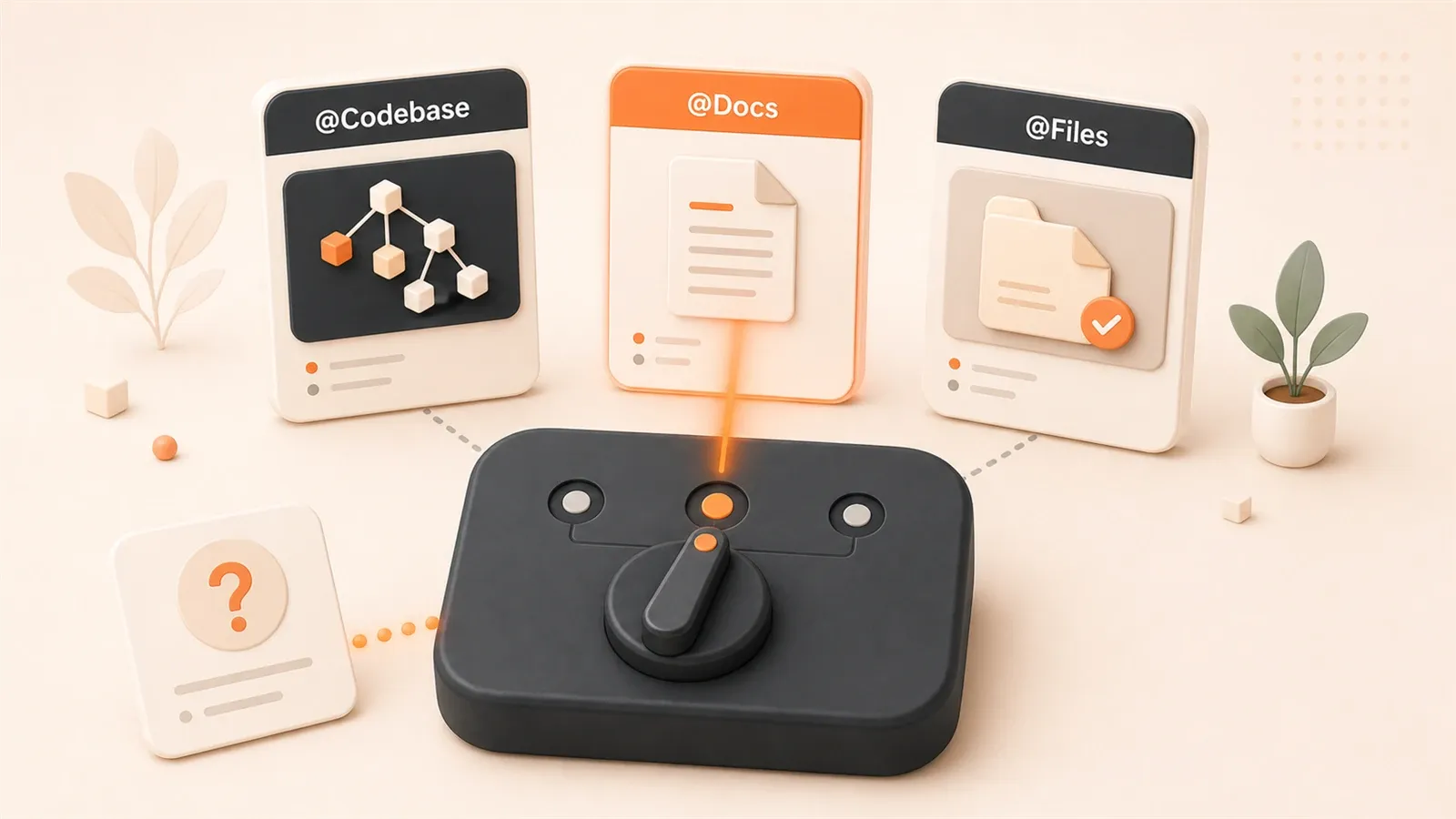
Cursor’s @ symbol system looks straightforward: @Codebase, @Files, @Docs—just click to add context for AI. But in practice, many developers get stuck on one question: you know what code you’re looking for, but you don’t know which symbol to use.
Choose the wrong one, and AI either stuffs in a pile of irrelevant content or can’t find the file you actually need. Over time, conversation history fills with repeated queries, tokens get burned, and problems remain unresolved.
This article won’t cover feature definitions. Instead, it focuses on one thing: in specific scenarios, how to quickly decide which @ symbol to use. After reading, you’ll have a clear decision framework—no more hesitation every time.
1. @ Symbol System Core Comparison: 6 Functions at a Glance
Let’s start with a key insight: according to BetterLink Blog’s real-world statistics, you should spend 80% of your development time using @Codebase, not manually picking files. This number sounds exaggerated, but the logic is simple—@Codebase’s core advantage isn’t search, but letting AI help you discover related code you might overlook.
Here are the 6 symbols, ranked by usage frequency from high to low:
@Codebase (60-80%): Full-repo semantic search. You ask a question, and AI automatically finds the most relevant files, functions, and type definitions in the codebase. No need to know file locations or manually select. Use cases include: understanding project architecture, code refactoring, cross-file problem diagnosis. Token consumption is relatively high because indexing covers the entire codebase.
@Docs (10-15%): Reference external documentation. You can directly call built-in framework documentation (React, Vue, Astro) or add custom documentation sources via URL. Use cases: using newly released libraries, checking latest API specifications, integrating team knowledge bases.
@Files (5-10%): Precisely reference a file’s complete content. Use this when you clearly know the filename or need to modify config files (like vite.config.ts). For files over 600 lines, @Files is more precise than @Codebase. The tradeoff is higher token consumption since the entire file content enters the context.
@Code (5-10%): Reference a precise code snippet. Only includes the code you select, not the entire file. Use cases: local code optimization, debugging small logic sections, avoiding file-level context pollution. Lowest token consumption.
@Folders (under 5%): Reference an entire directory’s structure and content overview. Use cases: module refactoring, generating new components, checking architectural consistency. High token consumption, involves multiple files.
@Repo (specific scenarios): Repository context. Use cases: multi-repo projects, analyzing version history, cross-repo problem diagnosis. Medium token consumption.
These 6 symbols aren’t mutually exclusive—you can combine them in the same conversation. For example, first use @Codebase to get global information, then @Files to lock in key files, and finally @Docs to supplement official documentation. The key is: choose based on problem type, don’t blindly stack them.
2. Decision Tree: Problem Type → @ Symbol Selection
The core logic for choosing a symbol comes down to one question: Do you know where the code is?
If you don’t know, use @Codebase. If you do know, use @Files or @Code. If documentation is also needed, add @Docs.
Let’s break this down:
Scenario 1: Don’t Know File Location
For example, you’re refactoring a Next.js project and suddenly want to modify an API’s return format, but you’re not sure which file contains the type definition—it might be in types/, or components/, or even casually defined in some utils.ts.
In this case, use @Codebase. Just write in Chat: “Help me find the definition of ApiResponse type and modify the return format.” AI automatically scans the entire codebase, finding all places that reference this type, including that utils.ts you might have overlooked.
Scenario 2: Clearly Know Filename
For example, you want to modify proxy configuration in vite.config.ts, or refactor a function in src/utils/auth.ts. The file path is clear, and the content is relatively long (over 600 lines).
Use @Files. Click @Files, select the target file, and AI gets the complete content. This is more precise than @Codebase, avoiding AI returning a bunch of “relevant but unimportant” files.
Scenario 3: Need to Check Latest Documentation
For example, you’re using a library released last week, or checking the latest API usage for a framework (training data might not cover it).

Use @Docs. Type @Docs, select built-in framework documentation, or paste a URL to add a new documentation source. The key is: you must emphasize “use the latest approach from the documentation” in your prompt, otherwise AI might use the old API version from its memory.
Scenario 4: Only Focus on a Specific Code Snippet
For example, you’re debugging a function’s logic, only need to optimize a few lines of code, and don’t want to stuff the entire file into context.
Use @Code. Select that code, press Cmd+K to trigger inline edit, or use @Code reference in Chat. Lowest token consumption, cleanest context.
Scenario 5: Module Refactoring or Generating New Components
For example, you want to refactor the entire components/ directory, or generate a new features/ module, and need to ensure architectural consistency.
Use @Folders. It gets the directory structure overview and key file contents, allowing AI to understand the entire module’s organization and generate code that matches existing styles.
Scenario 6: Multi-Repo or Version History Analysis
For example, your project depends on multiple Git repositories, or you need to analyze the impact scope of a certain commit.
Use @Repo. It provides Repository context, including version history and cross-repo dependency relationships.
In short, the core of the decision tree is one sentence: Unsure of location, use @Codebase; certain of location, use @Files/@Code; missing documentation, use @Docs. The remaining two symbols (@Folders, @Repo) are supplements for specific scenarios.
3. @Codebase vs @Files: Core Differences and Real-World Examples
These two symbols are the most easily confused, and the difference comes down to one point: AI helps you find it, or you point to it yourself.
@Codebase’s value isn’t “search” but “discovery”. You ask a question, AI does semantic matching across the entire codebase, returning the most relevant files, functions, and type definitions. The key is: it might return files you didn’t expect. For example, if you ask “how to modify API return format”, AI might return:
- API handler file (what you expected)
- Type definition file (what you probably knew about)
- Some type alias casually defined in a utils.ts (what you might overlook)
- Mock data in some test file (what you might not have noticed at all)
This is @Codebase’s core advantage: AI discovers related code you might overlook.
@Files’ value is “precision”. You explicitly specify the file, AI gets the complete content, no ambiguity. The tradeoff is: you need to know where the file is, and you bear higher token consumption (entire file content enters context).
Real-World Example 1: API Return Format Modification (@Codebase More Suitable)
Scenario: You have a Next.js API with the following return format:
// src/app/api/users/route.ts
export async function GET(request: Request) {
  const users = await db.query('SELECT * FROM users');
  return Response.json({ data: users, total: users.length });
}
You want to change the return format to { users, count }, but you’re not sure where the type definition is.
If you use @Files, you have to manually find all related files: route.ts, some possible types.ts, frontend components that call this API. This process easily misses files.
With @Codebase, just write in Chat:
@Codebase
Help me modify the user API return format from { data, total } to { users, count }.
Need to synchronously modify all related type definitions and frontend calling code.
AI will return:
Found the following related files:
1. src/app/api/users/route.ts - API handler
2. src/types/api.ts - ApiResponse type definition
3. src/components/UserList.tsx - Frontend component (calls this API)
4. src/utils/mock.ts - Test mock data (also uses this format)
You can immediately see that mock.ts also uses this format—a file you hadn’t noticed before.
Real-World Example 2: vite.config.ts Configuration Optimization (@Files More Suitable)
Scenario: You want to modify Vite’s proxy configuration. The file path is clear: vite.config.ts.
// vite.config.ts
export default defineConfig({
  server: {
    proxy: {
      '/api': 'http://localhost:3000'
    }
  }
})
The goal is to change the proxy to support multiple environments (development, testing, production).
In this case, @Files is more suitable. Reasons:
- File location is clear
- Content isn’t long (usually 50-200 lines)
- No need for cross-file search
Write in Chat:
@Files vite.config.ts
Help me modify the proxy configuration to support multiple environments (development, testing, production).
Read environment configuration from .env.development, .env.test, .env.production.
AI gets the complete vite.config.ts and directly gives you a modification plan:
// vite.config.ts
export default defineConfig(({ mode }) => {
  const env = loadEnv(mode, process.cwd(), '');
  return {
    server: {
      proxy: {
        '/api': env.API_URL || 'http://localhost:3000'
      }
    }
  }
})
Summary: Don’t know location, or need to discover hidden relationships, use @Codebase; know location, or file is long and needs complete understanding, use @Files.
4. @Docs: New Library Usage and Documentation Integration
The problem @Docs solves is: AI’s training data can’t keep up with documentation updates.
For example, you’re using a library released last week, or a framework just changed its API usage (React 19’s new hooks, Next.js 15’s Turbopack). AI’s training data might be stuck from a few months ago, generating code with old API versions.
@Docs’ principle: It retrieves your specified documentation in real-time, parses the content, and stuffs it into context. When generating code, AI prioritizes referencing the latest specifications from the documentation.
Usage
The operation is simple:
- Type
@Docsin Chat - Select built-in framework documentation (React, Vue, Astro, Tailwind, Next.js, etc.)
- Or paste a URL to add a custom documentation source
Custom documentation sources are very practical. For example, if your team has an internal knowledge base (Feishu docs, GitHub Wiki), you can add the URL, and AI can reference team specifications when generating code.
Real-World Example: React 19 New Hooks
Suppose you want to use React 19’s useOptimistic hook but aren’t sure about the latest usage.

Just write in Chat:
@Docs React
Help me implement an optimistic update feature using React 19's useOptimistic hook.
Scenario: Like button, immediately show +1 after clicking, wait for server confirmation.
AI will first retrieve React official documentation, get the latest useOptimistic API documentation, then generate code that follows specifications:
import { useOptimistic } from 'react';

function LikeButton({ initialLikes, onSubmit }) {
  const [optimisticLikes, addOptimisticLike] = useOptimistic(
    initialLikes,
    (state, newLike) => state + newLike
  );

  async function handleClick() {
    addOptimisticLike(1); // Immediately show +1
    await onSubmit();     // Wait for server confirmation
  }

  return <button onClick={handleClick}>{optimisticLikes} Likes</button>;
}
Note: Training Data Might Override @Docs
There’s a pitfall to watch for: AI might reference both training data and @Docs. If old usage from training data has a “deeper impression”, AI might mix new and old APIs, generating strange code.
Solution: Emphasize “use the latest approach from the documentation” in your prompt.
For example:
@Docs React
Please use the latest approach from the documentation (React 19), don't use old APIs from training data.
This makes AI prioritize referencing @Docs content, reducing the impact of old versions.
When Should You Use @Docs?
Simple judgment: If the library/framework release date is later than AI training cutoff, or has major API updates, use @Docs.
For example:
- React 19 (released late 2024, major API updates)
- Next.js 15 (late 2024, Turbopack enabled by default)
- Supabase latest features (real-time updated documentation)
- Team internal specifications (AI training data can’t have this)
If the library is relatively stable (React 18, Vue 3, Tailwind 3) and training data covers it well, @Docs isn’t as necessary.
5. Context Management Best Practices
Using @ symbols well is just the first step; the second step is managing context properly. Many developers have stepped into this pitfall: the longer the conversation history, the more AI’s understanding drifts, eventually generating code that completely deviates from the original intent.
Core Principle: Keep Conversations Short, Separate Features
After completing a feature, restart the conversation. Don’t mix “refactor API”, “fix bug”, and “add new feature” in the same conversation.
Why? Because each feature needs different contexts. When refactoring APIs, AI needs type definitions, API handlers, and frontend calling code; when fixing bugs, AI needs error logs, related code snippets, and test cases. Mix them together, and context becomes increasingly cluttered, AI’s understanding becomes increasingly fuzzy.
Simple operation: Click “Clear Chat” in the top right of the Chat panel, or press the shortcut to start a new conversation.
Small Edits vs Complex Tasks
Use different approaches for two types of scenarios:
Small Edits (change one line of code, adjust one parameter): Use inline edit (Cmd+K). Select target code, press Cmd+K, enter modification instructions. Current file and selected content automatically become context, no additional setup needed.
Complex Tasks (refactor modules, generate new components): Use Chat + @-mentions. First @Codebase to get global information, then @Files to lock in key files, finally write clear task descriptions. This way context is more complete, AI’s understanding is more accurate.
Index Optimization: Use .cursorignore to Exclude Distracting Files
@Codebase’s indexing covers the entire repository, but not all files need AI to see.
For example:
node_modules/(dependency libraries, AI doesn’t need)dist/,build/(build artifacts).env,.env.local(sensitive configuration)- Large static assets (images, videos)
Use a .cursorignore file to exclude these directories. Maintain it separately from .gitignore. The principle is: Does AI need to see this file?
# .cursorignore
node_modules/
dist/
build/
.env
.env.local
*.log
*.png
*.jpg
This makes @Codebase’s index range more precise, query speed faster (5-10 seconds drops to 2-3 seconds), and returned results more relevant.
Regularly Update README.md
An easily overlooked habit: Record project status and structure in README.md.
Why? Because README.md is one of the key files @Codebase indexes. When AI understands project architecture, it prioritizes referencing README. If your README clearly documents:
- Project structure (directory explanations)
- Core modules (which files handle what functions)
- Recent changes (new features, refactoring plans)
AI can understand the big picture faster when handling complex tasks, reducing repeated queries.
Pro User Advantage: Wider Index Range
Cursor Pro users can index the semantics of the entire codebase, while Free users have index range limits. If your project exceeds 500 files, Pro’s @Codebase will be noticeably more effective.
But this doesn’t mean Free users can’t use it. The key is still: manage context well, use symbols correctly, exclude distracting files. Pro is icing on the cake, not essential.
6. Common Problems and Solutions FAQ
Problem 1: @Codebase Returns Results Inconsistent with Codebase
Symptoms: You just modified a file, but @Codebase returns old content. Or a file that clearly exists, @Codebase can’t find.
Cause: Index not synchronously updated.
Solution:
- Cursor Settings → “Reindex Codebase” (force re-index)
- Or remove project folder and re-add (more thorough)
This operation needs to wait 1-2 minutes, and the problem will disappear after indexing completes.
Problem 2: @Codebase Returns Incorrect Matches
Symptoms: You ask “how to modify UserService”, AI returns utils/user.ts, not the services/UserService.ts you expected.

Cause: Semantic matching has ambiguity, AI might have misjudged relevance.
Solution:
- Use @Files to explicitly specify the correct file
- Or explain the file path in your prompt: “modify
src/services/UserService.ts”
@Codebase’s advantage is automatic discovery, but the tradeoff is potential errors. For precision tasks, still use @Files.
Problem 3: AI Uses Old API Version Despite Adding @Docs
Symptoms: You added @Docs React, but AI still generates React 18 style code.
Cause: Training data “impression” is too deep, overriding @Docs content.
Solution: Emphasize in your prompt:
@Docs React
Please use the latest approach from the documentation (React 19), don't use old APIs from training data.
After adding this sentence, AI will prioritize referencing @Docs.
Problem 4: @Codebase Query Too Slow (5-10 seconds)
Symptoms: Every time you use @Codebase, you have to wait a long time.
Cause: Index range too large (includes node_modules, dist, etc.).
Solution: Check .cursorignore configuration to exclude unnecessary files:
# .cursorignore
node_modules/
dist/
build/
*.log
*.png
After exclusion, index range shrinks, and query speed drops to 2-3 seconds.
Problem 5: Conversation History Too Long, AI Understanding Goes Off Track
Symptoms: Conversation has discussed three or four features, AI’s responses increasingly deviate from your original intent.
Cause: Context pollution—contexts for each feature mixed together.
Solution: Restart conversation. Click “Clear Chat” in the top right of the Chat panel to start a new conversation. Handle each feature separately for cleaner context.
Problem 6: Token Consumption Too High, Exceeds Budget
Symptoms: Every conversation uses massive tokens, Pro quota runs out quickly.
Cause: Improper symbol selection, stuffed in too much irrelevant content.
Solution:
- Use Cmd+K (inline edit) for small edits, doesn’t trigger @-mentions
- Use @Files/@Code for precision tasks, avoid @Codebase returning a pile of “relevant but unnecessary” files
- Exclude large files with .cursorignore (node_modules, dist)
Core principle of token consumption: Precise references, avoid full-repo searches.
Summary
Cursor’s @ symbol system core logic is one sentence: Unsure of location, use @Codebase; certain of location, use @Files/@Code; missing documentation, use @Docs.
You should spend 80% of your development time with @Codebase. This isn’t an exaggeration but because @Codebase’s real value lies in “discovery”—AI finds related code you might overlook, like that type alias casually defined in utils.ts, or mock data in some test file.
But @Codebase isn’t omnipotent. For files over 600 lines, or when you clearly know the location, @Files is more precise. For debugging a small code snippet, @Code is most token-efficient. For new libraries or latest APIs, add @Docs to ensure specification accuracy.
Context management is equally important. Keep conversations short, separate features. Restart the conversation after completing a task—don’t let history grow longer and more cluttered. Use .cursorignore to exclude distracting files, regularly update README.md, and AI’s understanding will be more accurate.
Next time you develop, first ask yourself: Do I know where the file is, or do I need AI to find related code? If unsure, try @Codebase first—AI will help you discover hidden relationships. If certain, make precise references to avoid context pollution.
Master this symbol system, and Cursor can truly become your coding partner, not just a search tool that returns piles of content.
Cursor @ Symbol Selection and Context Management Workflow
Quickly choose the right @ symbol based on problem type and optimize context management to boost AI coding efficiency.
⏱️ Estimated time: 5 min
- 1
Step 1: Identify Problem Type
Ask yourself one question: Do I know where the code is? Unsure → use @Codebase; Certain → use @Files or @Code; Need latest docs → add @Docs. - 2
Step 2: Use @Codebase to Discover Related Code
Type @Codebase + your question in Chat. AI automatically scans the entire codebase and returns the most relevant files, functions, and type definitions. Pay attention to the file list AI returns—you might discover related code you overlooked. - 3
Step 3: Precisely Use @Files or @Code
If the file exceeds 600 lines or you need to modify config files (like vite.config.ts), click @Files to select the target file. If only debugging a small code snippet, select the code and use @Code or Cmd+K inline edit for minimal token consumption. - 4
Step 4: Add @Docs for Latest Specifications
If using a recently released library or an API with major updates (like React 19, Next.js 15), type @Docs to select framework documentation or paste a URL. Emphasize 'use the latest approach from the documentation' in your prompt to prevent AI from using old API versions. - 5
Step 5: Optimize Indexing and Context
Create a .cursorignore file to exclude files AI doesn't need to see (node_modules/, dist/, .env, etc.). After completing a feature, click Clear Chat to restart the conversation and avoid context pollution.
FAQ
What if @Codebase returns results inconsistent with the codebase?
What if @Codebase returns incorrect file matches?
What if AI still uses old API versions despite adding @Docs?
How to optimize @Codebase queries that are too slow (5-10 seconds)?
What if conversation history gets too long and AI understanding goes off track?
What if token consumption is too high and exceeds budget?
When should I use @Folders and @Repo?
15 min read · Published on: May 29, 2026 · Modified on: Jul 14, 2026

Cursor: Agent Mode, Pricing, Quotas, Errors, and Workflows
If you landed here from search, the fastest way to build context is to jump to the previous or next post in this same series.
Previous
Complete Guide to Cursor .cursorignore Configuration: 3 Key Strategies for Large Project Indexing Optimization
Learn how to optimize Cursor AI's codebase indexing with .cursorignore configuration to solve slow indexing and AI accuracy issues in large projects. Includes configuration templates, monorepo optimization strategies, and best practices.
Part 10 of 25
Next
Cursor Large Project Index Governance: Complete Guide from Diagnosis to Rebuild
Detailed guide to Cursor index governance techniques, including Monorepo optimization, .cursorignore configuration, cache cleanup, and index rebuilding to help developers improve Cursor performance in large projects
Part 12 of 25


Comments
Sign in with GitHub to leave a comment