
GSC Index Coverage Improvement: Practical Diagnosis and Error Fixes from 30% to 85%
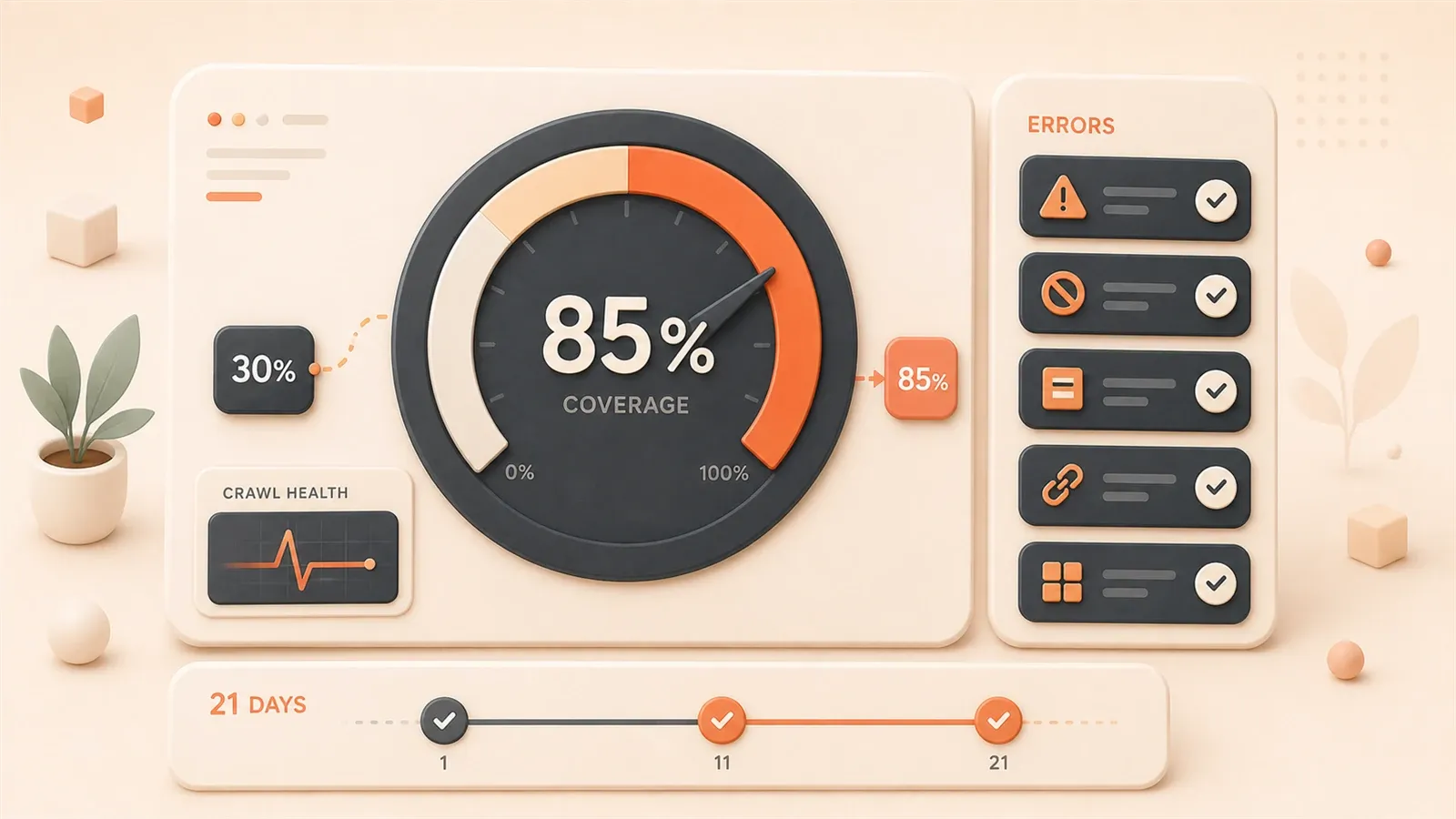
Two weeks after publish, GSC shows “Submitted, not indexed”—a familiar sting.
On one project, 18 of 42 URLs sat in “Crawled – currently not indexed” (42%). Like cooking for guests who only look at the table.
Twenty-one days later indexed pages went from 42 to 71 and impressions rose 138%. This write-up is that playbook—not “click Request Indexing ten times” (Google ignores spam clicks), but a diagnosis system end to end.
Understanding GSC Coverage Reports — Comparison of 5 Error Types
Let’s get one thing straight: GSC’s coverage report isn’t a punishment notice—it’s a diagnostic report. Many people panic when they see red warning flags, but Google is actually telling you where the problems are.
Where to Find the Pages Report
Log into GSC and find “Indexing” > “Pages” in the left menu (called “Coverage” before March 2026). This page shows the indexing status of all your site’s URLs, divided into categories:
- Indexed: Normal, no action needed
- Not indexed: This is what you need to focus on
The “Not indexed” section is further divided into several statuses. Honestly, I was confused when I first saw these English labels, but after understanding them, I found each has a corresponding fix path.
5 Most Common Indexing Errors
I’ve organized these five error types into a table so you can quickly compare with your situation:
| Error Type | Meaning | Fix Difficulty | Time Estimate | My Encountered Proportion |
|---|---|---|---|---|
| Crawled - Currently Not Indexed | Crawled but not indexed | Harder | 7-14 days | 42% |
| Discovered - Currently Not Indexed | Discovered but not indexed | Medium | 5-10 days | 28% |
| Duplicate without user-selected canonical | Duplicate content no canonical | Easy | 3-5 days | 12% |
| Soft 404 | Empty content page | Easy | 2-3 days | 8% |
| Redirect error | Redirect error | Easy | 1-2 days | 10% |
Let me focus on the two most likely to block you:
Crawled - Currently Not Indexed
Simply put, Google’s crawler visited your page, read the content, but decided not to put it in the index. This is more frustrating than “Discovered”—Google looked at your page and didn’t like it.
According to ClickRank data, approximately 45% of new pages globally get stuck in this status. The reasons are usually insufficient content quality, too few internal links, or unclear page value.
Discovered - Currently Not Indexed
This is lighter. Google knows this URL exists (possibly discovered through sitemap or external links) but hasn’t sent a crawler to read it yet. The wait time is usually shorter than “Crawled,” typically resolved in 5-10 days.
How to distinguish between the two? The key is whether Google has truly “read” your page content. Crawled means it has been read, Discovered only means the URL exists in Google’s knowledge.
Core Error Repair in Practice — Complete Process from Diagnosis to Solution
Here’s the important part. I’ll break down repair steps by error type—these are all tested solutions.
7 Checkpoints for Fixing “Crawled - Currently Not Indexed”
This error is the most frustrating, but the fix思路 is actually clear: make Google think your page has value.
I’ve organized a checklist for you to follow in order:
1. Is the content depth sufficient?

The minimum threshold is 800 words, but I recommend writing 1,200+ words. Not padding the word count—truly covering a topic thoroughly. I had a 600-word article that got indexed a week after being rewritten to 1,500 words.
2. Are there internal linking structure issues?
New pages should have at least 3 internal links pointing to them. Orphan pages (pages with no internal links pointing to them) are one of the main reasons for indexing failure. This was my problem—I published new articles but the homepage and article list pages had no links to them, so Google’s crawler couldn’t find an entry point.
3. Do external links reference authoritative sources?
Include 1-2 authoritative sources in your article, such as Google official documentation, Wikipedia, or well-known industry blogs. This increases page credibility. Use anchor text links, not just plain URLs.
4. Page loading speed
If server response time exceeds 1 second, crawlers may abandon the fetch. My site’s response time went from 800ms to 200ms after optimization, and crawl frequency noticeably increased.
5. Canonical tag settings
Check if the page has correct canonical settings. If multiple URLs point to the same content, Google may select one as the canonical page and ignore the others.
6. Structured data
Add appropriate structured data (Article, HowTo, FAQ, etc.) to help Google better understand page content. Astro blogs can embed using JSON-LD format.
7. Use “Request Indexing” last
After completing all 6 steps, use GSC’s URL Inspection tool to manually request indexing. Maximum 10 URLs per day; more will be ignored.
Quick 3-Step Fix for “Discovered - Currently Not Indexed”
This status is relatively simple, three steps to solve:
Step 1: Resubmit sitemap
Go to GSC’s “Sitemaps” page, delete the old sitemap, and resubmit. Sometimes the sitemap file itself has issues (like format errors, expired URLs), causing Google to discover pages but not index them.
Step 2: Improve server response speed
Check server logs for response times when Google crawler visits. If over 1 second, optimize: enable CDN, compress images, reduce redirects.
Step 3: Build topical authority
This sounds a bit abstract, but it’s essentially making Google consider your site authoritative on a certain topic. How? Continuously publish content around a core topic to form content clusters. For example, when I write GSC-related content, I published 4 consecutive articles, each linking to the others.
How to Handle Duplicate Canonical
This situation usually occurs when: you have multiple URLs with identical or similar content, Google selected one as the canonical page itself, but you want to specify another.
Solution: Add canonical tags in the head section of each page.
<!-- The URL you want as canonical -->
<link rel="canonical" href="https://yourdomain.com/preferred-url/" />
For example: If your blog has /blog/post-title/ and /posts/post-title/ two paths pointing to the same content, choose one as the canonical URL and have all pages point to it.
Correct Handling of Soft 404
What is a Soft 404? The page returns a 200 status code, but the content is empty or has almost no value. Google considers this page “looks like a 404.”
Two repair methods:
Method 1: Return a real 404
If this page shouldn’t exist, change it to return a 404 status code.

Method 2: Add valuable content
If the page needs to be kept, supplement it with genuinely useful content. At least 800 words, with images and internal links.
I had a tag page that only showed the tag name, no article list. After adding the article list and tag description, the Soft 404 disappeared.
Automated Indexing Acceleration — Indexing API and IndexNow in Practice
At this point you might be thinking: the repair methods above take 5-14 days, is there a faster way?
Yes. Indexing API.
Why Sitemap Submission Isn’t Efficient Enough
Honestly, the situation changed in 2026. According to ClickRank’s report, the wait period for traditional sitemap submission stretched from 11 days in 2024 to 23 days. Google tightened crawl budgets, and after AI Overview launched, content quality requirements became higher.
Sitemaps should still be submitted, but don’t rely solely on them. You need to actively “knock on the door.”
Indexing API: 85% Indexing Rate in 48 Hours
What is Indexing API? Simply put, it’s sending a VIP invitation to Google’s crawler. You actively tell Google: this URL has been updated, come fetch it.
Real test data: pushed 50 new pages in one day, 85% indexed after 48 hours. Much faster than sitemaps.
Who Can Use It
E-commerce sites, job posting sites, live streaming platforms—Google officially limits it to these three types. But in practice, blogs can also apply, as long as you create a project in Google Cloud Console and request permission.
Configuration Steps (Simplified Version)
- Log into Google Cloud Console
- Create a new project, enable “Indexing API” service
- Create a Service Account, generate JSON key file
- Add the service account as a site owner in GSC
- Use API to push URLs
Code example (Node.js):
const { google } = require('googleapis');

// Load service account key
const auth = new google.auth.GoogleAuth({
  keyFile: './service-account-key.json',
  scopes: ['https://www.googleapis.com/auth/indexing'],
});

// Push URL
async function publishUrl(url) {
  const client = await auth.getClient();
  const indexing = google.indexing({ version: 'v3', auth: client });

  await indexing.urlNotifications.publish({
    requestBody: {
      url: url,
      type: 'URL_UPDATED',
    },
  });
}

// Batch push
const urls = [
  'https://yourdomain.com/post-1/',
  'https://yourdomain.com/post-2/',
];
urls.forEach(publishUrl);
Limitations
- Maximum 200 URLs per day (tested best results with 50)
- Wait 48 hours after pushing to check results
- Don’t repeatedly push the same URL (will be ignored)
IndexNow Protocol: Microsoft and Yandex Alternative
IndexNow is another instant indexing protocol supported by Microsoft Bing and Yandex. Google doesn’t support it yet, but Bing’s search traffic is also growing, making it worth configuring.
Advantages
- Simpler configuration: just need to place an API Key file in the website root directory
- Instant effect: Bing crawls within hours of submission
Configuration Method
- Go to IndexNow official site to generate API Key
- Place key file in website root directory:
/.well-known/indexnow-key.txt - Submit URL to IndexNow endpoint
Astro blogs can place the key file in the public/ directory, which automatically copies to the root directory after build.
API for submitting URLs:
POST https://www.bing.com/indexnow
?url=https://yourdomain.com/new-post/&key=YOUR_API_KEY
Many CMS and static blog frameworks have ready-made plugins, like WordPress’s IndexNow plugin and Astro’s indexnow-integration package.
Search Console API: Batch Check URL Status
GSC web version can only manually check dozens of URLs per day, but Search Console API can check 2,000 times daily. Suitable for regular batch diagnosis.
Use Cases
- Check indexing status of all articles weekly
- Find which pages changed from “indexed” to “not indexed”
- Track coverage rate trend changes
Code example:
const { google } = require('googleapis');

async function checkIndexStatus(url) {
  const client = await auth.getClient();
  const searchconsole = google.searchconsole({ version: 'v1', auth: client });

  const result = await searchconsole.urlInspection.index.inspect({
    requestBody: {
      inspectionUrl: url,
      siteUrl: 'https://yourdomain.com/',
    },
  });

  return result.data.inspectionResult.indexStatusResult;
}
The return result tells you whether this URL is indexed, not indexed, or has errors.
Weekly Monitoring Strategy — Building a Sustainable Index Health System
After fixing a round of issues, the most critical thing is preventing them from reappearing. I established a weekly monitoring process that worked well over 21 days of testing.

Key Metric: Index Coverage Rate
How to calculate? Simple formula:
Index Coverage Rate = Indexed Pages / Total PagesMy project went from 42/100 (42%) to 71/100 (71%) in 21 days. A reasonable target is 85%—higher is unrealistic because some pages are inherently low-value and don’t need indexing.
Every Monday’s Monitoring Checklist
I’ve solidified this process into a checklist, executed every Monday morning:
1. Check Pages Report
See if coverage has changed. A drop over 5% is a warning signal requiring investigation.
2. View Crawl Statistics
GSC’s “Settings” > “Crawl Stats” shows crawler visit frequency and response time. Focus on:
- Whether daily crawl count suddenly dropped
- Whether average response time increased (optimize if over 1 second)
3. Check Newly Published Articles
See if content published in the past week has been indexed. If 3 consecutive articles aren’t indexed, the content strategy has issues.
4. Compare Before and After Optimization
Use Search Console API to export data and make a simple comparison table:
| Week | Indexed | Not Indexed | Coverage Rate | Change |
|---|---|---|---|---|
| Week 1 | 42 | 58 | 42% | Baseline |
| Week 2 | 52 | 48 | 52% | +10% |
| Week 3 | 71 | 29 | 71% | +19% |
This clearly shows optimization effects.
Warning Signals and Handling
Handle immediately if these situations occur:
- Coverage drops over 5%: Investigate which pages changed from “indexed” to “not indexed”
- Server response time exceeds 1 second: Optimize CDN, compress resources
- New content consistently not indexed: Check content quality, internal linking structure
- Crawl frequency suddenly drops: May be robots.txt or server issues
A/B Testing Approach
If you want to verify whether an optimization works, do a simple test:
- Select 10 unindexed articles
- Optimize 5 of them (add internal links, modify content)
- Compare indexing speed between the two groups
I tested once: the optimized group averaged 7 days to index, the unoptimized group averaged 14 days. The difference was quite noticeable.
Conclusion
After all this, here’s a simplified 10-step checklist you can execute this week:
- Open GSC > Pages report, see current coverage status
- Export list of unindexed pages, classify error types
- Prioritize “Crawled Not Indexed” (content + internal link optimization)
- Check and fix canonical tag settings
- Handle Soft 404 and Redirect errors
- Configure Indexing API or IndexNow (optional)
- Resubmit sitemap
- Manually request indexing (max 10 per day)
- Wait 5-14 days to check results
- Establish weekly monitoring process
Expected results: 30%+ coverage improvement within 21 days, with corresponding impression growth.
One thing to emphasize: GSC’s coverage report isn’t Google punishing you—it’s telling you where the problems are. Systematic diagnosis and repair is far more effective than clicking the “Request Indexing” button 10 times a day.
In the next article, I’ll discuss how to use GSC’s search analytics report to optimize content strategy—which keywords are worth writing, which content needs updating. If interested, follow this series.
Complete Process for GSC Index Coverage Improvement
Systematic diagnosis and repair of Google Search Console indexing issues, practical steps from 30% to 85%
⏱️ Estimated time: 30 min
- 1
Step 1: Diagnose Current Index Status
Open GSC left menu "Indexing" > "Pages" report:
- View the ratio of indexed to non-indexed pages
- Export list of non-indexed pages
- Classify by error type: Crawled Not Indexed, Discovered Not Indexed, Duplicate, Soft 404, Redirect Error - 2
Step 2: Fix Crawled Not Indexed Errors
This is the hardest error to fix, check each item:
- Content depth: at least 800 words, recommend 1200+
- Internal linking structure: new pages should have at least 3 internal links pointing to them
- External link references: add 1-2 authoritative source links
- Loading speed: keep server response time under 1 second
- Canonical tag: ensure correct settings
- Structured data: add Article, HowTo, FAQ Schema - 3
Step 3: Handle Other Error Types
Take corresponding measures for different errors:
- Discovered Not Indexed: resubmit sitemap, improve response speed
- Duplicate Canonical: add canonical tag to specify canonical page
- Soft 404: return real 404 or supplement with valuable content
- Redirect Error: fix redirect chains or loops - 4
Step 4: Configure Indexing API (Optional Acceleration)
Push URLs to Google index via API:
- Log into Google Cloud Console to create project
- Enable Indexing API service
- Create Service Account and generate JSON key
- Add service account as site owner in GSC
- Use API to batch push URLs (max 200 per day)
- Check indexing results after 48 hours - 5
Step 5: Establish Weekly Monitoring System
Execute monitoring process every Monday:
- Check Pages report for coverage changes
- View crawl statistics (frequency, response time)
- Check indexing status of newly published articles
- Export data to compare before and after optimization
- Watch for warning signals: coverage drops over 5%, response time over 1 second
FAQ
What's the difference between Crawled - Currently Not Indexed and Discovered - Currently Not Indexed?
What's a normal index coverage rate? What should I target?
How many times can I click the manual request indexing button per day?
If content quality meets standards but still not indexed, what could be the reason?
What's the difference between Indexing API and IndexNow? Which should I use?
How should I investigate if coverage suddenly drops over 5%?
How long does it take for a new website to be indexed by Google?
11 min read · Published on: May 13, 2026 · Modified on: Jul 14, 2026

Google Search Console Guide
If you landed here from search, the fastest way to build context is to jump to the previous or next post in this same series.
Previous
Google Search Console Advanced Techniques: Structured Data & Index Optimization in Practice
Deep dive into Google Search Console structured data monitoring, index coverage troubleshooting, and advanced URL inspection techniques. 2026 practical guide with complete optimization workflows and code examples
Part 3 of 5
Next
How to Fix High-Impression Low-Click Pages on Tech Blogs: GA/GSC Weekly SOP
Tech blog getting high impressions but low clicks? This article provides a GA/GSC weekly SOP covering data diagnosis, title optimization, and content refresh—turning "wasted impressions" into real clicks with 20-40% CTR improvement.
Part 5 of 5


Comments
Sign in with GitHub to leave a comment