
Ollama Hardware Selection Guide: VRAM, Quantization & GPU Comparison (2026)
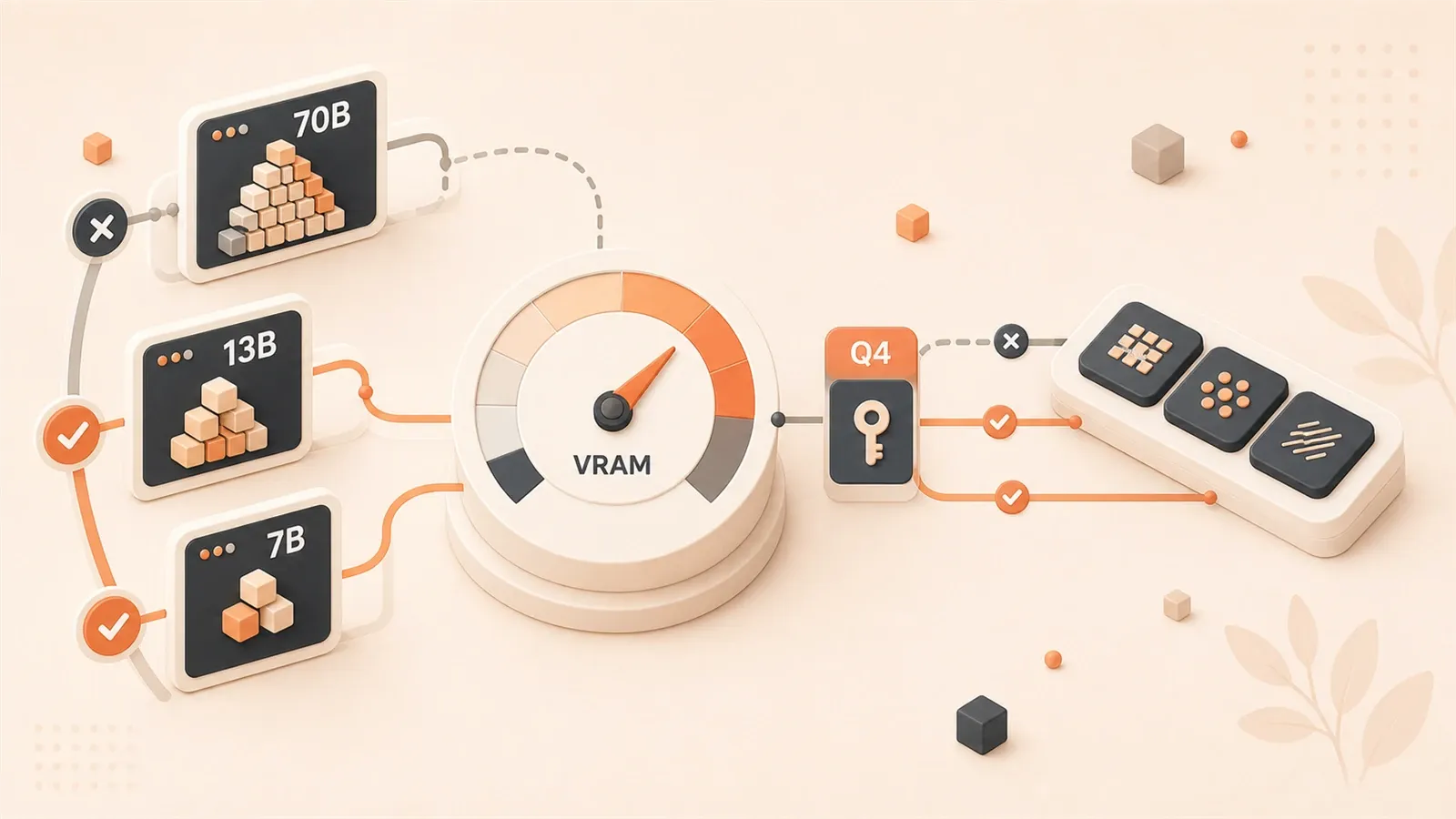
You want to run a 7B model locally—how much VRAM does your graphics card actually need? What about 13B? Some say 8GB is enough, others insist on at least 16GB—who should you believe?
This question puzzled me for months. When I first started with Ollama last year, I bought an RTX 3060 12GB, thinking “12GB VRAM should be plenty.” But when I ran a 13B model, I ran out of memory, and the speed dropped to 3 tokens/s—slow as a snail crawling across a webpage.
Later I realized: VRAM limits are hard limits. Cross that boundary and you’re in hell; stay within it and you’re in heaven.
This article compiles all mainstream graphics cards, model parameter sizes, and quantization levels into a single reference table. After reading, you’ll know exactly what models your GPU can run and which card best fits your budget.
1. Core Reference Table: VRAM Requirements at a Glance
Let’s start with the formula. VRAM requirement is roughly:
VRAM Required ≈ Parameters(B) × Quantization bits ÷ 8 + KV Cache(1-2GB)The formula looks simple, but it determines the maximum model size you can run. For example, a 7B model using Q4 quantization (4-bit) requires approximately 7 × 4 ÷ 8 = 3.5GB. Including KV Cache and runtime overhead, you actually need 4-6GB.
Here’s the complete reference table—save it:
| Model Size | Q4_K_M | Q5_K_M | Q8_0 | FP16 | Recommended GPU |
|---|---|---|---|---|---|
| 7B | 4-6 GB | 5-6 GB | 7-8 GB | 14 GB | RTX 3060 12GB |
| 13B | 8-10 GB | 10-12 GB | 13-14 GB | 26 GB | RTX 4060 Ti 16GB |
| 32B | 20-24 GB | 24-28 GB | 32-36 GB | 64 GB | RTX 4090 24GB |
| 70B | 40-48 GB | 48-56 GB | 70-80 GB | 140 GB | Dual RTX 3090 / Mac M4 Max 128GB |
Here’s the key insight from the table: When VRAM is insufficient, performance drops 5-20x.
I tested an RTX 3060 12GB running 13B Q4_K_M. VRAM hovered right at the limit—sometimes it worked, sometimes it ran out. When out of memory, Ollama transfers some data to system RAM, and speed drops from 45 tokens/s to 2-3 tokens/s. It feels like switching from a sports car to a tricycle.
So when buying a graphics card, get 2GB more than you need—don’t cut it close to the boundary.
2. Quantization Choice: Q4 vs Q5 vs Q8 Practical Recommendations
Quantization is key to reducing VRAM requirements.
FP16 is the original model precision, storing each parameter in 16-bit. Q4 quantization compresses it to 4-bit, cutting VRAM requirements in half. But the question is: does compression affect model quality?
The answer: yes, but less than you’d think.
Here’s the real-world data:

| Quantization Level | 7B Model VRAM | Quality Loss | Use Case |
|---|---|---|---|
| Q4_K_M | 4.5 GB | 1-3% | Daily use (recommended) |
| Q5_K_M | 5.7 GB | <1% | Precision-focused tasks |
| Q8_0 | 7.7 GB | <0.5% | Maximum quality |
| FP16 | 14 GB | 0% | Research/comparison baseline |
Q4_K_M is the default choice. With only 1-3% quality loss, most use cases won’t notice the difference. I’ve written several technical articles using Q4_K_M Llama 3.1 8B—compared to the FP16 version, differences are barely perceptible.
Q5_K_M suits users with 16GB+ VRAM. If you have an RTX 4060 Ti 16GB, Q5 gives you better inference quality, especially for mathematical reasoning and long-text generation.
Q8_0 approaches original quality. Honestly, unless you’re doing model evaluation or research, Q8 isn’t necessary. VRAM requirements double for limited benefit.
One more thing: avoid Q3 and Q2. These quantization levels have noticeable quality degradation—the model starts hallucinating. Unless your VRAM is truly insufficient (like only 4GB), stay away.
My recommendation: Start with Q4_K_M. If you’re unsatisfied with quality, switch to Q5. In most cases, Q4 is sufficient.
3. Three Acceleration Technologies Compared: CUDA vs Metal vs ROCm
Choosing a graphics card isn’t just about VRAM—you need to consider acceleration technology.
Ollama supports four GPU backends: NVIDIA CUDA, Apple Metal, AMD ROCm, and Vulkan. Each has pros and cons. Choose the wrong platform, and performance might be cut in half.
Here’s the comparison:
| Acceleration | Hardware | 7B Performance | OS Support | Maturity |
|---|---|---|---|---|
| CUDA | NVIDIA GPU | 30-80 tok/s | Win/Linux | ★★★★★ |
| Metal | Apple M1-M4 | 20-50 tok/s | macOS | ★★★★★ |
| ROCm | AMD RX 7000 | 25-60 tok/s | Linux primarily | ★★★☆☆ |
| Vulkan | AMD/Intel | 15-40 tok/s | Cross-platform | ★★★☆☆ |
CUDA: The Most Stable Choice
NVIDIA CUDA is currently the most mature solution. Stable drivers, comprehensive community support, complete documentation. Install Ollama, and CUDA auto-detects—no configuration hassles.
My RTX 3060 running Llama 3.1 8B Q4 with CUDA averages 45 tokens/s. Inference is smooth, response is fast—great experience.
CUDA has only one issue: price. NVIDIA cards have a significant premium. An RTX 4090 now costs around $1,800.
Metal: The Choice for Mac Users
Apple Metal performs well on Mac. M1/M2/M3/M4 are all supported, and Mac’s unified memory architecture has an advantage: VRAM and system memory are shared, allowing you to run larger models.
Apple Metal acceleration is the key Mac advantage. On Apple Silicon, Ollama uses Metal automatically; with enough unified memory, setup is simple.
Do not use OLLAMA_ORIGINS as a performance switch. It configures allowed browser origins/CORS and does not enable MLX:
# Ollama uses Metal automatically on Apple Silicon
# OLLAMA_ORIGINS only allows extra browser origins to access the Ollama API
ollama serve
But there’s a prerequisite: your Mac needs at least 32GB unified memory. Below 16GB, running large models is a struggle.
ROCm: AMD’s Difficult Road
AMD ROCm works fine on Linux but is more troublesome on Windows. Official support is for Linux; the Windows version is still experimental with many bugs and poor compatibility.
If you use AMD graphics + Windows, switch to Vulkan:
OLLAMA_VULKAN=1 ollama serveVulkan is cross-platform compatible. Though slower than CUDA, at least it runs stably.
My recommendation: If you don’t want to tinker, choose NVIDIA CUDA. If you’re a Mac user, rely on the automatic Metal acceleration. AMD users go Linux + ROCm, or Windows + Vulkan.

4. GPU Model Recommendations: From Entry-Level to Flagship
Here are tiered recommendation tables, organized by budget.
Entry-Level (Budget $200-400)
| Model | VRAM | Suitable Models | Performance | Price |
|---|---|---|---|---|
| RTX 3060 12GB | 12GB | 7B Q4, 13B Q4 | 40-60 tok/s | $250 |
| RX 6600 8GB | 8GB | 7B Q4 | 30-45 tok/s | $200 |
The RTX 3060 12GB is the entry-level choice. 12GB VRAM can run 7B Q4 and 13B Q4—excellent value. Many ask me: which is better for LLMs, RTX 4060 8GB or RTX 3060 12GB?
The answer is clear: 3060 12GB. The 4060 has more compute power, but 8GB VRAM is a hard limit. Running 13B models runs out of memory—poor experience.
The RX 6600 suits budget-constrained users who only run 7B models. But AMD on Windows requires Vulkan tinkering—not as stable as NVIDIA.
Mainstream Level (Budget $400-800)
| Model | VRAM | Suitable Models | Performance | Price |
|---|---|---|---|---|
| RTX 4060 Ti 16GB | 16GB | 13B Q4/Q8, 14B Q4 | 50-80 tok/s | $400 |
| RTX 4070 Super 12GB | 12GB | 7B Q8, 13B Q4 | 60-90 tok/s | $600 |
The RTX 4060 Ti 16GB is my most recommended model. 16GB VRAM hits the sweet spot: sufficient for 13B Q8 and 14B Q4. At $400, excellent value.
The RTX 4070 Super has more compute, but 12GB VRAM limits it to 13B Q4. If you prioritize speed, the 4070 Super is a good choice. If you prioritize model size, choose the 4060 Ti 16GB.
High-End Level (Budget $1,200-2,000)
| Model | VRAM | Suitable Models | Performance | Price |
|---|---|---|---|---|
| RTX 4090 24GB | 24GB | 32B Q4, 70B offload* | 80-150 tok/s | $1,800 |
| RTX 5090 32GB | 32GB | 32B Q8, 70B Q4 offload* | Model-dependent | $2,000 |
| RX 7900 XTX 24GB | 24GB | 32B Q4 | 60-100 tok/s | $900 |
*Note: 24/32GB single cards need offload and/or more aggressive quantization for 70B. For more stable 70B Q4, dual RTX 3090s or 48GB+ memory is more realistic.
The RTX 4090 is the current flagship. 24GB VRAM handles 32B Q4 easily; 70B needs offload, more aggressive quantization, or a dual-GPU setup.
The RTX 5090 32GB is the 2026 flagship with 32GB of GDDR7. It is a better single-card candidate for trying 70B Q4 than the 4090, but long contexts and runtime overhead can still require offload; do not treat it as a full 70B Q5/Q8 solution.
The RX 7900 XTX offers good value. 24GB VRAM for only $900. But AMD ROCm is unstable on Windows—Linux users should consider it.
Mac User Recommendations
| Chip | Unified Memory | Suitable Models | Performance |
|---|---|---|---|
| M4 Pro | 24GB | 14B Q4 | 35-55 tok/s |
| M4 Max | 128GB | 70B Q4 | 28-30 tok/s |
| M3 Ultra | 192GB | 70B+, multi-model parallel | 25-35 tok/s |
Mac’s unified memory architecture enables running larger models. M4 Max 128GB can fully run 70B Q4 without quantization compromise.
But Mac’s downside is speed. M4 Max running 70B only achieves 28-30 tok/s, much slower than RTX 4090. If you prioritize speed, choose NVIDIA. If you prioritize model completeness and ease of use, Mac is a good choice.
The Value King: Used RTX 3090 24GB
Here’s a hidden option: Used RTX 3090 24GB.
Used RTX 3090s now go for around $600. A single 24GB card is a good fit for 32B Q4; if your target is 70B Q4, two 3090s are more realistic, or you must accept heavy offload and more aggressive quantization. Compute is slightly weaker than 4090, but price is halved.
A friend bought a used 3090 and has run it for over a year without issues. The key is finding a reliable seller and avoiding ex-mining cards.
5. Purchase Decision Flow
After reading the four sections above, you might still be a bit confused. Too many tables, too many models—how to choose?
Here’s a simple flow to help you decide step by step.
Step 1: Determine Your Target Model
What model do you want to run? This is the core question.

- Daily conversation, writing assistance: 7B is sufficient (Llama 3.1 8B, Qwen 2.5 7B)
- Code assistance, technical Q&A: 13B-14B is better (Qwen 2.5 14B, DeepSeek Coder)
- Complex reasoning, long-text generation: 32B-70B (DeepSeek V3, Qwen 2.5 72B)
Most people choose 7B or 13B. Unless you have special needs, 70B models aren’t necessary.
Step 2: Determine Quantization Preference
How to choose quantization?
- Tight VRAM: Q4_K_M (default choice)
- Ample VRAM: Q5_K_M (pursuing precision)
- Research comparison: Q8_0 or FP16
I recommend starting with Q4_K_M. For most scenarios, quality is sufficient and VRAM requirement is low.
Step 3: Check Table for VRAM
Return to the reference table in Chapter 1. Find the VRAM requirement for your model + quantization combination.
For example, if you want to run Llama 3.1 8B Q4_K_M, look up 4-6GB. You need at least an 8GB VRAM graphics card (leaving 2GB safety margin).
Step 4: Choose GPU Based on Budget
Combine VRAM requirements with budget, check the tiered recommendation table in Chapter 4.
- Budget $200-400: RTX 3060 12GB
- Budget $400-800: RTX 4060 Ti 16GB
- Budget $1,200+: RTX 4090 24GB or RTX 5090 32GB
- Mac users: M4 Max 128GB
Step 5: Confirm Platform Support
Finally, check your system platform:
- Windows: NVIDIA CUDA is most stable; AMD requires Vulkan
- Linux: Both NVIDIA CUDA and AMD ROCm are stable
- macOS: Apple Metal acceleration is automatic; focus on unified memory capacity
Decision Example
Let’s say you want to run Llama 3.3 70B:
- Target model: 70B
- Quantization preference: Q4_K_M (value)
- VRAM requirement: Check table for 40-48GB
- Budget: Around $1,500
- Platform: Windows
Analysis:
- RTX 4090 24GB: Single card insufficient, needs dual-GPU or aggressive quantization
- RTX 5090 32GB: Better single-card candidate for trying 70B Q4, but long contexts may still need offload
- Two used RTX 3090 24GB × 2: $1,200, 48GB VRAM, excellent value
- Mac M4 Max 128GB: Full operation, but slower
Final recommendation: If budget is limited, choose two used RTX 3090s. If you prioritize CUDA single-card convenience, choose RTX 5090 32GB. If you’re a Mac user, M4 Max 128GB is the better single-machine option for fully running 70B.
Conclusion
The core logic of hardware selection, in one sentence: VRAM determines the upper limit; quantization determines the lower limit.
One reference table, one recommendation list, three acceleration technology comparisons—this article has clarified the confusing questions for you.
If you’re still hesitating, remember this golden rule:
- Limited budget: RTX 3060 12GB, entry-level choice, can run 7B and 13B
- Pursuing performance: RTX 4090 24GB or 4060 Ti 16GB, from mid-range to flagship
- Mac users: M4 Max 128GB, the only single-machine solution that can fully run 70B
- Value king: Used RTX 3090 24GB, great for 32B on one card; use two cards for 70B
For more Ollama practical tips, check out other articles in this series: Ollama GPU Acceleration Guide, Local LLM Model Selection Comparison.
FAQ
How much VRAM does a 7B model actually need?
Which is better for LLMs: RTX 3060 12GB or RTX 4060 8GB?
Does Q4 quantization noticeably affect model quality?
Can AMD graphics cards run Ollama?
How can Mac users get the best performance?
What if I have limited budget but want to run 70B models?
10 min read · Published on: May 28, 2026 · Modified on: Jul 14, 2026

Ollama: Local LLM Setup, Configuration, and Integration
If you landed here from search, the fastest way to build context is to jump to the previous or next post in this same series.
Previous
Running Llama 70B Locally: Comparison and Selection Guide for 5700XT, Mac M4, and CUDA Solutions
Want to run Llama 70B locally? This article compares three solutions: AMD 5700XT, Mac M4, and NVIDIA CUDA, using real test data to help you determine which hardware suits your needs, including VRAM requirements, performance comparisons, and troubleshooting tips.
Part 5 of 18
Next
Ollama GPU Acceleration: Complete Guide for CUDA, ROCm & Metal
Complete Ollama GPU acceleration guide covering NVIDIA CUDA, AMD ROCm, and Apple Metal platforms. Includes verification steps, multi-GPU setup, and troubleshooting for 10-20x faster local LLM inference.
Part 7 of 18


Comments
Sign in with GitHub to leave a comment