
Cocos Sprite Sheet in Practice: A Complete Guide to Splitting One Large Image into Animation Frames
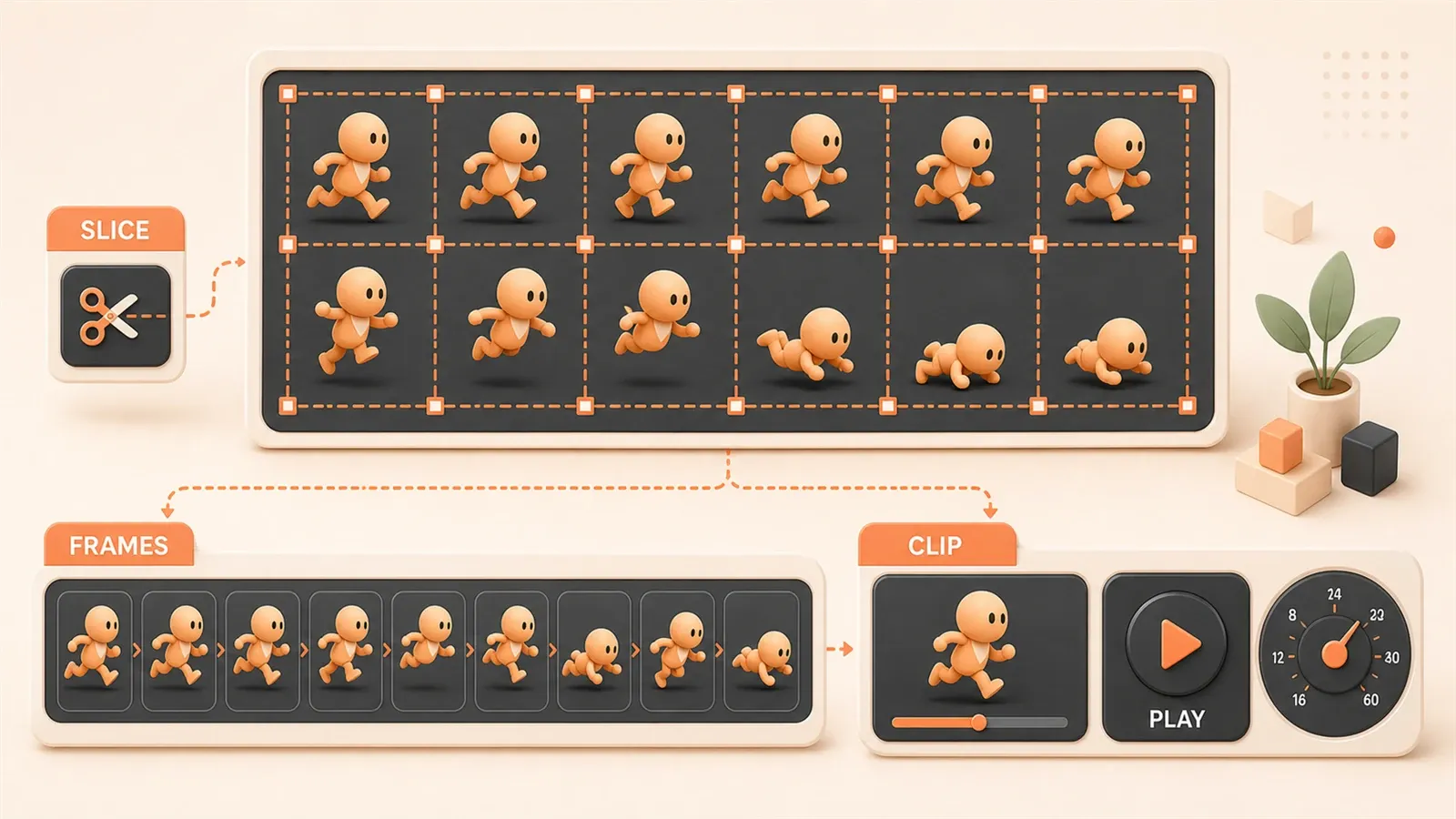
"Cocos Creator 3.x atlas format requirement: Only supports plist files exported from TexturePacker 5.x."
"Using sprite sheets reduces texture switching frequency and significantly lowers Draw Calls, one of the core techniques for game performance optimization."
You used Midjourney or Stable Diffusion to generate a character’s sequence frame animation. All frames are arranged on a single image - from standing, starting, running, to stopping, 8 frames neatly aligned.
This image looks pretty perfect.
But after importing into Cocos Creator, you encounter a problem: this isn’t 8 separate images, but one large image. How do you extract each character action? How do you create a playable Animation Clip?
No existing plist configuration file, and manual cutting is too slow. This article gives you three solutions - from free online tools to professional software - helping you choose the most efficient path.
What is a Sprite Sheet? Why Game Development Can’t Live Without It
Sprite Sheet, commonly called “sprite atlas” or “texture atlas” by developers. Simply put, it’s combining a bunch of small images into one large image, paired with a configuration file recording each small image’s position and dimensions.
For example, you have a character animation with 8 action frames, each 64x64 pixels. If stored separately, that’s 8 independent PNG files. But as a sprite sheet, these 8 frames can be arranged into a 512x64 or 256x256 image, plus a plist or json file telling you “first frame is at position (0,0), second frame at (64,0)”.
Why go through this trouble? Two solid reasons.
Reduce Draw Calls. This is the most direct performance benefit. A Draw Call is each GPU drawing instruction call. With 8 separate images, even if displayed in the same scene, the GPU needs to process them 8 times - because each texture switch requires a new binding operation. After combining into one image, you only need 1 Draw Call, and rendering efficiency goes up immediately. On limited hardware platforms like mobile phones, this difference is quite noticeable.
According to Cocos official documentation, in complex scenes where Draw Calls drop from dozens to just a few, the frame rate can stay stable at 60 FPS without dropping. I tested this when making a small game - after switching character animations from separate images to atlases, the stuttering on low-end Android devices visibly decreased.
Lower Memory Fragmentation. TexturePacker’s official testing shows atlases save 30-50% memory compared to separate images. The principle isn’t complicated: separate images each have independent texture buffers, with edge alignment and format conversion overheads accumulating significantly. Combined into one image, memory allocation is more compact, and GPU processing is smoother.
You might ask: What format is the configuration file? Cocos Creator uses plist, while general tools mostly use json. Plist is Apple’s configuration format, xml structure, recording each SpriteFrame’s name, coordinates, dimensions, rotation information. Json format is similar but more concise, supported by many online tools and Unity.
Three Splitting Solutions: Which is Most Efficient
You have one large image in hand, no configuration file, how to split? Three solutions, choose based on your scenario.
Solution 1: TexturePacker Professional Tool
This is the mainstream choice in the game industry. TexturePacker specializes in atlas packing and splitting, supporting a bunch of engines like Cocos, Unity, SpriteKit.
Pros: Complete functionality. Automatic layout algorithms (MaxRects, Grid, Shelf), pixel format optimization (PVRTC for iOS, ETC for Android), supports rotation, trimming, transparent area compression. Complete export formats, Cocos plist works directly. Batch processing is convenient too - throw in hundreds of images, one click to finish.
Cons: Costs money. Basic version $49, Pro version $199. Powerful functionality, but for indie developers doing small projects, this investment might not be worth it. Also requires installing software, supports Windows/macOS, not Linux.
Use Case: Long-term maintained projects, large amounts of art assets, commercial games needing continuous updates. If you’re making a formally launched product, this investment is worth it.

Solution 2: Online Auto-Slicing Tools
No software installation needed, open a webpage and use. The principle is connected component detection algorithm - identifying independent pixel blocks in transparent backgrounds, automatically calculating bounding boxes to extract them.
I tried several, recommend two reliable ones:
ImgCrop Smart Splitting (imgcrop.com). Throw in a sprite sheet, it automatically identifies independent frames, exports as separate PNG files. There’s a “name by visual order” option, arranging top-to-bottom, left-to-right, saving you from renaming yourself.
Image Toolbox (imgtool.net). Similar functionality, also supports batch processing and format conversion.
Pros: Free, no installation, fast speed. I tested with a 50-frame character animation, results in 3 seconds, file naming neat and tidy.
Cons: Limited functionality. Can’t handle complex layouts, overlapping areas, non-transparent backgrounds. Also network dependent, don’t upload sensitive assets.
Use Case: Quick prototypes, one-time processing, small asset volumes. If you just need to extract a few AI-generated animation images, this solution is sufficient.
Solution 3: Manual Slicing (Photoshop or GIMP)
The most primitive method: open the image, use slice tool to manually draw lines, export one by one.
Pros: Precise control. Irregular shapes, special layouts, need to crop specific areas - manual operation is most flexible. For those with PS skills, processing a few images isn’t troublesome.
Cons: Low efficiency, error-prone. Cutting dozens of animation frames, hands get tired, eyes get blurry. Next time with new assets, start all over. Naming conventions easily messed up too.
Use Case: Special requirements, single processing, already have PS skills. For example, assets are hand-drawn with irregular layouts that automatic tools can’t identify, then manual cutting is the only choice.
Solution Comparison Table
| Solution | Cost | Efficiency | Precision | Use Case |
|---|---|---|---|---|
| TexturePacker | $49+ | High | High | Commercial projects, long-term maintenance |
| Online Tools | Free | Medium | Medium | Quick prototypes, small asset batches |
| Manual Slicing | Time cost | Low | Custom | Special layouts, one-time processing |
In Practice: Five-Step Workflow from Large Image to Animation
Chosen a solution, how to do it specifically? Taking “AI-generated character animation → Cocos Creator playable Animation Clip” as an example, let’s walk through the complete workflow.
Step 1: Prepare Assets
Assume you used Midjourney to generate a character’s running animation, with a prompt like character running animation sprite sheet, 8 frames, transparent background. The output is one PNG, 8 frames arranged horizontally.
Check two things:
- Transparent background. PNG format, transparent areas clean, no stray colors or watermarks. AI-generated images sometimes have edge residue, clean up with PS or online tools.
- Frame count alignment. Confirm arrangement order - left to right, are they consecutive action frames? AI sometimes outputs in wrong order, visually verify once.
Naming suggestion: Name the original image character_run_sheet.png for easy identification later.
Step 2: Choose Splitting Solution
Online tools are fastest. Open ImgCrop (imgcrop.com), upload the PNG file.
Check two options:
- “Name by visual order” - left to right, exported files automatically named
frame_01.pngtoframe_08.png - “Keep original size” - no scaling, preserve AI-generated pixel precision
Click split, download results. Done in 3 seconds.
If you have TexturePacker, the process is similar. Open the software, import sprite sheet, select “split existing atlas” mode (not “pack separate images”), export plist + bunch of SpriteFrames. This method is more professional, can also do pixel format optimization.
Step 3: Import to Cocos Creator
Open Cocos Creator 3.8 LTS (current long-term support version). Drag the split PNG files to the assets directory, for example create a folder assets/sprites/character/.
After each PNG imports, Cocos automatically generates a .meta file. In the properties panel, confirm image type is sprite-frame (default setting, no need to change).
If using TexturePacker-exported atlas (with plist file), drag the entire plist + PNG directly. Cocos will automatically recognize it as an Atlas asset containing multiple SpriteFrame sub-assets.
Step 4: Create Animation Clip
Now you have 8 SpriteFrames, need to make a playable animation.

- Create a Sprite node in the scene (Hierarchy right-click → Create → Sprite)
- Add an Animation component to this node (Inspector → Add Component → Animation)
- Create Animation Clip:
assetsright-click → Create → Animation clip, name itcharacter_run.anim - Drag this Clip to the Animation component’s
Clipsproperty
Next is the key operation:
Open Animation editor (Window → Animation menu). Select Sprite node, the editor will show animation tracks.
Drag the 8 SpriteFrames to the animation track. Default creates 8 keyframes, each frame corresponding to one image. Positions auto-arranged with 1-second intervals - too slow.
Adjust frame interval: At editor bottom, change Sample (sample rate) to 10 or 12. This means 10-12 frames per second, animation playback speed is reasonable. Running animations look natural at about 10 fps.
Preview: Click Animation editor’s play button, the Sprite node’s image will switch in sequence, the character starts running.
Step 5: Script Playback Control
Animation Clip is ready, how to call it in game?
Simple scenario - auto loop playback:
// CharacterController.ts
import { _decorator, Component, Animation } from 'cc';
const { ccclass, property } = _decorator;

@ccclass('CharacterController')
export class CharacterController extends Component {

    @property(Animation)
    animation: Animation | null = null;

    start() {
        if (this.animation) {
            // Play running animation, loop mode
            this.animation.play('character_run');
            // Set to loop playback
            const state = this.animation.getState('character_run');
            if (state) {
                state.repeatCount = Infinity;
            }
        }
    }
}
Attach this script to the Sprite node, bind the Animation component reference. After game starts, character automatically begins running animation.
Animation switching scenario - for example, from running to stopping:
playAnimation(name: string) {
    if (this.animation) {
        this.animation.crossFade(name, 0.2); // 0.2 second transition, avoid abruptness
    }
}

// Call: character stops running
this.playAnimation('character_idle');
crossFade lets two animations transition smoothly, no instant frame jumping. This detail is important, otherwise animation switching looks stiff.
These Pitfalls I’ve Encountered, Here to Help You Avoid Them
Sprite sheet processing has some common issues, knowing them in advance saves debugging time.
Pitfall 1: Cocos Creator 3.x Doesn’t Recognize Old TexturePacker Versions
If you’re using TexturePacker 4.x or earlier, exported plist files will throw errors when imported to Cocos Creator 3.0+: “Atlas format not supported”.
Reason: Cocos Creator 3.x changed the atlas parser, only recognizes TexturePacker 5.x format.
Solution: Upgrade TexturePacker to 5.x. Or don’t use TexturePacker, use Cocos built-in Auto Atlas (automatic atlas feature). In Cocos Creator, assets folder right-click → Create → Auto Atlas, drag separate images in, automatically generates atlas.
Pitfall 2: Frame Naming Order Confusion
After online tool splitting, file names are frame_01.png, frame_02.png… but sometimes the order is wrong. For example, AI-generated image has frames arranged right-to-left, tool uses “visual order” naming, resulting in first frame being the last action frame.
After importing to animation, character running becomes “reverse playback” - looks like retreating.
Solution: Visually confirm frame arrangement direction before splitting. If right-to-left, manually rename, or use PS batch rename. TexturePacker has “spatial sorting” option, can customize direction (top-to-bottom, left-to-right).
Pitfall 3: Transparent Pixel Trimming Issues
Sprite component has a Trim property, defaults to trimming transparent pixels at image edges. This is an optimization design, making rendering more compact.
But sometimes trimming causes problems. For example, your character animation has inconsistent frame sizes - first frame 64x64, second frame becomes 64x70 due to arm extension. After trimming, second frame’s boundary changes, during animation playback the character position jumps.
Solution: In SpriteFrame properties, change Trim Type to None (no trim) or Custom (custom trim). Keep all frame sizes consistent, avoid position drift.
Pitfall 4: Animation Clip Frame Interval Wrong
Common newbie issue: Animation Clip plays too fast or slow.
Default sample rate is 60, 60 frames per second. You only have 8 frame images, at this speed, finishes in 0.13 seconds - character running looks like teleporting.
Solution: Adjust Sample parameter. Running animations generally 8-12 fps, change to 10 or 12. If animation is slow-motion (like breathing, idle), 6-8 fps is enough.
In Animation editor you can also manually adjust each frame’s duration. Select keyframes, drag positions, precisely control intervals.
Performance Optimization: How to Design Atlases
Sprite sheet is done, performance can still be squeezed.
Atlas Size Recommendations
Single atlas shouldn’t exceed 2048x2048 pixels. This is the texture limit for many low-end devices. Exceeding this size, some devices will throw errors or render at reduced quality.
If your character animation has many frames (like 50-frame attack action), consider splitting into two atlases. TexturePacker can auto-split, set Max Size to 2048, excess automatically creates new atlas.
Pixel Format Selection
Different platforms have optimal formats:
- iOS: PVRTC (Apple’s proprietary compression format). When exporting with TexturePacker, select
PVRTC 4bpp, file size compresses to 1/4 of original. - Android: ETC1 or ETC2. Most devices support it, compression efficiency is good too.
- Cross-platform general: RGBA8888 (uncompressed). File is large, but best compatibility, suitable for testing phase.
For official release, choose corresponding format based on target platform. TexturePacker supports “multi-format packing”, generating iOS and Android atlases in one go.
Dynamic Atlas Feature
Cocos Creator has an Auto Atlas feature, can automatically batch render scattered SpriteFrames in the scene.
Enable method: assets right-click → Create → Auto Atlas, drag all separate images in. During build, automatically generates atlas, Draw Call automatically reduces.
This feature suits projects with few assets. If art asset volume is large, still recommend using TexturePacker for pre-packing, more controllable.
Draw Call Monitoring
How to confirm sprite sheet really optimized? Check Draw Call count.
In Cocos Creator developer tools, Profiler panel shows real-time Draw Call. In complex scenes, compare separate images versus atlas numerical difference.
Ideal state: All animation frames of the same character in one atlas, Draw Call stays at 1. If character uses different atlases, when switching animations Draw Call will jump - this is when you consider merging related animations into one image.
Summary
An AI-generated sprite sheet, transformed into a playable Animation Clip in Cocos Creator, the workflow isn’t complex:
- Confirm assets (transparent background, correct frame order)
- Choose splitting solution (online tools fastest, TexturePacker most professional)
- Import to Cocos Creator (PNG or Atlas format)
- Create Animation Clip (drag frames, adjust intervals, preview)
- Script playback control (loop, switch, transition)
Tool selection: Online tools for quick prototypes, TexturePacker for commercial projects. Pitfall warnings: version compatibility, naming order, trim settings, frame interval adjustment.
After completing these steps, your character animation can run in the game.
Sprite Sheet Splitting and Animation Creation Workflow
From an AI-generated sprite sheet to a playable Animation Clip in Cocos Creator
⏱️ Estimated time: 15 min
- 1
Step 1: Prepare Assets
Confirm the AI-generated PNG has a transparent background and correct frame sequence (left to right for consecutive frames). Name it character_run_sheet.png for easy identification. - 2
Step 2: Choose Splitting Method
For quick prototypes, use ImgCrop online tool with 'name by visual order' and 'keep original size' options. For commercial projects, TexturePacker 5.x provides pixel format optimization. - 3
Step 3: Import to Cocos Creator
Drag the split PNG files into the assets/sprites/character/ directory. Confirm image type is sprite-frame (default setting). For atlases, drag the plist + PNG files directly. - 4
Step 4: Create Animation Clip
Create a Sprite node and add an Animation component. Create a new .anim file and bind it to the Clips property. Drag SpriteFrames to the animation track, set sample rate to 10-12 (10 fps recommended for running animations). - 5
Step 5: Script Playback Control
Attach script to Sprite node, use animation.play('character_run') for loop playback, use crossFade('new_anim', 0.2) for smooth transitions.
FAQ
Why combine small images into a sprite sheet?
What if I don't have a plist configuration file?
What if TexturePacker 4.x throws errors in Cocos Creator 3.x?
How to adjust animation playing too fast or slow?
What if frame naming order is wrong causing reverse playback?
Transparent pixel trimming causing animation position jitter?
What's the ideal atlas size?
12 min read · Published on: May 20, 2026 · Modified on: Jul 14, 2026

AI-Assisted Cocos Mini Game Development
If you landed here from search, the fastest way to build context is to jump to the previous or next post in this same series.
Previous
Cocos Creator AI Art Asset Organization: Complete Workflow from Generation to Import
A practical guide for indie developers on organizing AI-generated art assets: Cocos Creator resource directory structure standards, naming conventions, atlas creation, and Draw Call optimization. A replicable, standardized workflow from SOON platform generation to engine import.
Part 7 of 21
Next
Game UI Asset Naming Conventions: Transparent Images, Buttons, Icons, and Character Sprites
Master game UI asset naming conventions with complete formulas for button states, icon categories, and character animation frames. Learn 7 golden rules from Tencent's game team to organize your project files and boost team collaboration efficiency by 80%.
Part 9 of 21


Comments
Sign in with GitHub to leave a comment