
Cocos Creator WeChat Mini Game Build & Debug Guide: From Build Panel to Developer Tools
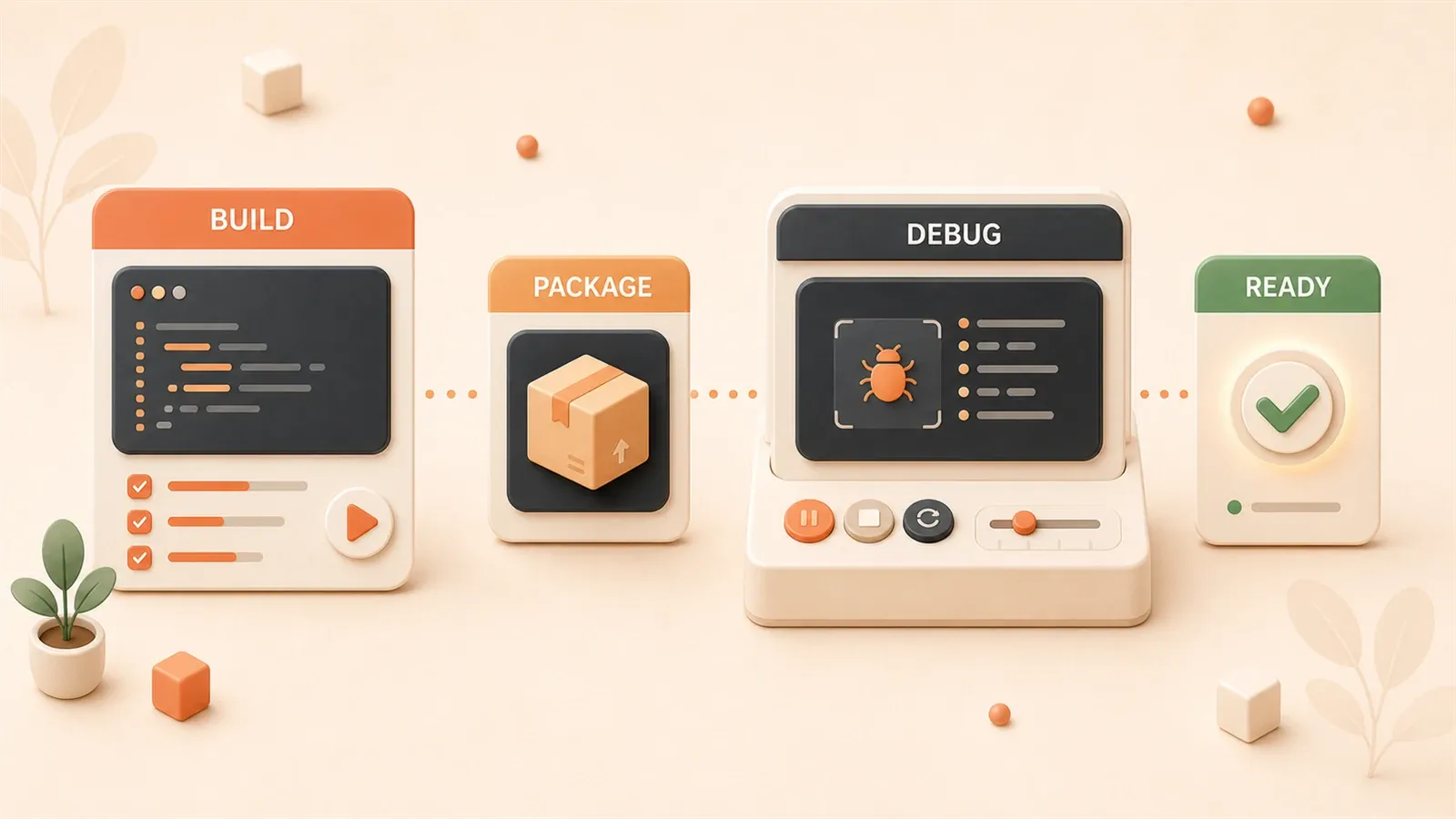
You spent weeks building your game in Cocos Creator.
The code is written, assets imported, animations running smoothly. Now you open the Build Panel, ready to publish to WeChat Mini Game platform—only to realize this is where the real trouble begins.
libVersion field errors. Real device black screen. Package size exceeded. iOS build fails outright. None of these issues appear in game development tutorials, yet each one can halt your project at the publishing stage.
This article addresses these problems head-on. From how to fill each parameter in the Build Panel, to understanding what each file in the build output directory does, to the specific steps for real device debugging in WeChat Developer Tools—the entire workflow broken down clearly. Finally, I’ll explain WeChat’s 2026 mini game incentive policies, because after successful publishing, maximizing revenue also requires advance planning.
If you’re preparing to publish a Cocos project to WeChat Mini Game platform, or have already encountered pitfalls and need solutions, this guide should help.
Build Panel Parameter Configuration: A Practical Walkthrough
First, open the Build Panel.
In Cocos Creator, there are two ways: click “Project → Build Publish” in the menu bar, or use the shortcut Ctrl+Shift+B (Cmd+Shift+B on Mac). Once the panel opens, you’ll see a stack of parameters—from publish path to initial scene, from MD5 Cache to AppID—when I first saw these parameters, I was a bit overwhelmed too.
But don’t worry, let’s break them down one by one.
General Parameters: Basic Configuration
Publish Path: The location of the build output directory. By default, a build folder is generated in the project root. You can change it to another path, but I recommend keeping the default—this way the build output directory structure is fixed, making subsequent debugging easier to find.
Initial Scene: The first scene loaded when the game starts. Usually select Boot scene or Loading scene. If your project has multiple entry points, choose the main entry here.
Participating Scenes: This lists all scenes in the project. Check the scenes that need to be packaged. Unchecked scenes won’t enter the final package. A common issue: some developers check all scenes, causing the package to explode. I recommend only checking truly necessary scenes; other scenes can be placed on a remote resource server.
MD5 Cache: Should this option be enabled?
When enabled, all resource filenames get an MD5 suffix. The benefit: when resources update, the client automatically detects file changes, avoiding loading old cache. The downside: the way you access resources in code needs to change.
For example, originally using resources.load('texture/hero'), after enabling MD5 Cache, the URL becomes something like texture/hero-abc123.png. At this point, you need to use this method to get the correct URL:
// Get resource path with MD5 suffix
const url = assetManager.utils.getUrlWithUuid('texture/hero', {
    isScene: false,
    type: 'png'
});
This API is standard usage in Cocos Creator 3.x. If you’re still using 2.x, the logic is slightly different, but the core idea is the same: don’t hardcode resource paths, let the engine handle it for you.
WeChat Mini Game Specific Parameters: Platform Configuration
AppID: This is required.
Without an AppID, clicking the build button will throw an error. You can use a test AppID, but test accounts have many restricted features: for example, cannot use open data domain, cannot publish for production, ad monetization features are also limited.
AppID application process: Log in to WeChat Open Platform → Mini Program Management → Add Mini Game → Get AppID. The entire process takes about 1-3 days for review, so prepare in advance.
Debug Mode: The build output will include some debug-related code and resources. I recommend turning this off for production release, but keeping it on during development saves considerable debugging time.
Engine Separation: This option can significantly reduce package size.
When checked, Cocos engine code isn’t packaged into the game itself, but loaded from WeChat’s servers. Enabling engine separation has several prerequisites:
- Debug Base Library version ≥ 2.9.0 (set in WeChat Developer Tools)
- WebAssembly functionality requires WeChat client version ≥ v7.0.17
Engine separation benefits: the initial package can stay under 4MB. Drawback: engine loading takes time, players will have a brief wait when entering the game for the first time. Weighing the trade-offs, if your project has many resources, engine separation is almost mandatory.
Subdomain Configuration: If your game uses leaderboard, friend sharing, and other open data domain features, you need to configure subdomain-related information here. Subdomain is an independent runtime environment, isolated from the main game, specifically handling social data. Improper configuration will cause leaderboard functionality to fail.
An Easily Overlooked Detail
At the bottom of the Build Panel, there’s a “Build” button, and next to it, a “Generate” button.
Many people click “Build” and think they’re done. Actually, “Build” only generates the build output directory, without doing final code packaging. Clicking “Generate” executes the complete packaging process, generating entry files like game.js and game.json that WeChat Mini Game needs.
The first time I published, I clicked “Build” and went straight to WeChat Developer Tools to import the project, only to get an error: entry file not found. The reason was not clicking “Generate”. This small detail is documented in official docs, but very easy to miss.
Build Output Analysis and Common Pitfalls Checklist
After building completes, check the build folder in your project root.
Inside, you’ll find a wechatgame directory—this is the build output for WeChat Mini Game platform. Open this directory, you’ll see a bunch of files and folders. Some are generated by Cocos, some are WeChat Mini Game specific configurations. Let’s examine what each one does.
Key Configuration Files Explained
game.js: Engine startup entry point.
When the WeChat Mini Game platform loads your game, this file executes first. It contains Cocos engine initialization code and scene loading logic. You don’t need to manually modify this file, but if build issues occur, you can check for syntax errors here.

game.json: Global configuration file.
{
    "deviceOrientation": "portrait",
    "networkTimeout": {
        "request": 60000,
        "connectSocket": 60000,
        "uploadFile": 60000,
        "downloadFile": 60000
    },
    "enginePlugins": [
        "cocos"
    ],
    "optimization": {
        "render": true,
        "fps": true
    }
}
Key field explanations:
deviceOrientation: Screen orientation,portraitis vertical,landscapeis horizontalnetworkTimeout: Network request timeout in millisecondsenginePlugins: Engine plugin configuration, shows"cocos"when engine separation is enabledoptimization: Performance optimization options,renderandfpsare enabled by default
project.config.json: WeChat Developer Tools project configuration.
{
    "miniprogramRoot": "./",
    "setting": {
        "urlCheck": false,
        "es6": true,
        "postcss": true,
        "minified": true
    },
    "compileType": "game",
    "libVersion": "2.25.0",
    "appid": "wx1234567890abcdef",
    "projectname": "my-game"
}
There’s a pitfall here: the libVersion field.
Pitfalls Checklist: Five Common Issues
Pitfall 1: libVersion Field Invalid
Symptom: WeChat Developer Tools reports error, indicating invalid base library version.
Cause: The libVersion field auto-generated by Cocos build may not be a version number currently supported by WeChat platform. For example, build output is "2.25.0", but WeChat Developer Tools only has "2.20.3" or "latest" options.
Solution: Manually edit project.config.json, change libVersion to "widelyUsed" or "latest".
{
    "libVersion": "widelyUsed"
}
widelyUsed is the stable version recommended by WeChat platform, with best compatibility. latest is the newest version, with more features but potentially new pitfalls. I recommend using widelyUsed first, then trying latest after it stabilizes.
Pitfall 2: self is not defined
Symptom: Build succeeds, but real device throws self is not defined error at runtime.
Cause: The project uses socket.io library. WeChat Mini Game environment doesn’t have the window.self global object, and certain versions of socket.io try to access it.
Solution: Switch to socket.io v1.4.4.
npm install [email protected] --savev1.4.4 is the last stable version compatible with WeChat Mini Game environment. Later versions did significant refactoring but introduced self dependency. If your project must use newer socket.io versions, you’ll need to manually patch the source code, changing self to window or global.
Pitfall 3: Circular Reference JSON Error
Symptom: Build error indicating a JSON file has circular references.
Cause: A global object in the code was incorrectly serialized. For example, window.global stored a complex object, and during build Cocos tried to convert it to JSON, discovering circular references inside the object.
Solution: Check window.global initialization logic.
// Wrong approach: global object storing self-reference
window.global = {
    self: window.global  // Circular reference
};

// Correct approach: avoid self-reference
window.global = {
    config: {},
    gameState: {}
};
Clean up such circular references before building. If you must store complex objects, use JSON.stringify and JSON.parse for manual serialization, skipping the circular reference parts.
Pitfall 4: MiniGameCenter Disappears After Engine Separation
Symptom: Engine separation enabled, build succeeds, but can’t find MiniGameCenter related functionality in WeChat Developer Tools.
Cause: MiniGameCenter is a service component of WeChat Mini Game that depends on engine code. After engine separation, some MiniGameCenter functionality becomes unavailable.
Solution: Temporarily don’t enable engine separation.
If you need complete MiniGameCenter functionality (like testing ads, in-app purchases), first turn off engine separation option, packaging engine code into the initial package. After testing functionality completes, before official launch, then consider whether to enable engine separation.
Pitfall 5: iOS Build Failure
Symptom: Build for iOS platform fails, indicating missing dependency library or resource file.
Cause: iOS build process is more complex than WeChat Mini Game, need to check several conditions:
- Xcode version match (recommend Xcode 12+)
- Dependency library paths correct (check Podfile or Carthage configuration)
- Resource files complete (especially images and audio files)
Solution:
- Open Xcode, check build log, find specific error message
- Confirm dependency library versions in Podfile match locally installed versions
- Clean build cache:
rm -rf build/ios, rebuild
iOS build issues are quite varied, each error needs specific analysis. But in most cases, cleaning cache and rebuilding solves it.
Package Size Limit: How to Control Size
WeChat Mini Game has two package size limits:
- Initial package limit: 4MB
- Total package limit: 20MB (initial package + subpackages)
What if exceeded?
Solution 1: Remote Resources
Put most images and audio on a remote server, keep only code and essential small resources in the initial package. Cocos’s assetManager supports loading resources from remote URLs:
assetManager.loadRemote('https://your-server.com/assets/hero.png', (err, texture) => {
    if (err) {
        console.error('Resource load failed', err);
        return;
    }
    // Use loaded resource
});
Remote resource loading has an issue: first-time loading takes time, player experience will have delay. I recommend keeping most frequently used resources in the initial package, less frequently used ones on remote.
Solution 2: Subpackage Loading
WeChat Mini Game supports subpackaging. Split the game into several modules, each module a subpackage. When a player enters a certain scene, the corresponding subpackage loads.
// Configure subpackages in game.json
{
    "subpackages": [
        {
            "name": "level-1",
            "root": "subpackages/level-1"
        },
        {
            "name": "level-2",
            "root": "subpackages/level-2"
        }
    ]
}
Subpackage loading requires additional Cocos build process configuration. For specific steps, refer to the “Subpackage Build” chapter in Cocos official documentation.
WeChat Developer Tools Debugging: A Practical Guide
Build complete, now enter WeChat Developer Tools.
Many people make mistakes at this step: clicking “New Project”, then selecting the wrong directory. The correct approach is clicking “Import Project”, then selecting the Cocos build output build/wechatgame directory.
After importing, you’ll see a project configuration interface. Several key settings:
Base Library Version Setting
In the top right corner, there’s a “Details” button. Click it to see the “Local Settings” tab.
Inside there’s a “Debug Base Library” dropdown. Select widelyUsed or latest here—same as when editing project.config.json earlier. If you select a non-existent version number, the tool will error.
Do Not Verify Legal Domain
During testing, your resource server domain may not yet be registered with WeChat Open Platform. At this point, check “Do not verify legal domain, web-view (business domain), TLS version and HTTPS certificate” option.
After checking, the tool won’t block requests to unregistered domains. But before official launch, remember to add the domain to the whitelist, otherwise players won’t be able to load remote resources.

Real Device Debugging Process
Click the “Real Device Debugging” button in the toolbar.
WeChat Developer Tools v1.05+ introduced real device debugging v2 capability. Compared to the old version, v2 has several improvements:
- QR code preview more stable
- Remote debugging seamlessly integrates with Chrome DevTools
- Supports breakpoint debugging, performance monitoring synchronized display
Specific process:
- Click “Real Device Debugging”, generate a QR code
- Open WeChat on your phone, scan to enter debugging mode
- Right side of tool interface shows debugging panel, same as Chrome DevTools
Several commonly used features in the debugging panel:
- Console: View log output,
console.logcontent displays in real-time - Sources: View source code, supports breakpoint setting
- Network: View network requests, check if resource loading succeeded
- Memory: Memory analysis tool, check for memory leaks
Real device debugging is more realistic than simulator debugging. Performance on simulator differs greatly from real device, especially low-end Android models. I recommend running real device debugging several times, covering different models.
Performance Monitoring Tools: How to Use
WeChat Developer Tools has a complete set of performance monitoring tools.
Click the “Development Toolbox” button (on the right side of toolbar), it opens a diagnostic panel. Inside are several core features:
Real Device Performance Monitoring
After scanning, run the game on your phone, the tool displays FPS, memory, and CPU data in real-time.
Data presents as charts. You can visually see:
- Whether FPS is stable (60FPS is ideal, below 30FPS shows obvious lag)
- Whether memory keeps growing (if it keeps rising, indicates memory leak)
- Whether CPU usage is too high (over 50% indicates high computational pressure)
First Screen Render Analysis
Click “First Screen Render” option, the tool records time from game start to first screen fully displayed.
This data is crucial. If players wait over 3 seconds, churn rate rises significantly. If your first screen render time exceeds 3 seconds, you need to optimize:
- Reduce first screen resource count
- Use smaller image sizes
- Put non-essential resources to load after first screen
Loading Performance Analysis
The tool lists loading time for all resources. You can see which resource loads slowest and optimize specifically.
For example, if a 2MB PNG image takes 500ms to load, consider:
- Convert to WebP format (size reduction 30%-50%)
- Compress image resolution
- Preload to cache
Runtime Performance Analysis
This feature records performance bottlenecks during game runtime.
For example, if FPS suddenly drops during a scene transition, the tool will mark the reason: perhaps an animation has too much computation, perhaps a script takes too long to execute.
High Performance Mode: iOS Specific Optimization
On iOS devices, WeChat Mini Game has a “High Performance Mode”.
When enabled, the game runs in an independent process, rather than sharing process with WeChat client. Benefit: CPU and memory resources are more independent, performance improvement is obvious.
Official test data: on iPhone 11 Pro Max, Aquarium Demo FPS improved from 13 to 49. This improvement is quite substantial.
How to Enable
- Log in to WeChat Open Platform
- Enter “Production Efficiency Package” management page
- Enable iOS High Performance Mode service
After enabling, add configuration in game.json:
{
    "iOSHighPerformance": true
}
Pay Attention to Memory Limits
High Performance Mode has additional memory limits:
- 2GB RAM devices (iPhone 8, iPhone 7), limit 1GB
- 3GB RAM devices (iPhone 11, iPhone 12), limit 1.4GB
Exceeding the limit triggers memory warning, even crash. If your game has many resources, pay attention to controlling memory peak.
Practical recommendations:
- After enabling High Performance Mode, FPS improves significantly, but memory usage also increases
- On low-end devices (iPhone 8), keeping resources under 800MB is safer
- High-end devices (iPhone 12) can relax to 1.2GB
After enabling High Performance Mode, remember to run real device performance monitoring once, confirming both FPS and memory are within safe range.
2026 WeChat Mini Game Policy Interpretation
Game published, next comes operation and revenue.
In 2026, WeChat Mini Game launched new incentive policies, good news for developers. Let me briefly explain the core terms.
IAP (In-App Purchase) New Incentive Policy
If your game uses in-app purchase monetization, there’s extra incentive during launch period.
Incentive Ratio: 100%+
Specific composition:
- Base revenue share: 70% (developers get 70%, WeChat platform takes 30%)
- Launch incentive: additional 40%
Total, during launch period developers actually receive 70% + 40% = 110%. Yes, 10% more than revenue.
This incentive policy has a time window: launch new game period, first 10M CNY revenue enjoys 110% incentive. After exceeding 10M, it falls back to base 70%.
Incentive Cap: 4 million CNY (2026 first half)
A single game can receive at most 4 million CNY incentive during launch period. If your game revenue exceeds 10M, incentive calculated proportionally: 10M × 40% = 4M. Exactly the cap.
Launch Growth Incentive: For every 2M CNY revenue, additional 5% cash
This is stacked on top of launch incentive. For example, if your game reaches 6M CNY revenue during launch period:

- Base share: 6M × 70% = 4.2M
- Launch incentive: 6M × 40% = 2.4M (but cap is 4M, not exceeded here)
- Growth incentive: 6M ÷ 2M = 3 times, each 5%, total 6M × 15% = 0.9M
Total: 4.2 + 2.4 + 0.9 = 7.5M
Compare: without incentive policy, 6M revenue would only get 4.2M. With policy, you get an extra 3.3M.
IAA (In-App Advertising) New Incentive Policy
If your game uses ad monetization (IAA), there are also incentive policies.
Light IAA Games: 30-day revenue 40% incentive
Light games refer to casual, puzzle, match-3, and other simple gameplay games. These games have large user bases, but low willingness to pay per user, suitable for ad monetization.
Incentive calculation: within 30 days after launch, ad revenue × 40%, distributed as incentive.
Medium-to-Heavy IAA Games: 90-day revenue 35% incentive
Medium-to-heavy games refer to action, RPG, strategy, and other complex gameplay games. These games have relatively smaller user bases, but longer active time per user, more ad impressions.
Incentive calculation: within 90 days after launch, ad revenue × 35%.
Revenue Maximization Strategy
Now that policy terms are clear, how to maximize revenue?
Launch Timing Planning
Launch incentive period only covers the first 10M CNY revenue. If your game has great potential, I recommend setting launch time during high user activity periods (like winter/summer breaks, holidays). This way you can quickly boost revenue during the incentive period.
For example:
- Regular period launch: incentive period revenue 5M, incentive 2M
- Winter break launch: incentive period revenue 10M, incentive 4M (cap)
Double the difference.
Revenue Rhythm Control
Incentive is distributed proportionally to revenue. If your game revenue grows too fast, the incentive period ends quickly. Consider phased promotion:
- Launch period: small-scale promotion, test user feedback
- Incentive period: large-scale promotion, quickly boost revenue
- Post-incentive: stable operation, control costs
This maximizes revenue during incentive period while avoiding excessive promotion costs.
Monetization Model Selection
In-app purchase or advertising?
- Simple gameplay, large user base: ad monetization more suitable, light IAA incentive 40%
- Complex gameplay, strong user willingness to pay: in-app purchase more suitable, launch incentive 110%
Some games can use hybrid monetization: primarily in-app purchase, supplemented by advertising. WeChat platform also supports hybrid monetization models, incentive policies calculated separately.
Qualification Checklist for Review
Before publishing, prepare these qualifications:
- Software Copyright: Software copyright certificate, proving game code copyright ownership
- ICP Filing: Domain filing, if your game has a remote resource server
- Game License Number: Online game publication number, required for official shelf (mini games can currently use “trial operation” qualification first, game license supplemented later)
- Privacy Policy: Display privacy policy when game starts, users must agree before entering
- Minor Anti-Addiction: Real-name verification, game time limits, recharge limits
Application cycles for these qualifications:
- Software Copyright: 1-2 months
- ICP Filing: 1-2 weeks
- Game License Number: 3-6 months (longest)
- Anti-Addiction Feature: 1-2 weeks development, integrate with WeChat official API
I recommend planning ahead. Game license application takes longest, can start preparing during game development phase.
Policy information from WeChat official community’s 2026 incentive policy documentation. Specific terms may be adjusted, before publishing I recommend confirming the latest version on WeChat Open Platform.
Final Thoughts
Publishing WeChat Mini Game from Cocos Creator has quite a few steps, but broken down, each step is traceable.
Build Panel parameters: AppID required, URL conversion after MD5 Cache enabled, engine separation prerequisites, difference between Build and Generate.
Build output directory: game.js, game.json, project.config.json each have their purpose. The five issues in the pitfalls checklist—libVersion invalid, self undefined, circular reference, MiniGameCenter disappearance, iOS build failure—each has corresponding solution.
WeChat Developer Tools debugging: import project, set base library version, real device debugging, performance monitoring. iOS High Performance Mode can significantly improve FPS, but watch out for memory limits.
2026 incentive policies: IAP launch 110%, incentive cap 4M, ad monetization 35%-40%. Launch timing, revenue rhythm, monetization model—plan these three points well, revenue can double.
If you’re preparing to publish, follow this order:
- Check Build configuration, verify each parameter against the documentation
- After build completes, troubleshoot issues using the pitfalls checklist
- Run real device debugging several times, monitor both FPS and memory thoroughly
- Before publishing, prepare qualifications, plan launch timing to maximize incentive revenue
WeChat Mini Game platform policies and technical details iterate quickly. This article is based on 2026 first half official documentation and practical experience, subsequent updates may require reconfirmation. But the core build process and debugging methods are fundamentally stable.
Questions welcome in the comments.
Cocos Creator WeChat Mini Game Publishing Process
Complete steps from build configuration to real device debugging
⏱️ Estimated time: 60 min
- 1
Step 1: Configure Build Panel Parameters
Fill in AppID (required), set initial scene, select scenes to build, configure MD5 Cache and engine separation options. Engine separation requires Debug Base Library ≥ 2.9.0. - 2
Step 2: Execute Build and Generate
Click 'Build' to generate output directory, then click 'Generate' to create entry files like game.js and game.json. Both steps must be completed, otherwise WeChat Developer Tools import will fail. - 3
Step 3: Inspect Build Output
Open build/wechatgame directory, check if game.js, game.json, project.config.json configurations are correct. Change libVersion to 'widelyUsed' or 'latest' to avoid version invalid errors. - 4
Step 4: Import to WeChat Developer Tools
Click 'Import Project' (not New), select build/wechatgame directory. Set debug base library to 'widelyUsed', check 'Do not verify legal domain' for testing. - 5
Step 5: Real Device Debugging and Performance Monitoring
Use real device debugging v2 to scan QR code for preview, check Console logs, Network requests, Memory analysis. Click 'Development Toolbox' to view FPS, first screen render time, resource loading performance.
FAQ
What to do if WeChat Developer Tools reports 'Entry file not found' after build?
How to fix libVersion field error?
Why does real device show 'self is not defined' error?
How to control package size under the 4MB limit?
How to enable iOS High Performance Mode? What are the limitations?
What are the 2026 WeChat mini game incentive policies?
17 min read · Published on: May 22, 2026 · Modified on: Jul 14, 2026

AI-Assisted Cocos Mini Game Development
If you landed here from search, the fastest way to build context is to jump to the previous or next post in this same series.
Previous
Cocos Creator Mini-Game Launch Checklist: Performance, Package Size, Compatibility, and Review
Essential pre-launch checklist for Cocos Creator mini-games covering performance (FPS/memory/DrawCall), package size (4MB limit), compatibility (screen/device), and review (qualifications/privacy) - 15 items with specific metrics and guidelines to improve approval rates
Part 13 of 21
Next
WeChat Mini Game Engine Plugin in Practice: A Complete Guide from Setup to Troubleshooting
WeChat Mini Game engine plugin reduces repeated engine downloads, improves startup speed by 0.5-2s, and cuts churn rate by 60%. This guide provides complete setup process, 5 troubleshooting solutions, real-world data comparisons, and package optimization strategies.
Part 15 of 21


Comments
Sign in with GitHub to leave a comment