
WeChat Mini Game Engine Plugin in Practice: A Complete Guide from Setup to Troubleshooting
Your mini game is finally developed. You build it and check—package size is 5.2M.
You upload it to the WeChat backend, and it gets rejected immediately: the main package must not exceed 4M.
You delete resources, compress textures, trim audio, and after all that effort you barely squeeze it down to 3.9M. Finally, it uploads. But players have to wait several seconds when opening the game, and some just quit right away.
The root cause: engine code takes up significant space.
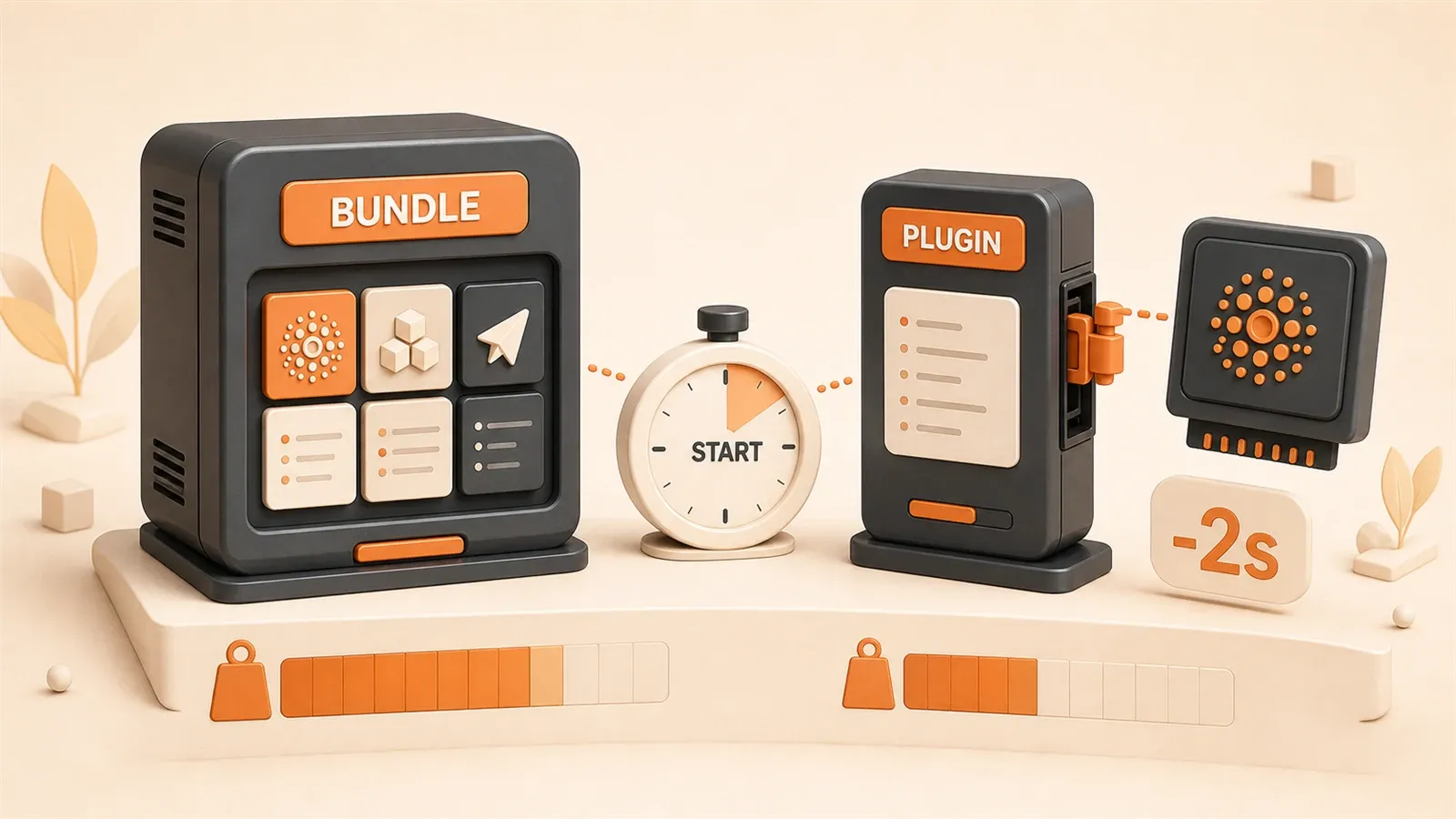
The WeChat Mini Game engine plugin is a feature added in WeChat v7.0.7 that can separate the engine code and cache it independently. After a player has played a game with the plugin enabled, they won’t need to download the engine again when opening your game—startup can be 0.5-2 seconds faster.
The configuration process isn’t complicated, but there are a few pitfalls that are easy to stumble into. In this article, I’ve organized the complete process and solutions to help you save time on trial and error.
What is the Engine Plugin and Why It Speeds Up Startup
Let’s first clarify how the engine plugin works so you can understand why it’s useful.
In normal mode, every mini game needs to download the complete game engine code. For example, if you develop with Cocos Creator, players need to download the entire Cocos engine when opening your game—about 1-2M.
After WeChat v7.0.7, the engine can be cached separately as a plugin. This means:
First player opens your game: Downloads the complete engine + game code, and the engine is cached in the WeChat client.
Second player opens your game: If the same version of the engine is already cached locally, it’s reused directly without downloading the engine again.
Player opens another game using the same engine: If that game also has the engine plugin enabled and uses the same engine version, the engine code is reused directly.
Imagine this: a player just played Game A (using Cocos 2.2.0), and now opens your Game B (also using 2.2.0). The engine is already cached, so it’s reused directly—startup time drops from 4 seconds to 2 seconds, or even faster.
What if the engine versions are different? For example, the player has cached v2.2.0, but your game uses v2.2.1. WeChat will incrementally download only the differences, not the full package. In practice, incremental updates typically reduce download size by more than 50%.
Official data shows startup can be 0.5-2 seconds faster. That might not sound like much, but the churn rate data is concerning: games with an average startup time of 4 seconds face 60% higher churn than games that start in 1 second. Every second counts.
Currently, three engines support the engine plugin: Cocos Creator, Egret, and LayaAir. This article focuses on the Cocos Creator configuration process; the other engines work on the same principle with slight differences in configuration.
How to Enable the Engine Plugin (Complete Configuration Process)
Since Cocos Creator 2.2.1, the engine plugin functionality has been built-in. The configuration process is simpler than you might think—the editor handles most of the work automatically.
Step 1: Check “Separate Engine” in the Build Panel
Open Cocos Creator, select “Project” → “Build Release” from the menu, or click the “Build” button at the top of the editor.
In the Build Release panel, find the WeChat Mini Game platform and check the “Separate Engine” option. In different editor versions, this option may have slightly different names—some call it “Use Engine Plugin,” others “Allow Separate Engine”—but they all do the same thing.
Note two prerequisites:
- You’re using the editor’s built-in engine, not a custom engine. Custom engines don’t support plugin mode.
- It’s not a debug mode build. In debug mode, the engine code is fully packaged and won’t be separated.
Click build, and after it completes, you’ll see three new files in the build directory:
game.json: Game configuration file with an addedpluginsfieldplugin.json: Plugin configuration file specifying the plugin entry pointsignature.json: Plugin file verification signature
These three files are automatically generated by the editor and don’t need manual editing.
Step 2: Open the Project in WeChat Developer Tools
Use WeChat Developer Tools to open the build output directory (usually build/wechatgame).
Here’s a pitfall to watch out for: you must use your own registered appid, not the generic test id provided by the editor.

Why? The engine plugin requires permission verification, and the generic test id cannot pass verification, so the plugin functionality will be disabled.
In WeChat Developer Tools, click “Details” in the top right corner, and enter your appid in “Local Settings.” If you don’t have an appid yet, register a mini game account on the WeChat Public Platform, and you’ll get one after approval.
Step 3: Real Device Testing and Verification
Click “Preview” in WeChat Developer Tools to generate a preview QR code. Scan it with your phone to test.
Open the debug panel (vConsole), and you’ll see log output like this:
plugin ***** inject success!If you see inject success, the engine plugin loaded successfully. If you see inject fail, there’s a problem—I’ll cover troubleshooting and solutions in the next section.
Version Requirements Checklist
Before configuring, make sure these version requirements are met:
| Item | Version Requirement | Notes |
|---|---|---|
| WeChat Client | >= 7.0.7 | Versions below this don’t support engine plugin |
| WeChat Developer Tools | >= 1.02.1911181 | RC version is sufficient |
| Base Library Version | >= 2.9.0 | Set in Developer Tools |
| Cocos Creator | >= 2.2.1 | Older versions don’t support plugin functionality |
If versions don’t meet requirements, the engine plugin functionality won’t activate, but the game will still run normally—just with the engine code fully packaged in the main bundle.
Real-World Performance Data Comparison
Theory alone isn’t intuitive enough—let’s look at actual data.
Same Engine Version: Complete Reuse
Assume a player’s phone already has Cocos Creator v2.2.0 engine cached. Your game also uses this version and has the engine plugin enabled.
When the player opens your game:
- Normal mode: Downloads engine 1.5M + game code 2.5M = total 4M, startup takes about 4 seconds
- Plugin mode: Engine is reused directly, only downloads game code 2.5M, startup takes about 2 seconds
This is the ideal scenario—the engine doesn’t need to be downloaded at all.
Different Engine Versions: Incremental Update
If your game uses v2.2.1, but the player has cached v2.2.0, the situation is slightly different.
WeChat will compare the differences between the two versions and only download the changed parts. Version upgrades typically have small differences, with incremental download size about 10-30% of the full package.
For example:
- Normal mode: Downloads engine 1.5M (complete v2.2.1)
- Plugin mode: Incremental download about 0.15-0.45M, saving over 70%
Real-World Package Optimization Case
A casual parkour project provides representative real-world data:
Before optimization:
- Total package: 6.8M (over limit, cannot upload)
- Texture resources: 3.06M (45%)
- Audio files: 1.7M (25%)
- Font files: 1.02M (15%)
- Engine code: 0.68M (10%)
- Other: 0.34M (5%)
After enabling engine plugin + resource optimization:
- Total package: 3.2M (uploads successfully)
- First screen load time reduced from 5 seconds to 3 seconds, 40% faster
This case shows that the engine plugin is just one part of optimization. To truly break the 4M limit, you also need to combine it with resource compression and code pruning—I’ll cover this in detail later.
Startup Speed Comparison Summary
| Scenario | Normal Mode | Plugin Mode | Effect |
|---|---|---|---|
| First startup with same engine version | Download complete engine | Reuse cached engine | 0.5-2s faster |
| Startup with different engine version | Full download 1.5M | Incremental download 0.15-0.45M | 70% less download |
| Low WeChat version (7.0.6) | Runs normally | Plugin doesn’t activate | Compatibility handling needed |
Data source: Cocos official documentation + CSDN real-world case studies. While every project is different, the overall trend is consistent—engine plugins significantly reduce download size and speed up startup.
5 Common Pitfalls and Solutions
The configuration process seems simple, but in practice, you’ll often encounter problems. I’ve summarized the 5 most common pitfalls, each with a clear solution.
Pitfall 1: Using Generic Test appid Prevents Testing
Problem:
After building, open the project with WeChat Developer Tools and click preview. After scanning the QR code with your phone, the game runs, but the debug panel shows:
plugin ***** inject fail!Or there’s simply no engine plugin related log output at all.
Cause:
The Cocos Creator build panel defaults to a generic test appid (usually something like wx1234567890abcdef). This id is only for local debugging and doesn’t have official mini game permissions. The engine plugin requires permission verification, which the generic test id cannot pass.
Solution:
- Open the WeChat Public Platform and confirm your appid has mini game permissions enabled (not mini program permissions—mini game permissions)
- In WeChat Developer Tools, click “Details” → “Local Settings” in the top right corner
- Enter your own appid
- Click “Clear Cache” → “Clear All”, then recompile and preview
Verification:
After previewing, the debug panel shows plugin ***** inject success!, indicating correct configuration.
Pitfall 2: Prompt “Plugin Not Authorized, Please Add Plugin”
Problem:
During real device preview, the game fails to start with the prompt:
Plugin not authorized for use, please add pluginCause:
The plugin hasn’t been added to your mini game project yet. WeChat requires you to actively add plugin authorization.
Solution:
- Click the “Add Plugin” button in the prompt dialog
- Find the
CocosCreatorplugin in the plugin list and select to add it - Recompile the game
- If prompted “No plugins available to add” when adding, first clear all cache in Developer Tools, then retry
Verification:
After successful addition, the game starts normally and the debug panel shows plugin injection success.
Pitfall 3: Prompt “Code Package Unpacking Failed” or “Login User Is Not Developer”
Problem:

Error during preview or upload:
Code package unpacking failed, please check code packageOr:
Login user is not a developer of this mini programCause:
The appid is configured incorrectly, or the WeChat account you’re using doesn’t have developer permissions for this mini game.
Solution:
- Confirm the appid is entered correctly (not the generic test id)
- Log in to the WeChat Public Platform and check if your WeChat account has developer permissions
- If not, ask the administrator to add you as a developer
- Re-login to WeChat Developer Tools (using the account with permissions)
Verification:
Real device preview runs normally, indicating correct permission configuration.
Pitfall 4: Low WeChat Version Cannot Run Normally
Problem:
You configured the engine plugin and real device testing works fine. But after going live, some users report the game can’t start or starts very slowly.
Cause:
WeChat versions below 7.0.7 don’t support engine plugin functionality. When these users open your game, the engine plugin doesn’t activate, and the engine code still needs to be fully downloaded. If your main package is already close to the 4M limit, adding the complete engine may exceed it, causing failure to start.
Solution:
Two approaches:
Option A: Keep Complete Engine Code (Compatible with Low Versions)
In the build panel, don’t check “Separate Engine.” This way the engine code is fully packaged in the main package, and all WeChat versions can run. The trade-off is a larger main package, requiring resource optimization.
Option B: Guide Users to Upgrade WeChat
Detect WeChat version at game startup, and prompt users below 7.0.7: “Please upgrade WeChat to the latest version for the best experience.” After users upgrade, the engine plugin activates.
Most developers choose Option A—compatibility is more important.
Verification:
Find a phone with WeChat 7.0.6 or lower and test on a real device. If the game starts normally, the compatibility handling is correct.
Pitfall 5: Custom Engine Cannot Use Engine Plugin
Problem:
You’re using a custom engine in Cocos Creator (you’ve modified the engine source code), but after checking “Separate Engine,” the build fails, or the build succeeds but the plugin doesn’t work.
Cause:
The engine plugin only supports Cocos Creator’s built-in official engine versions. Custom engines cannot access WeChat’s public engine plugin library.
Solution:
Two approaches:
Option A: Switch to Built-in Engine
If your custom modifications are minimal, try moving the modified parts into your game code and abandon the custom engine, using the built-in engine + engine plugin instead.
Option B: Give Up Engine Plugin Functionality
If your custom engine has significant changes that must be kept, abandon the engine plugin. The engine code will be fully packaged in the main package, combined with resource optimization to control package size.
Verification:
Check if “Use Custom Engine” is checked in the build panel. If it is, the engine plugin functionality won’t activate.
Engine Plugin and Package Optimization Strategy
After reading the previous sections, you might think: after enabling the engine plugin, won’t the package size directly decrease by 1-2M?

There’s a detail to clarify: engine code, though separated, still counts toward the main package size.
WeChat’s rule is this: the main package is limited to 4M, and the total package is limited to 30M. In engine plugin mode, the engine code doesn’t count toward “actual download size,” but it does count toward “declared main package size.” That means if your main package plus engine code exceeds 4M, it may still be rejected.
So, the engine plugin is just the first step in the optimization chain. To truly break the 4M limit, you need to combine it with other optimization methods.
Package Composition Analysis
Let’s look at a typical mini game’s package composition:
| Type | Percentage | Notes |
|---|---|---|
| Texture resources | 45% | PNG images, atlases |
| Audio files | 25% | WAV, MP3, OGG |
| Font files | 15% | TTF fonts |
| Engine code | 10% | Cocos Creator engine |
| Other | 5% | Configuration files, JSON |
Texture resources have the highest percentage and are the focus of optimization. Although engine code only accounts for 10%, after plugin separation, this part can benefit other games.
Complete Optimization Pipeline
To compress from 6M+ down to under 3M, you need to systematically do these four things:
Step 1: Engine Separation (Already Covered)
Enable the engine plugin so engine code no longer needs to be fully downloaded each time. This is the simplest step—just check a configuration box.
Step 2: Texture Optimization
Texture resources account for 45% of the package, so optimization effects are most obvious here.
- Use TinyPNG to compress PNG images (online tool or command line tool)
- When generating atlases with TexturePacker, choose RGBA4444 format (50% size reduction)
- Check “Allow Rotation” for 15% better atlas utilization
A 2M texture package might shrink to just 1M after optimization.
Step 3: Audio Downsampling
Audio files account for 25% of the package. Many people use WAV format—large size, but unnecessary.
- Background music: Convert WAV to OGG Vorbis Q5 (good enough quality, 70% size reduction)
- Sound effects: Use MP3 at 96kbps (65% size reduction)
A 1.7M audio resource set might shrink to just 0.5M after optimization.
Step 4: Code Pruning
Many of Cocos Creator’s engine modules might not be needed at all.
- 2D games can prune 3D modules
- Single-player games can prune network modules
- Simple match-3 games can prune the physics engine
- Keep statistics modules during debugging, prune at release
In the build panel’s “Engine Module Pruning” section, check the modules you need to keep—unchecked modules will be pruned.
Collaborative Optimization Real-World Results
Returning to the casual parkour project case mentioned earlier:
| Optimization Item | Before | After | Reduction |
|---|---|---|---|
| Texture resources | 3.06M | 1.02M | 2.04M |
| Audio files | 1.7M | 0.5M | 1.2M |
| Engine code | 0.68M | Plugin separated | Cache reused |
| Font files | 1.02M | 0.34M (subsetting) | 0.68M |
| Total package | 6.8M | 3.2M | 53% reduction |
First screen load time reduced from 5 seconds to 3 seconds, 40% faster.
The beauty of this approach is that each optimization works independently—you don’t have to do everything at once. You can start with the engine plugin (simplest), see the results, then do texture optimization (most obvious impact), and proceed step by step.
Of course, every project is different. Some games have higher texture percentages, others have more audio. I recommend analyzing your package composition with the build panel first, then optimizing accordingly.
Conclusion
The engine plugin is the first step in WeChat Mini Game startup optimization, and also the simplest—just check a configuration box, no code changes needed.
But the engine plugin alone isn’t enough. If your main package is already close to 4M, adding the complete engine may exceed the limit, and users with older WeChat versions might not be able to open the game at all.
The truly effective approach is:
- First enable the engine plugin to improve experience for users with newer WeChat versions
- Analyze package composition to see whether textures, audio, or fonts have the highest percentage
- Optimize accordingly: RGBA4444 for textures, OGG/MP3 for audio, font subsetting
- Real device test on WeChat 7.0.6 and lower versions to ensure compatibility
- Quantitatively compare data before and after optimization—don’t judge results by feel
Following this process, compressing 6.8M to 3.2M and achieving 40% faster startup is achievable. Players won’t have to wait for several seconds, and churn rates will naturally decrease.
I’ve stumbled through these pitfalls and spent considerable time figuring things out. I’ve organized the complete process here hoping to save you some time. If you have questions, feel free to leave a comment, and I’ll do my best to help.
Enable WeChat Mini Game Engine Plugin
Complete workflow from build configuration to real device testing
⏱️ Estimated time: 10 min
- 1
Step 1: Check 'Separate Engine' in build panel
Open Cocos Creator, select 'Project' → 'Build Release' from the menu. Find the 'Separate Engine' option in the WeChat Mini Game platform and check it. Note: You must use the built-in engine, not debug mode build. - 2
Step 2: Configure appid in WeChat Developer Tools
Open the build directory (build/wechatgame) with WeChat Developer Tools. Click 'Details' → 'Local Settings' in the top right corner, and enter your appid with Mini Game permissions (cannot use the generic test id). - 3
Step 3: Real device preview verification
Click 'Preview' to generate a QR code and scan it with your phone for testing. Open the debug panel (vConsole) and check if the log shows `plugin ***** inject success!`. If it shows `inject fail`, check appid permissions and plugin authorization. - 4
Step 4: Add plugin authorization
If prompted with 'Plugin not authorized for use', click the 'Add Plugin' button, find the CocosCreator plugin in the list and add it. If the list is empty, clear the cache and try again. - 5
Step 5: Low version compatibility testing
Test on a phone with WeChat 7.0.6 or lower to ensure the game starts normally. Lower versions don't support engine plugins, so engine code will be fully packaged into the main bundle.
FAQ
Which game engines support the engine plugin?
Does separated engine code still count toward the main package size?
Can I use the plugin with a custom engine?
Will users with older WeChat versions be affected?
How much can the engine plugin reduce package size?
Do I need other optimizations after enabling the engine plugin?
14 min read · Published on: May 22, 2026 · Modified on: Jul 14, 2026

AI-Assisted Cocos Mini Game Development
If you landed here from search, the fastest way to build context is to jump to the previous or next post in this same series.
Previous
Cocos Creator WeChat Mini Game Build & Debug Guide: From Build Panel to Developer Tools
A complete guide from Cocos Creator Build Panel configuration to WeChat Developer Tools debugging, solving common build pitfalls, and explaining 2026 incentive policies to maximize developer revenue.
Part 14 of 21
Next
Developing Cocos Mini-Games with AI Assistance: My Complete Workflow and Efficiency Comparison
Sharing my complete AI-assisted Cocos mini-game development workflow, including tool selection matrix, five-stage practical experience, and efficiency comparison data—from planning to launch in 3 days, achieving 10x efficiency improvement.
Part 16 of 21


Comments
Sign in with GitHub to leave a comment